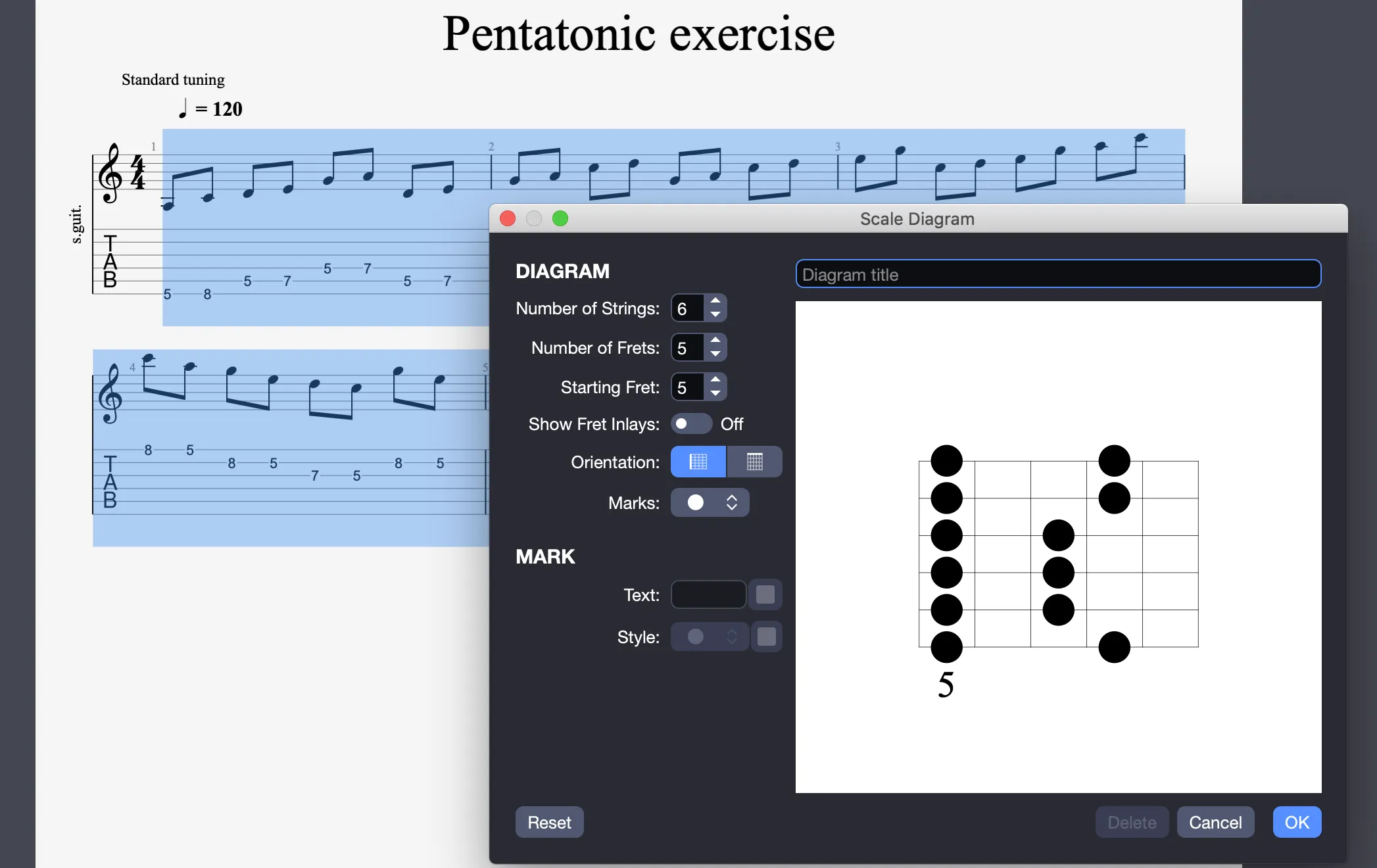
Scale Diagrams in Guitar Pro 8
Scale diagrams are a helpful tool for visualizing and learning scales, useful for improvisation, composition, or teaching.
You can access them via the Note > Scale Diagram menu, the Shift + S shortcut, or by clicking the scale icon in the editing palette  .
.
They allow you to create custom diagrams from an empty beat or a selected group of notes.
Creating from an Empty Beat
When you open the scale diagram window from an empty beat, it appears blank, ready for configuration.
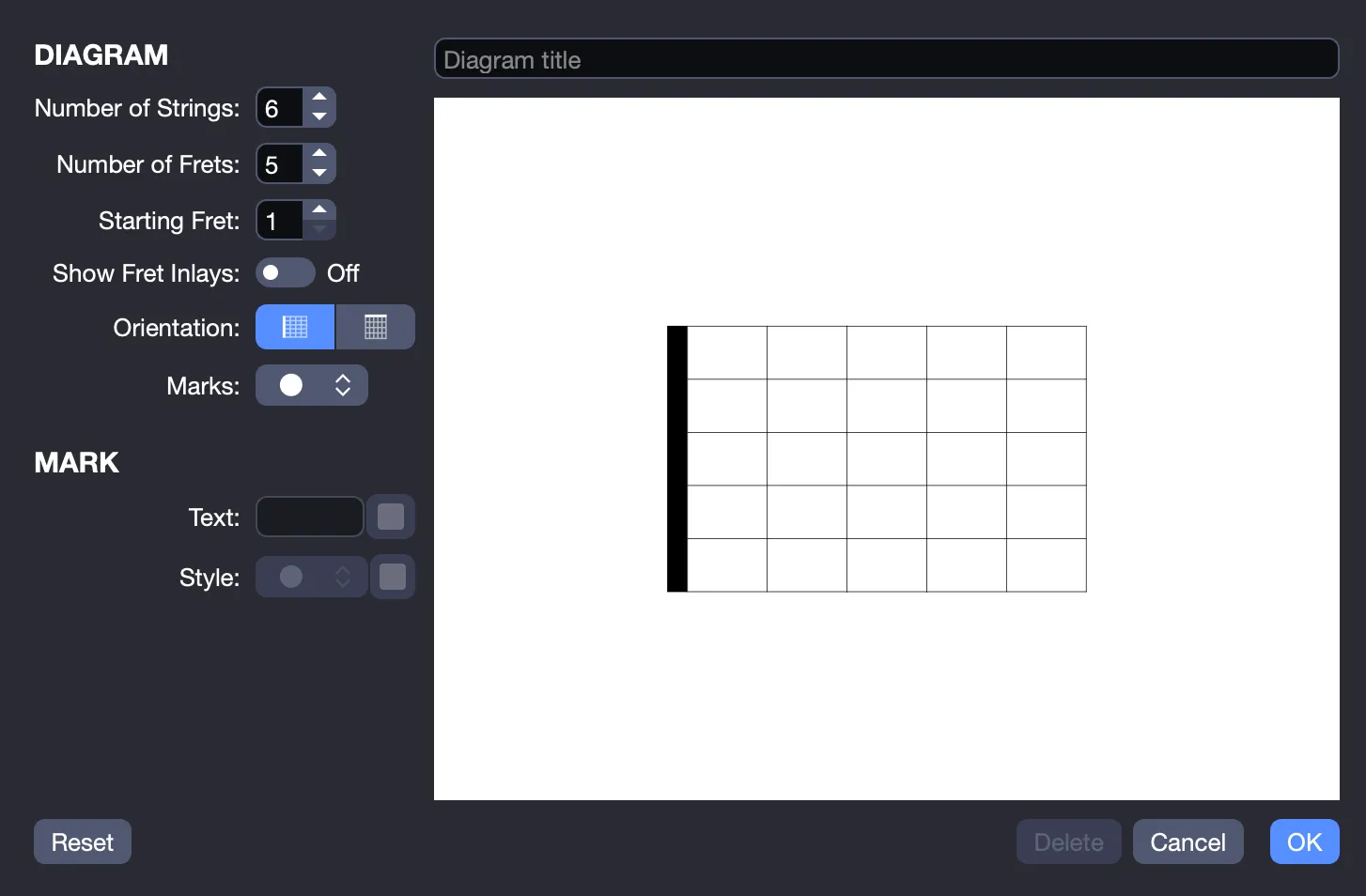
This window offers the following options:
- Name: Assign a name to your diagram.
- Number of strings: Choose from 3 to 10 strings.
- Number of frets: Select from 4 to 24 frets.
- Starting fret: Set the initial fret, defaulting to fret 1, corresponding to the top of the neck.
- Fret markers: Show or hide fret markers.
- Orientation: Opt for a horizontal or vertical diagram.
- Active symbol shape: Select the default symbol applied to notes during editing.
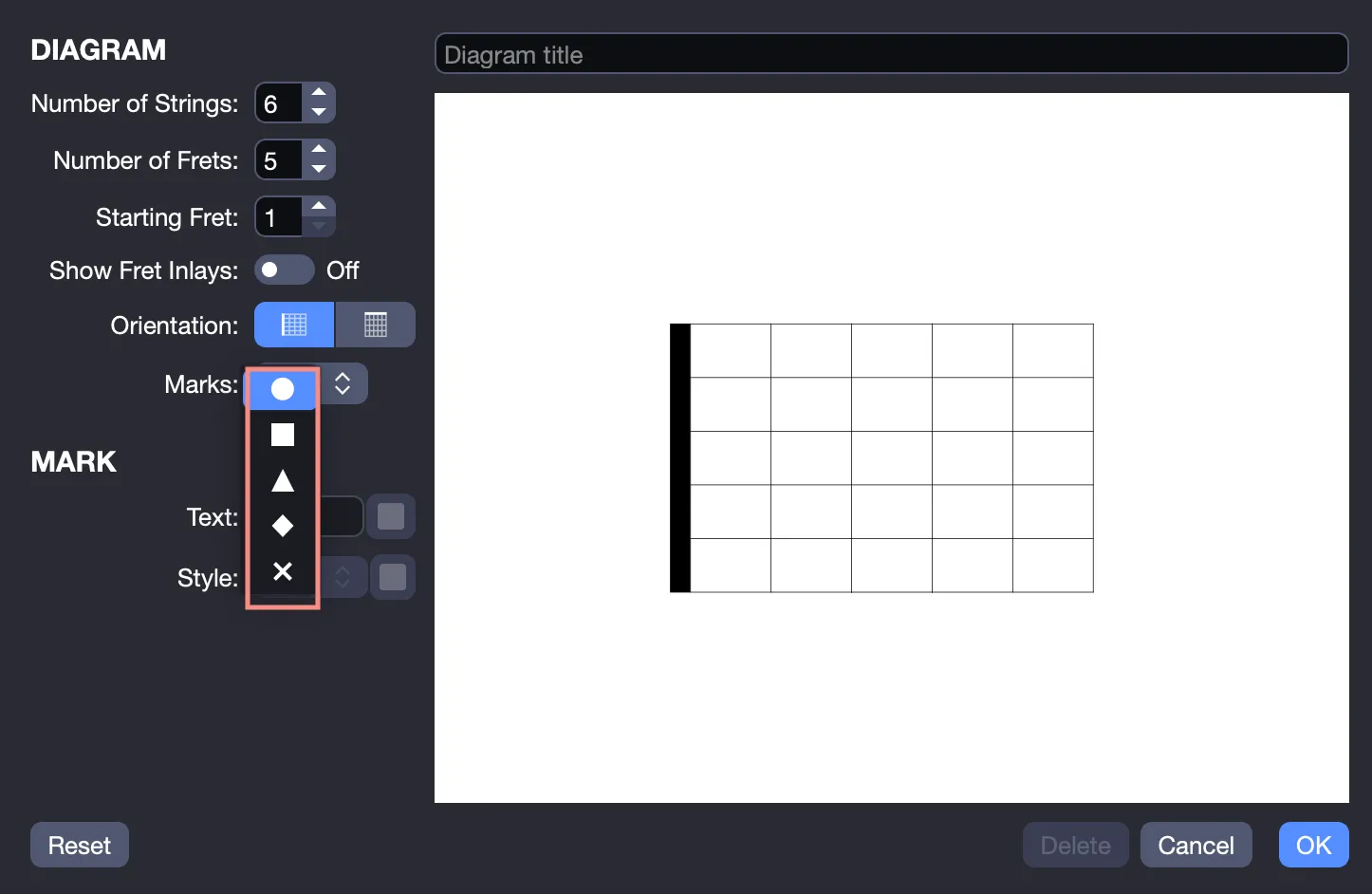
The chosen symbol shape determines the appearance of notes added during editing. However, each note can be customized independently with a different symbol, text, for example, note name or fingering, up to 3 characters, or specific colors for the text or symbol.
Adding, Removing, and Customizing Notes
To add a note, click a fret with your mouse; the active symbol is applied automatically.
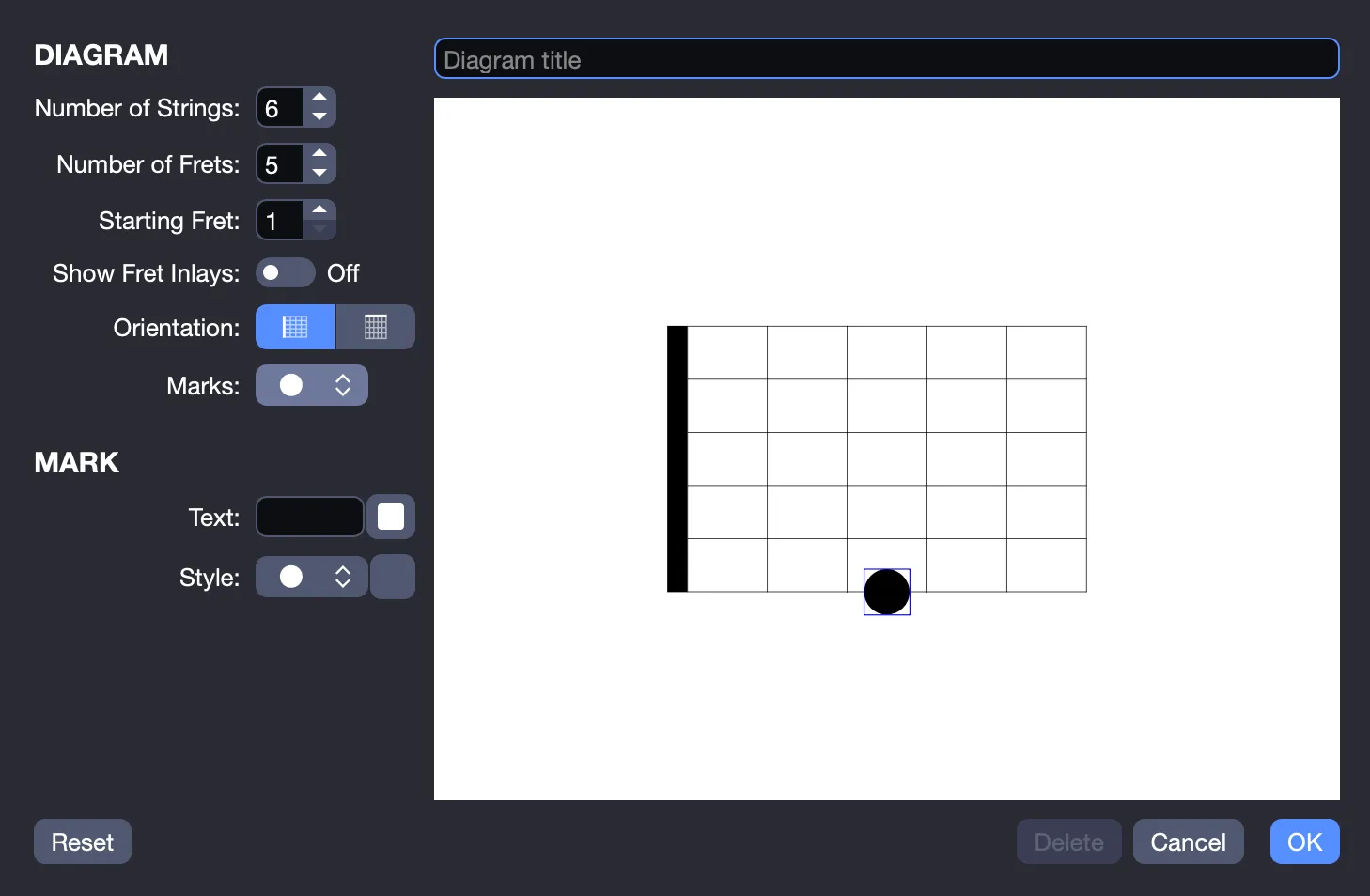
To remove a note, double-click the element, and it will be cleared from the diagram. The active note is highlighted with a square border.
Each element is customizable:
- Symbol: Change the shape of the selected element.
- Color: Adjust the element’s color.
- Text: Add up to 3 characters, for example, note name or fingering.
- Text color: Modify the text color.
To customize, select a note, indicated by a square border, and adjust its properties as shown below:
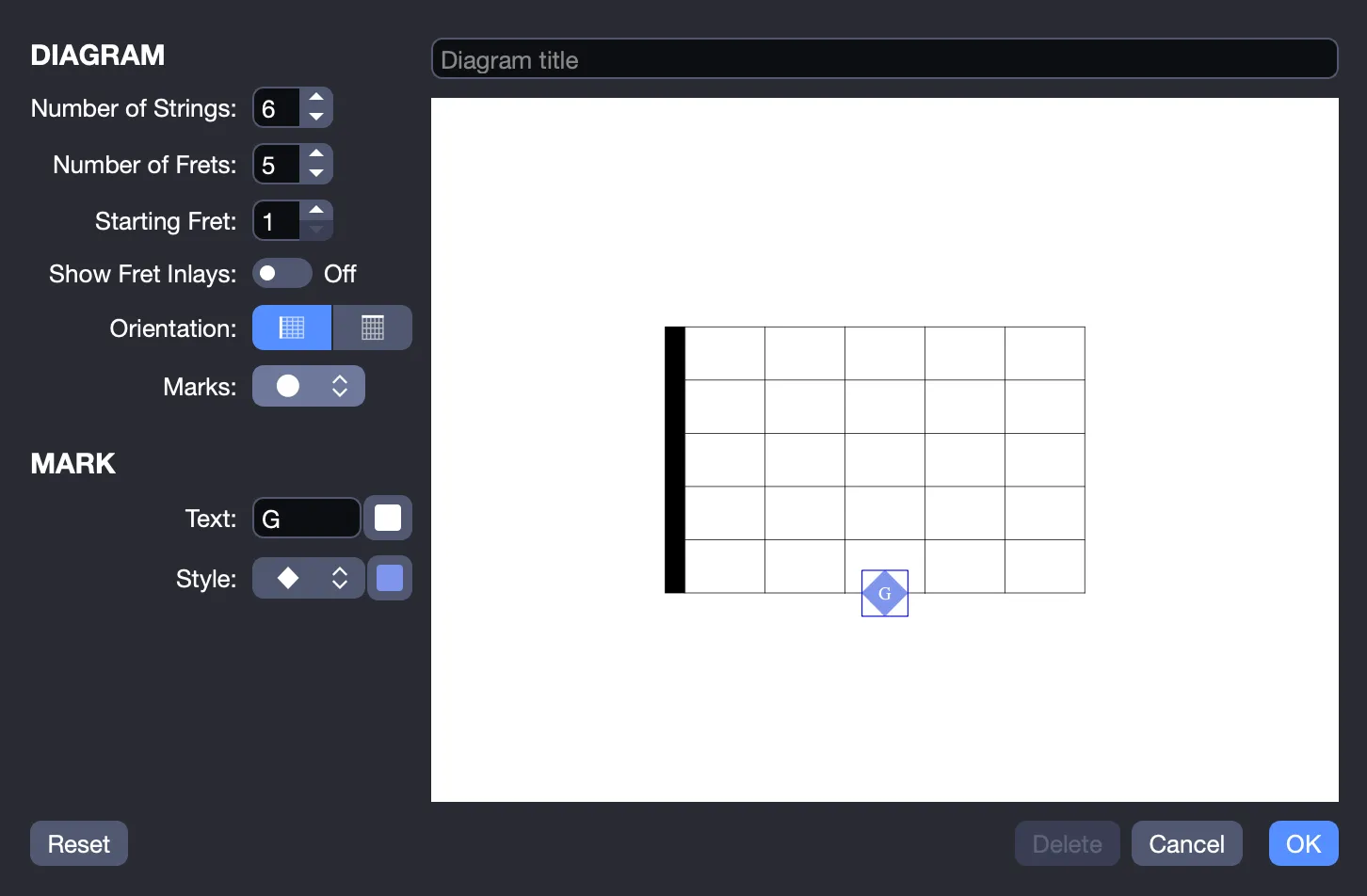
This customization, for example, allows you to highlight the tonic or identify specific scale degrees.
You can create a diagram for any scale, such as the G Major scale shown below, limited only by the displayed fretboard.
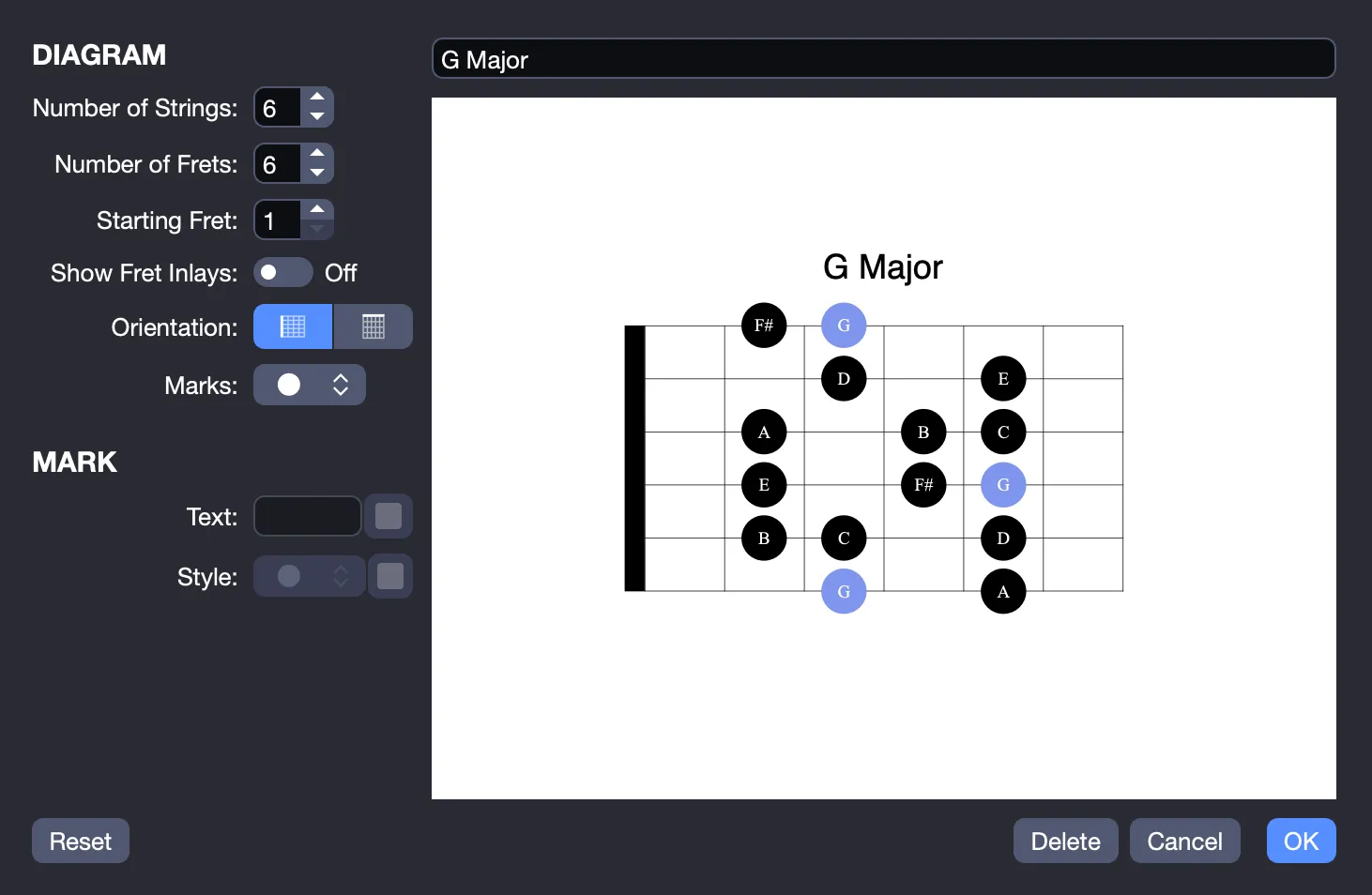
Once completed, click OK to add the diagram to your track. It will appear above the staff at the selected beat.
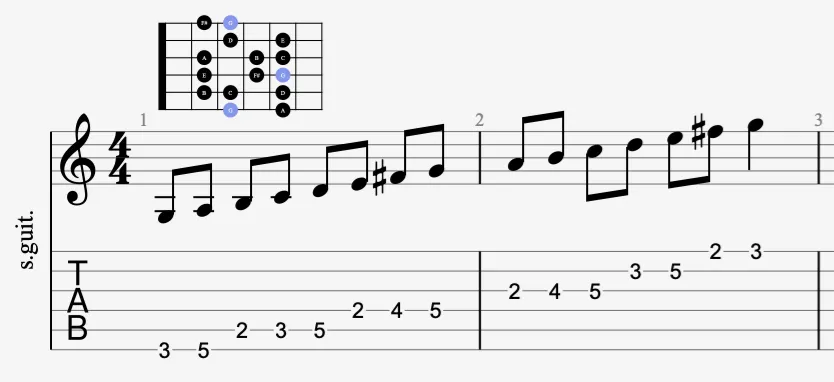
To delete a diagram, click it in the score and select the Delete option in the scale diagram window. The Reset option, also available, clears all elements to return to a blank diagram.
Creating from a Note Selection
If you select notes in your score before opening the scale diagram window, they automatically appear in the diagram.
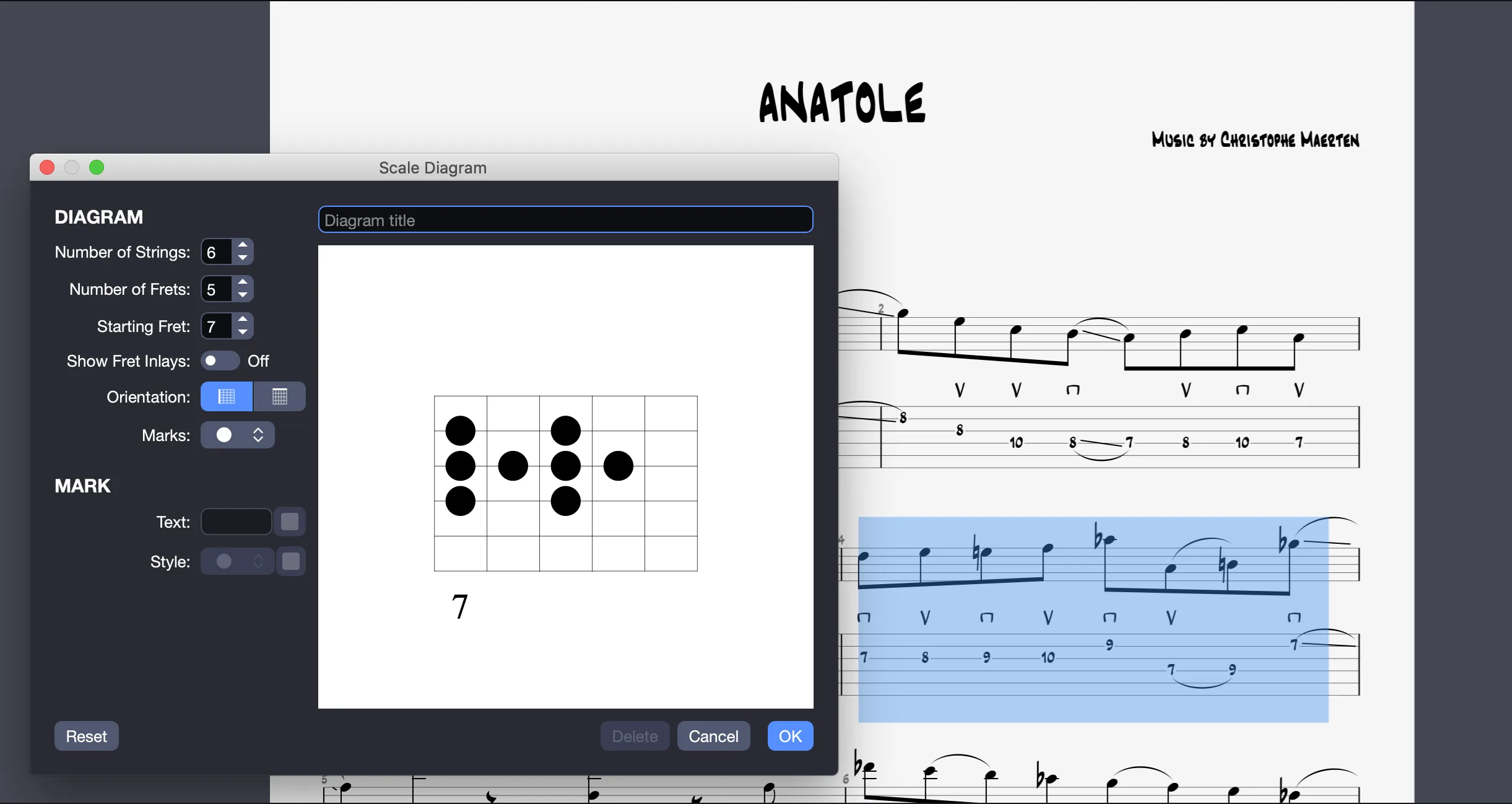
The editing principles remain the same, but this method is particularly convenient if your scale is already partially or fully notated in the score. You can then customize the diagram to suit your preferences.