
Tuning Settings in Guitar Pro 8
In Guitar Pro, even non-fretted instruments are assigned a pitch setup, as you may need to display tablature for such instruments.
Each track has a tuning that defines the pitch of each string.
To modify a track’s tuning, you can click directly on the tuning indication at the top of the score or select the tuning in the Track Inspector.

The tuning window opens as shown below.
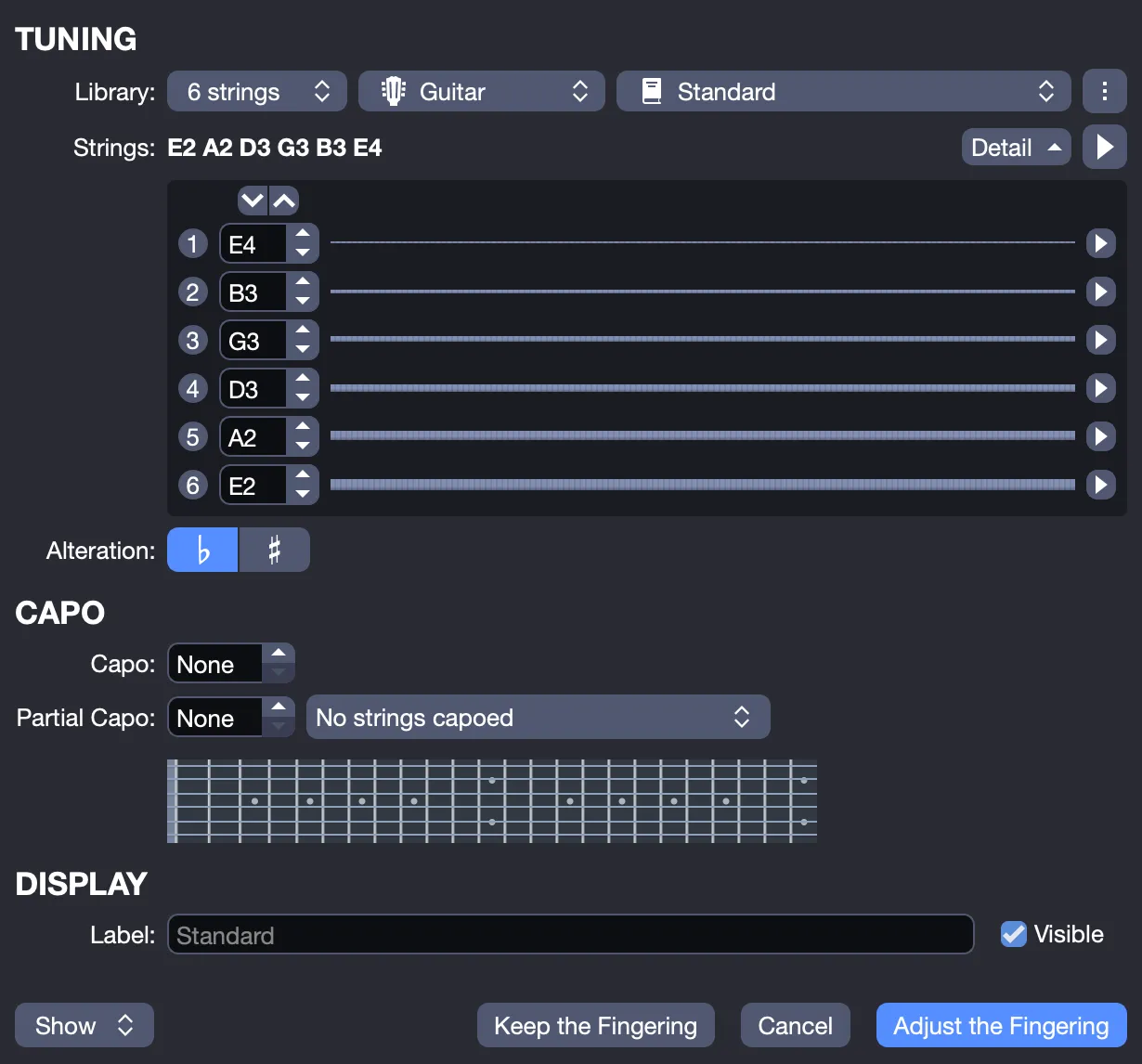
From this window, you can:
- Modify the number of strings assigned to your instrument.
- Name and choose your tuning from a wide library of tunings, available for most stringed instruments: guitar, bass, banjo, shamisen, cello, double bass, mandolin, ukulele, viola, violin. You can assign between 3 and 10 strings to your instrument.
- Create a custom tuning, adjusting each string individually using the up and down arrows provided for each track, and applying the desired alteration.
- Select the play button to hear your tuning or listen to the sound of each string.
By default, if the tuning is non-standard, it will be displayed at the top of your score. However, customization options are available in the Page & Score Format tab of the Stylesheet.
The Banjo Drone is only available for a 5-string banjo.
User Library
You can save the current tuning in the user library.
Click the options button at the top right of the window (symbolized by three small dots) and select Save Tuning.
Once a tuning is stored in your user library, you can modify or delete it from this same Options menu.
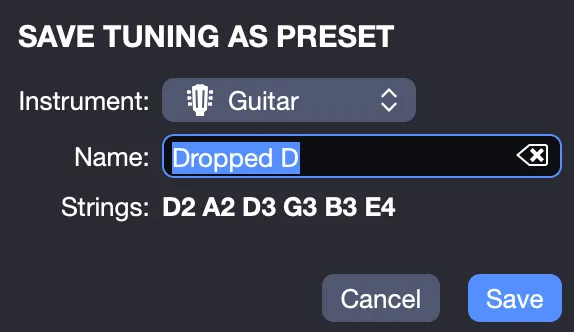
Capo, partial capo, and labels will not be saved with the tuning.
Capo
Adjust the capo and partial capo for your track. Both can be used simultaneously.
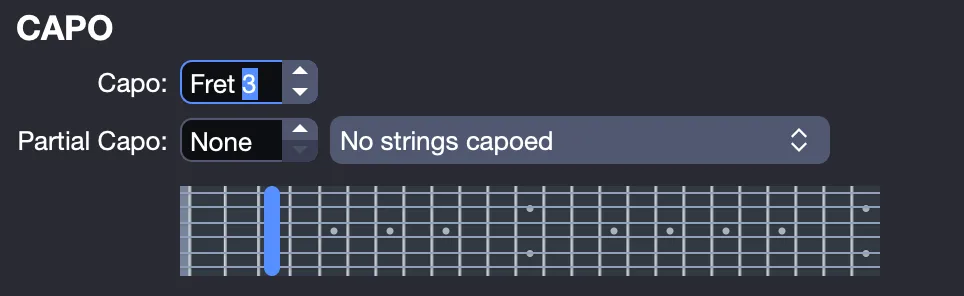
The capo is applied across an entire fret, as shown in the neck visual. Fret 3 in the example below.
The partial capo, on the other hand, can be applied to one or more strings on the same fret.
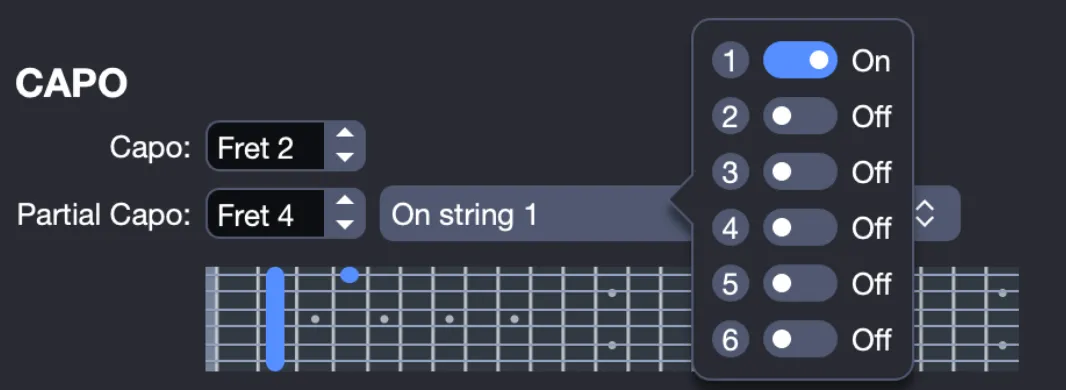
Note that placing the partial capo before the capo, e.g., one fret before the capo, renders the partial capo ineffective.
Fret numbers for the capo and partial capo are absolute. The partial capo’s fret is independent of the main capo’s position. The neck representation will help you navigate.
Labels
Regardless of whether you choose a library tuning or create your own, you can assign a custom name to display in your score.
The label field allows you to change the displayed name without altering the tuning’s name in the library.
Keep or Adjust Fingering
Once you’ve selected a new tuning and/or capo, you have two ways to confirm these settings:
- Keep fingering: No transposition will be applied, and the fingering in your tablature remains unchanged.
- Adjust fingering: The fingering in your tablature will be adjusted to maintain the same note pitches during playback, but with the new tuning and capo.
Tuning Display Options
The tuning display can be customized from the StyleSheet, in the Page & Format tab.
These options allow you to adapt the tuning presentation to your editing or reading needs.
You can notably:
- Show or hide the tuning in the score.
- Define its display position:
- before the tablature,
- or at the top of the score.
- Choose the display mode:
- display only the tuning name,
- display the name and string notes,
- or display only unusual tunings (different from standard tuning).
- Organize the string display:
- in two columns,
- or horizontally on a single line.
- Add or remove a frame around the tuning to improve readability in the layout.
These settings do not affect the sound or the behavior of the tuning: they only modify its visual appearance in the score.