
Audio and MIDI Preferences in Guitar Pro 8
Customize Guitar Pro’s audio and MIDI settings through the Audio preferences tab to optimize playback and interaction with your scores. Changes apply instantly, allowing seamless adjustments to your setup.
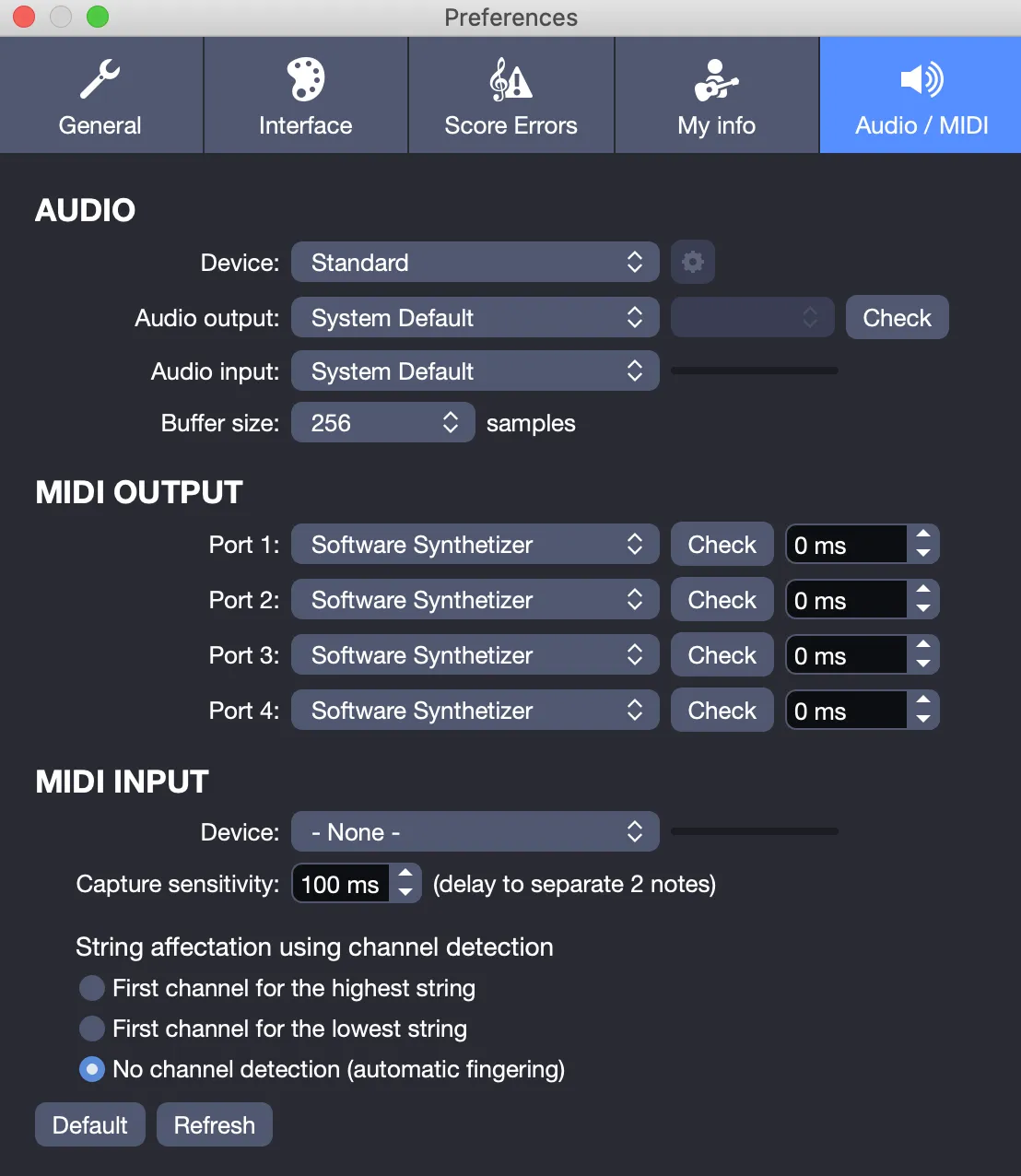
Audio
Device
Select the audio device from your connected options. On Windows, we strongly recommend an ASIO device (Audio Stream Input/Output, developed by Steinberg) for low-latency, multi-channel audio, enhancing the Line-In feature and overall performance. On macOS, CoreAudio drivers, built into the system, manage audio efficiently.
Audio Output
Choose the output destination for Guitar Pro’s sound, such as speakers or headphones, based on connected equipment. If your device offers multiple outputs, like headphone and line-out, select the preferred one from the second dropdown. Click Check to play a test sound, confirming your setup works correctly.
Audio Input
Define the input source for Line-In, such as a microphone or guitar, depending on connected devices. A VU-meter on the right displays signal strength when sound is detected. If it remains inactive, verify your connections or device settings.
Buffer Size
Latency, the delay between playing a note and hearing it, impacts real-time play or recording. Delays below 10 ms are typically imperceptible, but above this threshold, timing issues may arise.
The sound card converts analog signals to digital at 44,100 samples per second (44.1 kHz). To manage CPU load, Guitar Pro uses a buffer to group samples, typically 512 at a time, before processing.
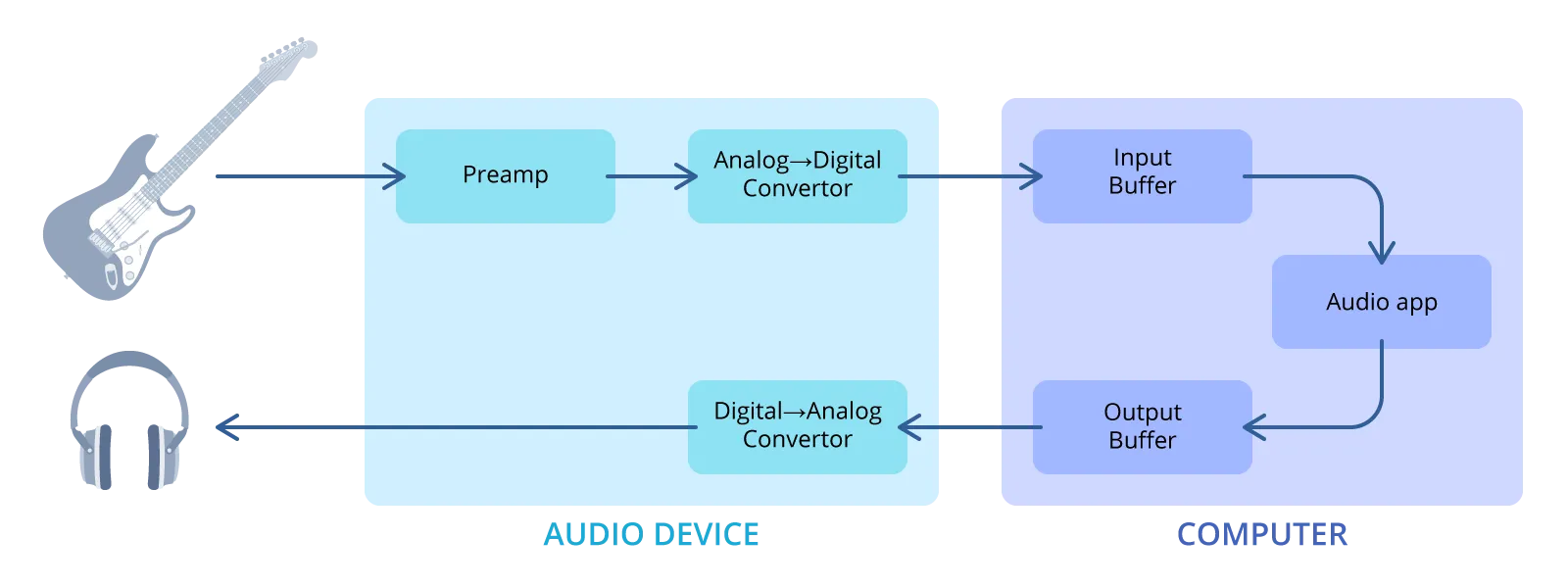
A smaller buffer reduces latency but may cause audio artifacts, like clicks, on less powerful systems. A larger buffer ensures stability but increases delay. Choose a size, such as 256 for responsive setups or 1024 for smoother playback on slower devices, to balance performance and reliability.
Guitar Pro requires microphone access for the Tuner and Line-In features but does not record audio. Windows users: ensure microphone access is enabled in Microphone Privacy Settings.
MIDI Output
Guitar Pro supports up to four simultaneous MIDI ports, each assignable to a different device. Set your primary MIDI device as Port 1, used by default for new tracks. Click Test to play a sample sound, verifying the device’s functionality. If no sound plays, check its settings or connections.
The Latency setting aligns MIDI and RSE playback when used together. If MIDI output lags, increase its latency; if RSE lags, adjust its delay instead. The metronome, tied to MIDI output, benefits from this setting to maintain accurate timing.
MIDI Input
MIDI Device
Capture notes live using a MIDI instrument, such as a keyboard or guitar. Ensure the device is connected, active, and selected in this section.
Capture Sensitivity
This setting defines the maximum delay, in milliseconds, between notes in a chord before they are split into separate beats. Adjust higher for relaxed strumming or lower for precise, tight playing.
String Assignment Using Channel Detection
For MIDI keyboards, which lack string or fret information, Guitar Pro automatically assigns frets and strings based on the score, optimizing fingering. For MIDI guitars that send each string to a separate channel, select an option like First channel for highest string or First channel for lowest string to align with your device’s configuration.