
Sound Change Automation in Guitar Pro 8
Inserting a sound change in Guitar Pro allows you to easily add a new sound at any point in your score.
This feature, accessible via the track inspector and the Edit menu, makes it easy to customize sounds in your musical project.
Adding a Sound to Your Track
To start, add a new sound to your track by clicking the + icon in the Track Inspector:
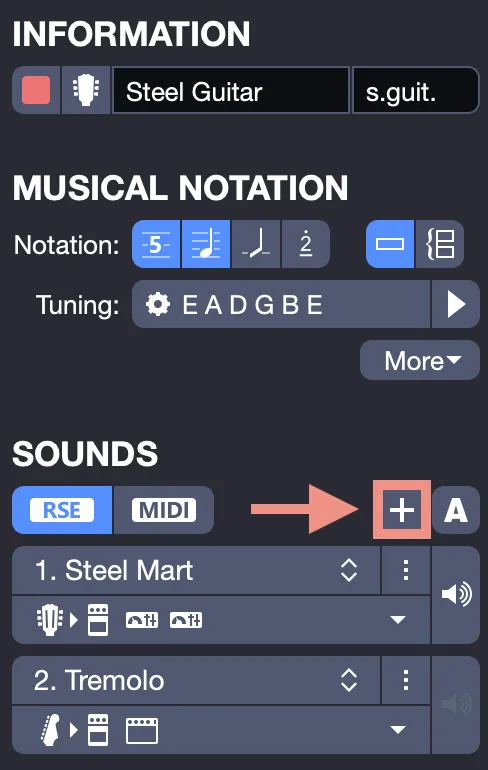
Then select a sound from the list provided by Guitar Pro, or copy an existing sound according to your needs.
For example, you can choose an acoustic guitar sound for the introduction section, or select a different preset to modify your track’s tone. Guitar Pro offers a wide range of sounds suitable for various instruments and setups.
Inserting a Sound Change in Your Track
To change the sound at a specific point, open the Sound Automations window via Edit > Sounds > Sound Automations, or use the A button in the Track Inspector for quick access:
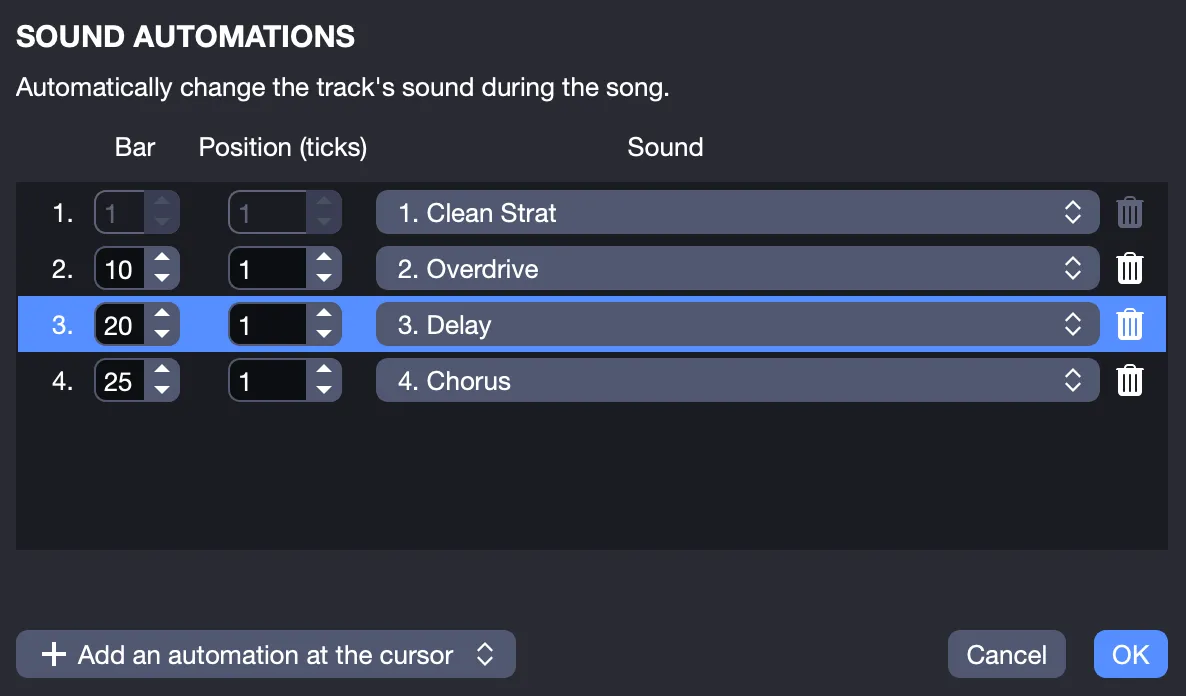
In this window, select Add Automation at Cursor Position, then choose the sound to apply at that point.
If you prefer to adjust an existing sound, place the cursor where you want the change, then go to Edit > Sounds > Sound Name, where “Sound Name” corresponds to a sound already created in the Track Inspector’s Sounds section.
For example, switch from a clean sound to a distorted one at the start of a chorus.
This method avoids redundant steps in sound management, allowing you to structure sound transitions efficiently.