
Volume, Pan and Tempo Automations in Guitar Pro 8
Enhance your score with automations, dynamic adjustments to tempo, volume, or pan that can be applied anywhere in your track. These changes add movement to your music, allowing you to control its progression with accuracy. Open the automations editor through Edit > Automations > Edit Automations, the F10 shortcut, or the icons in the Editing Palette:

Choose whether to show these adjustments on your score, keep them discreet, or display them clearly for reference. For tempo changes, click an automation on the score to modify it directly during review.
For sound automations refer to the Inserting a Sound Change in Guitar Pro.
Automation Types
The editor manages three primary automation types, each providing specific control over your track’s audio dynamics:
Tempo Automations
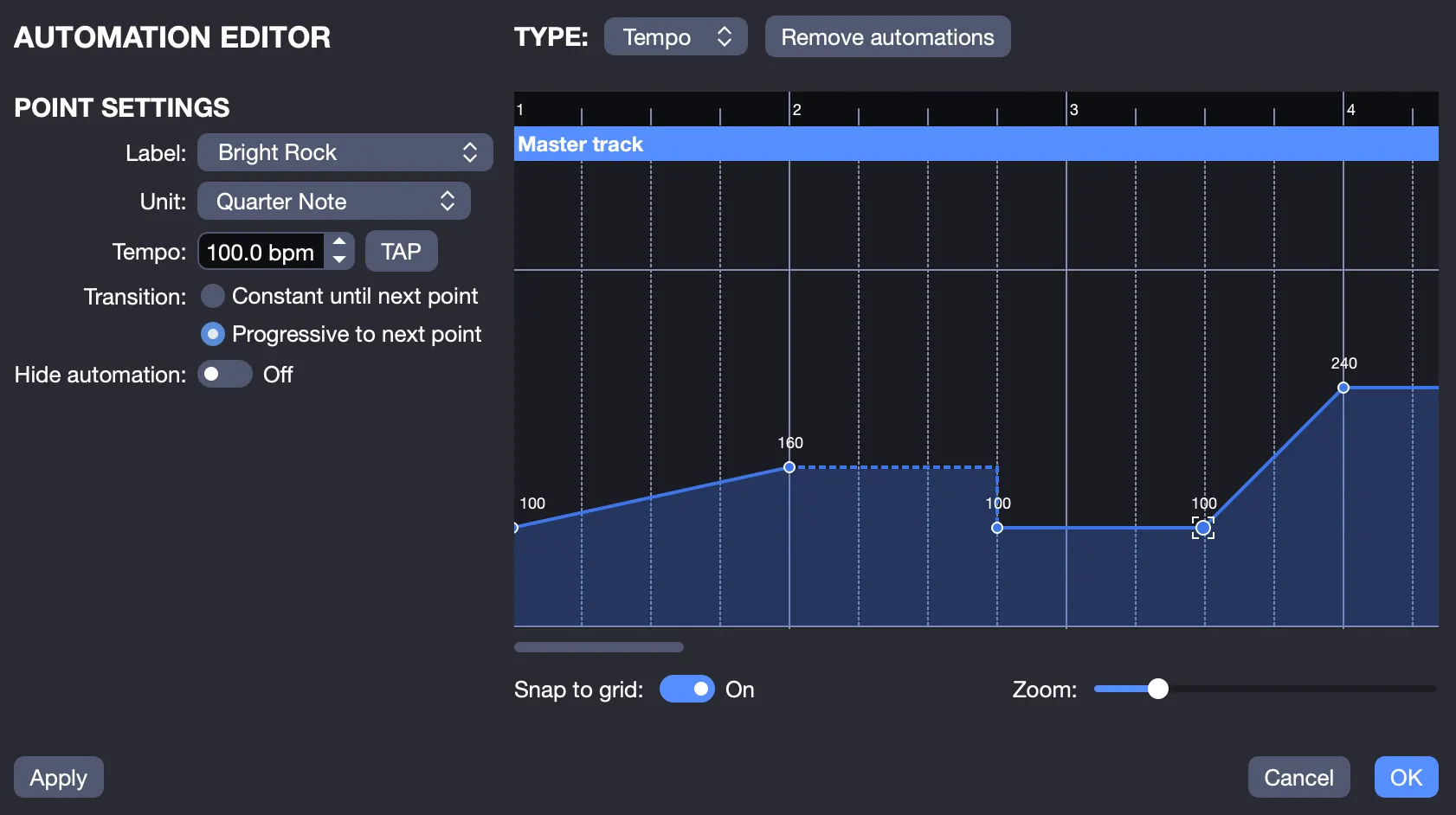
Adjust the rhythm of your score with tempo automations, increase the pace for an exciting peak, or reduce it for a calm moment. Each point can include a label, for example, “120 bpm”, visible on the score, aiding performers visually. These adjustments affect all tracks, maintaining a consistent tempo flow, acting as the driving force of your composition, adjustable from a relaxed 60 bpm ballad to an intense 180 bpm passage.
Volume Automations
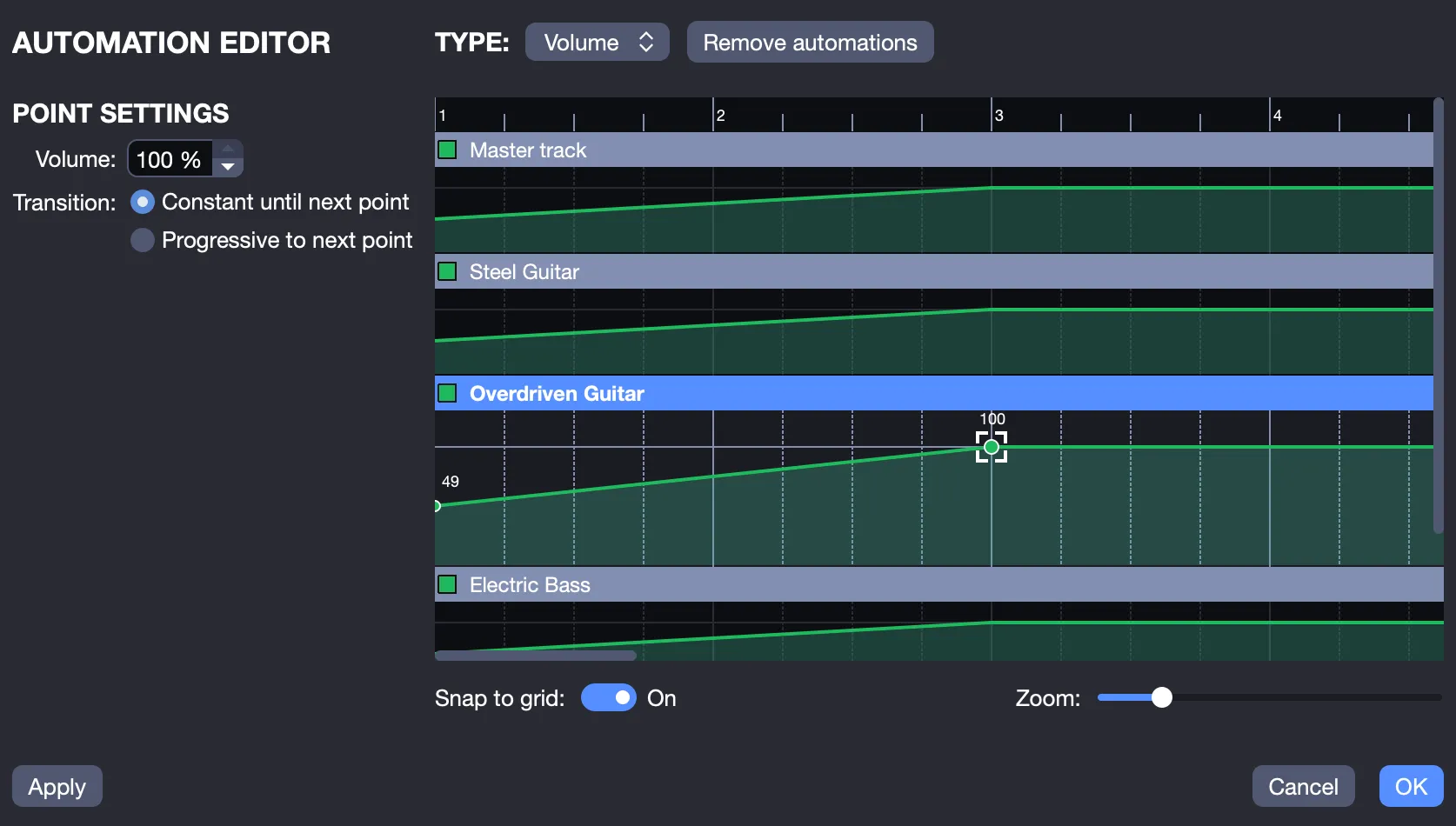
Manage dynamics with volume automations, apply them to individual tracks for tailored effects, or to the master track for overall impact. Create a gradual increase on a lead guitar or a fade-out across all instruments effortlessly.
When enabled, a track’s volume automation, is indicated by an A in the Global View next to the slider: 
Activate or deactivate it by clicking the A in the Global View, offering immediate control.
Pan Automations
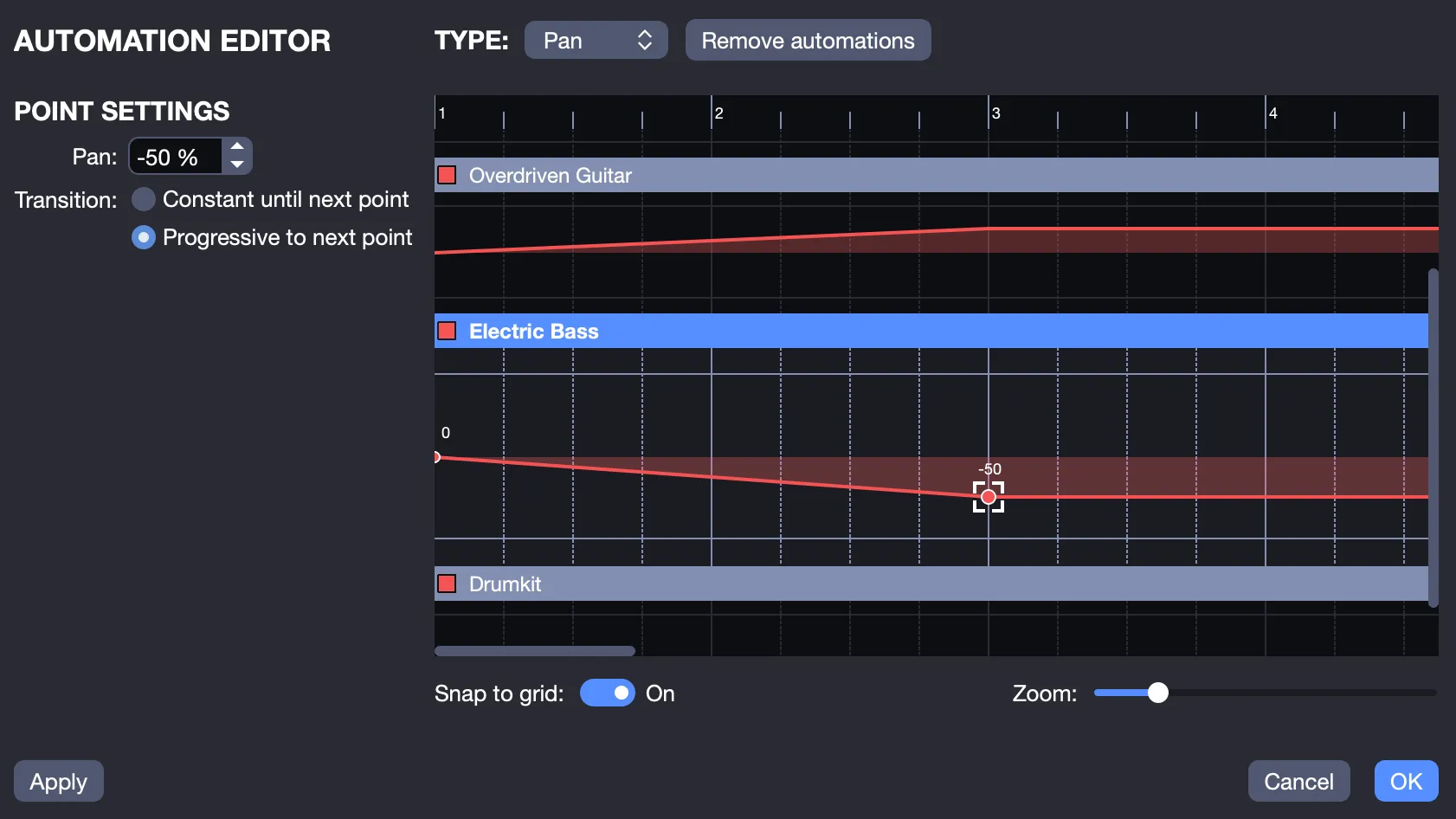
Direct your sound across the stereo field with pan automations, shift it slightly left for a gentle effect, or fully right for a striking change. Use it on a single track, for example, panning a rhythm guitar, or the master track for a broader movement. An active pan automation is marked in the Global View beside the knob: 
From a balanced acoustic strum to a lead sweeping left to right, pan automations create a captivating sound environment.
How to Use
Launch the editor, and a key point aligns with your cursor’s position, unless one already exists, ready to set your adjustment. Click anywhere in the graph to add additional points, each snapping to beats or bars for rhythmic accuracy:
- Move Points: Drag left or right to adjust timing, for example, a tempo increase at bar 8, or up/down to change the value, for example, volume from 50 to 80.
- Delete Points: Select a point and press Delete, it is removed instantly.
Define the transition between points using the left panel:
- Constant Until Next Point: Maintains a steady value, for example, 100 bpm switches to 120 bpm at the next point, creating a distinct change.
- Progressive to the Next Point: Gradual transition, for example, volume rises from 40 to 80 over four beats, resembling a natural build.
For a tempo acceleration, apply a gradual increase from 90 to 130 bpm across a verse, building energy smoothly. Or shift the master pan from left to right during a chorus, adding spatial motion to your mix. Reset everything with the Remove Automations button, start anew as needed.