
MIDI Capture (beat per beat) in Guitar Pro 8
Guitar Pro 8 allows you to enter your score note by note by connecting a MIDI instrument such as a keyboard, MIDI guitar, or controller, enabling precise and intuitive composition.
This tool is available via the Sound > MIDI Capture (beat by beat) menu.
Configuring MIDI Capture
To set up MIDI capture, go to File > Preferences > Audio/MIDI on Windows or Guitar Pro 8 > Preferences > Audio/MIDI on macOS.
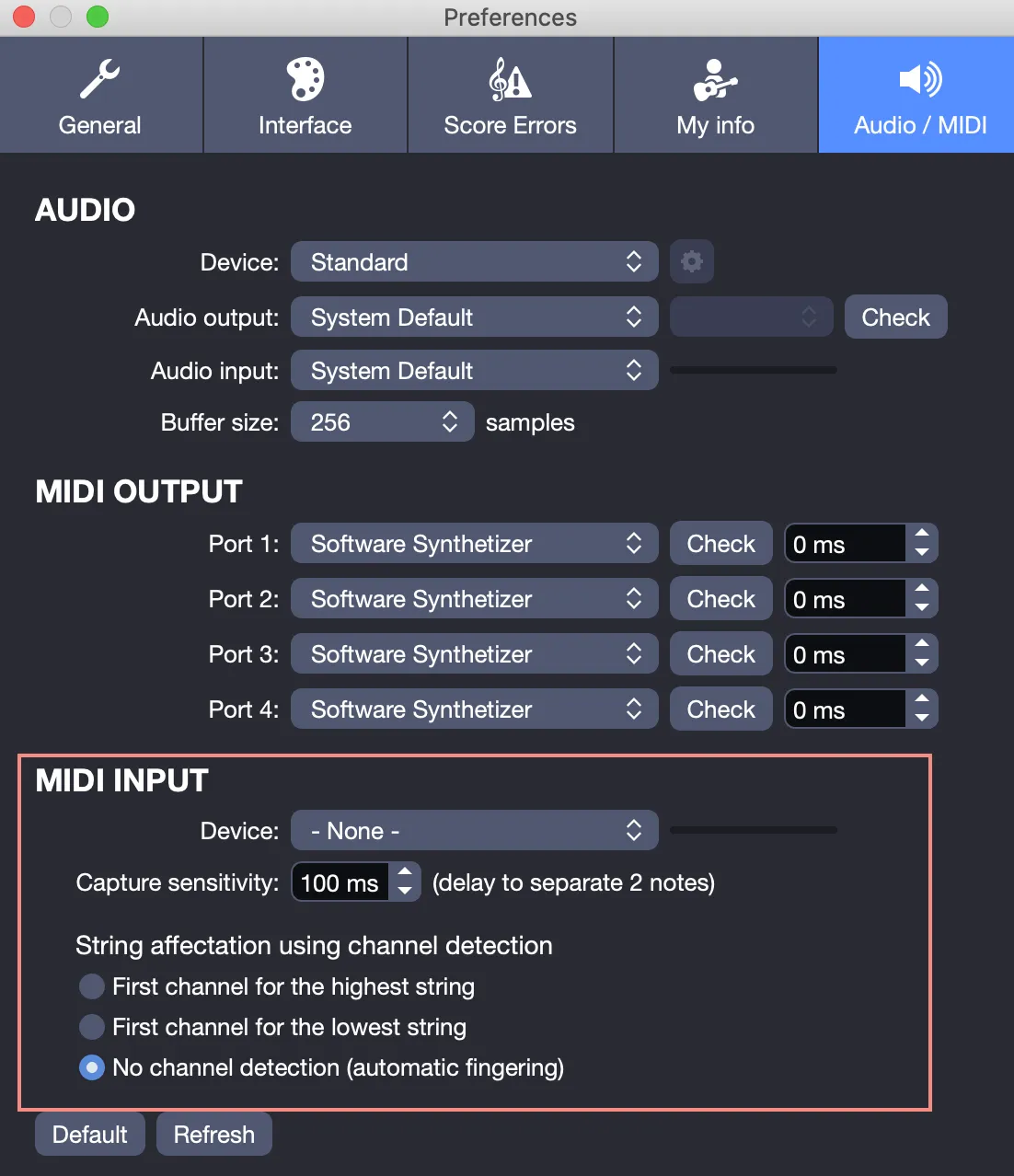
In the Audio/MIDI preferences, select your MIDI device, making sure it is connected and that the drivers are correctly installed.
Adjust the capture sensitivity, which defines the maximum delay in milliseconds between notes to detect chords.
For MIDI guitars, configure string assignment by mapping MIDI channels to strings, for example by setting the first channel to the highest-pitched string. Guitar Pro automatically assigns frets to optimize fingerings and produce clear notation.
Capturing Notes
Each recorded note is placed on the active beat, and once that beat is edited, the editing cursor automatically moves to the next beat.
The duration of the entered note corresponds to the one selected in the Editing Palette.
Of course, you can independently adjust the duration of the notes once your capture is complete and your notes have been entered.