
Using the Line-In Feature in Guitar Pro 8
Guitar Pro 8 allows you to connect your guitar through an audio interface (such as your sound card) so you can hear yourself playing in the software, using the track’s effect modeling with numerous available presets and soundbanks.
This way, you can play along with the songs in Guitar Pro 8, fully taking the role of the guitarist.
To do this, select the guitar track of your choice and activate the Mute option in the mixer (left part of the Global View).
Plug in your guitar and activate the Line-In from the Toolbar (See Guitar Pro 8 Main Screen).
Start playback: the notes will scroll, but the guitar track will remain silent. It’s up to you to perform the guitar part.
Your playing will be processed in real time in Guitar Pro 8, using the sound defined for the guitar track. If there are sound changes along the score, your guitar sound will automatically change according to the cursor position.
Connections
You need to connect an audio interface to your computer. This can be an external interface (via USB or Firewire), or an internal one (a sound card connected via PCI or PCI-e).
Plug your guitar into the audio interface using a jack cable. You may want to consult the manual of your interface to configure it properly.
Connect external speakers or headphones to the audio interface. You can also use your computer’s built-in speakers.
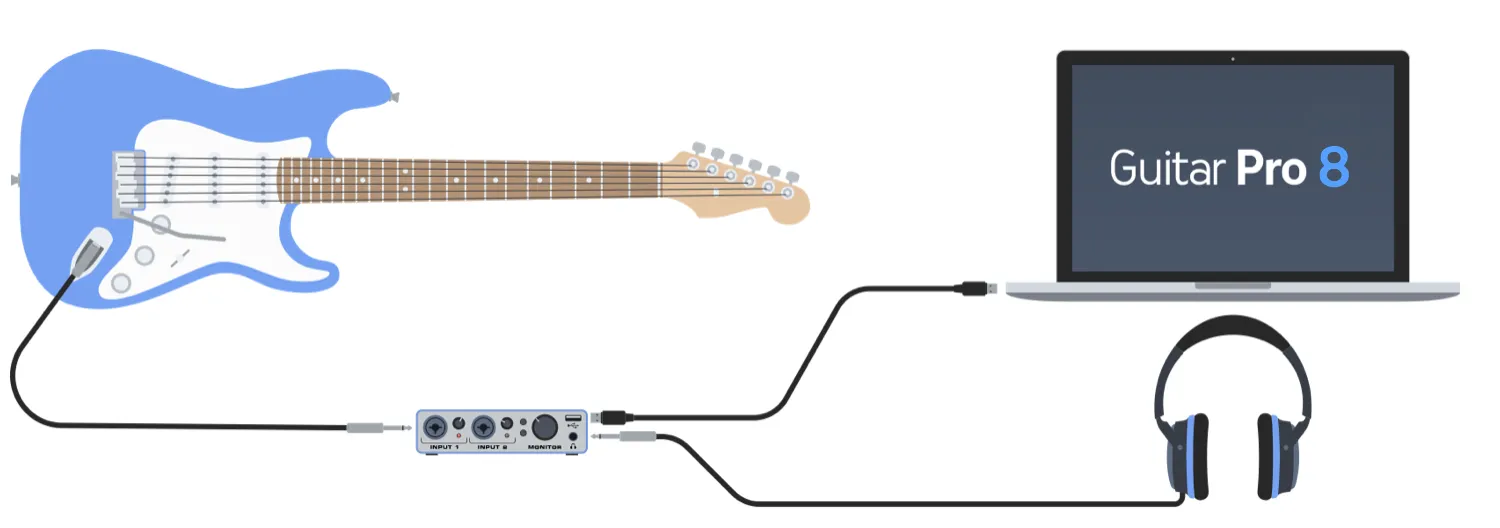
Configuring the Line-In
Click the Line-In icon located on the right side of the toolbar.
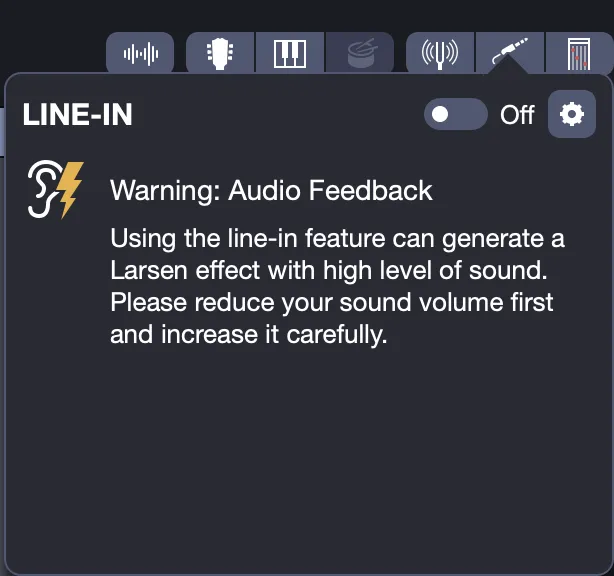
Click the gear icon to ensure your audio interface is selected as the Audio Input in the Audio Preferences.
A loud feedback (Larsen) may occur. Lower the volume as advised by the in-app warning.
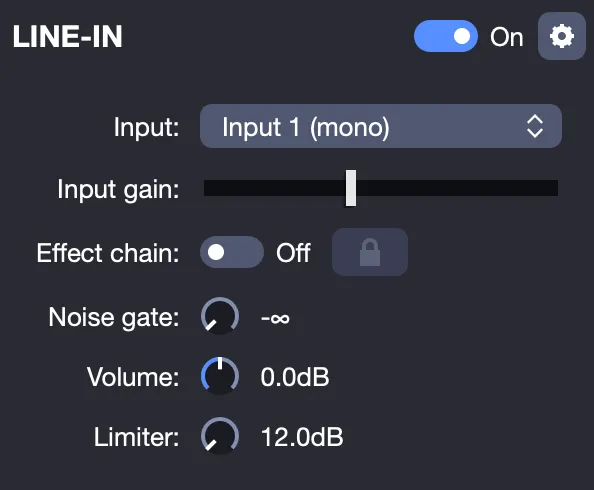
Carefully enable the Line-In, then choose the input channel on your audio interface where your guitar is plugged. You should now hear your instrument.
You can adjust the following parameters:
- Input Gain: Adjusts the input level from your sound card to fine-tune your tone.
- Effect Chain: Lets you choose whether to use the track’s effect chain or bypass it, for example if you’re using an external effects processor. It is best to disable it when tuning.
- Noise Gate: Reduces background noise when your guitar is plugged in but not being played. Adjust the knob gradually until background noise disappears (with guitar connected but silent).
- Volume: Controls the output volume of the Line-In within the global mix.
- Limiter: Prevents feedback by lowering the volume of sounds that exceed a certain threshold.
You can change the effect chain anytime from the Track Inspector.
Be sure to deactivate the Line-In option after use, otherwise Guitar Pro 8 will continue processing incoming signals and may affect your system’s overall sound (e.g. residual noise).
For best performance, we strongly recommend using the same sound card for both input and output when using the Line-In feature.
Locking the Sound with the Line-In Option
You can lock the sound and effect chain applied through the Line-In option. This keeps your sound consistent even if you change tracks, files, or close the project.
To do this, click the Padlock icon in the Line-In window options (the icon turns blue). The Line-In icon in the toolbar will also display a padlock when locking is active.
Click the padlock again to disable locking. Once unlocked, the current track’s effect chain will be applied again.
Note that the lock remains active even if you uncheck the Effect Chain or deactivate the Line-In option (on/off). However, it will reset if you quit and relaunch Guitar Pro 8.