
Importing MIDI in Guitar Pro 8
Import MIDI files into Guitar Pro using the File > Import > MIDI menu. This feature supports MIDI formats 0 and 1, allowing you to work with files from older sequencers or recent compositions.
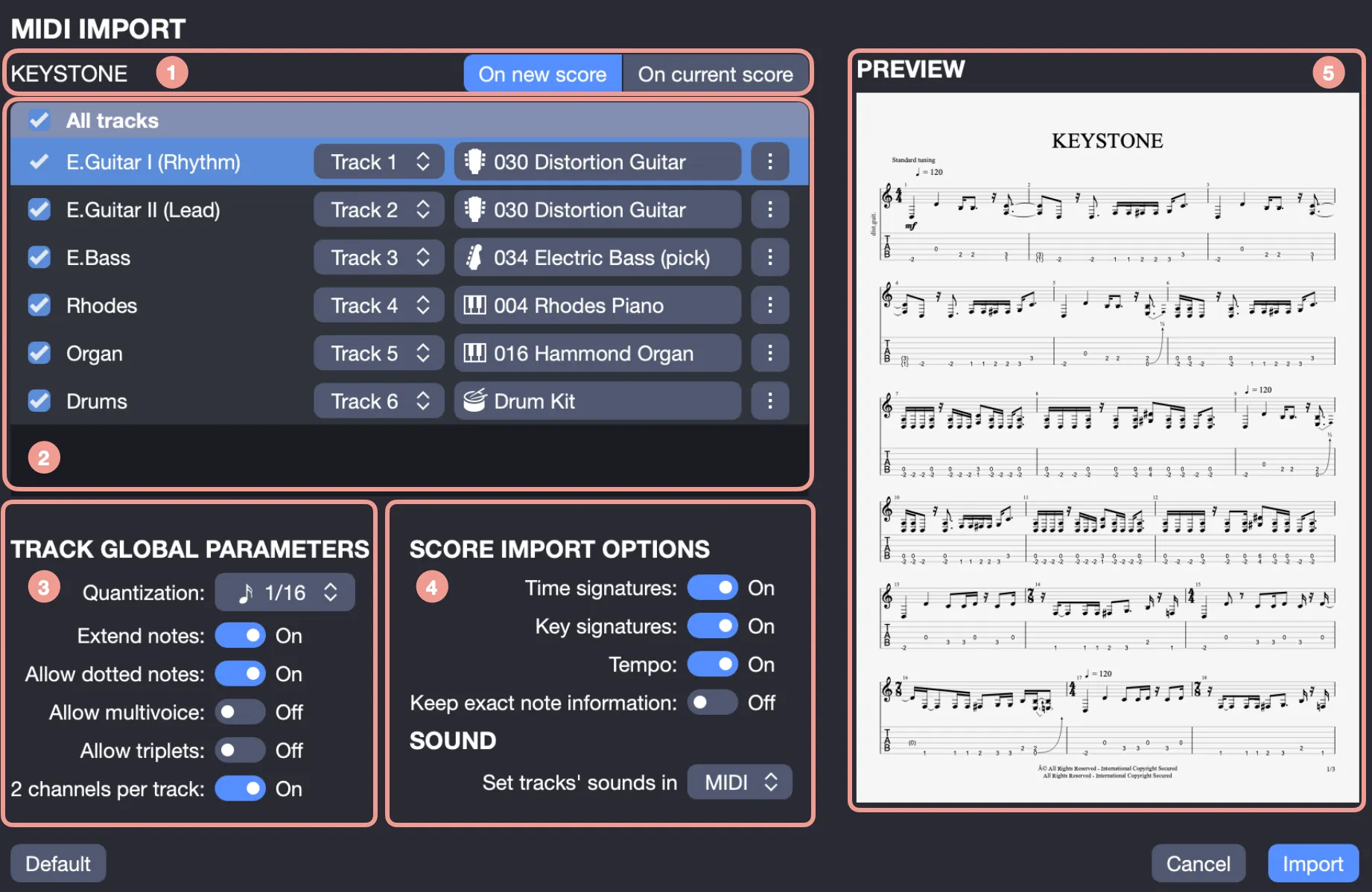
The import window offers a numbered layout to guide your choices:
- Destination score: Where the MIDI will be placed.
- Track selection: Which tracks to include.
- Global parameters: Settings for all tracks.
- Score options: Basic score adjustments.
- Real-time preview: A preview of the result.
Destination Score
Choose where to import the MIDI file: into a new Guitar Pro file or an existing one. If adding to an open file, the MIDI tracks will follow the last active track, enabling you to add parts, such as drums or synths, to a current project.
Track Selection
Select which MIDI tracks to import by checking or unchecking them, allowing you to choose specific parts, such as bass or keys, without including everything.

Each track shows:
- Checkbox: Checked tracks will be imported.
- Destination track: Where it goes in Guitar Pro.
- Instrument: The sound it will use.
- Individual parameters: Options to adjust it.
Destination Track
Assign each MIDI track to a Guitar Pro track. By default, each gets its own track for clarity. If a grand staff is detected, for example, a piano part, Guitar Pro combines those tracks into one, but you can split them manually. To combine MIDI tracks, set them to the same destination track for a single layer, useful for percussion or harmonies.
Track Instrument
Instruments are based on the MIDI file’s Program Change data, which identifies the sound, such as a guitar. If missing, it defaults to piano. Click the instrument button to open a window where you can:
- Select MIDI or RSE sound.
- Adjust tuning, for example, standard or drop D.
- Set staff count (one or two).
- Choose notation (tablature, standard, or both).
- Change track color and icon.
- Modify playback sound.
MIDI files may have issues, such as drums appearing as pianos, due to missing Program Change data. Adjust the instrument or staff count to fix this as needed.
Track Individual Parameters
Each track has settings you can adjust, see the next section for details.
Global Track Parameters
Apply settings to all tracks at once, with the option to adjust individual tracks separately. These settings determine how the MIDI becomes a Guitar Pro score.
Quantization
Quantization adjusts note timings to a set grid. A broader setting, for example, quarter notes, simplifies rhythms, while a tighter one, for example, sixteenth notes, keeps more detail. For live-recorded MIDI, use a lower setting like eighth notes to avoid clutter. For precise files, use a higher setting to capture all rhythms. Adjust the minimum note length to find the right balance.

Increase the Note Value
This extends note durations to fill gaps, creating a smoother rhythm. It helps connect notes for a more natural sound.

Import of Dotted Notes
This converts tied notes into dotted notes where possible, for example, a quarter and eighth into a dotted quarter, making the score easier to read.

Authorize Multivoice
When notes overlap, this splits them into multiple voices on one staff, keeping complex parts clear, such as piano or fingerstyle guitar.

Authorize Triplets
This marks notes close to triplet lengths as triplets, useful for swing rhythms. For live MIDI with uneven timing, turn this option off to avoid errors.

Two Channels per Track
If a MIDI track uses two channels, for example, for stereo, enable this to separate them correctly instead of combining them.
Score Options
Adjust the score’s basic settings to match the MIDI file or set new defaults.
Time Signatures Import
Imports the MIDI’s time signatures, for example, 4/4 or 3/4. If unchecked, a new file uses 4/4, adjusting notes to fit.
Key Signatures Import
Imports the MIDI’s key signatures. Without this, a new file starts in C Major, reassigning notes accordingly.
Tempo Import
Imports the MIDI’s tempo changes. If off, a new file sets 120 BPM, ignoring original tempo shifts.
Set Sound Tracks in MIDI / RSE
Choose MIDI or RSE playback for all tracks, RSE for realistic sounds, MIDI for a simpler tone.
Score Preview
The real-time preview shows how the selected track will look after importing. Change a setting, such as quantization, and it updates instantly, allowing you to review before clicking “Import.”