
Lyrics Editing in Guitar Pro 8
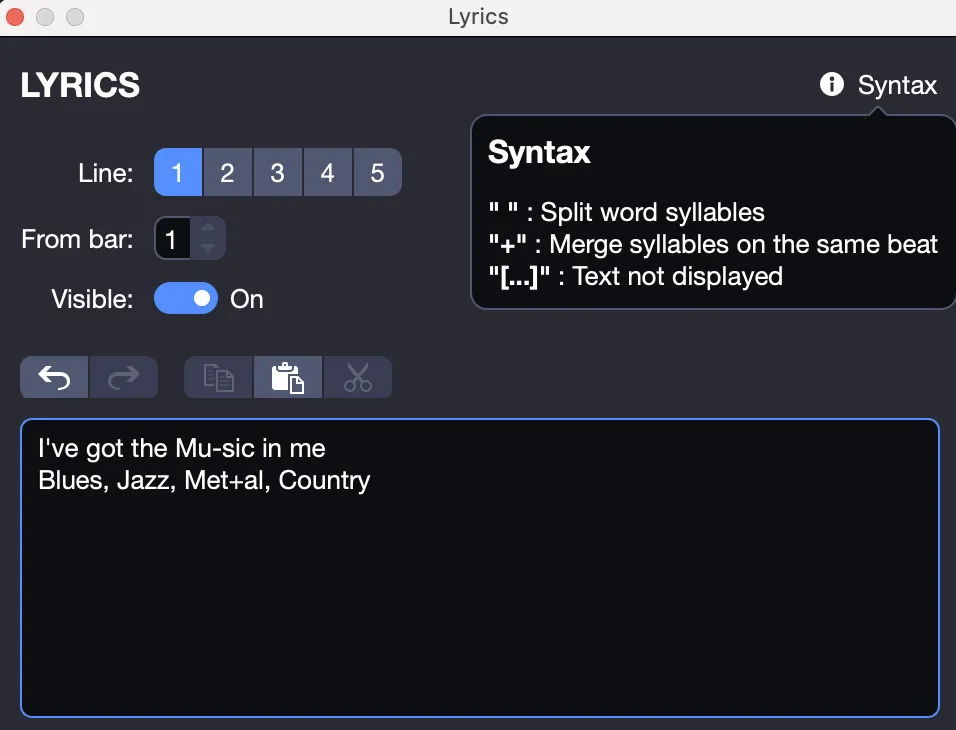
Access the lyrics editing window from the Track > Show Lyrics Editor menu or by clicking the Lyrics icon in the editing palette located on the left side of the Guitar Pro window.
Track Selection
For lyrics to appear on the score, you must first select a track. The lyrics will then be automatically placed on this track based on the syntax.
Typically, lyrics are assigned to a vocal track, that is, a track containing the melody of the song.
However, you can place them on an instrumental track, but you will likely need to review the syntax, as it is rare in this case for a beat to correspond to a syllable.
Note that you have the option not to assign lyrics to a track and include them solely for informational purposes, particularly if you do not know the melody. To do this, simply uncheck the visible option in the Lyrics window.
Lines and Starting Bar
You can enter up to 5 lines of text. The lines are displayed one below the other on the selected track.
For each line, you can define a starting bar from which the lyrics will be distributed. This saves you from having to add spaces at the beginning of the lyrics.
Writing Lyrics
The input area allows you to enter the lyrics themselves.
Guitar Pro automatically assigns each syllable to a different beat. A syllable change occurs when there is a space or a hyphen -.
You must therefore use hyphens to separate the different syllables of a word. However, if you do not want Guitar Pro to separate two words, replace the space with the plus symbol +.
To leave a blank on a beat, simply add multiple consecutive hyphens or spaces.
Line breaks are treated as spaces. However, multiple line breaks count as a single space. You can thus space out your text without issue.
Text placed in brackets […] is not displayed on the score. You can use brackets to add comments or indicate paragraph headers (Examples: [INTRO], [VERSE], [CHORUS], …).
Note that lyrics are only displayed on the first staff; it is not possible to display lyrics on other staves.