
Section Management in Guitar Pro
Sections in Guitar Pro serve as markers to organize your score, facilitating the structuring and navigation of your composition.
This chapter explains how to define, add, and navigate between section markers, essential tools for managing the layout of your music.
What Is a Section?
A section marker is tied to a specific bar in the master track, ensuring consistency across all tracks in Guitar Pro 8.
Identified by letters (A, B, C) or names like “Bridge” or “Solo,” these markers help you locate and navigate key parts of the score.
You can access sections via the Section menu, the Global View located at the bottom of the window, or directly from the score.
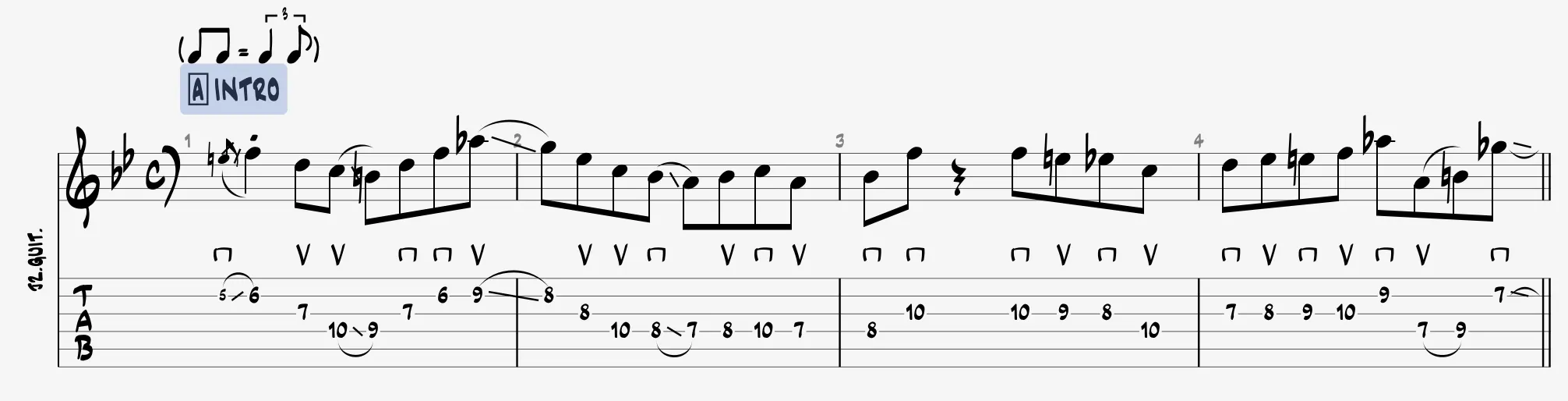

Since sections are linked to the master track, they cannot be defined for individual tracks, maintaining a unified structure for the entire composition.
Adding a Section
To add a section marker, use the Section > Edit menu, the Section icon in the editing palette, or right-click on a bar in the master track of the Global View.
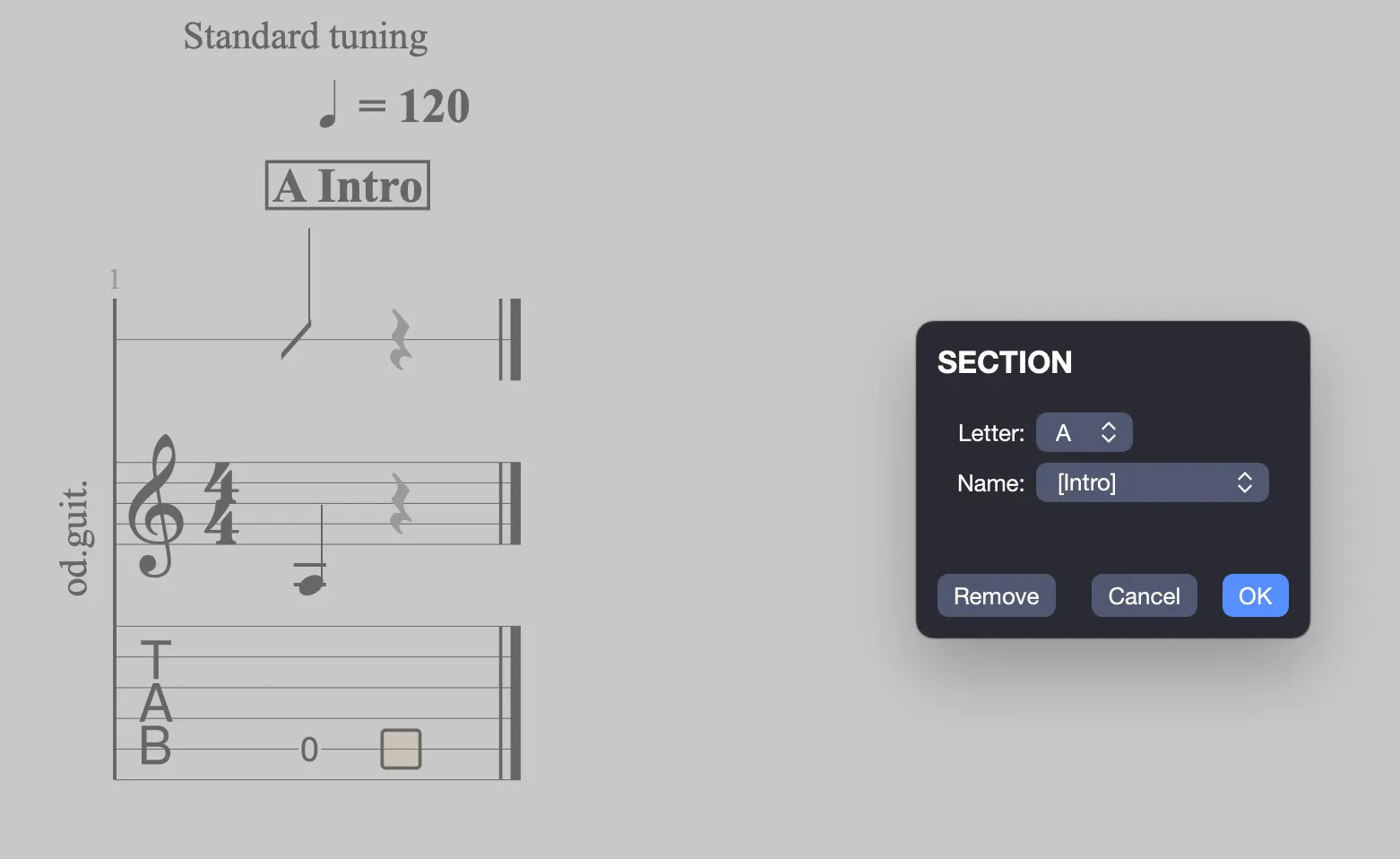
Apply a letter and the title of your choice by clicking in the name field or select one of the predefined names.
For a polished display, enclose names in brackets, such as [Pre-Chorus], to show them in a framed style on the score, clearly highlighting transitions.
Adding a Section from the Global View
In the Global View, right-click on a bar in the master track to access a context menu allowing you to add or edit sections.
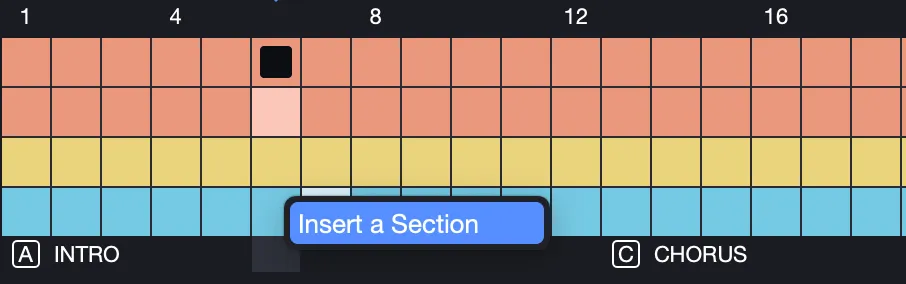
If no section exists at the cursor’s bar, a new marker is created, which you can name as you wish.
Info The Edit > Special Paste menu allows you to duplicate sections more easily.
Editing a Section from the Score
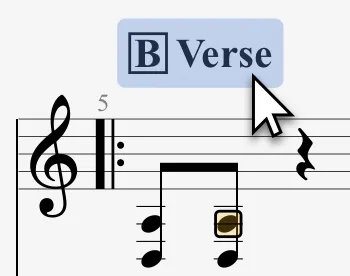
For direct editing, click on a section marker in the score to modify it instantly.
The marker lights up to confirm your selection.
Navigating Between Sections
Navigate long scores efficiently using keyboard shortcuts.
Use Ctrl+Alt+Left (Windows) or ⌥⌘← (macOS) to move to the previous section, or Ctrl+Alt+Right (Windows) or ⌥⌘→ (macOS) to go to the next one.
Double-click a section in the Global View to select its entire range.