
Effects Symbols in Guitar Pro 8
The effect symbols allow you to add playing techniques and sound variations to your notes, such as bends, slides, vibratos, palm mute, or tremolo picking.
Most of them influence playback to faithfully reproduce the expressiveness of a performance.
For more details on their use, we invite you to consult the Playing Effects and Musical Articulations chapter.
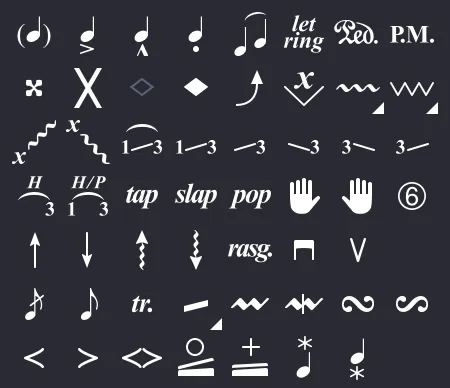
| Icon | Name | Quick Description |
|---|---|---|
 |
Ghost Note | Play the note softly. |
 |
Accented Note | Play the note strongly. |
 |
Heavily Accented Note | Play the note very strongly. |
 |
Staccato | Play the note very briefly. |
 |
Legato | Connect the notes, play a single attack. |
 |
Let Ring | Let the note ring beyond its written duration. |
 |
Sustain Pedal | Indicate the use of a sustain pedal. |
 |
Palm Mute | Mute the note with the palm. |
 |
Dead Note | Mute the note by releasing the left-hand finger. |
 |
Natural Harmonic | Play a string by lightly touching it above a fret. |
 |
Artificial Harmonic | Play a harmonic on a fretted note (various types). |
 |
Bend | Bend the string to increase the pitch. |
 |
Fade-in | Gradually increase the volume after the attack. |
 |
Fade-out | Gradually decrease the volume after the attack. |
 |
Volume Swell | Combine a fade-in followed by a fade-out. |
 |
Grace Note Before the Beat | Play a short note just before the main note. |
 |
Grace Note On the Beat | Play a short note on the beat before the main note. |
 |
Hammer-on/Pull-off | Play connected notes without re-attacking the string. |
 |
Tremolo Picking | Rapidly repeat one or more notes. |
 |
Upper Mordent | Rapid trill with the upper note. |
 |
Lower Mordent | Rapid trill with the lower note. |
 |
Turn | Rapid trill around the main note. |
 |
Inverted Turn | Rapid trill starting with the lower note. |
 |
Left-Hand Tapping | Strike the fretboard with the left hand, no attack. |
 |
Legato Slide | Slide to another note without re-attacking. |
 |
Shift Slide | Slide to another note and attack again. |
 |
Slide In from Below | Slide to the note from a lower fret. |
 |
Slide In from Above | Slide to the note from a higher fret. |
 |
Slide Out Downwards | Slide to a lower fret after the note. |
 |
Slide Out Upwards | Slide to a higher fret after the note. |
 |
Whammy Bar | Alter the pitch with the whammy bar. |
 |
Trill | Rapidly alternate two notes in hammer-on/pull-off. |
 |
Slight Left-Hand Vibrato | Slight pitch variation with the left hand. |
 |
Wide Left-Hand Vibrato | Pronounced pitch variation with the left hand. |
 |
Slight Bridge Vibrato | Slight pitch variation with the bridge. |
 |
Wide Bridge Vibrato | Pronounced pitch variation with the bridge. |
 |
Closed Wah-Wah | Indicate a closed wah-wah effect. |
 |
Open Wah-Wah | Indicate an open wah-wah effect. |
 |
Downward Arpeggio | Arpeggio from the low string to the high string. |
 |
Upward Arpeggio | Arpeggio from the high string to the low string. |
 |
Downward Brush | Brushing from the low string to the high string. |
 |
Upward Brush | Brushing from the high string to the low string. |
 |
Rasgueado | Flamenco right-hand strumming technique. |
 |
Left-Hand Fingering | Indicate the left-hand finger used. |
 |
Right-Hand Fingering | Indicate the right-hand finger used. |
 |
String Number | Indicate the string number on the staff. |
 |
Downward Pickstroke | Play with a downward pickstroke. |
 |
Upward Pickstroke | Play with an upward pickstroke. |
 |
Tapping | Play a note by tapping the fretboard. |
 |
Slap | Play a note with a slap (bass technique). |
 |
Pop | Play a note with a pop (bass technique). |
 |
Finger Golpe | Strike the guitar body with a finger. |
 |
Thumb Golpe | Strike the guitar body with the thumb. |
 |
Upward Pick Scrape | Slide the pick upward along the strings. |
 |
Downward Pick Scrape | Slide the pick downward along the strings. |
 |
Dead Slap | Strike the strings with the left hand (bass). |
Ghost Note
A ghost note is played softly, with an automatically reduced dynamic. Displayed in parentheses on the tablature, it is ideal for adding a subtle rhythmic touch.
More information on ghost notes in Guitar Pro.
Accented and Heavily Accented Note
An accented note is played with a strong attack, Guitar Pro 8 automatically increases its dynamic, making it stand out among softer notes.
A heavily accented note marks the dynamic difference even more distinctly.
More information on accented notes in Guitar Pro.
Staccato
The staccato makes a note short and crisp, regardless of its written duration.
Marked with a dot below the note, it evokes a guitarist plucking and muting quickly, ideal for precise rhythmic phrases in funk or metal, for example.
More information on Staccato in Guitar Pro.
Legato
The legato connects multiple notes in a smooth flow, without re-attacking the string. A slur appears on the score, indicating continuous phrasing.
More information on Legato in Guitar Pro.
Let Ring
The let ring option extends the resonance of a note beyond its written duration, creating a sustained sound. Perfect for arpeggios, it allows the notes of a chord to vibrate longer. Use the Tools > Let Ring Assistant menu to apply it to specific strings over multiple measures.
More information on Let Ring in Guitar Pro.
Sustain Pedal
The sustain pedal mimics the effect of a piano sustain pedal, extending the resonance of notes.
A “Ped.” annotation is added to your track to indicate when to press, and an asterisk for release, it is also accessible via Effects > Sustain Pedal.

More information on the Sustain Pedal in Guitar Pro.
Palm Mute
The palm mute mutes the strings by lightly placing the right-hand palm near the bridge, producing a dry, muted sound, perfect for dynamic riffs in metal or rock.
Represented by the “PM” indication above the tablature, its intensity can be adjusted via the palm mute gauge in the track inspector.
More information on Palm Mute in Guitar Pro.
Dead Note
A dead note produces a short, percussive sound, often used for a rhythmic effect. Achieved by slightly releasing the left-hand finger or placing the right hand near the bridge, it is popular in funk or for dry, punchy bass lines.
More information on dead notes in Guitar Pro.
Natural Harmonic
The natural harmonic creates a crystalline sound by lightly touching an open string above a fret (e.g., 5th, 7th, or 12th) while plucking. Remove the left-hand finger just after the attack for a clear sound, perfect for airy acoustic intros.
More information on Harmonics in Guitar Pro 8.
Artificial Harmonic
Artificial harmonics add brilliance to fretted notes with various techniques:
- A.H. (Artificial Harmonic): Fret a note, lightly touch higher up with the right-hand index while plucking, for a shimmering lead, though challenging.
- T.H. (Tapped Harmonic): Briefly tap a few frets above the fretted note for a vivid harmonic sparkle.
- P.H. (Pinch Harmonic): Pluck the string while grazing with the thumb holding the pick, often in distorted sound, ideal for piercing rock solos.
- S.H. (Semi-Harmonic): Combines a pinch harmonic with the string’s natural resonance.
More information on Harmonics in Guitar Pro 8.
Bend
The bend increases the pitch of a note by pulling the fretted string with the left hand, a classic technique in blues and rock. The Bend window allows precise configuration of the effect, from a quarter tone to three tones, with point-by-point adjustments.
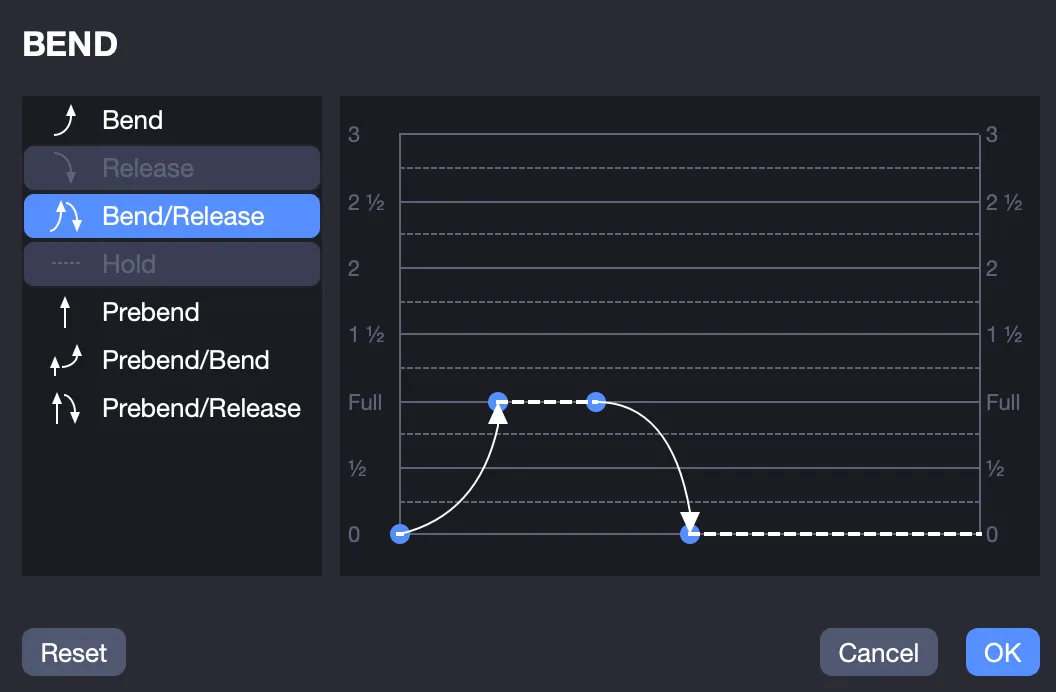
Use slurs for complex bends. The type of bend applied (Bend, Bend/Release, etc.) modifies the symbol on the score.
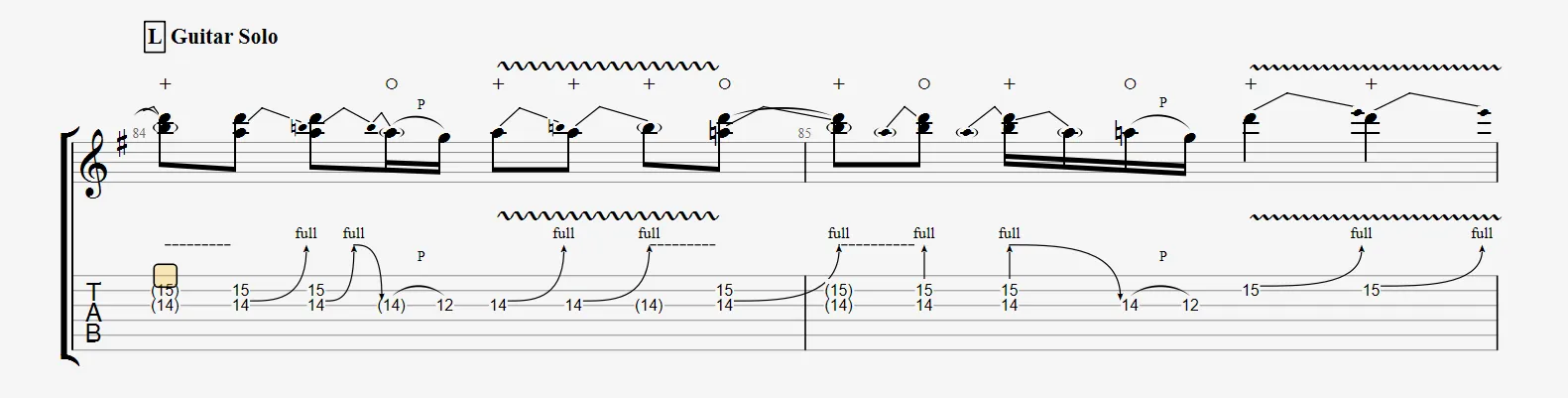
More information on bends in Guitar Pro.
Fade-in (Violin Effect)
The fade-in gradually increases the volume, masking the pick attack, like adjusting the volume knob for a violin effect, ideal for airy intros.
More information on Fade-in in Guitar Pro.
Fade-out
The fade-out gradually decreases the volume after the attack, like lowering the volume knob, perfect for soft endings.
More information on Fade-out in Guitar Pro.
Volume Swell
The recognising volume swell combines a fade-in followed by a fade-out, creating a dynamic rise and fall.
More information on Volume Swell in Guitar Pro.
Grace Note Before the Beat
The grace note before the beat inserts a short ornamental note just before the main note, outside the measure’s rhythm, like a guitarist adding a brief flourish before a chord.
See Grace Notes in Guitar Pro.
Grace Note On the Beat
The grace note on the beat is placed directly on the beat, slightly shifting the main note, a subtle ornament, like a quick guitar touch.
See Grace Notes in Guitar Pro.
Hammer-on/Pull-off
The hammer-on/pull-off (HoPo) connects two notes on the same string without re-attacking. The hammer-on taps to a higher note; the pull-off releases to a lower note. A slur indicates the legato flow, adjustable in the Stylesheet.
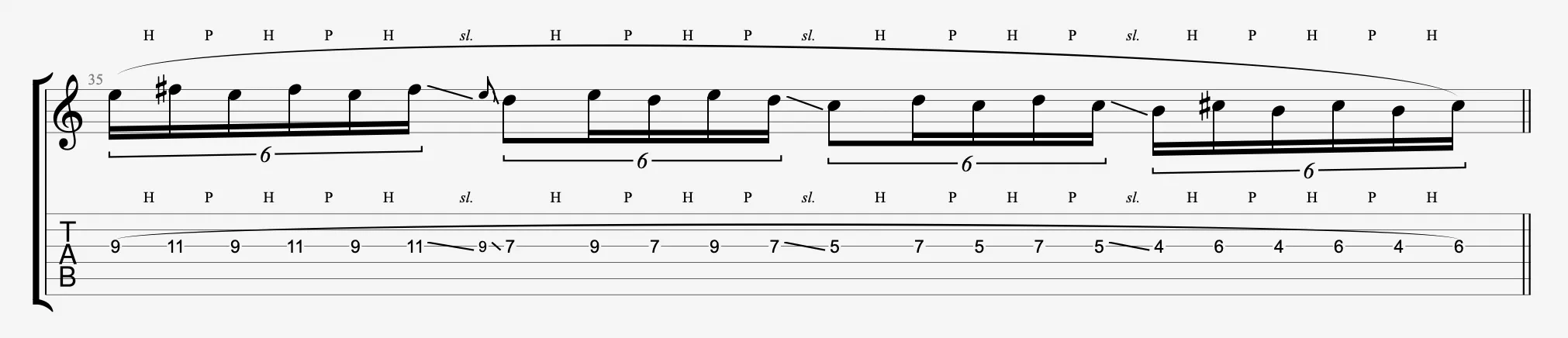
More information on Hammer-on/Pull-off in Guitar Pro.
Tremolo Picking
The tremolo picking rapidly repeats a note or chord with the pick or fingers, evoking the energy of surf rock or mandolin style. Right-click the icon to choose the speed.
More information on Tremolo Picking in Guitar Pro.
Upper and Lower Mordent
An upper mordent adds a rapid trill with the upper note (based on the key signature), a Baroque-style ornament to enrich a melody.
A lower mordent trills with the lower note, adding a stylish touch for classical guitar.
More information on Mordents in Guitar Pro.
Turn and Inverted Turn
The turn is a melodic ornament composed of four notes played successively around the main note. The order is as follows: upper note, main note, lower note, main note.
The inverted turn follows the same principle as the turn but reverses the order of the notes: lower note, main note, upper note, main note.
More information on Turns in Guitar Pro.
Left-Hand Tapping
The left-hand tapping strikes a fret with the left hand without plucking the string, ideal for fast shred runs.
More information on Left-Hand Tapping in Guitar Pro.
Slides
The slides move the left-hand finger along the fretboard for smooth transitions. Guitar Pro 8 allows editing different types of slides.
| Icon | Name | Effect |
|---|---|---|
|
Legato Slide | Play the first note, slide to another without re-attacking, a slur indicates the legato. |
|
Shift Slide | Play the first note, slide, then attack the new note. |
|
Slide In from Below | Slide to the note from a lower fret. |
|
Slide In from Above | Slide to the note from a higher fret. |
|
Slide Out Downwards | Slide to a lower fret after the note. |
|
Slide Out Upwards | Slide to a higher fret after the note. |
More information on slides in Guitar Pro.
Whammy Bar
The whammy bar alters the pitch by tilting the guitar bridge, for dive or rise effects, adjusted to the quarter tone in the Whammy Bar window.
More information on the Whammy Bar in Guitar Pro.
Trill
A trill is a musical ornament that consists of rapidly alternating a note with the adjacent upper note, for all or part of the main note’s duration.
More information on Trills in Guitar Pro.
Left-Hand Vibrato
The left-hand vibrato adds a slight or wide pitch variation by oscillating the left-hand finger. A wavy line above the tablature covers the note’s duration. Right-click the icon to adjust the amplitude.
More information on Left-Hand Vibrato in Guitar Pro.
Bridge Vibrato
The bridge vibrato produces a wider vibrato on a chord via the whammy bar, slight or wide, marked by a large wave above the staff. Right-click the icon to adjust the intensity.
More information on Bridge Vibrato in Guitar Pro.
Wah-Wah
The wah-wah mimics the tonal sweep of an effect pedal, in closed or open position. It is rendered in playback with the RSE and a wah-wah pedal in the effects chain.
More information on the Wah-Wah Pedal in Guitar Pro.
Brush
The brush effect rhythmically brushes the strings of a chord, from the low string to the high string (down) or vice versa (up). Adjust the speed and offset in the Brush window; the duration must be shorter than the beat for all notes to sound. Enable auto-brush in the track inspector for all chords if needed.
More information on the brush in Guitar Pro.
Arpeggio
The arpeggio plays the notes of a chord successively, from the low string to the high string (down) or vice versa (up). Adjust the speed and timing from the Arpeggio window.
More information on arpeggios in Guitar Pro.
Rasgueado
The rasgueado, a flamenco technique, uses rapid right-hand brushing. Choose from 18 patterns in the Rasgueado window, rendered by the Guitar Pro 8 audio engine, notated as rasg. on the score.
More information on Rasgueado in Guitar Pro.
Left-Hand and Right-Hand Fingering
The right-hand fingering and left-hand fingering windows allow you to indicate which fingers to use to play the strings.
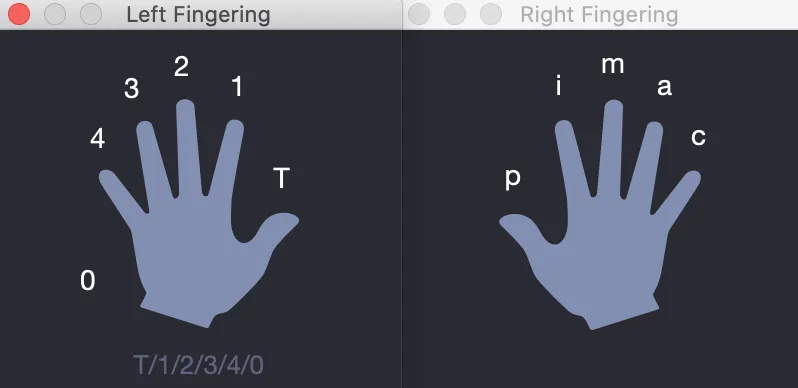
Left-hand fingering (guitar/stringed instruments):
Indicates the fretting finger: T (thumb), 0 (index), 1 (middle), etc.
Right-hand fingering (guitar/stringed instruments):
Indicates the plucking finger: p (thumb), i (index), m (middle), etc. The display follows that of the left-hand fingering.
Piano/orchestra tracks: Fingers are numbered from 1 to 5 for each hand.
These fingerings are customizable in the Stylesheet from the File > Stylesheet > Notation menu.
The keyboard shortcuts displayed in the fingering windows are only usable if a note is selected in the score.
String Number
The string number indicates the played string on the staff in standard notation (not tablature), to improve clarity for musicians.
Pickstroke
The pickstroke defines the pick’s direction for strumming the strings, downward (low string) or upward (high string, marked with a “v”).
Without these indications, the audio rendering automatically alternates strokes and respects the playing style defined in the track inspector performance options.
Tapping
The tapping plays a note by striking the fretboard with a finger, without plucking the string, marked by a “T” above the tablature. Applied to chords, it is fully rendered by the Guitar Pro 8 audio engine.
More information on Tapping in Guitar Pro.
Slap and Pop (Bass)
The slap strikes a low string with the right-hand thumb for a dynamic sound, often followed by a pop. Slap samples in bass sound banks ensure a realistic rendering.
The pop pulls a high string with the index finger for a lively sound, typically after a slap, for a funky touch. Pop samples are integrated into bass banks.
More information on Slap / Pop in Guitar Pro.
Finger or Thumb Golpe
The golpe strikes the guitar body with a finger or thumb, a flamenco technique for a percussive effect.
More information on Golpe in Guitar Pro.
Upward/Downward Pick Scrape
The pick scrape slides the edge of the pick along the wound strings, upward or downward, for a rough, textured sound.
More information on Pick Scrape in Guitar Pro.
Dead Slap
The dead slap produces a percussive strike on the strings with the left hand (for right-handers), purely rhythmic, without defined pitch.
More information on Dead Slap in Guitar Pro.
The pick scrape and dead slap are not rendered by the Guitar Pro 8 audio engine, they are used solely for notation.