
Bar Management in Guitar Pro 8
Bars form the rhythmic structure of your score in Guitar Pro, organizing rhythm and musical progression.
This section explains how to manage bars with precision by adding, deleting, organizing, and adjusting their layout to create a coherent and readable score.
Managing Bars in Guitar Pro
Adding Bars
Each track in Guitar Pro starts with at least one bar, synchronized across all tracks to ensure rhythmic and tonal consistency.
A bar labeled “B” on track T1 shares the same time signature and key signature as bars on tracks T1, T2, and the other tracks. Likewise, a repeat sign applied to a bar affects all tracks, ensuring a unified score.
Inserting bars: Use the Bar > Insert a Bar menu to add a new bar before the cursor position. Use the right arrow key on your keyboard to add a bar after the last bar.
Consistency across tracks: Adding or deleting bars using the Bar > Insert a Bar or Bar > Delete Bar menus updates all tracks simultaneously. A guitar part consisting of 100 bars requires corresponding drum and bass parts. Use Copy-Paste or repeat symbols to keep the parts aligned.
This synchronization ensures overall consistency: inserting a bar on one track updates the guitar, bass, and drums together, preserving the rhythmic structure.
Handling Errors
The bar system in Guitar Pro maintains rhythmic accuracy. The cursor automatically moves to the next bar once the current bar reaches the limit defined by its time signature.
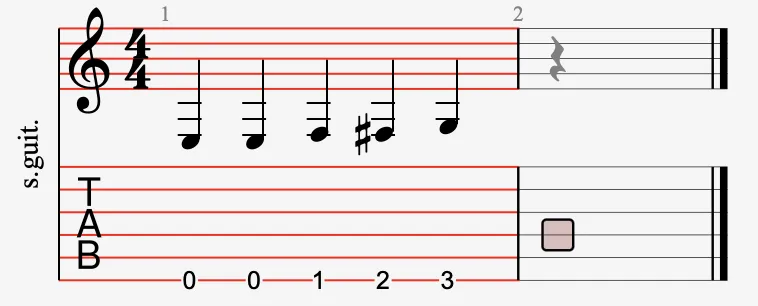
If a bar is incomplete, it is automatically completed with a duration matching the previous note value, such as a quarter note following a quarter note:
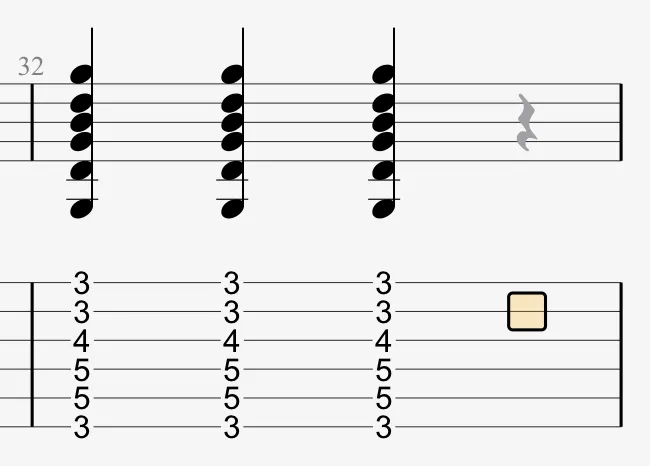
- Error indicators: Bars that are too short or too long appear in red (except for the bar currently being edited). You can enable or disable this option from the Score Errors Preferences.
- LCD display: The toolbar’s LCD display shows the actual duration compared to the expected duration. Hovering over it displays a tooltip identifying the affected voice.

Organizing Systems
Adjust the layout of your score in Page or Scroll mode to control how many bars appear per line, ensuring a clear and readable presentation.
Use the Bar > System Layout menu to define a default number of bars per system or to modify the arrangement of bars within the score.
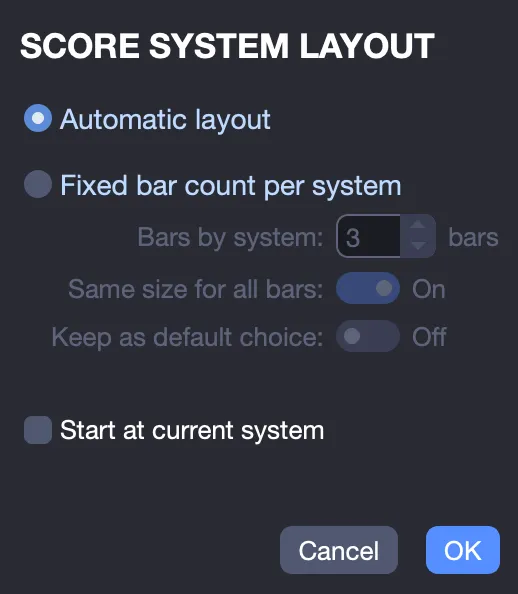
Forcing or Preventing Line Breaks
Use the Bar > Force Line Break menu to start a new system, or Bar > Prevent Line Break to keep bars on the same line. These options help you organize the structure of your score more effectively.
Multirests
Condense consecutive empty bars into a single bar using the Bar > Multirest menu (Cmd+R on macOS or Ctrl+R on Windows). This saves space and improves readability.
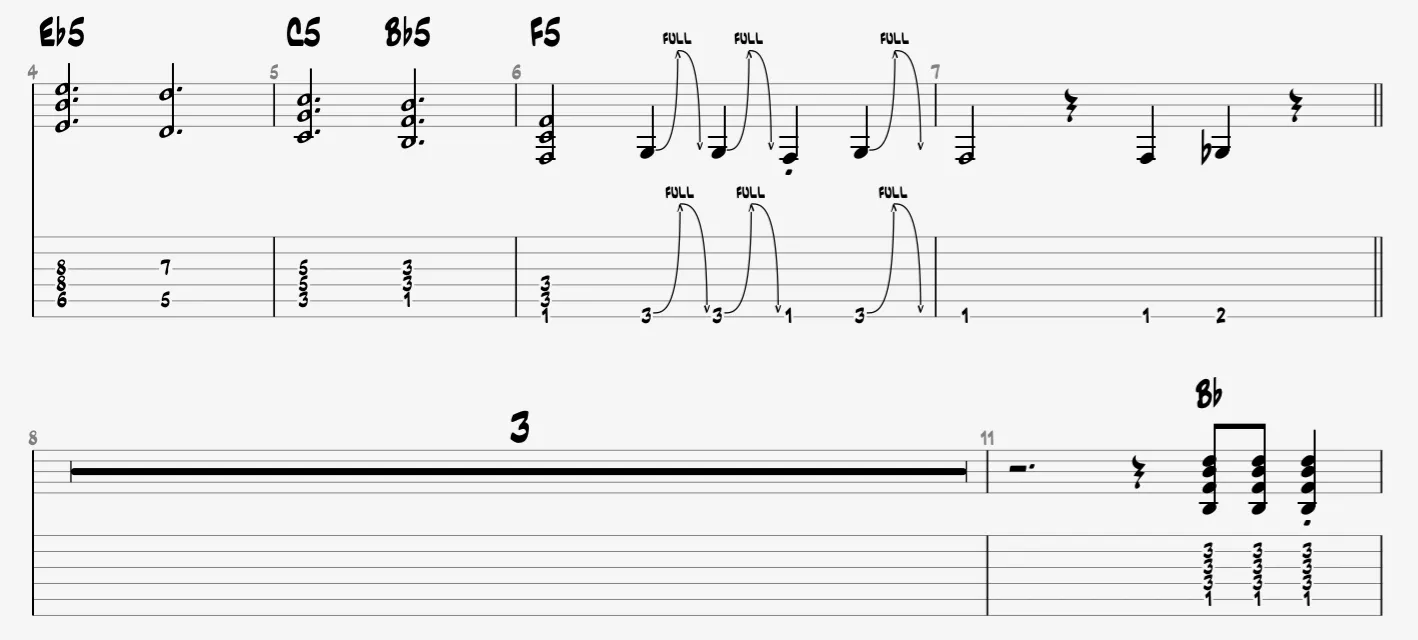
For example, if a guitar part is silent for 8 bars during a bridge, the multirest option combines those 8 bars into a single bar displaying the number “8” to indicate “8 bars.”
This feature is not available in Multitrack mode (View menu).
Going Further
See the Design Mode and Assistants in Guitar Pro chapters to further explore bar management and score organization.