
Copy, Paste, and Cut in Guitar Pro 8
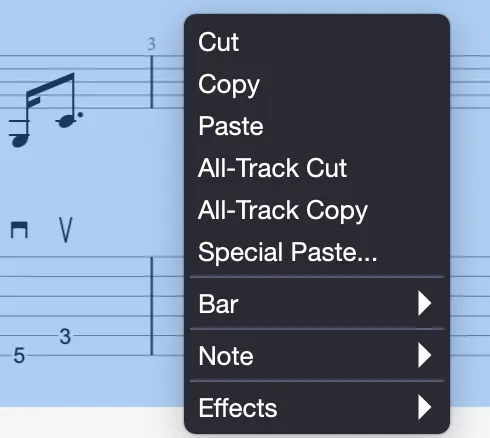
The Copy, Paste, and Cut tools in Guitar Pro 8 simplify score editing, allowing you to reorganize and refine your music quickly. Accessible through the Edit menu or a right-click, these features optimize your workflow.
Single Track Copy/Cut
The single track copy duplicates the selected content. It is the standard, basic functionality expected from a copy action. The single track cut operates on the same principle.
Since this mode focuses on a single track, it does not account for bar structures, such as time signatures or key signatures.
It supports multiple voices and can be used across different tracks, even if the instruments are not compatible, for example, guitar and piano.
When copying from percussion tracks to a melodic instrument or vice versa, only the rhythm represented by rests is retained.
To copy many bars, making a selection in the Global View is useful, or at least glancing at it, to get a better overview of the copied bars. Additionally, the Global View allows you to easily extend your selection by moving the small bars around your selection.
These actions are also accessible via the following shortcuts:
| Action | Windows Shortcut | Mac Shortcut |
|---|---|---|
| Copy | Ctrl+C | ⌘C |
| Cut | Ctrl+X | ⌘X |
Multitrack Copy/Cut
The multitrack copy/cut accounts for bar structures, copying entire bars and extending the selection to include them. The cut removes bars from all tracks.
These actions are also accessible via the following shortcuts:
| Action | Windows Shortcut | Mac Shortcut |
|---|---|---|
| Multitrack Copy | Ctrl+Shift+C | ⌘⇧C |
| Multitrack Cut | Ctrl+Shift+X | ⌘⇧X |
Simple Paste
The simple paste inserts the clipboard content onto the current selection or, if none, before the selection.
If the selection includes more than one bar, additional bars are added before the bar where the paste is performed. Otherwise, it completes the current bar with the clipboard content.
When the cursor is on an empty bar, pasting first fills the empty bars, then creates new ones if needed.
Note that you can include chord and scale diagrams in your simple paste by default, if the corresponding option is enabled in the Interface tab of the Guitar Pro Preferences.
| Action | Windows Shortcut | Mac Shortcut |
|---|---|---|
| Paste | Ctrl+V | ⌘V |
Special Paste
The special paste window allows you to select the elements to paste and the number of pastes.
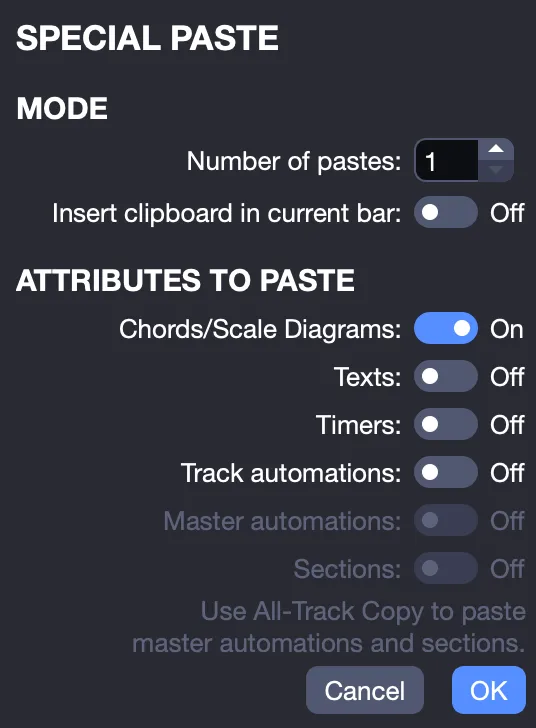
Choose the number of pastes and whether to include the clipboard content in the current bar.
The following elements can be pasted from the special paste window:
- chord and scale diagrams
- texts
- timers
- track automations
- master track automations
- sections
| Action | Windows Shortcut | Mac Shortcut |
|---|---|---|
| Special Paste | Ctrl+Shift+V | ⌘⇧V |
Please note that you must use a multitrack copy to paste master track automations and sections.