
Fretlight Guitars in Guitar Pro 8
Guitar Pro is compatible by default with Fretlight® guitar technology.
These guitars feature small LEDs that light up to indicate the frets where fingers should be placed.
No additional purchase is required to fully take advantage of the features offered by Fretlight guitars in Guitar Pro.
Activating Fretlight
However, the Fretlight button is not visible by default in the toolbar.
To make this button visible, go to the Interface tab in the Preferences and check Show Fretlight button.
You will notice a new Fretlight icon has appeared in the top right of your screen in the toolbar.
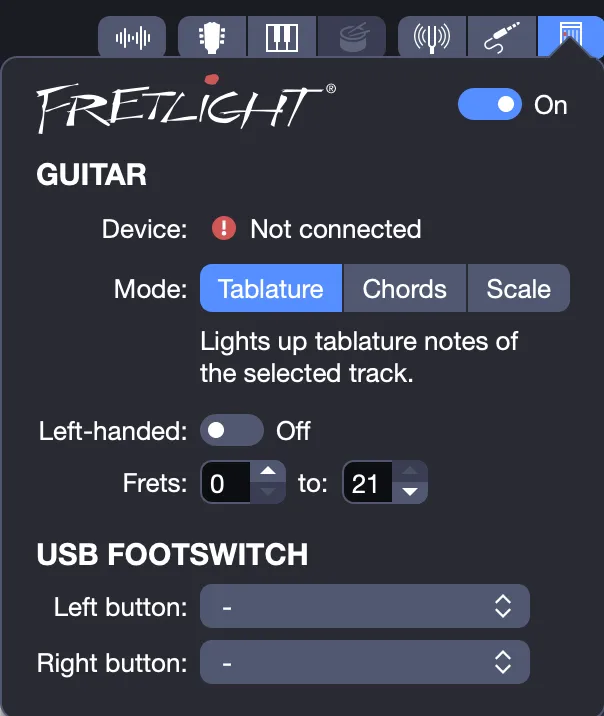
This icon opens a pop-up window allowing you to configure the display on the Fretlight guitar. The available options are as follows.
Fretlight Settings
Enable / Disable
The button in the top right of the pop-up window allows you to enable or disable the display on the Fretlight guitar. Settings are preserved for later reactivation.
Device
You can select the Fretlight device to use from those connected via USB or Bluetooth to your computer.
Mode
This mode determines what is displayed on your Fretlight guitar.
- Tablature: Only the notes from the tablature will light up on the Fretlight guitar at the cursor’s position.
- Chords: Only the chords from the tablature will light up on the Fretlight guitar, provided a chord is present at the cursor’s position.
- Scale: Only the notes of the scale selected in the scales window will light up on the Fretlight guitar.
Left-Handed Display
Check this option to indicate to the Fretlight guitar that the LEDs should light up taking into account that you are left-handed.
Fret Range
You can restrict the display on the Fretlight guitar to a portion of the fretboard. To do so, select the first and last frets between which the LEDs should light up.
USB Footswitch Button Assignments
The Fretlight USB footswitch allows you to control Guitar Pro without using the mouse. This is very convenient for assigning frequently used actions to these buttons from the list of available options.
Fretlight Wireless
Guitar Pro is also compatible with Fretlight Wireless (Bluetooth) guitars.
This option is available on macOS 10.10 or later and Windows 10 only, requiring at least Bluetooth 4.0 technology on your computer.
Once enabled, your Fretlight guitar will be automatically detected by Guitar Pro after a short synchronization period (about ten seconds) and will then appear as “Connected” in the Fretlight preferences window.
If your Fretlight Wireless guitar does not appear as connected:
- Ensure you are using at least Windows 10 or macOS 10.10 or later.
- Verify that your computer has at least Bluetooth 4.0 and that the Bluetooth option is enabled.
- Confirm that your Fretlight guitar is not already connected to another device or program.
- Reset the Fretlight guitar by pressing the black button located next to the micro-USB port.
- Press the button until all the LEDs flash.
- Then open Guitar Pro and one of your files; your Fretlight guitar should connect automatically.