
Guitar Pro 8 Main Screen
Explore Guitar Pro 8’s user interface, a well organized layout that provides easy access to all essential tools.
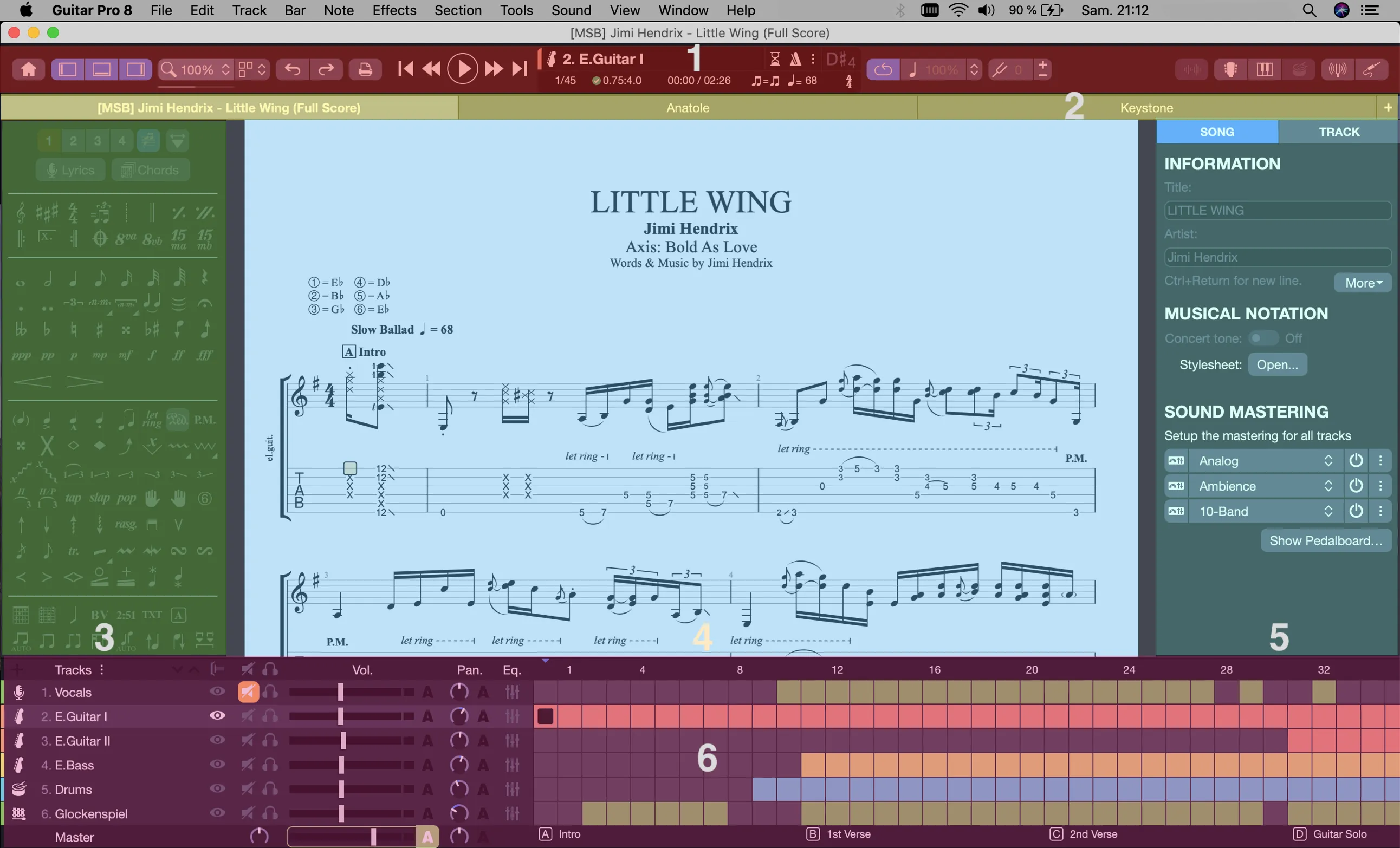
The screen is divided into these key panels:
- Toolbar
- Tab bar
- Editing palette
- Workspace
- Inspector
- Global view
Interface Panels
1. Toolbar
Located at the top, the toolbar serves as your central point for playback and view options. It includes essential tools, ensuring functionality even when side panels are hidden.

- Home page access
- Show/hide interface panels
- Zoom
- Display modes
- Undo/redo modifications
- Navigation and playback
- LCD
- Loop and speed settings
- Global tonality
- Audio track
- Instrument views
- Guitar tuner
- Line-in
- Fretlight
Toolbar buttons adjust to window width some may disappear in smaller views but remain accessible through the menus.
2. Tab Bar
Positioned below the toolbar, the tab bar displays your open files.

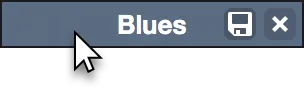
Open multiple files as your system allows. If tabs exceed the space, scroll buttons appear. Modified files show a circle on the right; locked files display a lock on the left, click to unlock with a password. Hover over a tab to reveal save and close buttons.
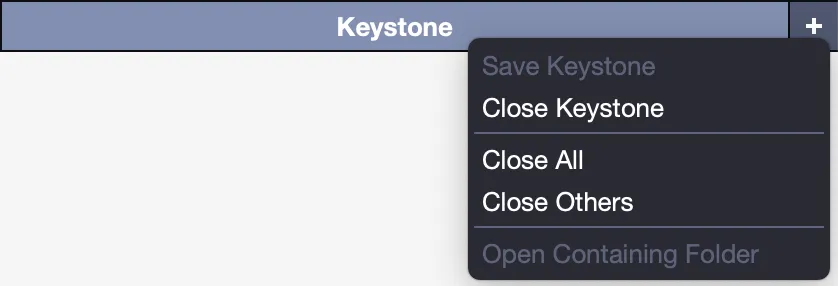
Right-click (or ⌃-click on macOS) for a menu to close all tabs or locate a file’s folder.
3. Editing Palette
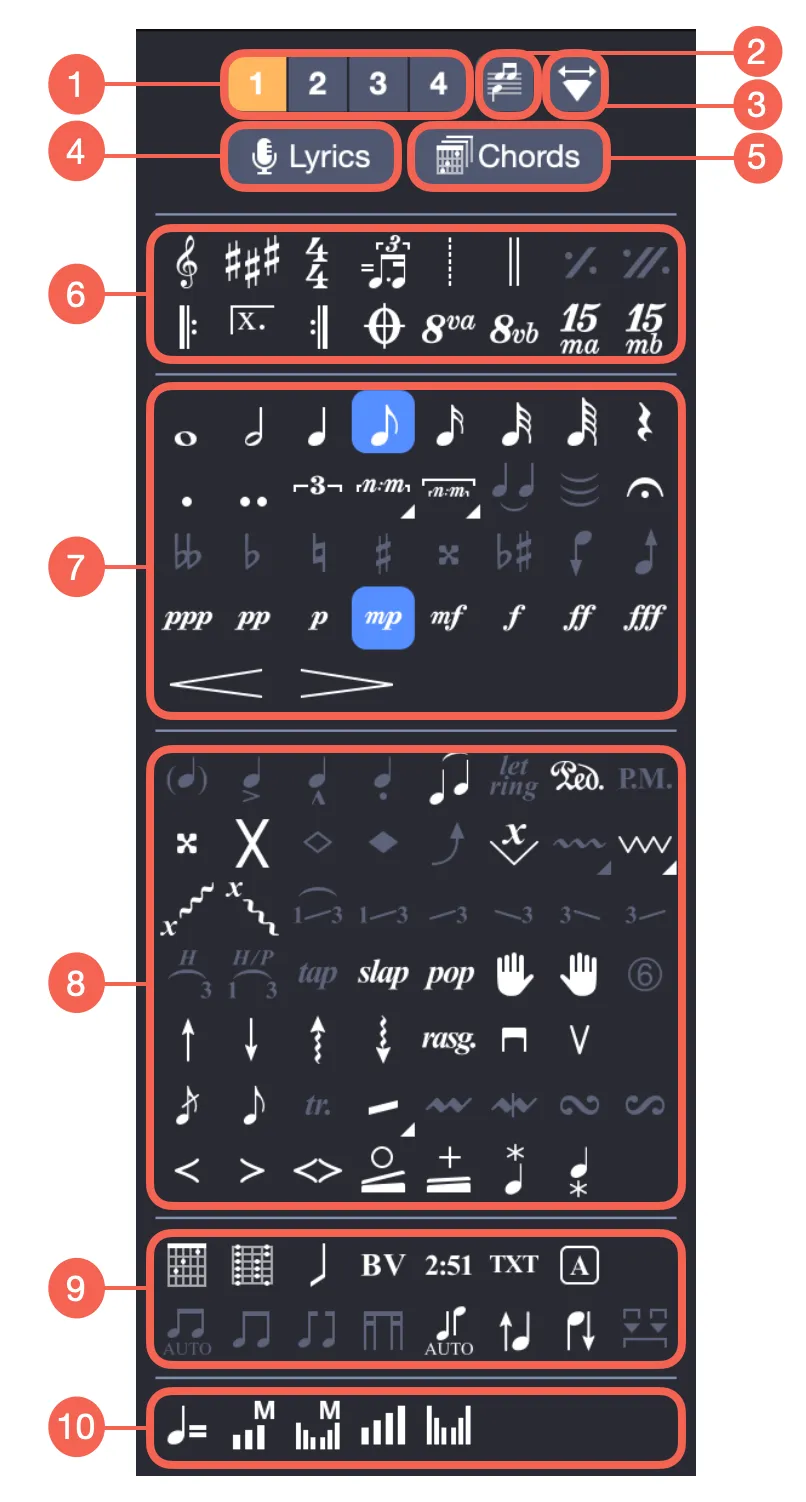
- Currently edited voice
- Multivoice
- Design mode
- Lyrics
- Chords
- Bar symbols
- Note symbols
- Effect symbols
- Notation symbols
- Automation symbols
On the left, the Editing Palette acts as your editing toolkit, offering symbols for standard notation, tablature, or slash rhythm. Click a button to apply an element to selected notes. For complex symbols, a popup allows precise adjustments. Learn more in the Editing Palette Symbols section.
4. Workspace
Centered in the interface, the workspace is your primary area for creating, where you write tracks, add notes, and develop scores. It’s the core of your creative process, displaying your work as it evolves.
5. Inspector
On the right, the Inspector is divided into two sections:
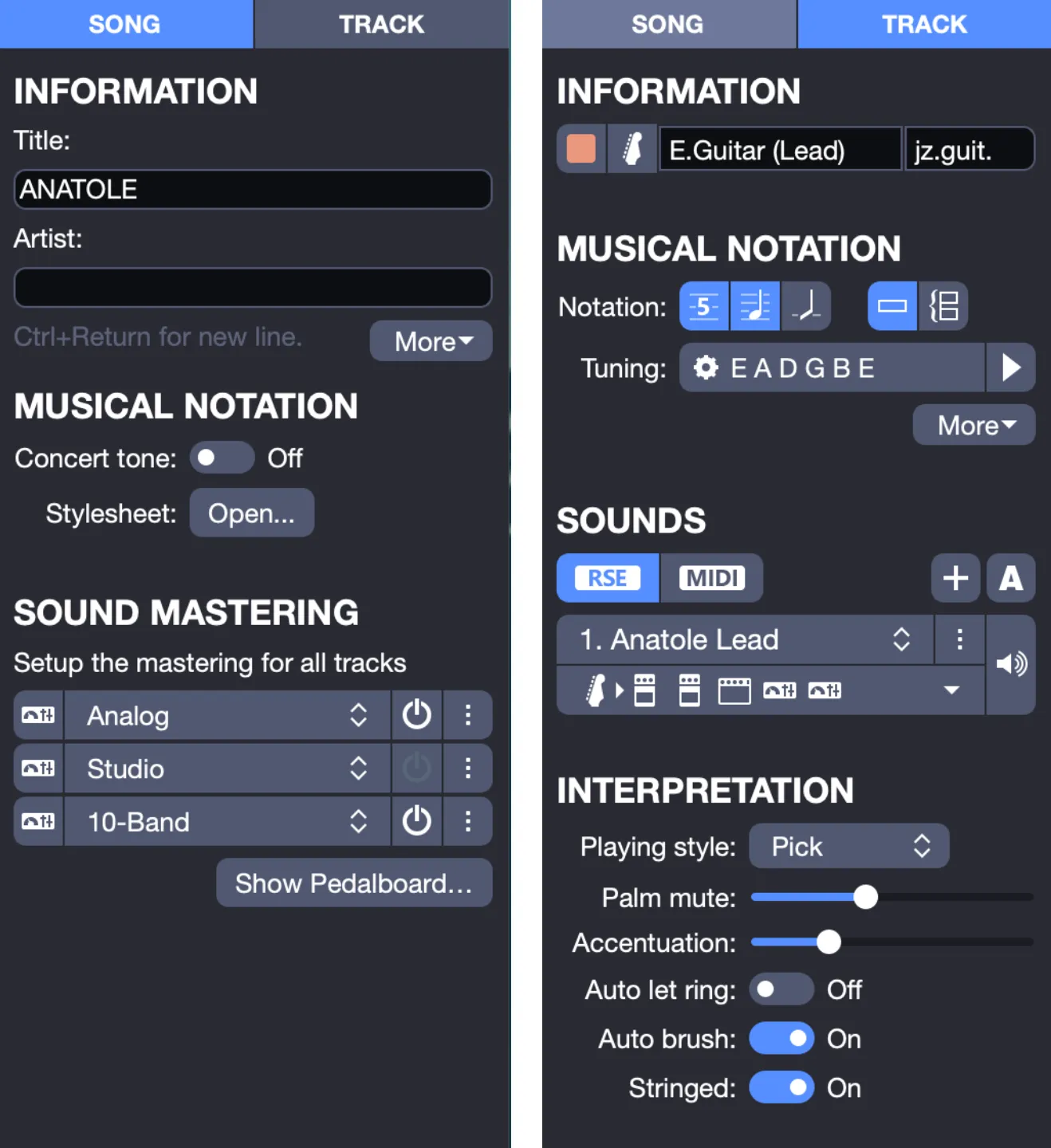
- Song Inspector: Adjust song properties, notation settings, and sound mastering.
- Track Inspector: Configure the current track’s tuning, notation, and audio settings.
It provides detailed control for refining your project.
6. Global View
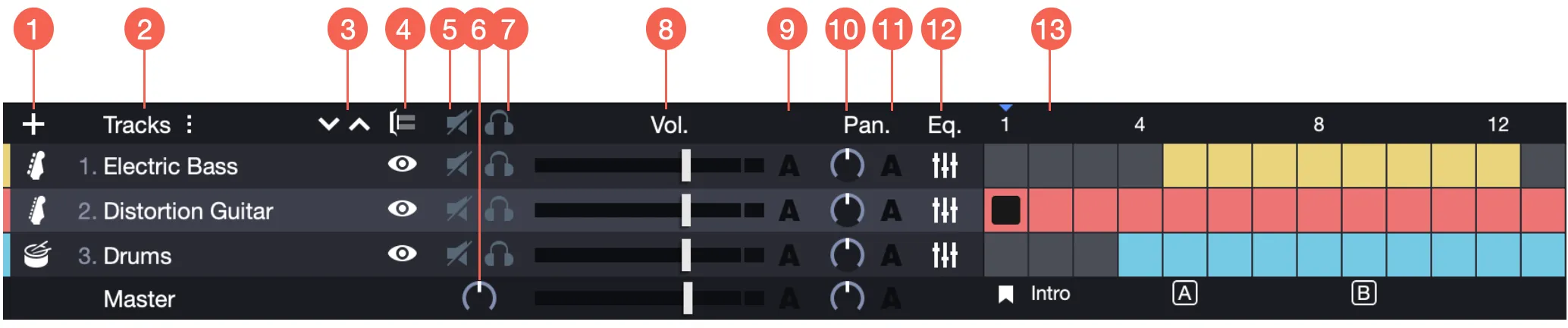
- Add track
- Tracks names
- Move up/down tracks
- Multitrack
- Mute
- Focus/Unfocus current track
- Solo
- Volumes
- Volume automations
- Panoramics
- Pan automations
- Equalizers
- Global view
At the bottom, the Global View functions as both a mixer and a score overview. Click a bar to navigate there, or select multiple tracks for efficient copy-paste tasks. Adjust audio settings, mute, solo, or pan tracks—directly from this panel.
Screen Layout
Need additional space? Hide any panel except the workspace and toolbar using the top-left display options or the View menu.
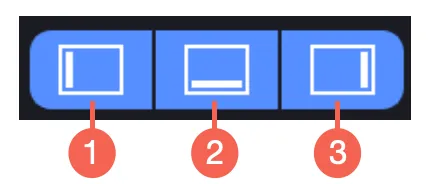
- Show/Hide editing palette
- Show/Hide global view
- Show/Hide inspector
If the global view is hidden, switch tracks using the Track menu, the LCD in the toolbar, or shortcuts. Maximize your view with View > Full Screen (F11 on Windows, ⌃⌘F on macOS) for focused work.