
Page and Screen Display Modes in Guitar Pro 8
Guitar Pro offers several display modes to customize the presentation of your score or tablature, making it easier to compose, edit, or review your music.
These options are available via the View menu or from the dedicated icons in the toolbar.
Available Display Modes
Guitar Pro organizes its display options into two main categories: Page and Screen.
Each mode is designed to suit different editing or viewing needs.
Page Modes
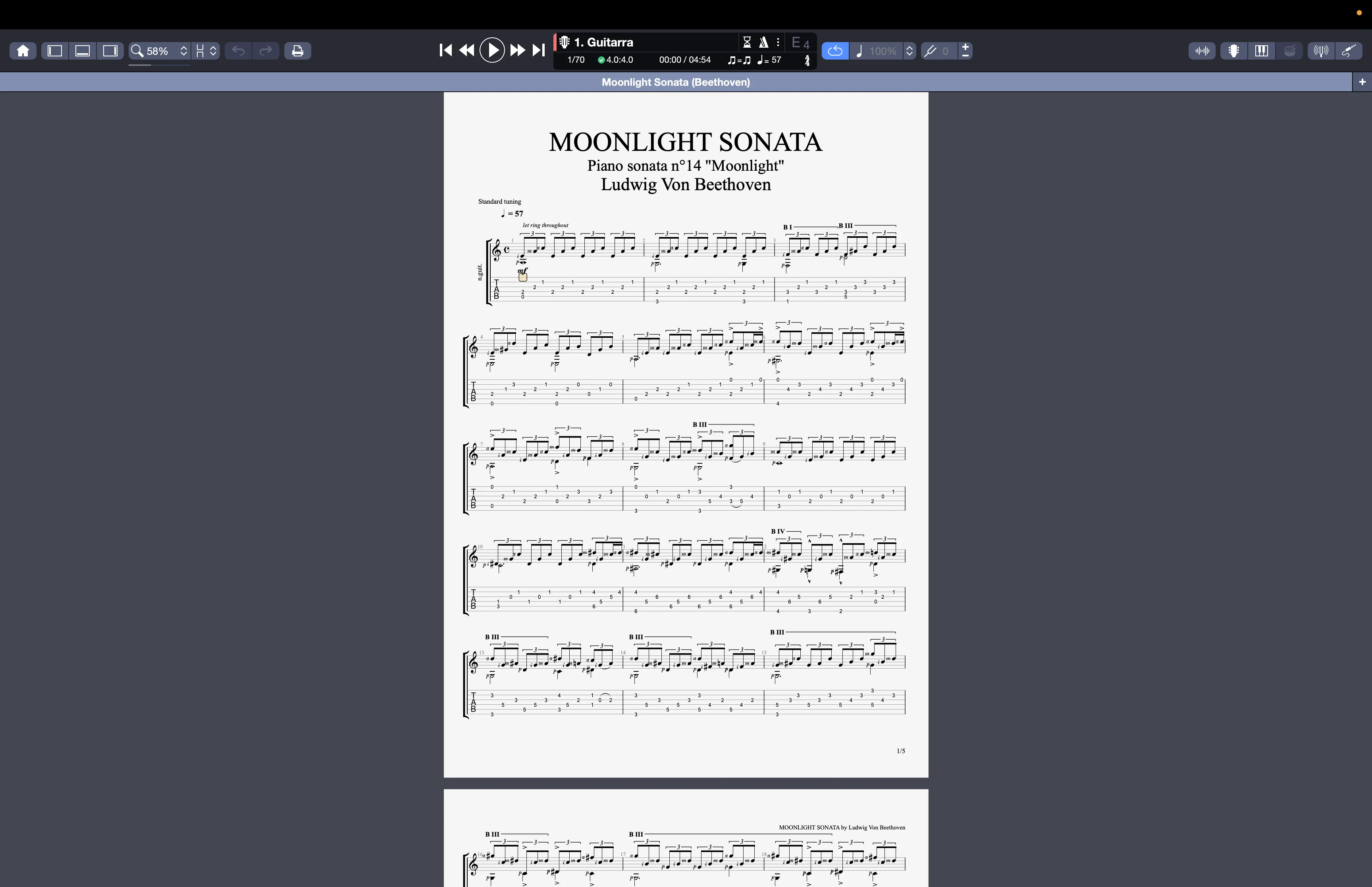
Page - Vertical
Displays the score as vertically arranged pages. Pages scroll sequentially, making this mode ideal for viewing the score as it would appear in printed form.
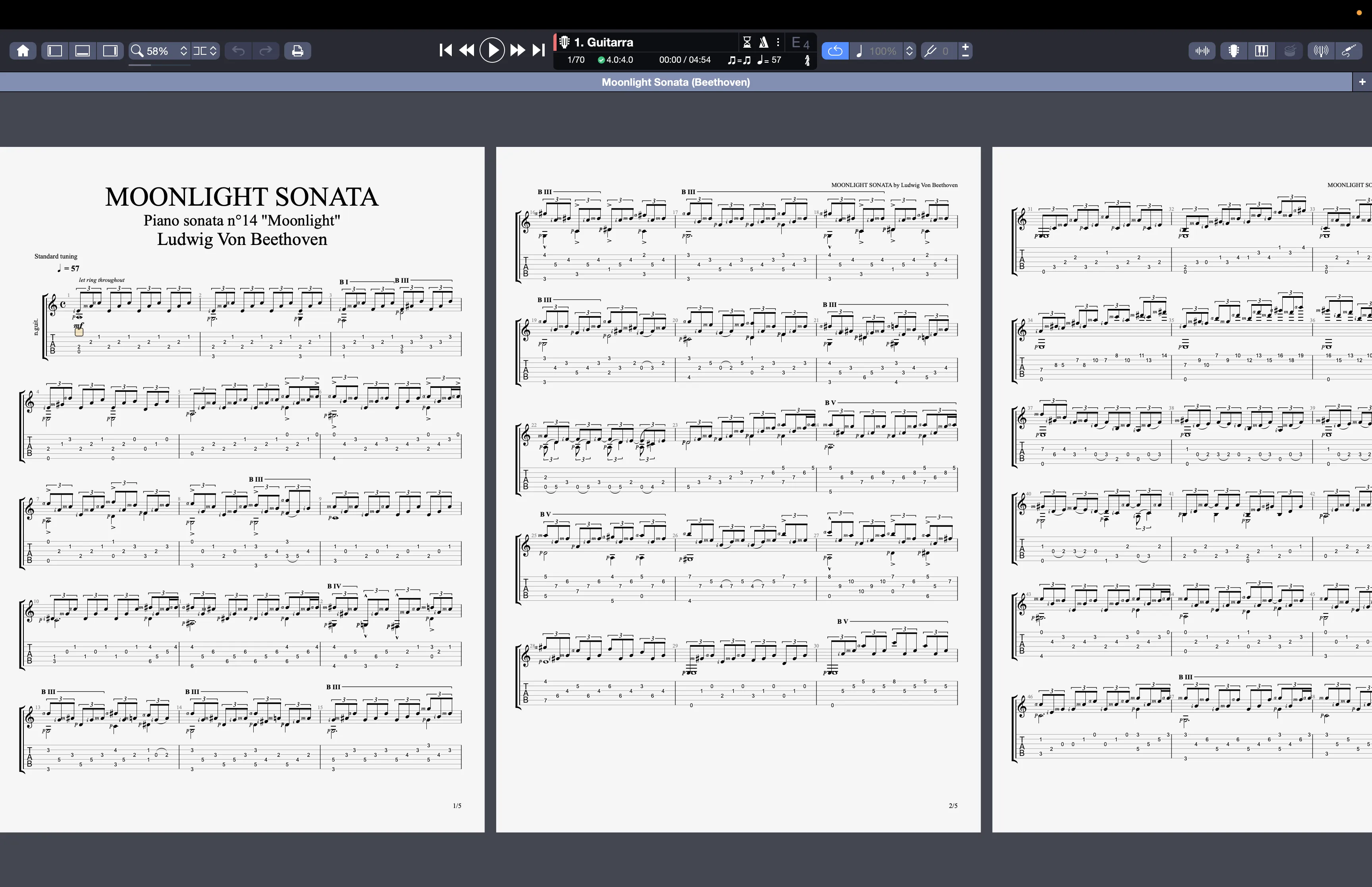
Page - Horizontal
Displays the score as horizontally arranged pages.
This mode is useful for navigating large scores with lateral scrolling.
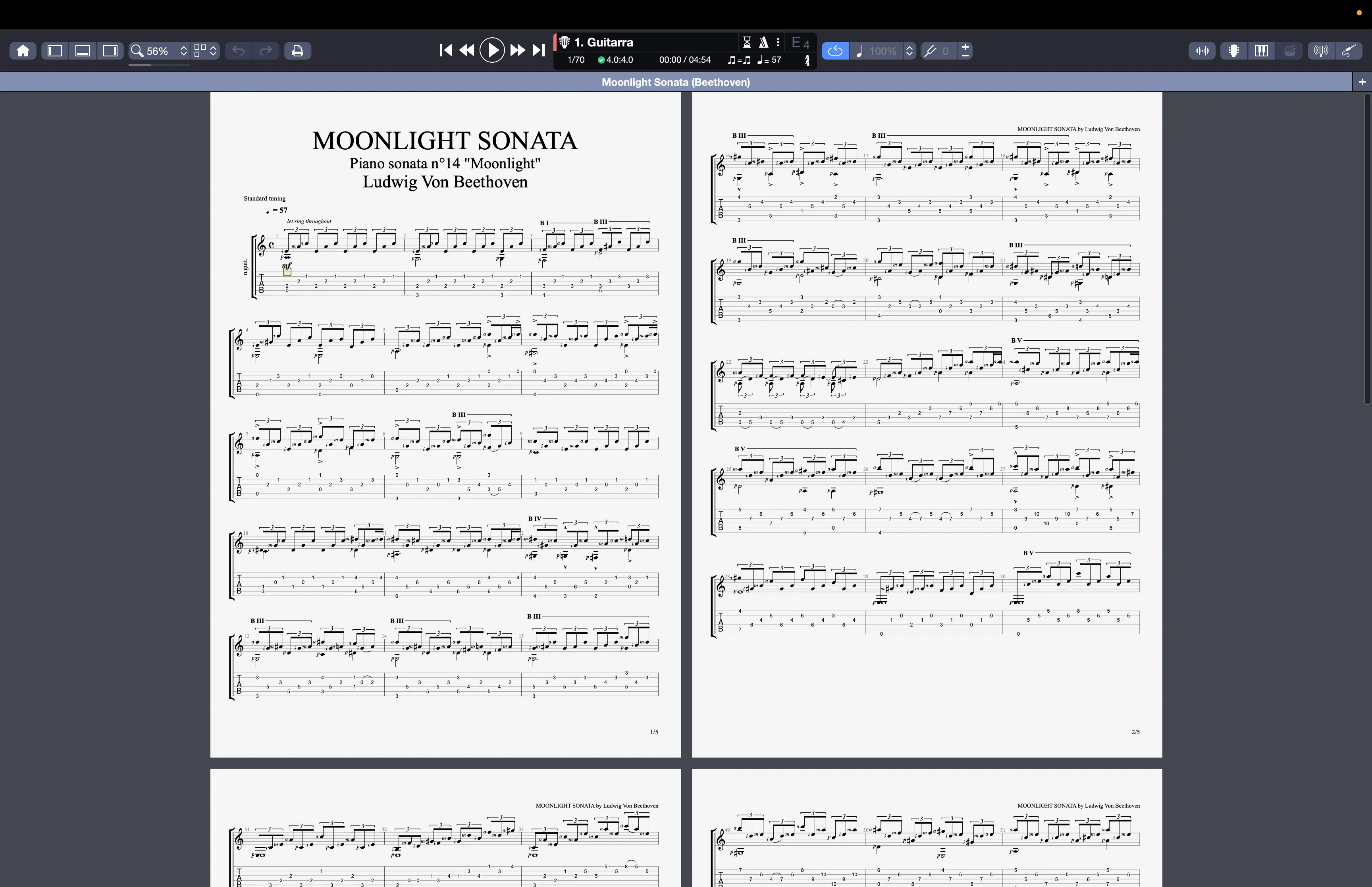
Page - Grid
Adjusts the number of horizontal pages based on the width of the Guitar Pro window. The scrolling is vertical, which is convenient for viewing multiple pages simultaneously on large screens.
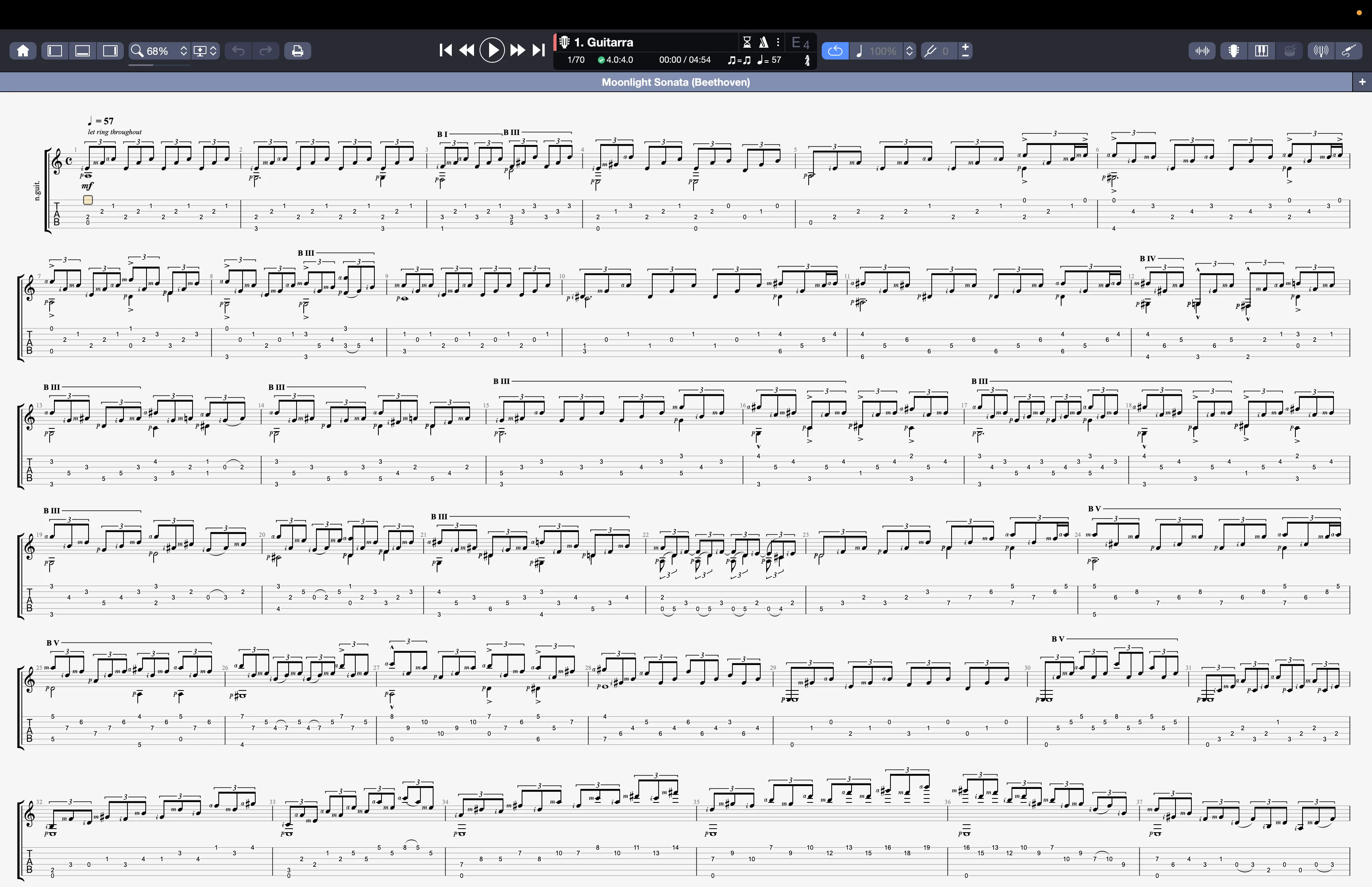
- Page - Scroll: Removes page breaks to provide a continuous, compact view of the score. This mode is ideal for focusing on the music without interruption from page transitions.
Screen Modes
Screen - Vertical
Makes full use of the available window space by automatically organizing measures into staves. This mode is especially suitable for detailed editing of a single track or score.
Screen - Horizontal
Optimizes the window space for a multi-track display, placing tracks side by side. This mode is ideal for working on complex arrangements involving multiple instruments.
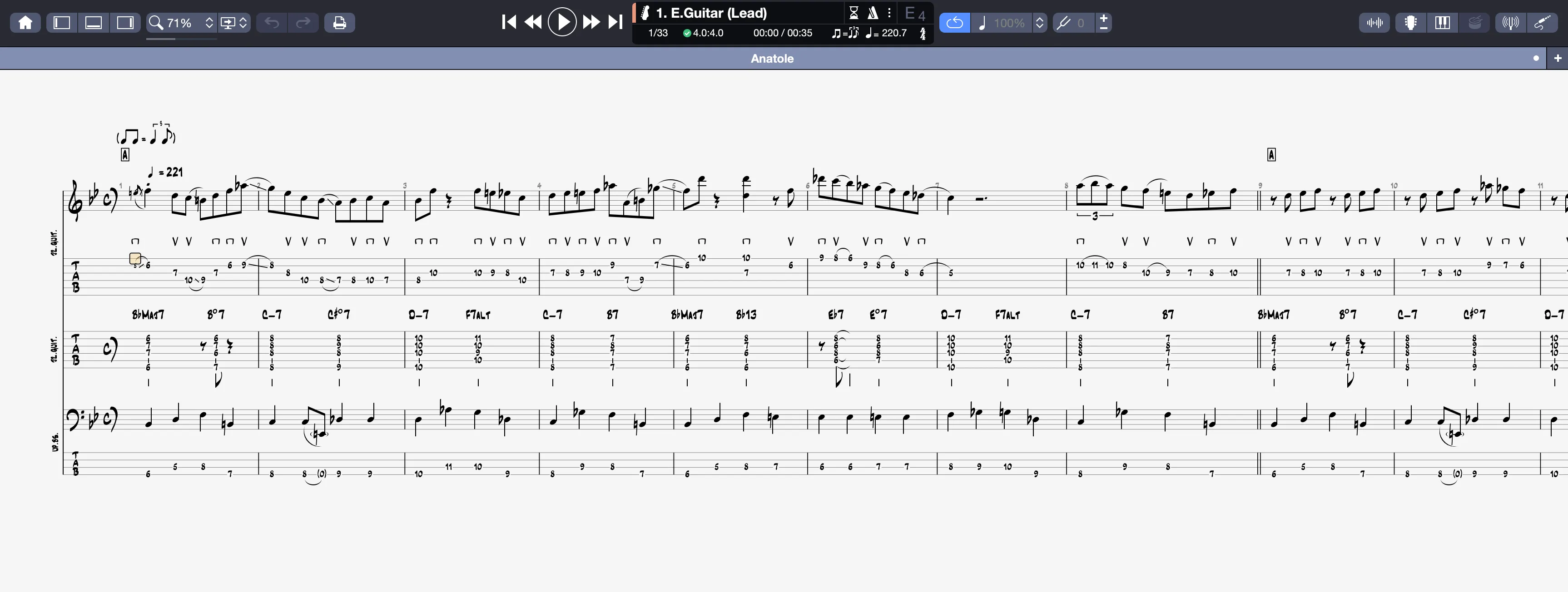
Choosing the Right Mode
The display mode you choose depends on your project and preferences. For example, Page - Vertical or Page - Grid modes are perfect for preparing a score for printing, while Screen - Horizontal is better suited for editing multi-track arrangements. Try these modes to find the setup that best improves your workflow in Guitar Pro.
You can force a specific display mode when opening or creating a file from the Guitar Pro general preferences.