
Command Palette in Guitar Pro 8
The Command Palette in Guitar Pro is a powerful tool designed to streamline your workflow, enabling you to edit and manage your score efficiently. By entering a command, you can perform actions quickly, from adding musical elements to adjusting score settings. This section provides a clear guide to using the Command Palette, helping you enhance your score editing process with ease.
Accessing the Command Palette
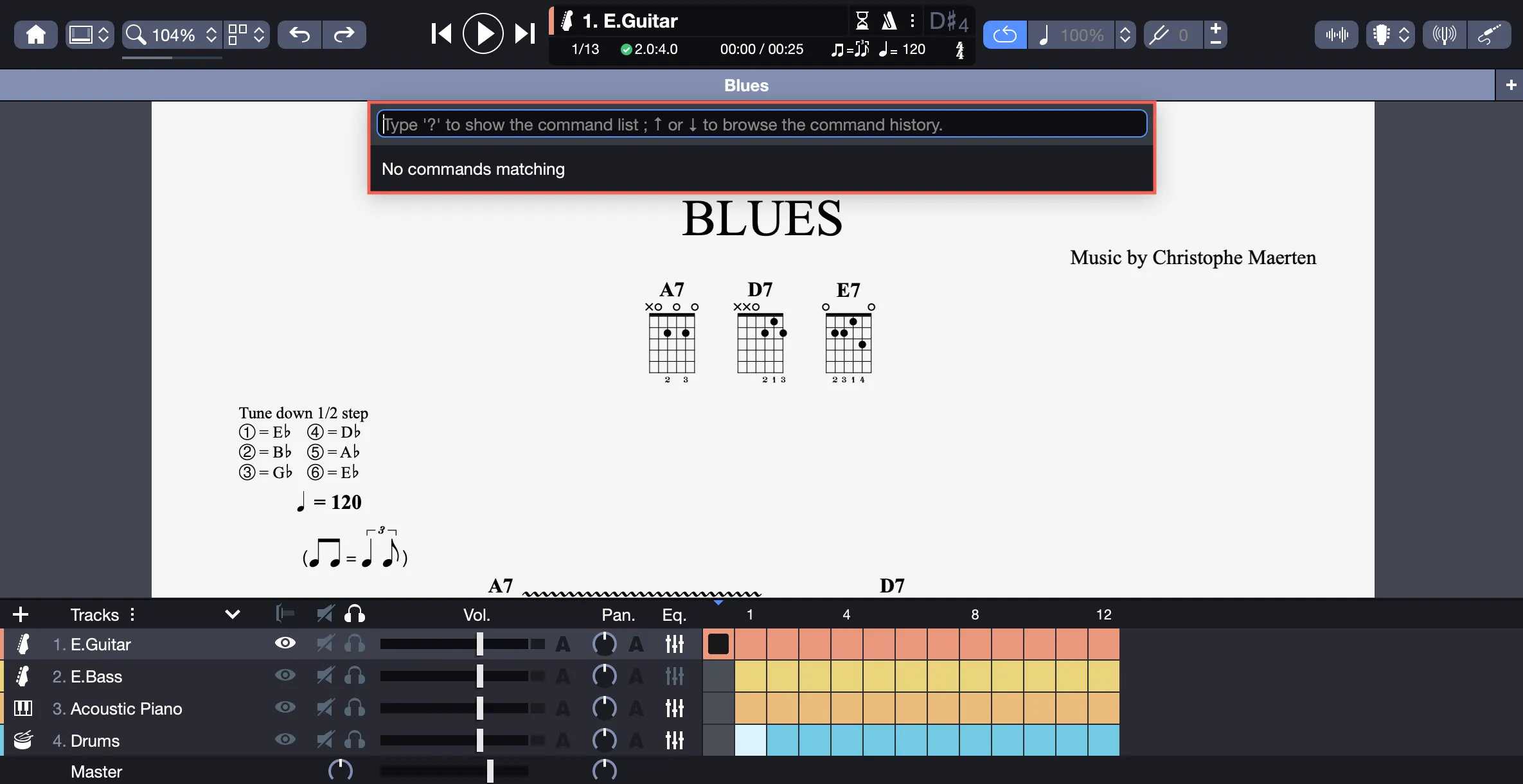
To open the Command Palette, select Tools > Show Command Palette from the menu or press Ctrl+E. The palette appears above your score, just below the tab bar, ready for your input.
How the Command Palette Works
When you open the Command Palette, it starts empty, prompting you to type an action. A helpful message appears: “Type ? to show the commands list, up or down to browse the command history.”

To view all available commands, enter ?, or start typing a prefix, such as “chord” or “print”, to filter the list dynamically. As you type, the palette updates to display matching commands.
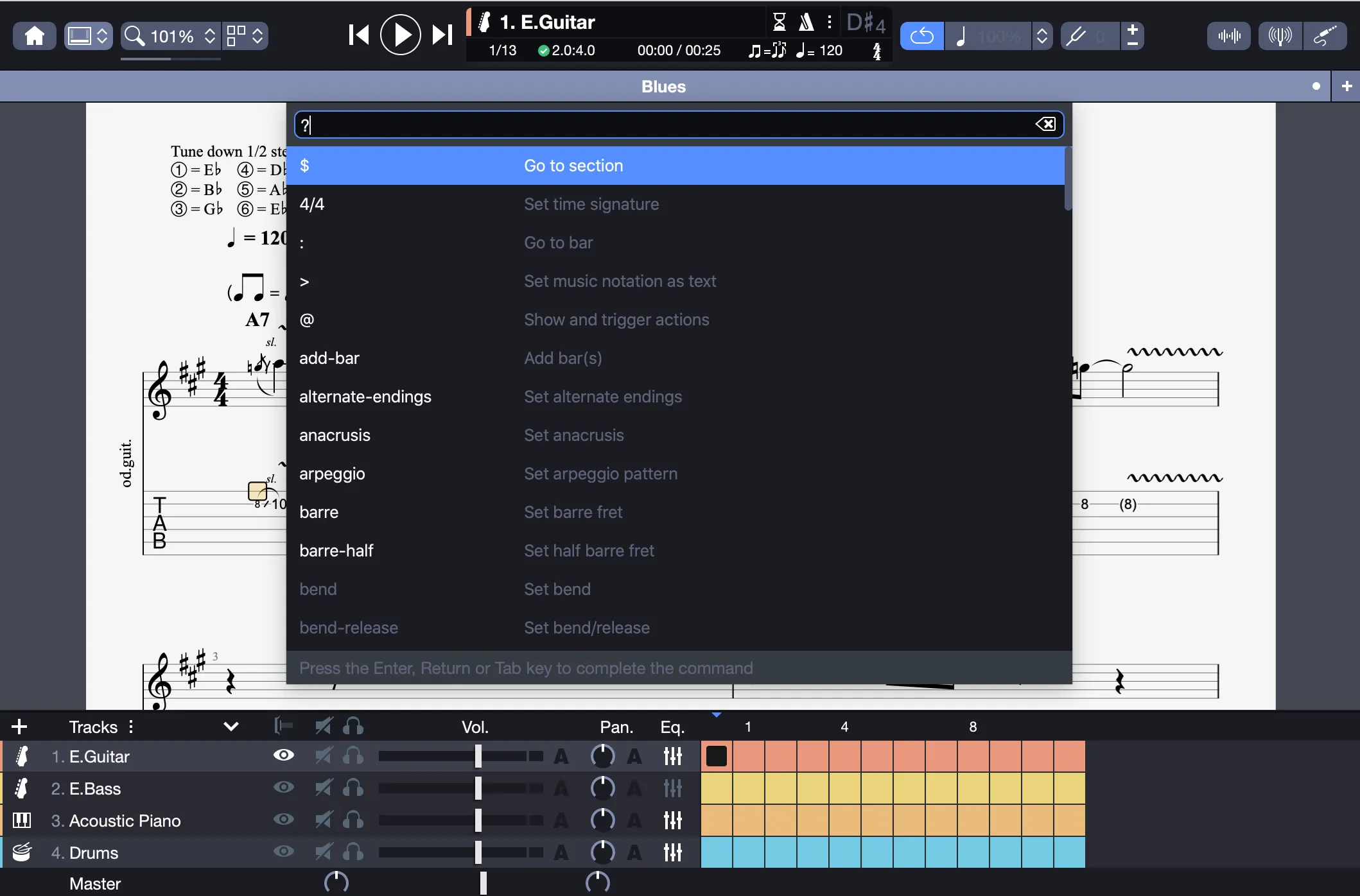
Navigate the alphabetically sorted list using the Up or Down arrow keys. Active commands appear in white, while greyed-out commands require a selection first, for example, “Set palm mute” needs selected notes to be applicable.
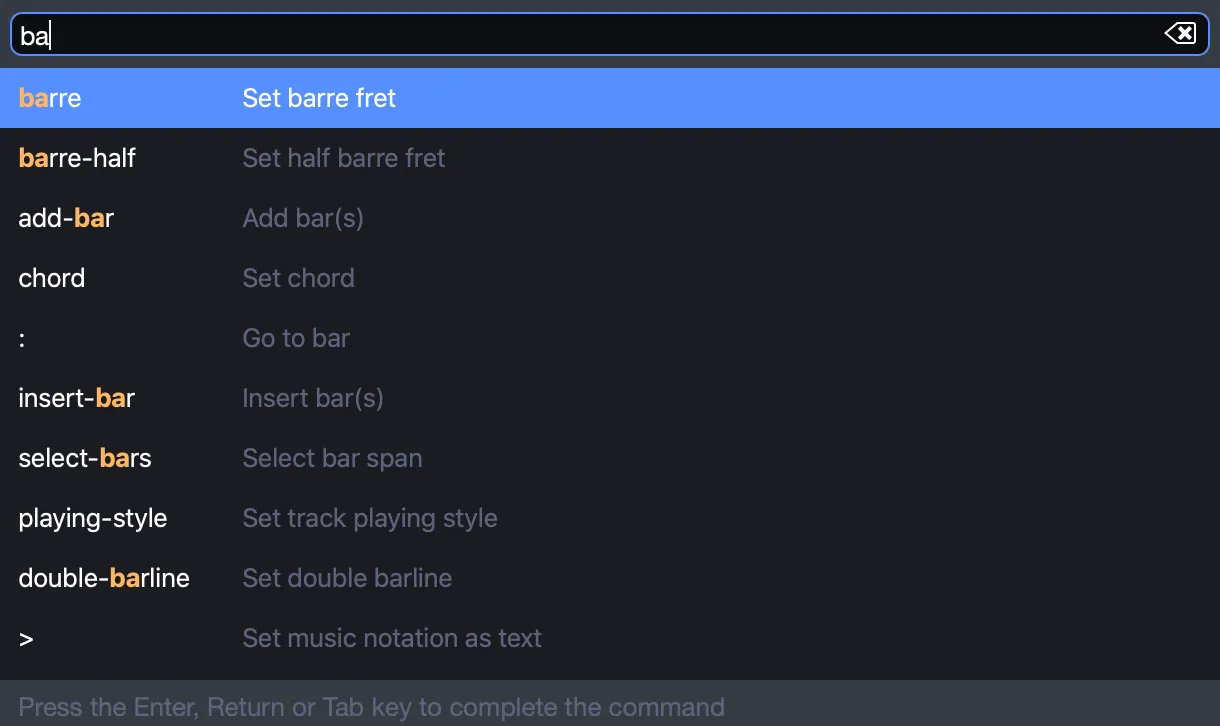
Each command includes a prefix on the left to activate it and a description on the right for clarity. Some commands execute instantly, while others prompt for additional options to complete the action.
Commands are displayed in English, regardless of your Guitar Pro interface language. However, you can type partial terms in your language, such as “accord” for “chord” in French, if supported, and the palette will match them accordingly.
Quick Commands
Quick commands execute immediately without additional input, functioning like a single-click action. For example, to add a palm mute, type “palm”, select palm-mute > Set palm mute using Tab, Enter, or a click to fill the command.


Press Enter or click to apply the palm mute. If a palm mute is already set, the palette prompts to remove it. Another example is typing “print” to access Print > Print Score for instant score printing.

Explore the 32 quick commands listed below for rapid score editing.
Advanced Commands
Advanced commands require additional steps, offering more control for complex tasks like adding bars or editing bends.
Adding Bars to Your Score
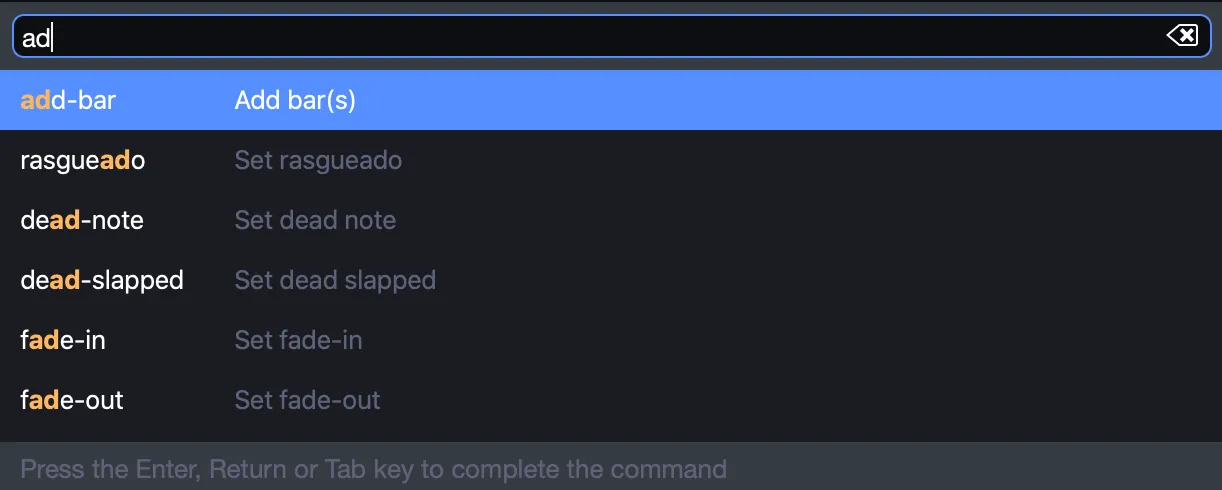
To add bars, type “add”, select add-bar with Tab, Enter, or a click.

When prompted with bar-count in italics, enter a number, such as 20.

Confirm add-bar 20 with Enter or a click to insert 20 bars into your score.

Repeating Bars
For repeating bars, select repeat bar(s), enter a number like 10, and confirm. The selected bars will repeat 10 times.

Editing a Bend
To edit a bend, type “bend”, select bend, then specify a value by typing “bend 2” and pressing Enter, clicking a preset like “Full”, or using arrows to scroll and confirming with Enter.
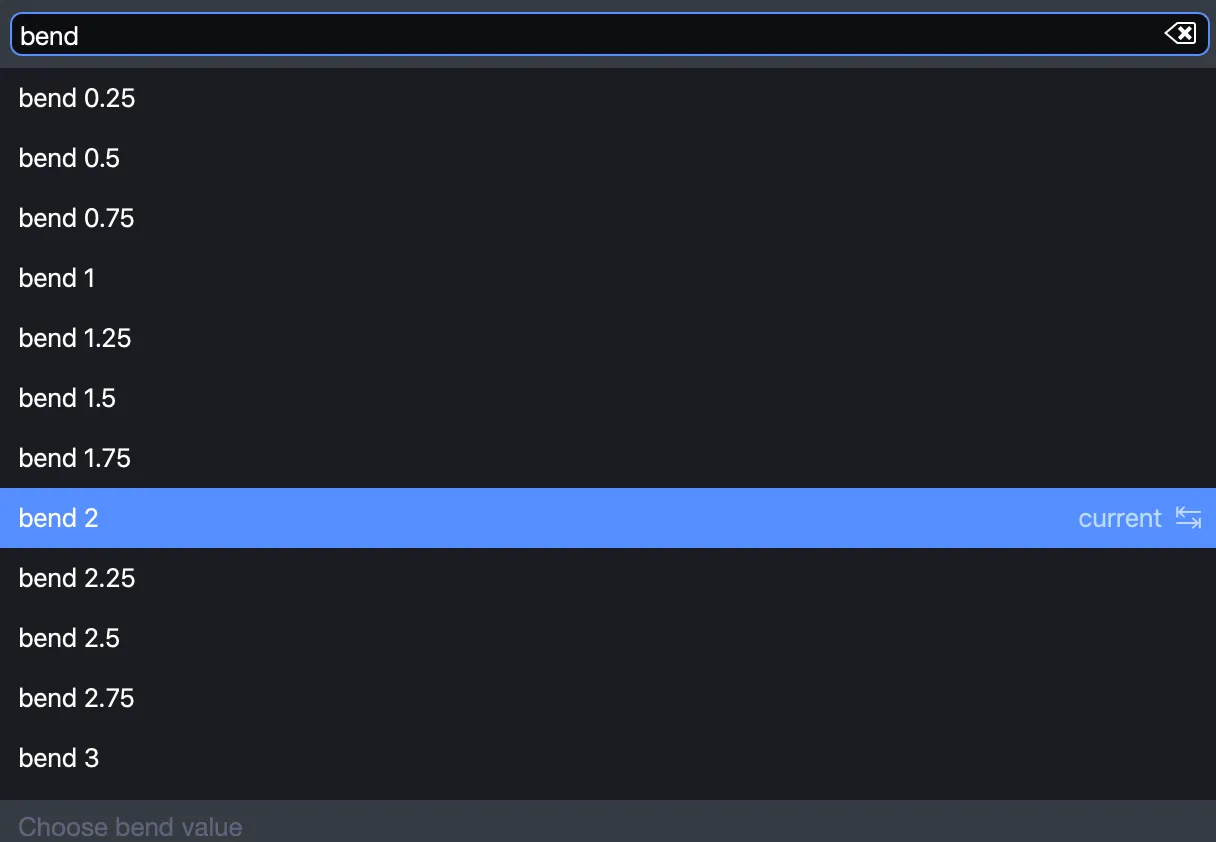
The bend is applied to the selected notes.
Expanding Commands with the Tab Key
Commands marked with a ↹ icon offer additional options. Press Tab to explore them.
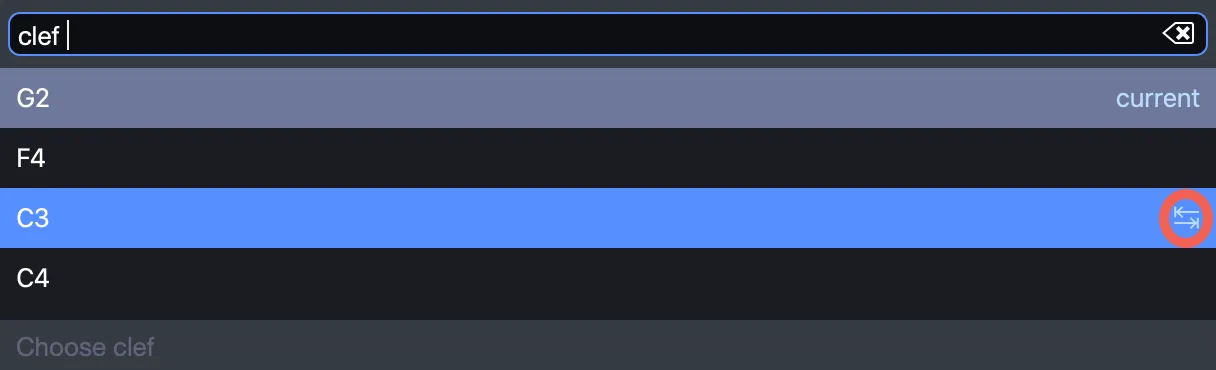
Editing the Clef
To change the clef, type “clef”, select Set clef, and press Tab to cycle through options like treble or bass.
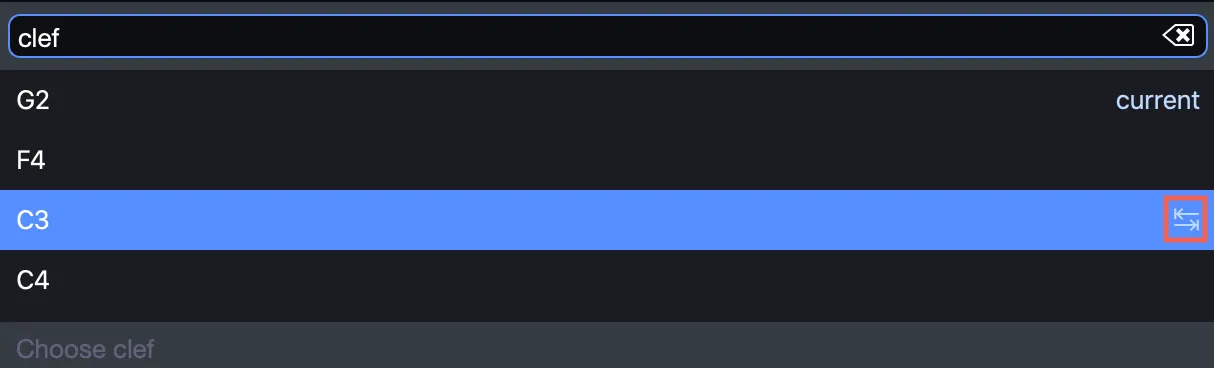
Continue tabbing to adjust further settings, such as octave shifts, then press Enter to confirm.
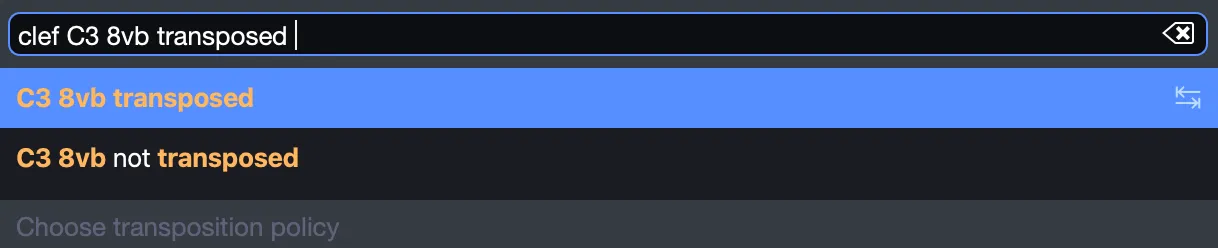
Press Tab to review all available options before confirming with Enter to ensure you select the desired settings. Finalize by pressing Enter or clicking.
Commands and Patterns
Certain commands use patterns, such as pickstroke sequences, to format your score precisely.
Adding a Pickstroke Pattern
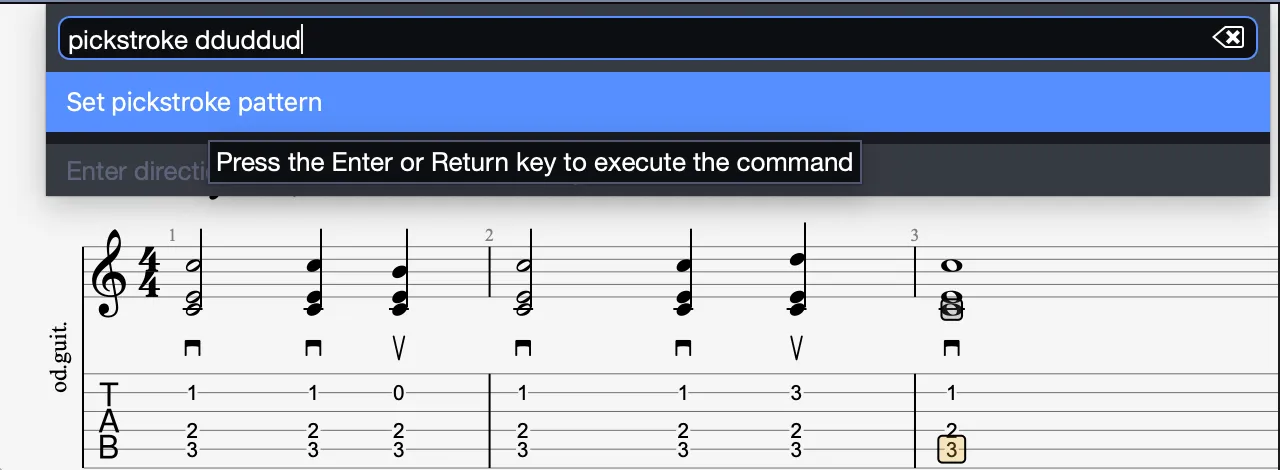
With the cursor on a bar, type “pickstroke”, select pickstroke, and respond to the pattern prompt.
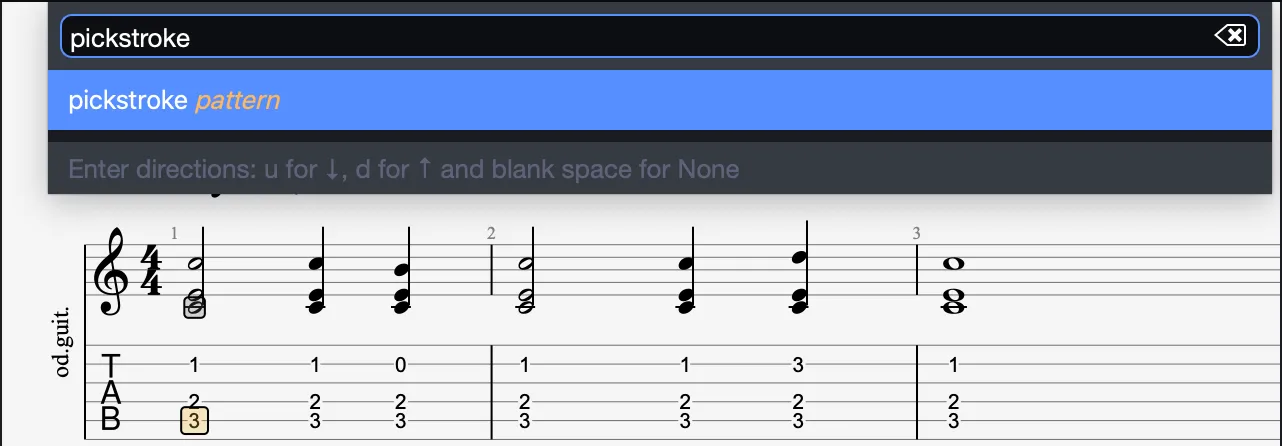
Use d for down, u for up, or Space for none. Enter a sequence like “dduddud” (down-down-up-down-down-up-down) and confirm.
Applying a Pattern to a Selection
Select bars, then apply a pattern, such as “ud” for a brush effect across all beats.
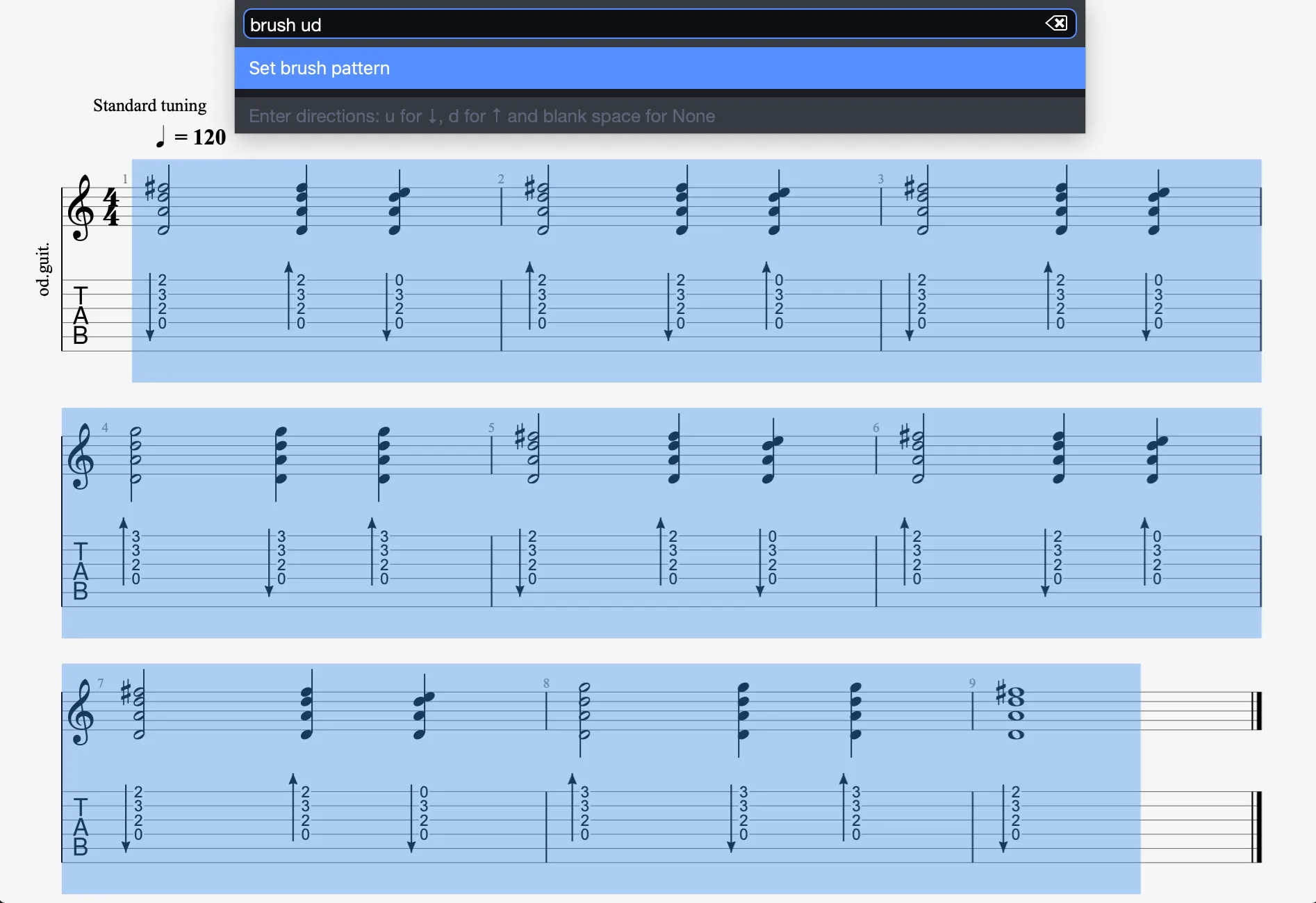
Refer to the pattern table below for detailed options.
Smart Searches and Filters
As you type, the Command Palette narrows the list dynamically to match your input.
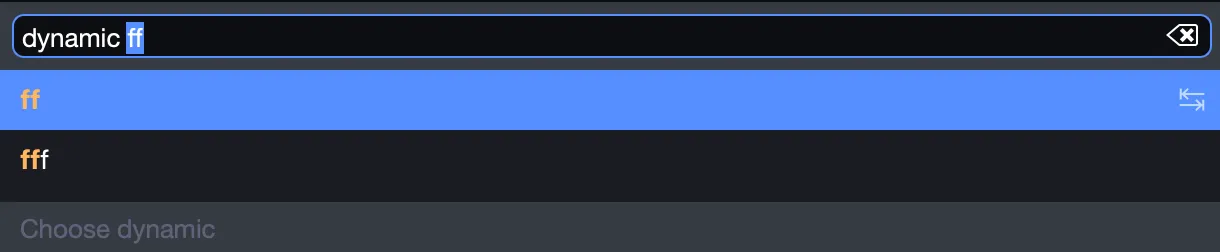
You don’t need to know exact prefixes: typing “ff” finds dynamic > Set dynamic for fortissimo, while “xml” reveals export options.

Summary
- Access the Command Palette via Tools > Show Command Palette or Ctrl+E.
- Type ? to display all commands. Command availability depends on your selection.
- Search by typing part of an action to see suggestions, use prefixes to activate commands, complete them with Tab, Enter, or a click, and apply with Enter or a click.
- Quick commands, like “palm-mute”, require only a prefix, while advanced commands, such as “add-bar 20”, need additional options.
- Use Tab to explore more settings, and apply patterns, like “ddu”, for specific formatting. English commands, searchable in your language if supported.
Quick Commands List
| Prefix | Description |
|---|---|
| anacrusis | Set anacrusis |
| crescendo | Set crescendo hairpin |
| dead-note | Set dead note |
| dead-slapped | Set dead slapped |
| decrescendo | Set decrescendo hairpin |
| double-barline | Set double barline |
| double-simile | Set double simile |
| fade-in | Set fade-in |
| fade-out | Set fade-out |
| force-break-line | Force break line |
| force-tuplet-bracket | Force tuplet bracket |
| free-time | Set free time |
| hammer-on-pull-off | Set hammer on / pull off |
| left-hand-tapping | Set left hand tapping |
| legato | Set legato |
| let-ring | Set let ring |
| multirest | Activate multirest |
| multivoice | Activate multivoice |
| palm-mute | Set palm mute |
| pedal | Set sustain pedal |
| prevent-break-line | Prevent break line |
| Print score | |
| repeat-close | Set repeat close |
| repeat-open | Set repeat open |
| rest | Set rest(s) |
| show-string-number | Show string number |
| simile | Set simile |
| tapping | Set tapping |
| tie-beat | Tie beat(s) |
| tie-note | Tie note(s) |
| timer | Set timer |
| volume-swell | Set volume-swell |
Advanced Commands List
| Prefix | Description |
|---|---|
| $ | Go to section |
| 4/4 | Set time signature |
| : | Go to bar |
| @ | Show and trigger actions |
| add-bar | Add bar(s) |
| alternate-endings | Set alternate endings |
| arpeggio | Set arpeggio pattern |
| barre | Set barre fret |
| barre-half | Set half barre fret |
| bend | Set bend |
| bend-release | Set bend/release |
| brush | Set brush pattern |
| chord | Set chord |
| clef | Set clef |
| copy voice | Copy to another voice |
| direction | Set direction target and jump |
| dynamic | Set dynamic |
| export | Export score |
| fermata | Set fermata |
| find-scale | Find scale(s) |
| flow | Toggle flow mode |
| focus | Set track focus percentage |
| free-text | Set free text |
| golpe | Set golpe pattern |
| hide-tempo-automation | Hide tempo automation |
| hold-bend | Hold bend |
| import | Import file |
| insert-bars | Insert bar(s) |
| key-signature | Set key signature |
| left-hand-fingering | Set left hand fingering |
| lyrics | Set lyrics |
| master-pan | Add master pan automation |
| master-volume | Add master volume automation |
| move-voice | Move to another voice |
| n:m | Set custom tuplet |
| octave-sign | Set octave shift (8va, 8vb, etc.) |
| ornament | Set ornament |
| pan | Add pan automation |
| picking | Set picking pattern |
| pickstroke | Set pickstroke pattern |
| playing-style | Set track playing style |
| prebend | Set prebend |
| prebend-bend | Set prebend/bend |
| prebend-release | Set prebend/release |
| rasguedo | Set rasguedo |
| relative-speed | Set relative speed |
| relative-tonality | Set relative tonality |
| release-bend | Release bend |
| right-hand-fingering | Set right hand fingering |
| select-bars | Select bar span |
| select-section | Select section |
| show-scale | Show scale on virtual fretboard |
| show-tempo-automation | Show tempo automation |
| slap-pop | Set slap/pop pattern |
| stem-direction | Set stem orientation |
| swap-voices | Swap with another voice |
| tempo | Add tempo automation |
| transpose | Transpose selection |
| tremolo-picking | Set tremolo picking |
| triplet-feel | Set triplet feel |
| unfocus | Set track unfocus percentage |
| unset | Unset elements |
| view | Change view |
| voice | Change active voice |
| volume | Add volume automation |
| wah | Set wah-wah pattern |
| x | Repeat bar(s) |
| zoom | Zoom in/out |
Expression Text
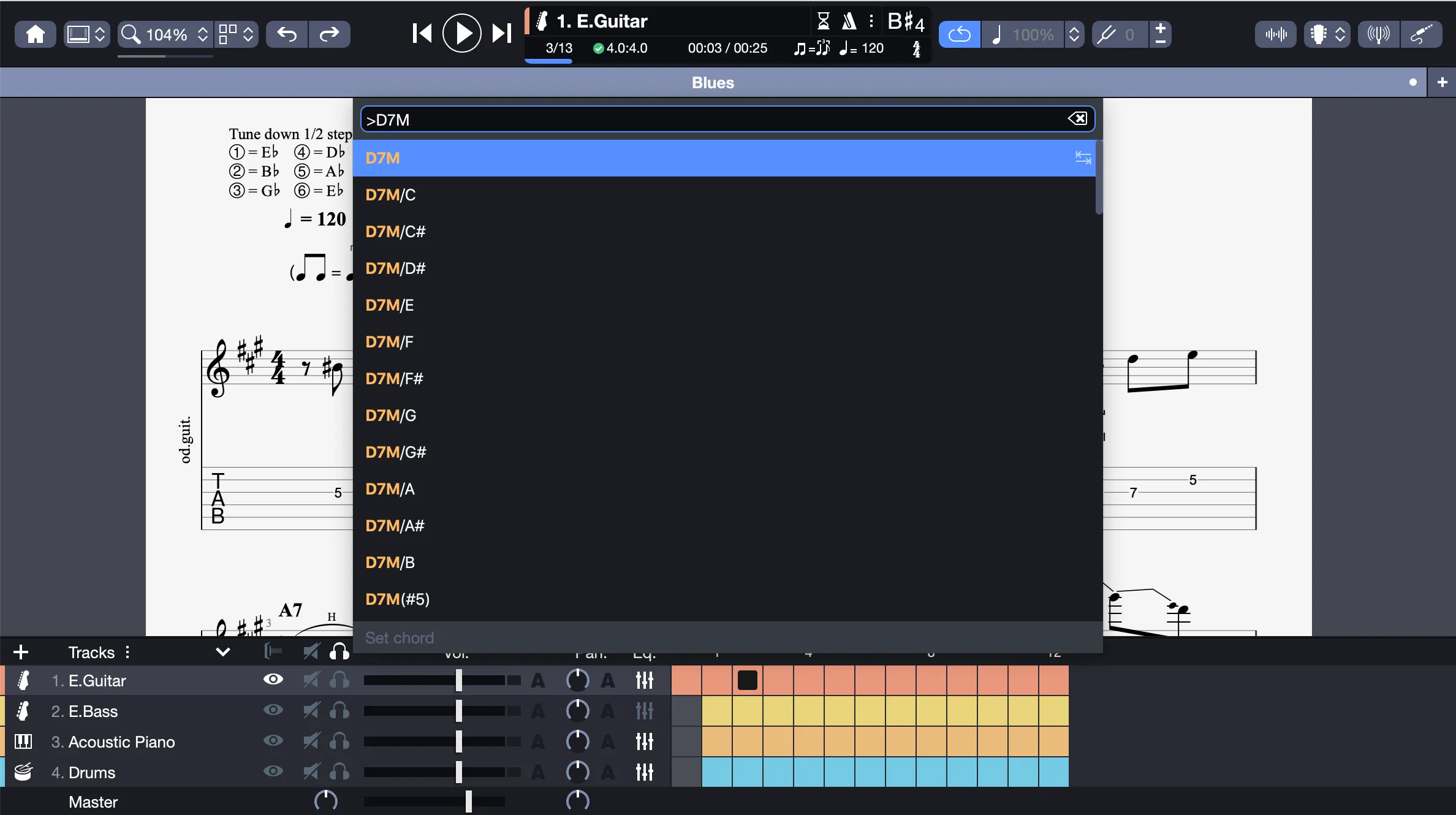
The Expression Text tool, accessible via Tools > Expression Text or Shift+Cmd+E, or by typing > in the Command Palette, allows you to add musical elements without using prefixes.
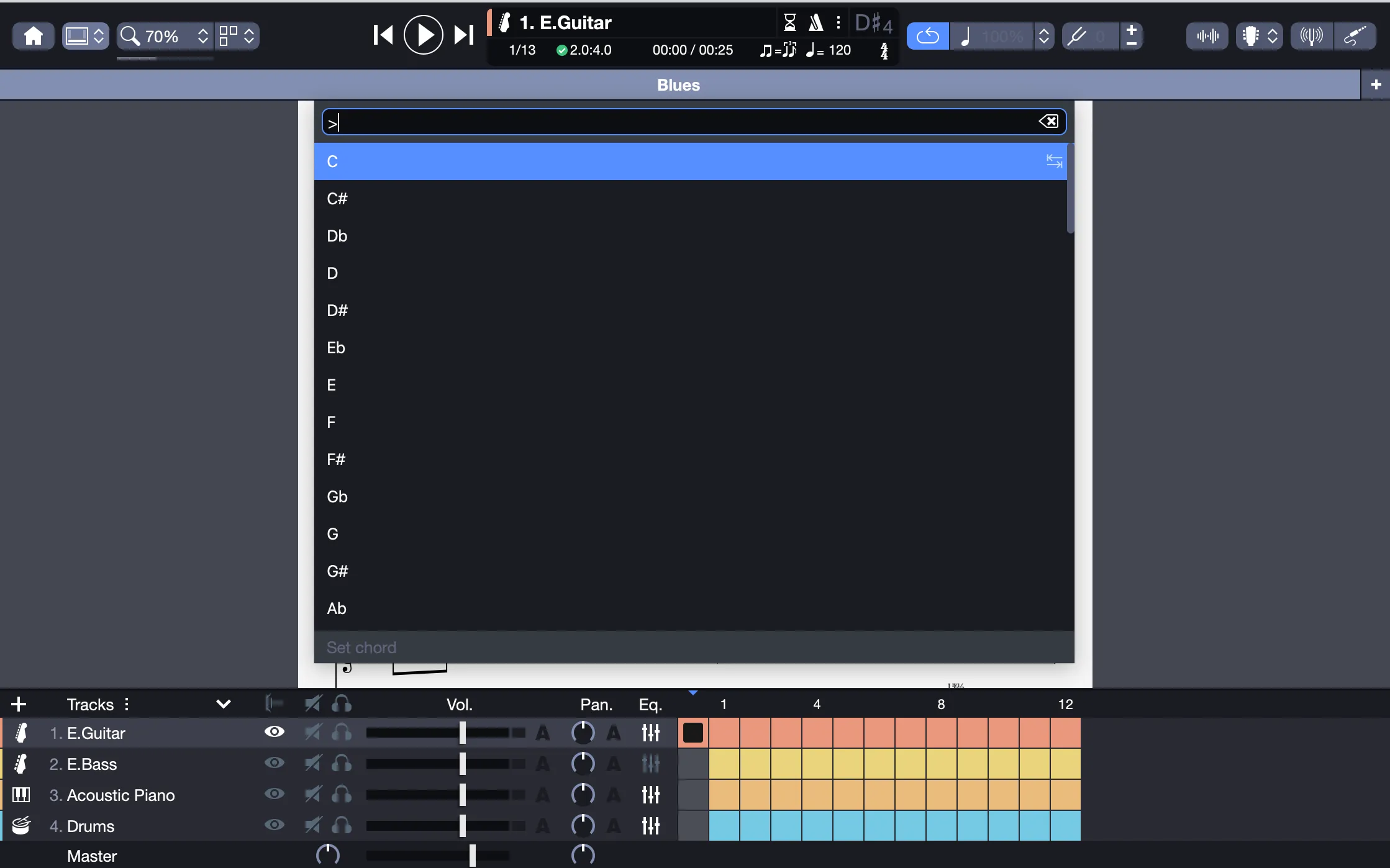
You can add chords, dynamics, key signatures, octave signs, clefs, or directions. For example, type “ff” for fortissimo or “G maj” for G major, select the desired option, and press Enter to place it on your score.
Action List
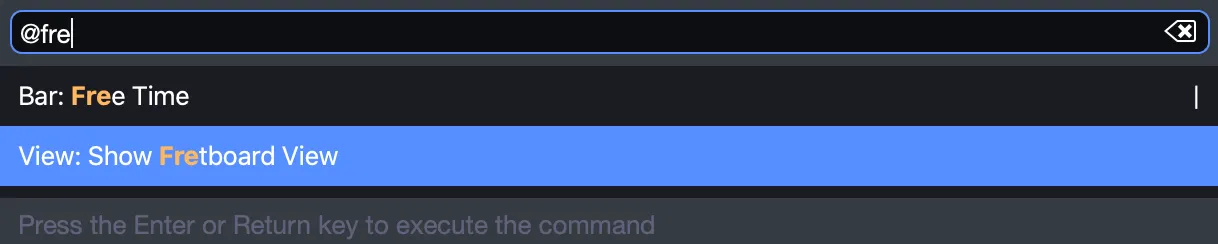
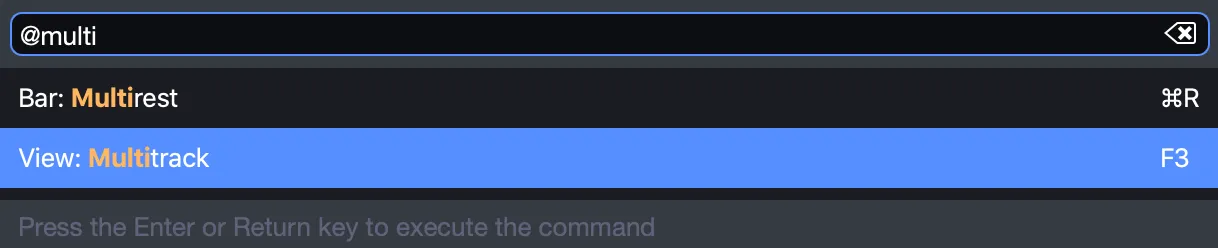
The Action List, accessible via Tools > Action List, Alt+Cmd+E, or by typing **@** in the Command Palette, provides direct access to menu actions from categories like File, Edit, Track, and more.
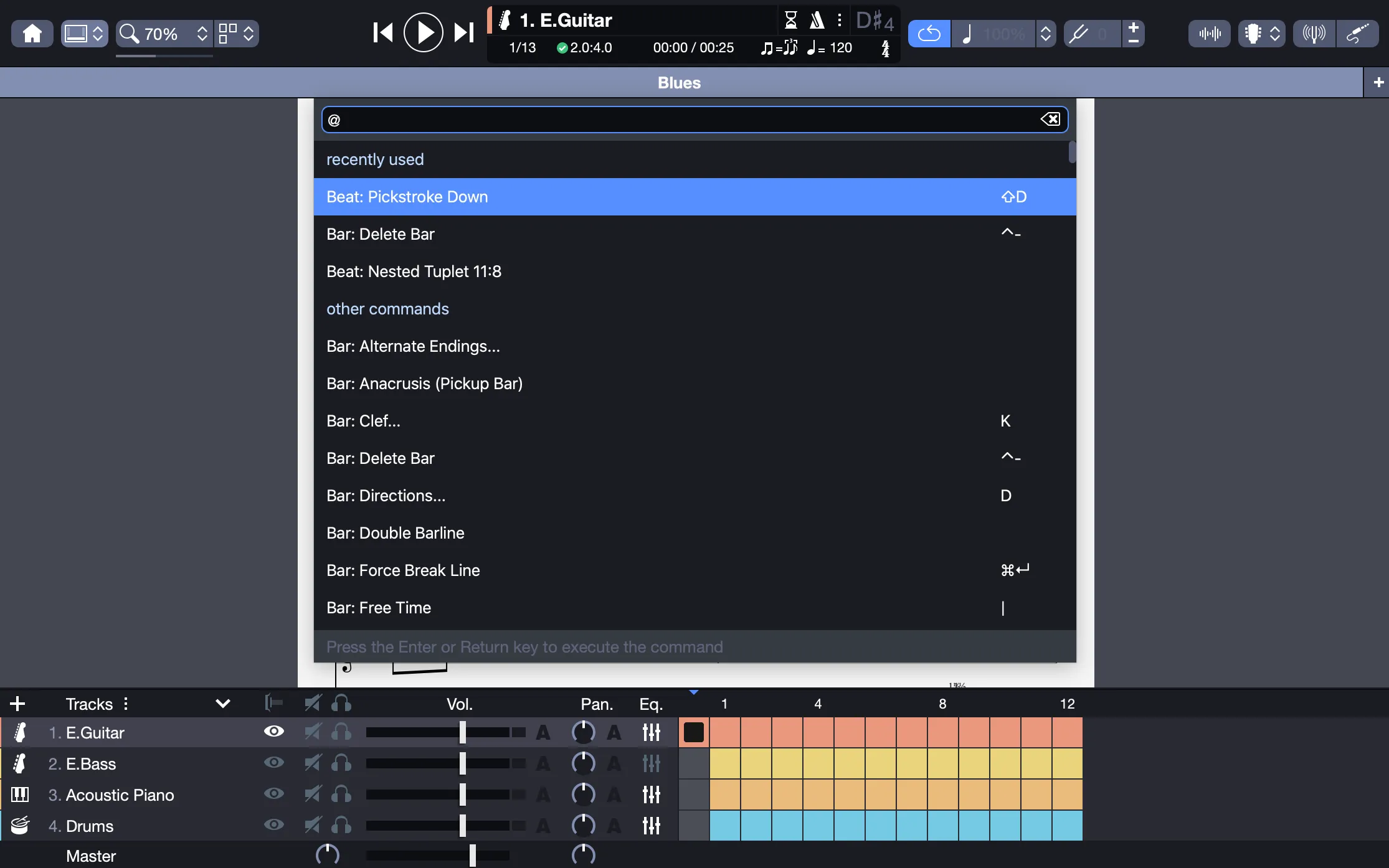
For instance, type “fretboard” to trigger View > Show Fretboard View, or “multitrack” to toggle the multitrack setting, executing menu commands efficiently.
Pattern Commands Table
| Prefix | Description | Pattern |
|---|---|---|
| arpeggio | Set arpeggio pattern | u=↓, d=↑, Space=none |
| brush | Set brush pattern | u=↓, d=↑, Space=none |
| golpe | Set golpe pattern | f=finger, t=thumb, Space=none |
| left hand | Set left hand pattern | 0-4, T, -=skip note, Space=skip beat |
| picking | Set picking pattern | Alternate (up/down) or Economy (same direction) |
| pickstroke | Set pickstroke pattern | u=↓, d=↑, Space=none |
| right hand | Set right hand pattern | p,i,m,a,c, -=skip note, Space=skip beat |
| slap pop pattern | Set slap/pop pattern | s=slap, p=pop, Space=none |
| wah | Set wah-wah pattern | o=open, c=closed, Space=none |