Navigating a Score in Guitar Pro 8
Guitar Pro offers several ways to navigate through your score.
Using your mouse, keyboard, or built-in tools, you can move quickly and precisely between beats, bars, and tracks.
Moving the Cursor
Efficiently navigate your score using these integrated tools.
Clicking in the Score
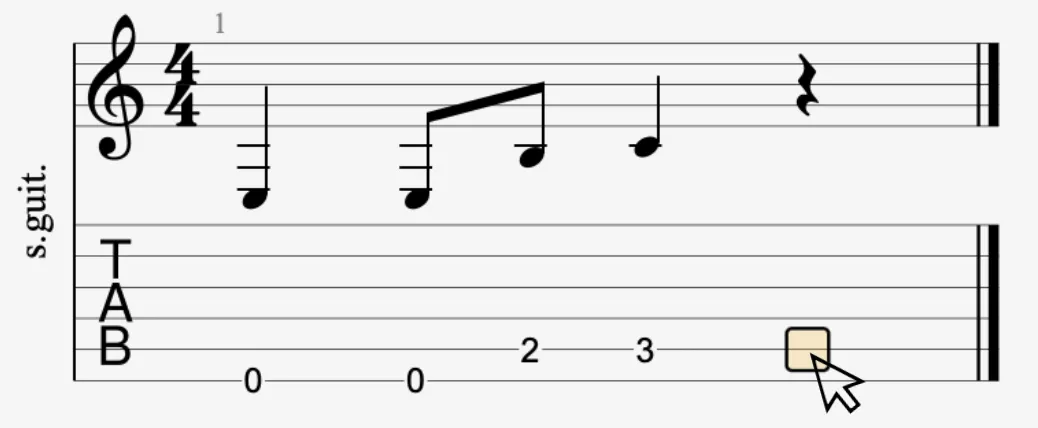
Click anywhere in the score to instantly reposition the editing cursor.
During playback, a single click sets a new starting point without interrupting, making it easier to focus on a specific section.
Using the Keyboard
Move note by note, bar by bar, or between notations using keyboard shortcuts. For the full list, see the keyboard shortcuts section.
The main commands are:
| Keyboard key | Description |
|---|---|
| ← | Previous beat or previous bar |
| → | Next beat or next bar |
| ↑ | Previous line |
| ↓ | Next line |
| ⇤ | Previous staff / notation |
| ⇥ | Next staff / notation |
| ⌫ | Delete note |
Clicking the Transport Buttons in the Toolbar
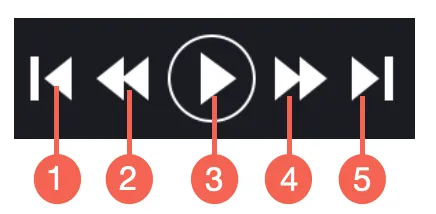
The transport buttons in the toolbar provide convenient navigation options.
- First bar: jump to the beginning.
- Previous bar: move back one bar.
- Play / Stop: start or pause playback.
- Next bar: move forward one bar.
- Last bar: jump to the end.
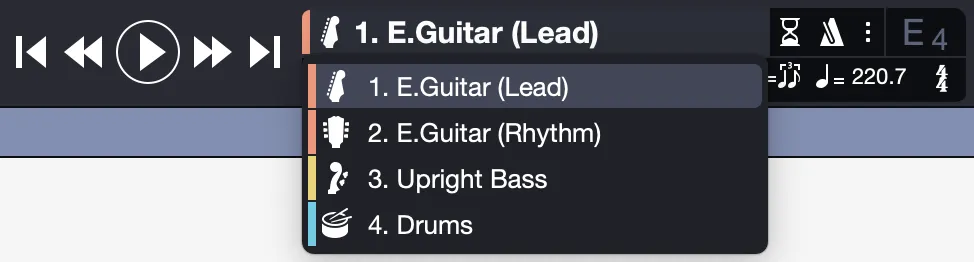
Quickly change tracks by clicking the track name at the center of the toolbar. A dropdown menu allows you to select a different track.
Clicking in the Global View
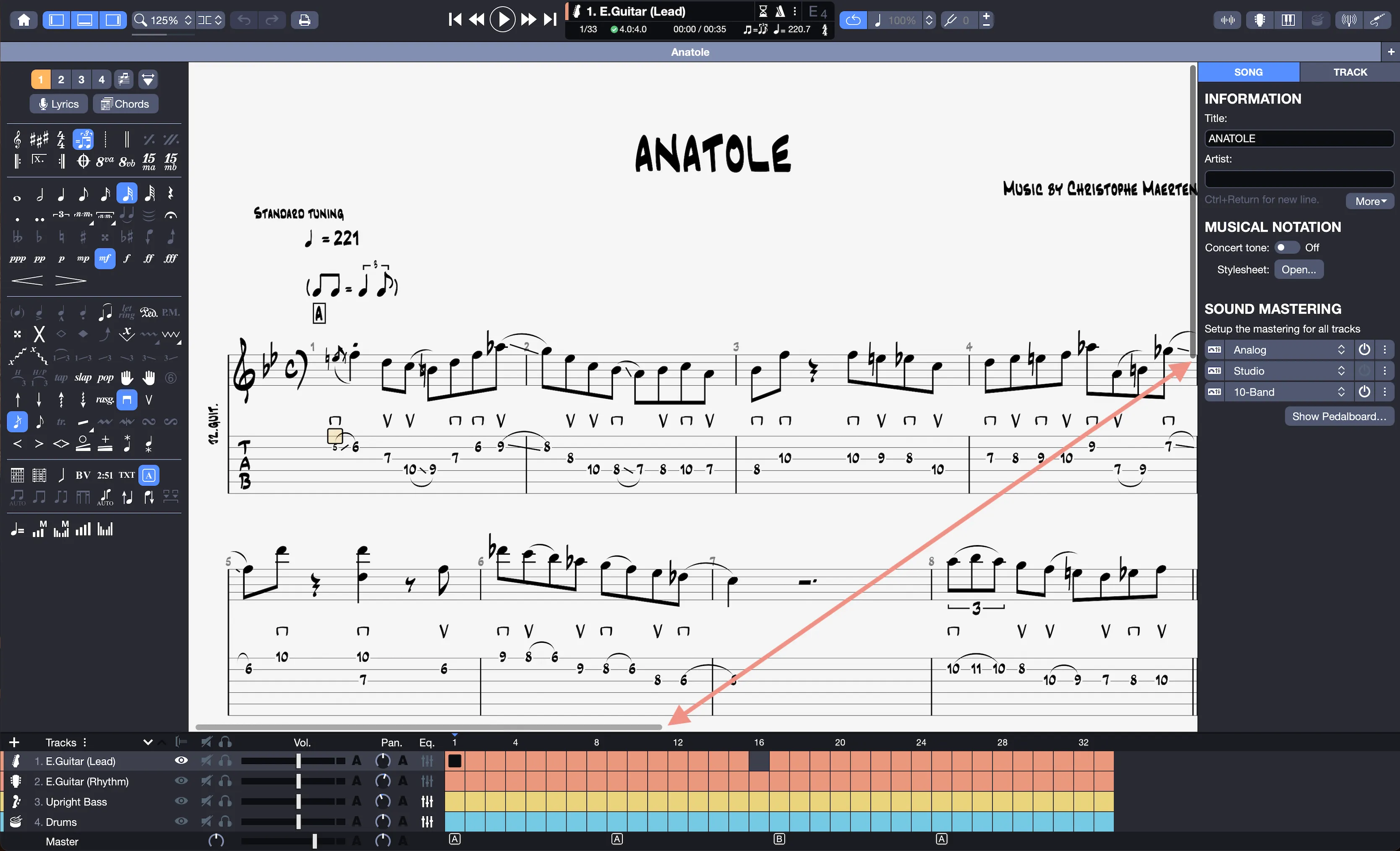
Select the desired track from the global view, located at the bottom of the Guitar Pro window.
Place the cursor in one of your track’s squares. Each square represents one bar.
You can also select a bar number or section name to position the cursor directly in the corresponding part of the score.
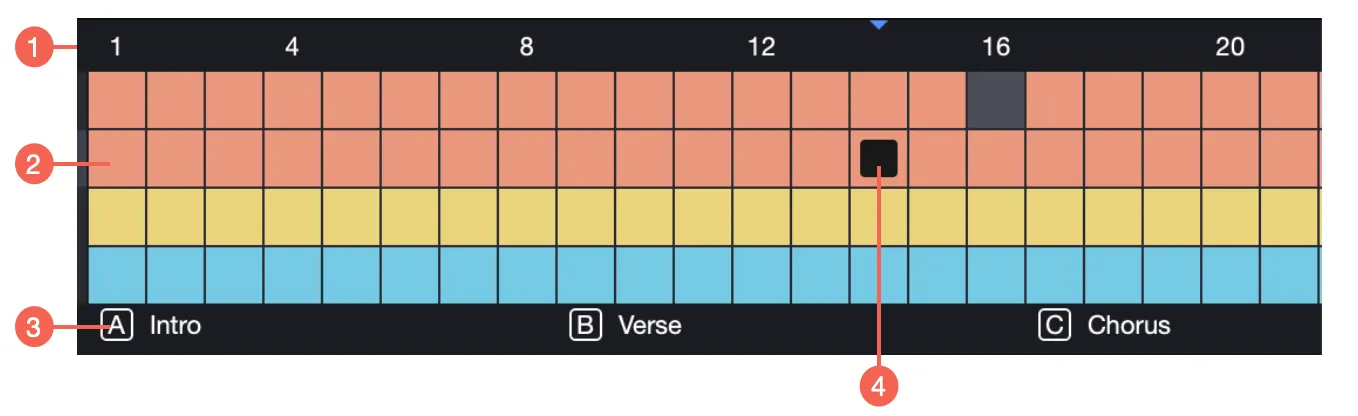
- Bar numbers
- Bars
- Sections
- Cursor
Using the Sections Menu
Move between song sections, like the verse or solo, using the Sections menu. It lists all the sections in your score. Select the desired one to place the cursor at its start point.
Scrolling the Score in Edit Mode
Scroll through your score without moving the cursor using your trackpad, mouse wheel, or the horizontal and vertical scrollbars in the workspace.
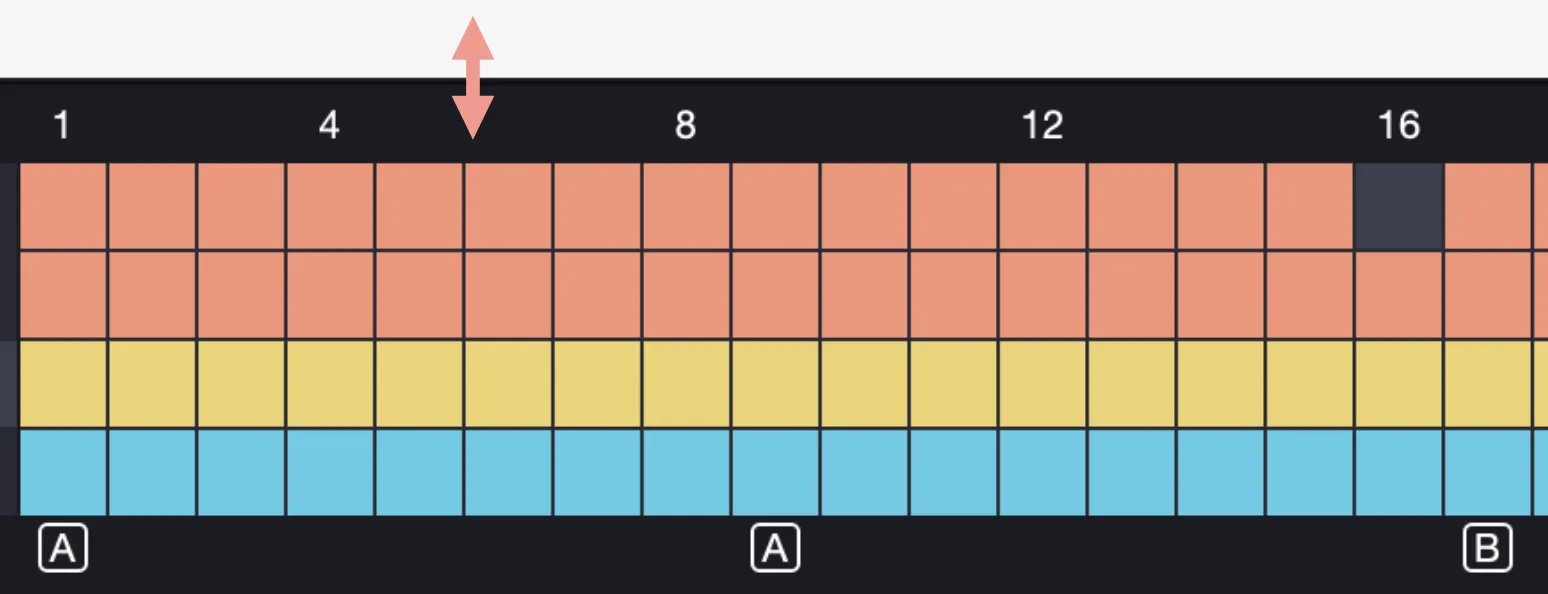
In the global view, scroll through tracks and bars the same way, or adjust the global view’s height by stretching the window for a clearer overview.
Using a mouse with a wheel? Hold Alt and scroll to move horizontally through your score.
Scrolling the Score in Playback Mode
During playback, the cursor moves forward and the view scrolls to keep it in sight.
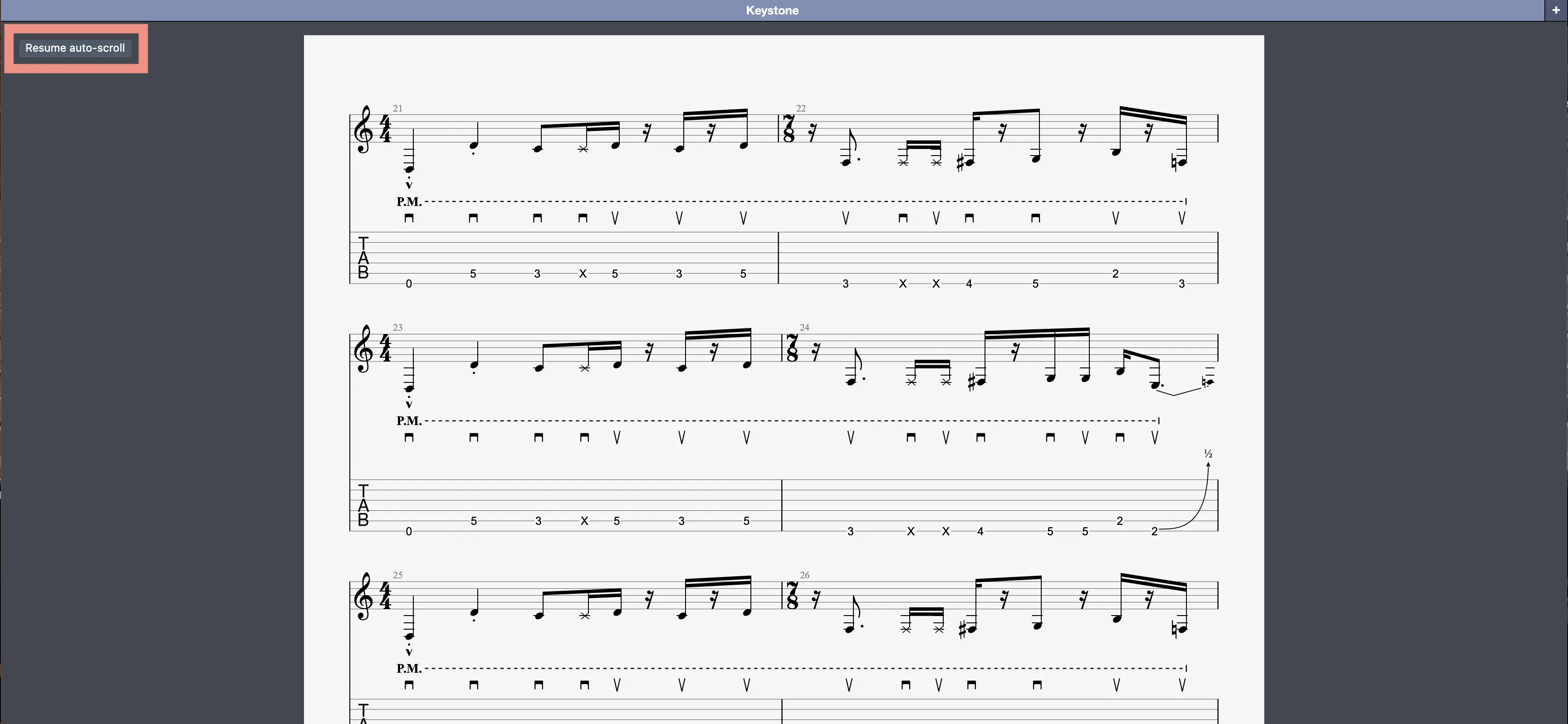
For manual control, scroll within the score or the global view to pause auto-follow.
To resume auto-scrolling, click Resume auto-scroll at the top left of the workspace.