
Entering Notes in Guitar Pro 8
In Guitar Pro, note entry is performed directly on the staff.
You can enter notes using Standard Notation, Tablature, or Numbered Notation.
First, select the notation you want to display and use in your score from the Track Inspector.
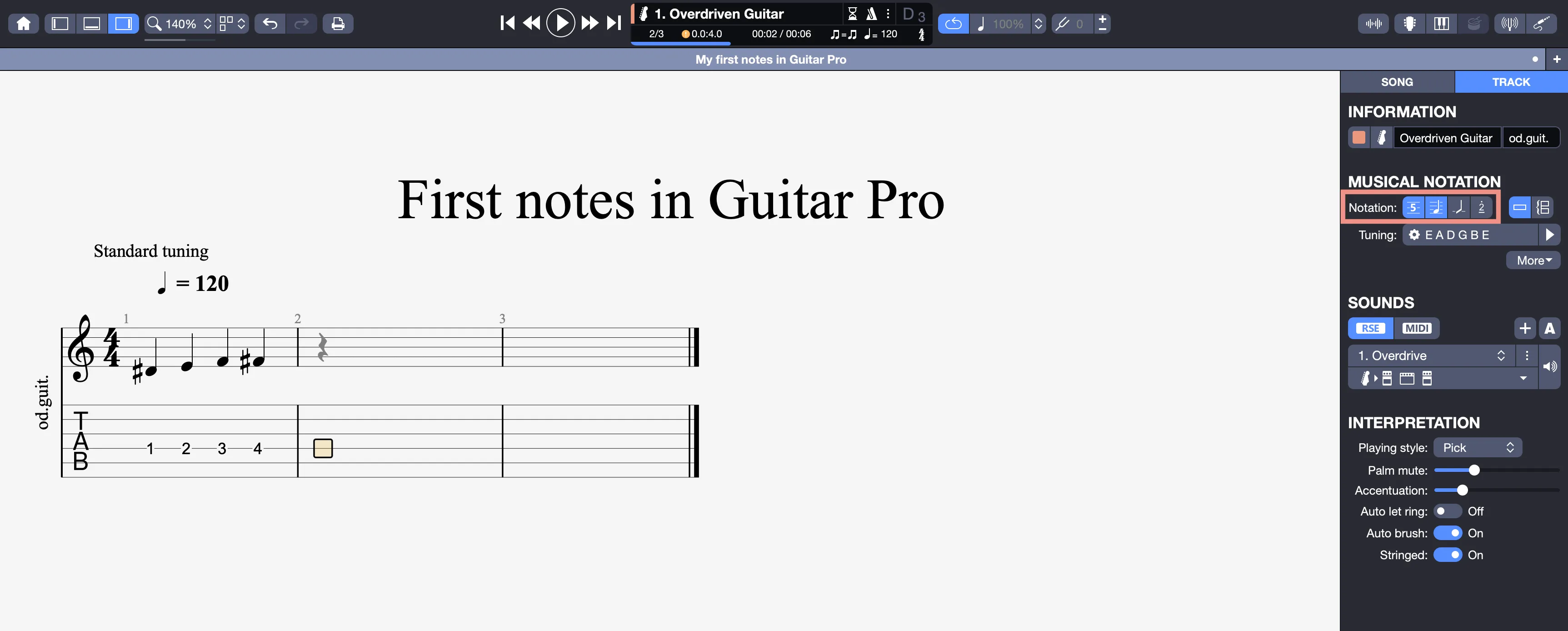
Clicking on the score does not add a note, but simply positions the cursor at the selected location.
The editing cursor is displayed as a square, whose color changes depending on the selected voice.
Each note entered in one notation is instantly reflected in the others.
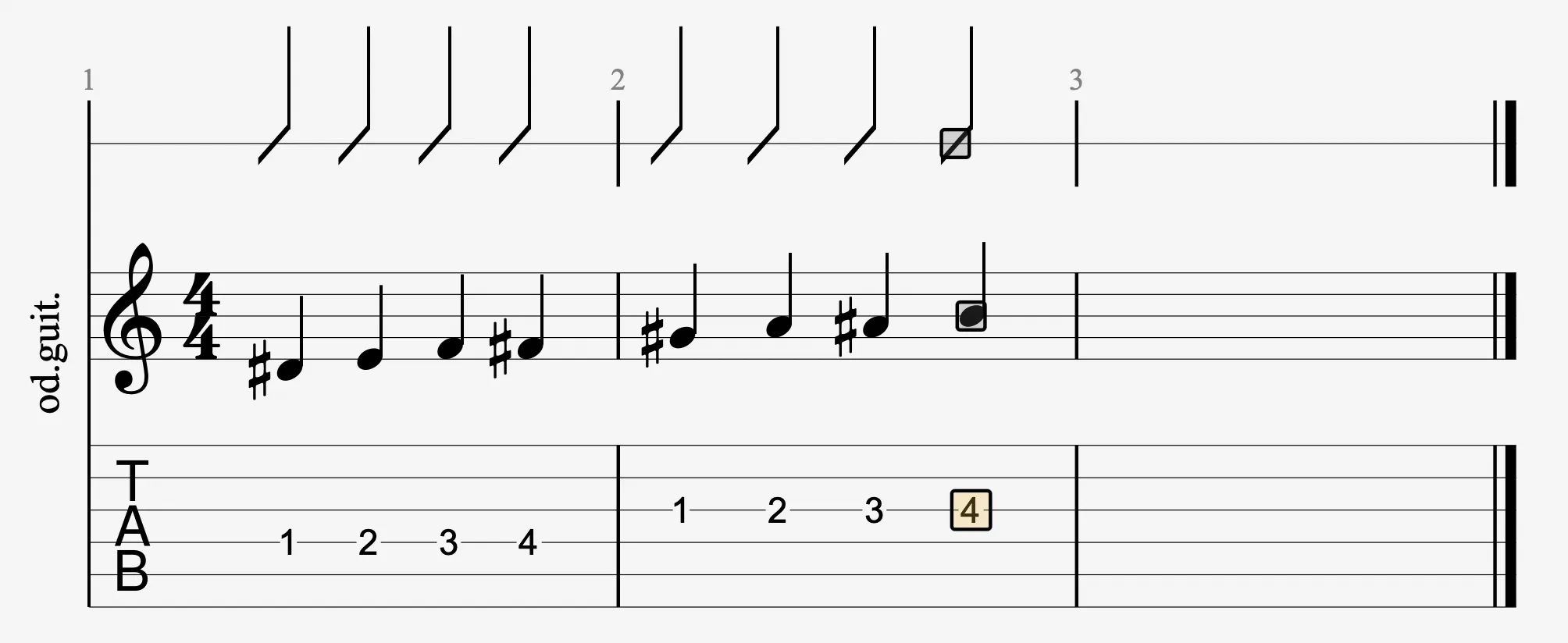
When the cursor is placed on a note, the corresponding note in the other notation is highlighted with a gray square.
Info
Rhythmic notation (slash notation) is only a visual representation and cannot be edited directly. However, adding a note automatically inserts a slash whose duration can be adjusted.
Methods for Entering Notes
Guitar Pro provides several methods for entering notes.
Using the Computer Keyboard
Keyboard entry mainly uses the numeric keypad and follows these general principles:
- Use the arrow keys to move the cursor within the track’s measures.
- Use the numbers 0 to 9 to enter notes.
- In standard notation, numbers 1 to 9 select the string on which the note is placed. 0 selects the optimal string automatically.
- In tablature, these numbers indicate the fret. A short delay allows entering two-digit fret numbers.
- Use the + and - keys to change the note duration.
- Press R to insert a rest.
- Press Tab to switch between notations and move between staves when using a double-staff display.
- The Insert and Delete keys insert or remove notes.
- Many keyboard shortcuts are available (see Keyboard Shortcuts).
Using the Mouse
If you prefer entering notes with the mouse, use the following options:
- The guitar fretboard or keyboard views allow you to select notes intuitively. The < and > buttons in the instrument views move the cursor left or right (see Instrument Views).
- The duration buttons in the Edition Palette change note length.
- The Note > Insert a Beat and Note > Delete a Beat menus allow you to add or remove notes.
Using a MIDI Instrument
The Sound > MIDI Capture menu allows you to use an external MIDI instrument (keyboard, guitar, or any configured MIDI controller) to enter the score note by note.
This input method is not real-time, but beat-by-beat.
MIDI settings are configured in the Audio MIDI Preferences.
Via the Instrument View
You can also select one of the available instrument views from the View menu to display a guitar fretboard, virtual keyboard, or drumkit view.
From this instrument view, selected notes are directly edited on the staff, at the cursor position. Use the left/right arrow keys to navigate through the staff and enter additional notes.
More information about instrument views.
Info
Use the option or alt + left / right arrow keyboard shortcuts to navigate through entered notes and hear them without starting playback.