
Exporting SVG in Guitar Pro 8
Guitar Pro 8 allows you to export your score in SVG (Scalable Vector Graphic) format using the File > Export > SVG menu. This vector format, ideal for websites, graphic design, or high-quality printing, ensures sharp visuals at any size without loss of resolution.
Export Options
The export window offers options broadly similar to those described in the Export PDF section:
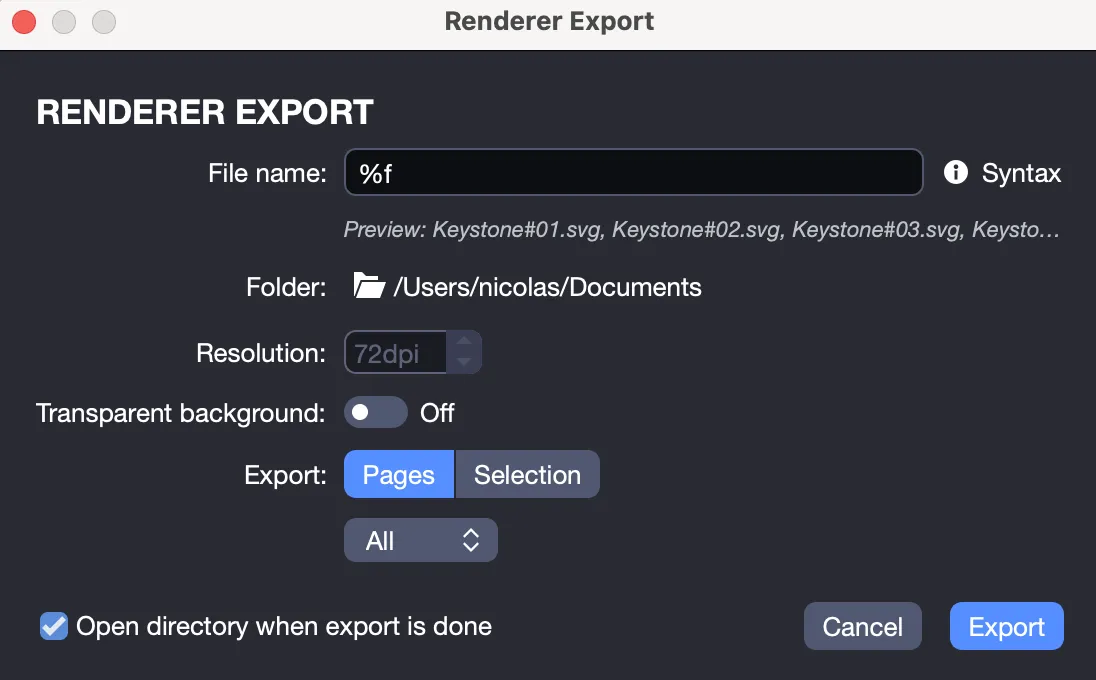
- File name: Assign a name to your SVG file.
- Destination folder: Choose the save location.
- Resolution: Adjust the resolution to optimize file size or quality.
- Export scope:
- Export a specific page, a range of pages, or all pages by selecting Pages.
- Export only a selected portion of the score, pre-marked with your mouse, by selecting Selection.
- Transparent background: Enable this option to remove the background, allowing the score to blend seamlessly onto colored backgrounds or images without a visible border, perfect for creative projects.
- Automatic opening: Check the option to open the destination folder automatically after exporting, or manually retrieve the file.
Once your settings are verified, click Export to complete the process.
Automatic Naming
Hover your mouse over the Information icon next to the File Name field to display a list of keywords for automatically naming your file. A preview of the generated name appears below the field.
| Keyword | Name | Function | Example |
|---|---|---|---|
| %T | Score title | Name the file based on the score’s title | Anatole.svg |
| %t | Track name | Name the file based on the current track’s name | LeadGuitar.svg |
| %n | Track number | Name the file based on the current track’s number | 3.svg |
| %N | Tracks count | Name the file based on the total number of tracks | 5.svg |
| %d | Date | Name the file based on the export date | 2022-03-30.svg |
| %h | Time | Name the file based on the export time | 13-03.svg |
Benefits of the SVG Format
The SVG format, compatible with design tools like Adobe Illustrator and web browsers, is ideal for displaying scores with consistent quality at any scale. The transparent background option, for example, simplifies integration into visual projects, such as websites or educational materials.