
Track Musical Notation in Guitar Pro 8
The Track Musical Notation options in Guitar Pro are accessible and adjustable from the Musical Notation section of the Track Inspector.
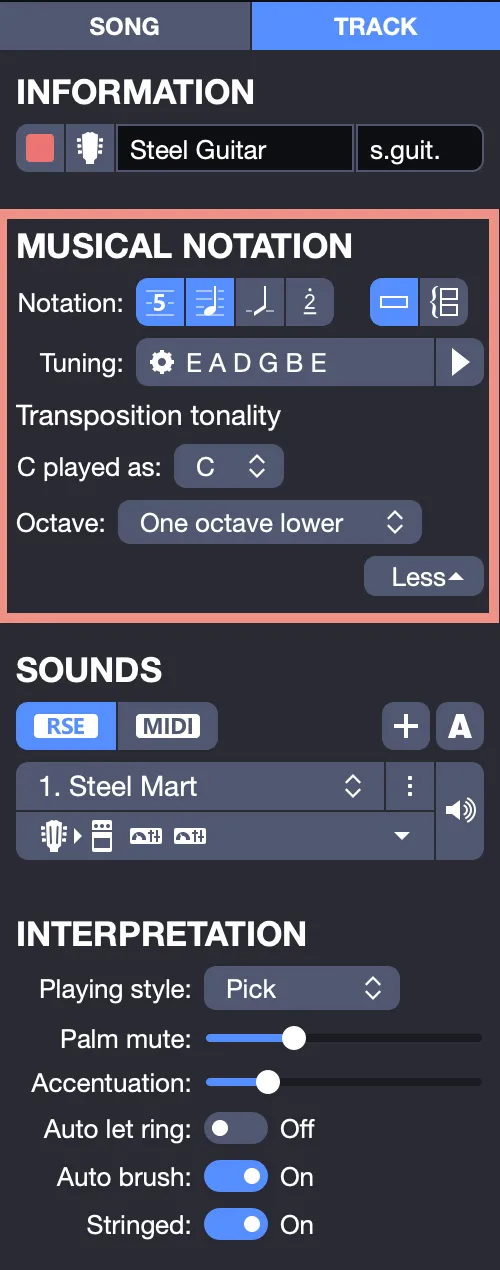
Display Standard Notation, Tablature, Slash Notation, or Jianpu in Guitar Pro
From this panel, you can select the notation type for the chosen track, as shown below.
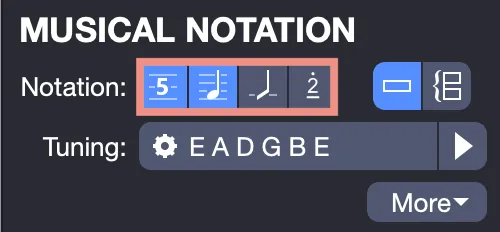
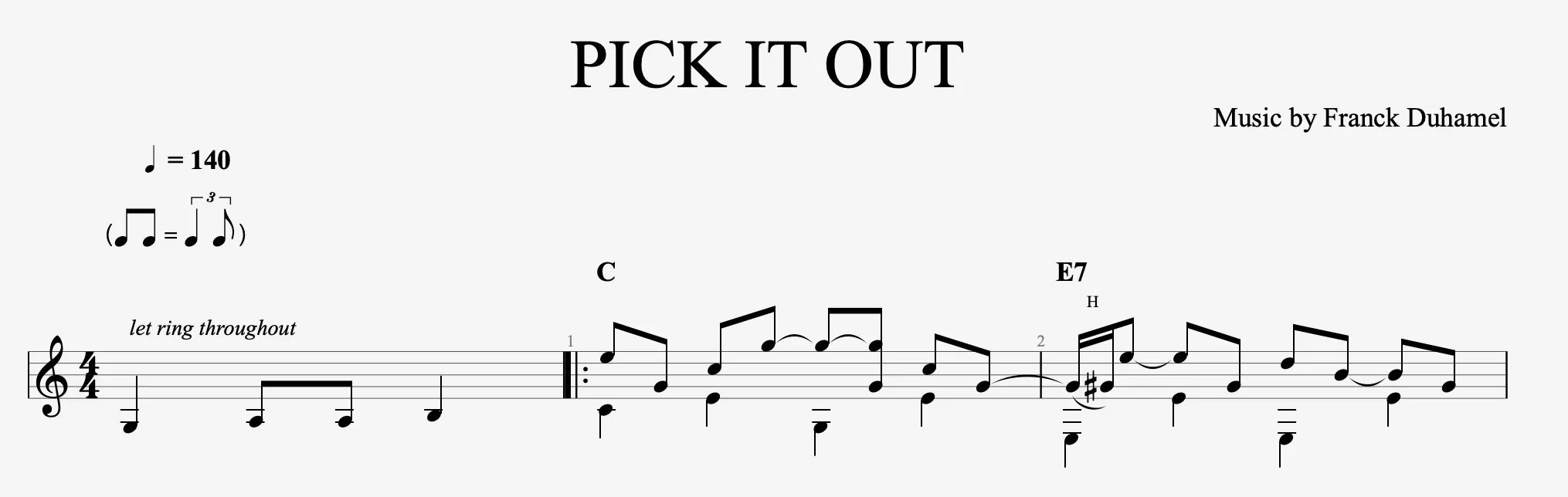
Standard Notation: Displays notes on a classic staff with note heads, ideal for reading music in a universal format.
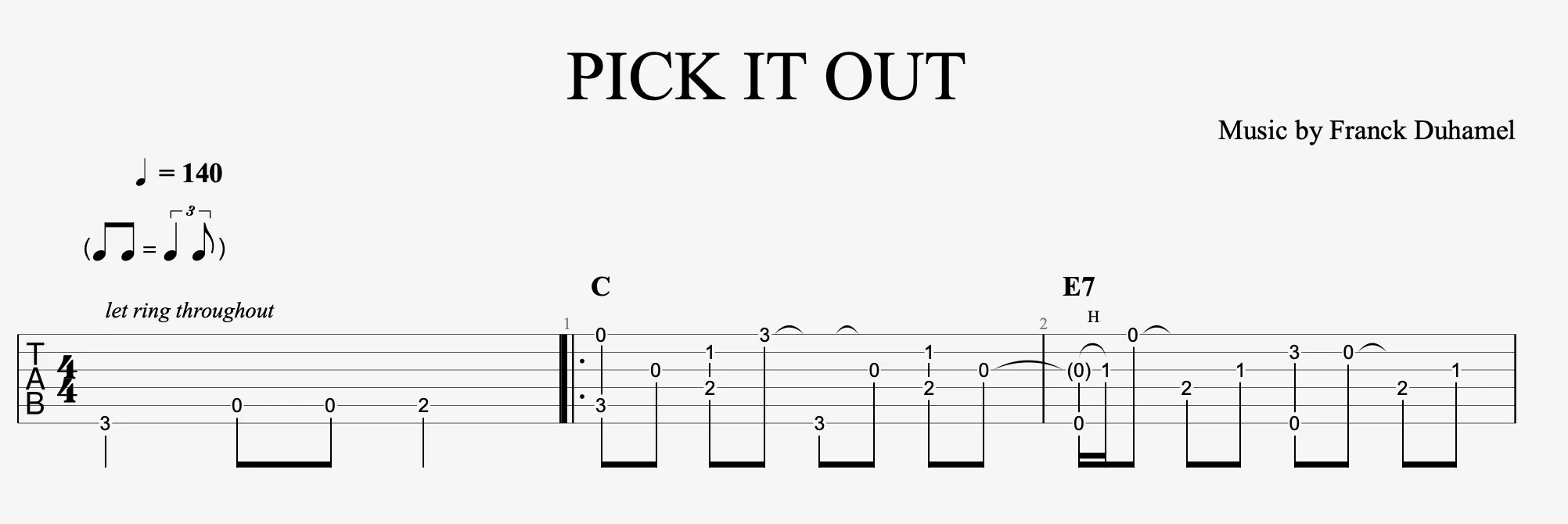
Tablature Notation: Represents notes with numbers on lines corresponding to strings, perfect for guitarists and bassists.
Slash Notation (rhythmic): Uses slashes to indicate rhythm without specifying pitches, suited for rhythmic or improvised parts.
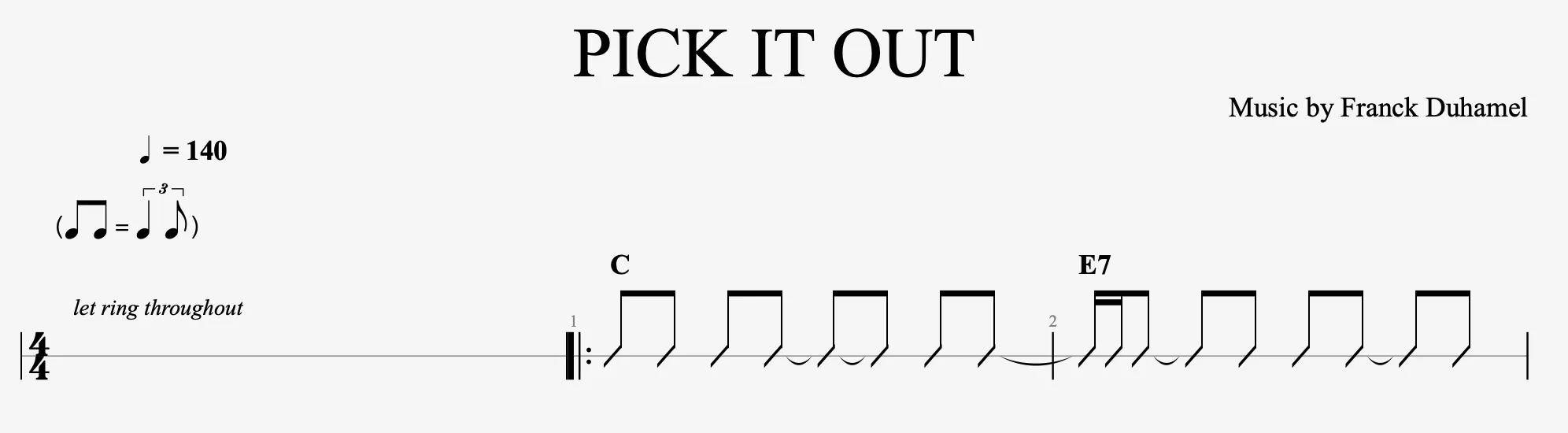
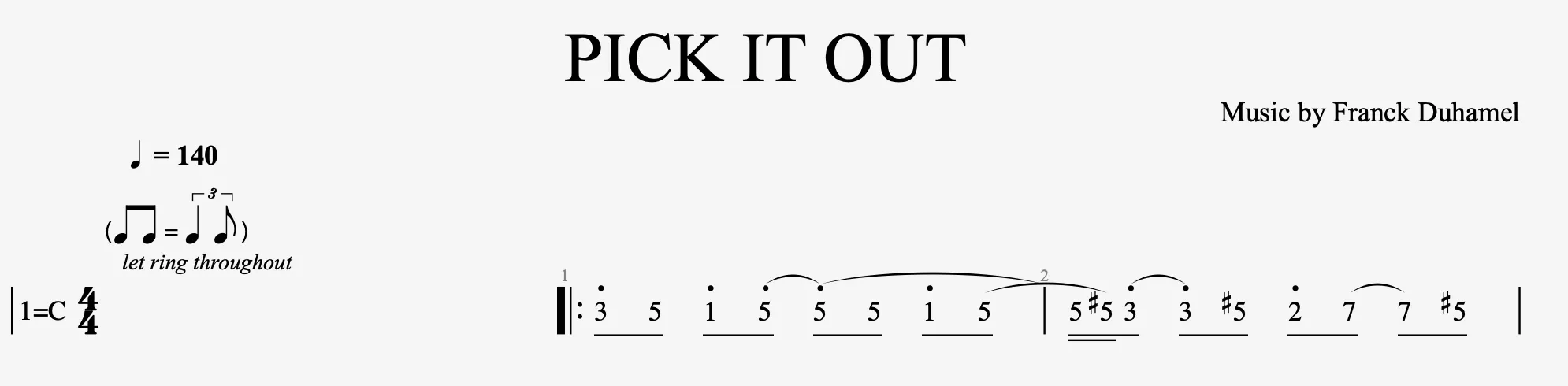
Numbered Notation (or Jianpu): Uses numbers for scale degrees, simplifying reading for certain traditional or educational styles. See Discover the Numbered Notation (Jianpu).
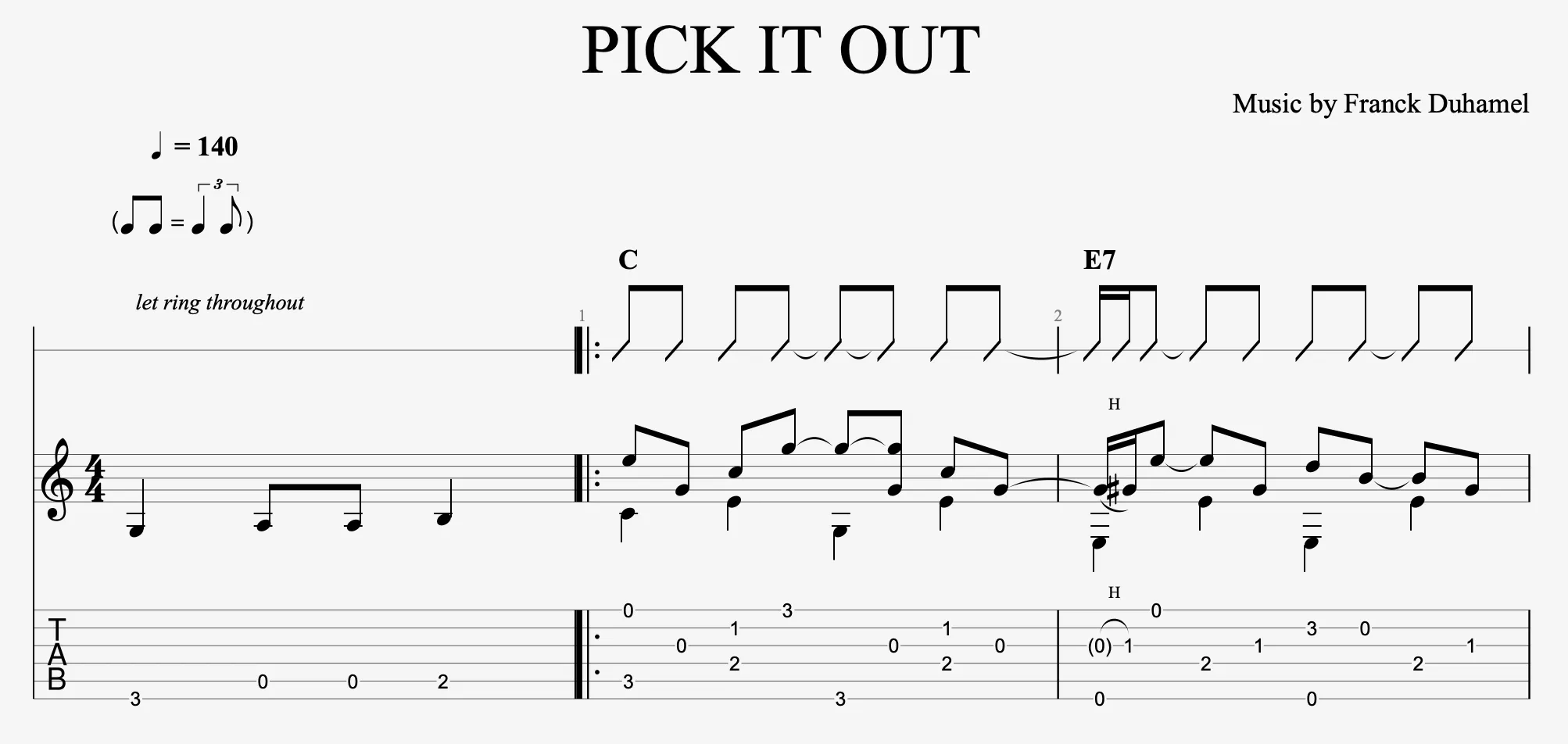
You can display multiple notations at once, combining them as needed, as shown below, combining Standard Notation, Tablature, and Slash Notation.
Staff Display in Guitar Pro
In Guitar Pro, you can display your track on a single staff or a double staff, depending on your needs.
You can select the single or double staff option, as shown below.
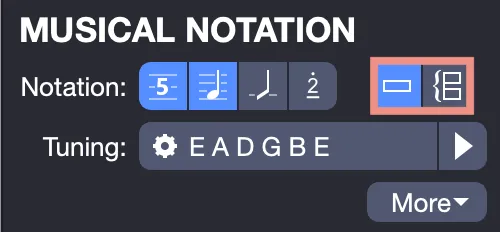
A single staff shows all notes on one stave, often used for monophonic instruments like a guitar or bass playing a melody or riff.
The double staff, also called a “grand staff,” uses two connected staves for polyphonic instruments like piano or to separate guitar voices, e.g., melody and bass.
This choice helps visualize complex arrangements or adapt the score for specific contexts, such as a keyboard transcription.
If your track contains notes and you switch from a single staff to a double staff, the Split Staff window appears, offering three options to distribute the existing notes.
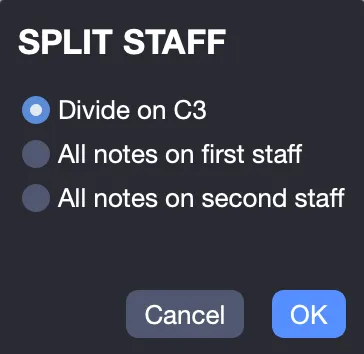
This step organizes pitches to avoid cluttered notation:
- Split notes relative to C3: Automatically divides notes based on this median pitch (notes below go to the lower staff, those above to the upper), useful for balanced arrangements like a guitar playing bass and melody.
- Keep all notes on the first staff: Leaves the second empty, ideal for manually adding a new voice to the lower staff.
- Place all notes on the second staff: Clears the first, suitable for moving a melodic line to the lower staff and freeing the upper one for another part.
Conversely, if you switch from a double staff to a single staff, the Merge Staves window appears, providing these options to consolidate notes into one staff:
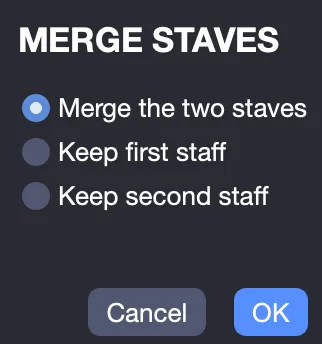
- Merge both staves: Combines all notes into one staff, simplifying a score without voice distinction.
- Keep only the first staff: Discards the second, useful if the upper staff holds the main melody and the lower is secondary.
- Keep only the second staff: Eliminates the first, perfect for prioritizing a bass or low part.
Tuning and Transposition Tonality
In this section, you can adjust your track’s tuning, essential for defining string pitches or adapting the score to a specific instrument, e.g., a guitar in Drop D or a ukulele.
This parameter is detailed in Tuning Configuration.
You can also configure the transposition tonality, a practical feature for changing the overall key without rewriting notes, e.g., shifting from C Major to D Major for a different voice. This is covered in depth in Transposition Tonality.