
Design Mode in Guitar Pro 8
The Design Mode allows you to precisely control the layout of your score, organizing measures and systems as you wish.
Access it using the Design Mode icon in the Editing Palette or via the View menu.
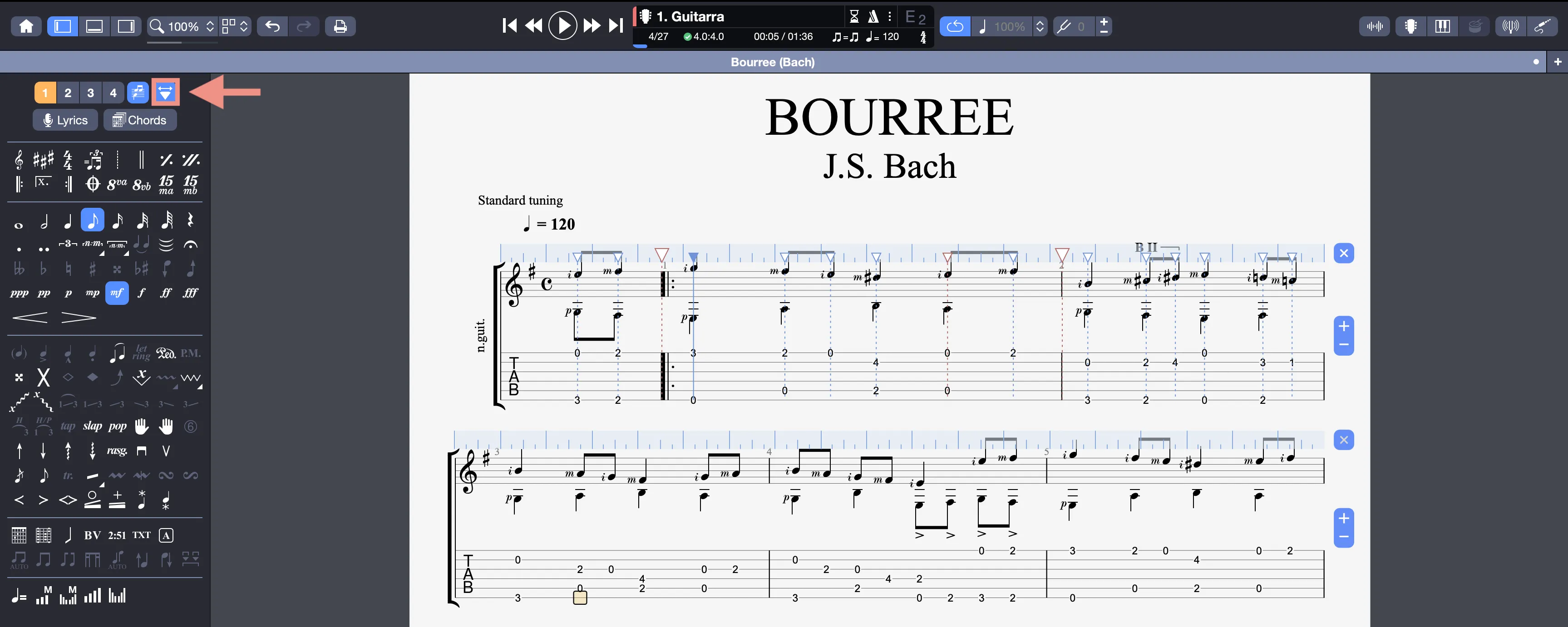
This mode offers precise control over the visual arrangement of your score, allowing you to adjust bar sizes, reposition beats, and organize systems to suit your project’s needs.
Customize Your Score Layout
- Resize Bars: Use the triangles above the ruler to stretch or shrink bars. Expand a bar for a clearer, more spacious look or compress it for a compact arrangement. Red triangles indicate modified bars, highlighting your adjustments.
- Move Beats: Drag beats left or right to fine-tune their placement, perfect for aligning a rhythm or emphasizing a key moment.
- Align Bars: A yellow vertical line appears as you drag, helping you align bars neatly with others for a tidy layout.
- Add or Remove Bars: Use the + and - icons to adjust the number of bars per system. Add a bar to extend a section or remove one to streamline your score.
- Reset Spacing: Click the cross beside a system or select View > Spacing Tools to restore default bar widths and beat positions, undoing your custom changes.
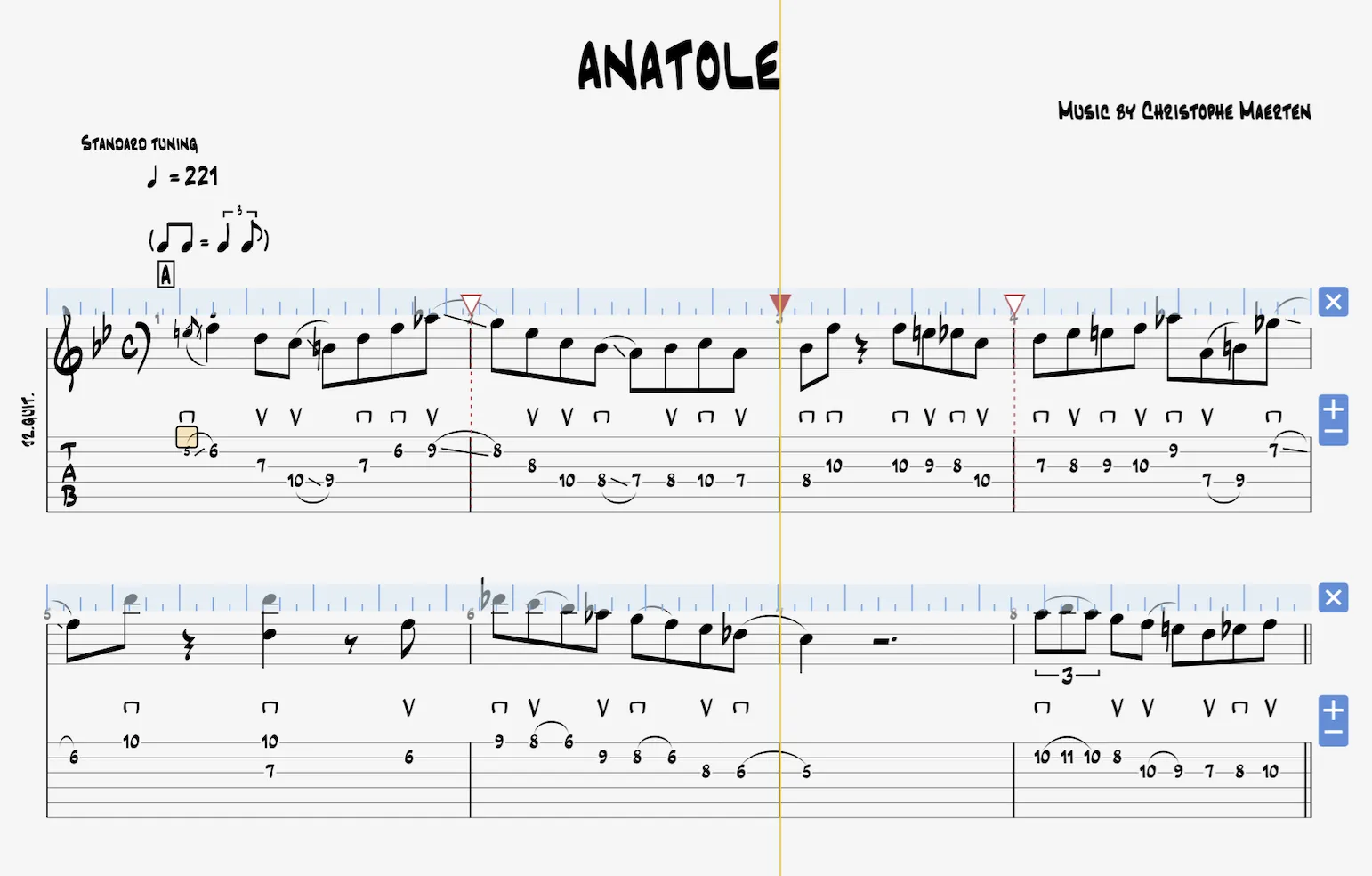
Design Mode is versatile, supporting both single-track and multi-track scores.