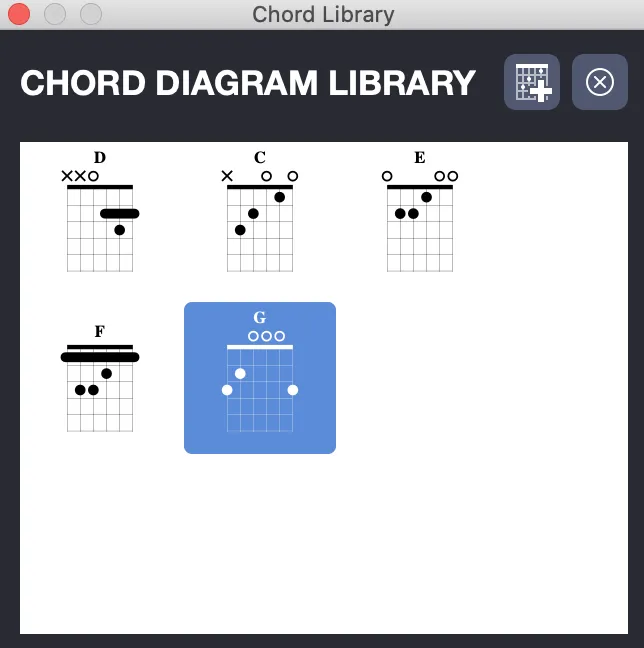
Chord Diagrams in Guitar Pro 8
Chord diagrams in Guitar Pro 8 enrich your scores while serving as an educational and creative tool for guitarists.
Whether you want to visualize chord shapes, explore inversions, or learn new tunings, this tool adapts to your needs, even for non-standard configurations.
Creating Diagrams
To open the Chord Diagrams window, use the Note > Chord… menu or the A shortcut. You can also edit an existing chord by clicking on it in the score.
The diagrams automatically adapt to the tuning and number of strings of the active track, allowing you, for example, to generate positions for an exotic tuning not found in traditional chord dictionaries.
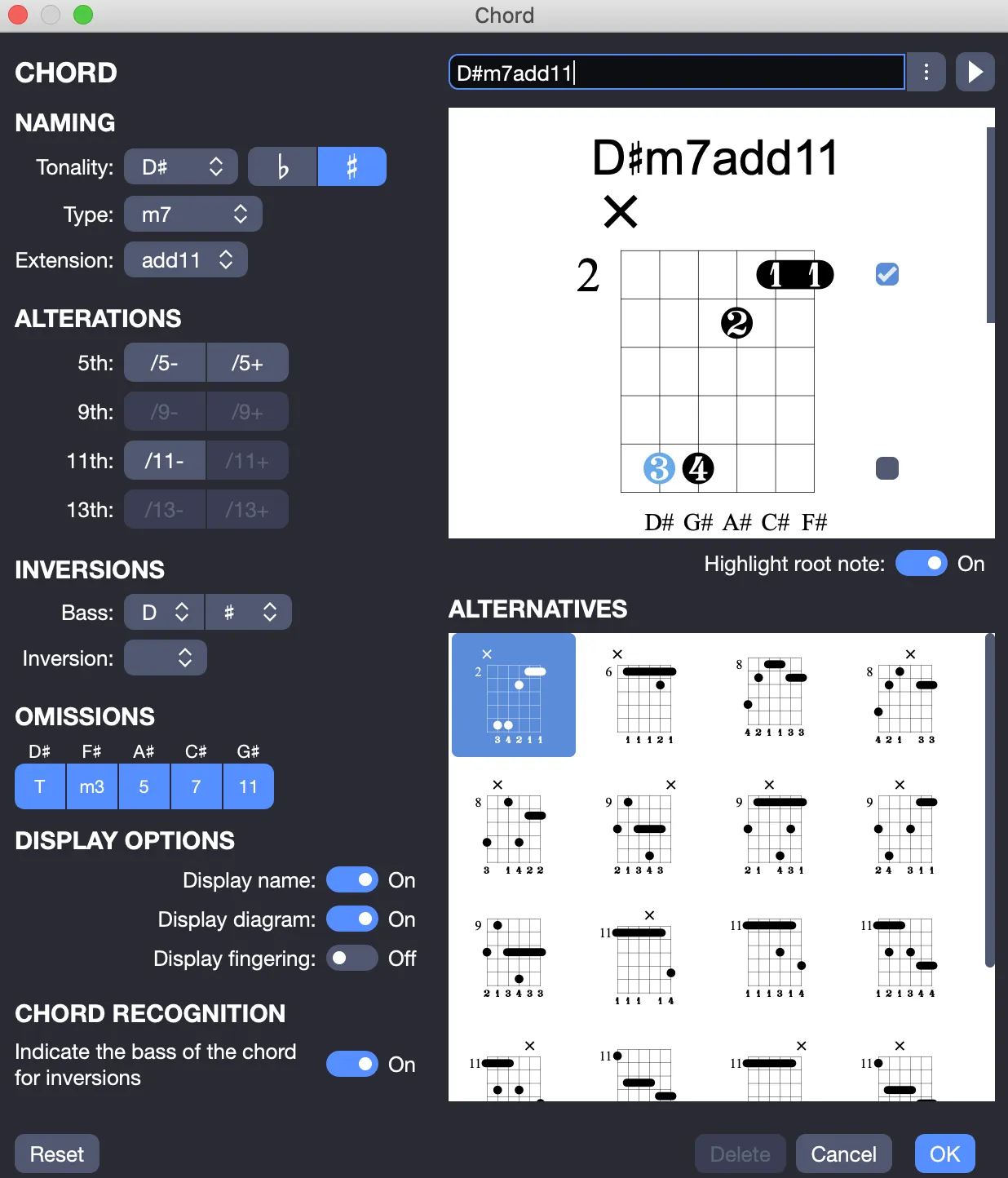
The window, both interactive and intuitive, is divided into several areas for optimal use.
Building the Chord
The upper-left section of the window allows you to create or modify a chord by adjusting several parameters.
Root, Type, and Extension
Start by choosing the root note (the fundamental of the chord) and the type (major, minor, seventh, etc.).
You can then add an extension (7th, 9th, 11th, 13th) to enrich the chord.
Alterations
Dedicated buttons let you alter certain chord tones (5th, 9th, 11th, 13th) by raising or lowering them a half step.
Inversions
You can create an inversion by selecting a bass note different from the root. The chord will then be rebuilt based on this new bass.
You can also select a value in the Inversion field. The available choices (#1, #2) automatically apply an inversion of the chord.
Omissions
You can omit certain chord tones (root, third, fifth, etc.) by deselecting the corresponding boxes.
This option is useful to simplify a chord or adapt it to a limited number of strings.
A chord must be properly built from these settings (and not only named) in order to be transposed (see Transposition in Guitar Pro).
Customizing the Main Diagram
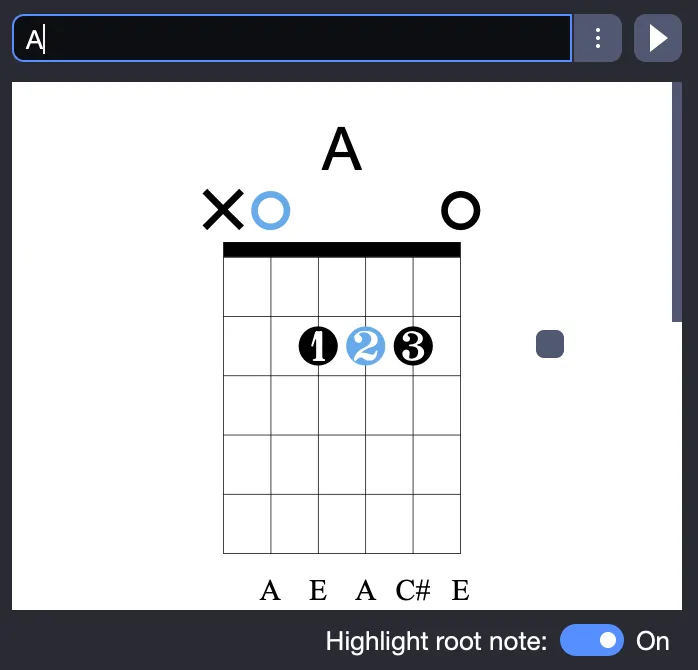
The main diagram, the one inserted into the score, is displayed with its fingering, theoretical construction, and name.
You can also build a diagram manually:
- Click on a fret to add or remove a note.
- Use the scroll bar to adjust the base fret.
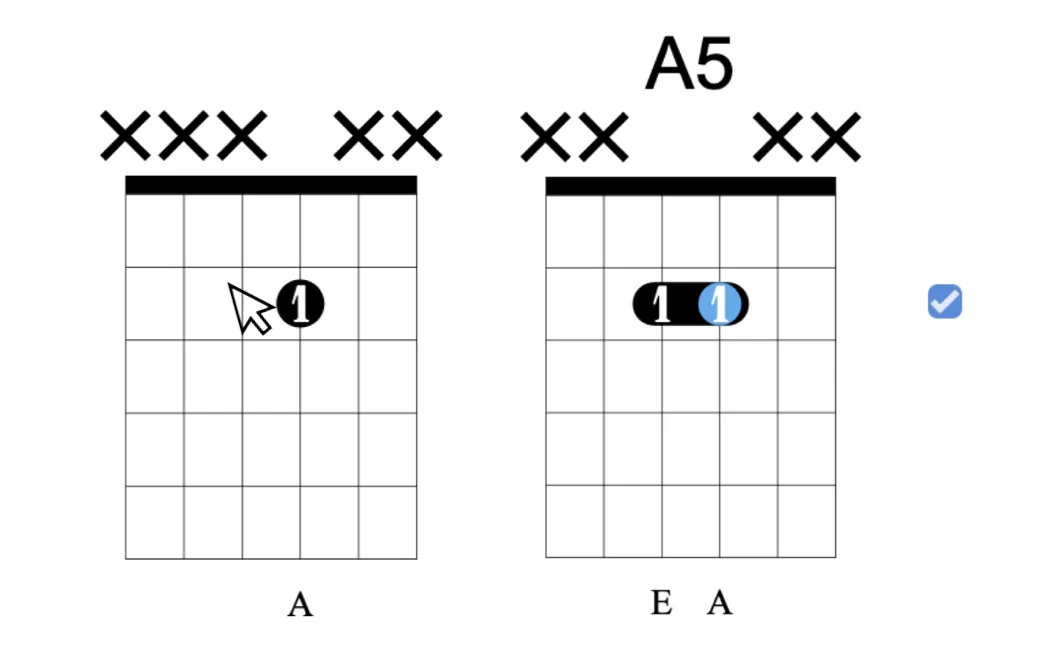
- Barre chords are automatically suggested by Guitar Pro.
- A chord is automatically suggested after adding two notes in the diagram.
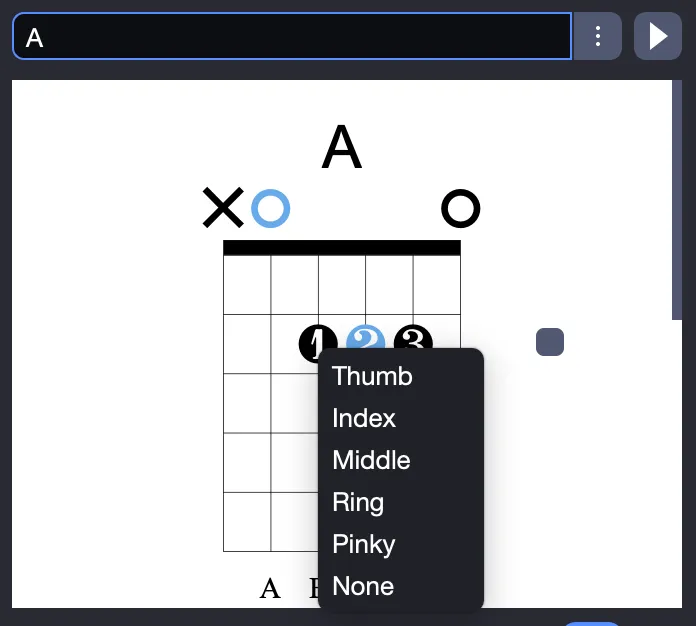
The fingering appears inside the note dots (1 for index, 2 for middle finger, etc.) and below the diagram. To modify it, right-click a dot and select the desired fingering.
To keep the exact chord name entered in the field, add an apostrophe ’ in front of it.
Above the diagram, a circle indicates an open string, while a cross indicates a muted string.
The Highlight root option changes the color of the root note in the diagram (not visible in the score).
Display Options
Three main options are available directly in the chord window, letting you choose what will appear in the score:
- Display the chord name
- Display the diagram
- Display the fingering
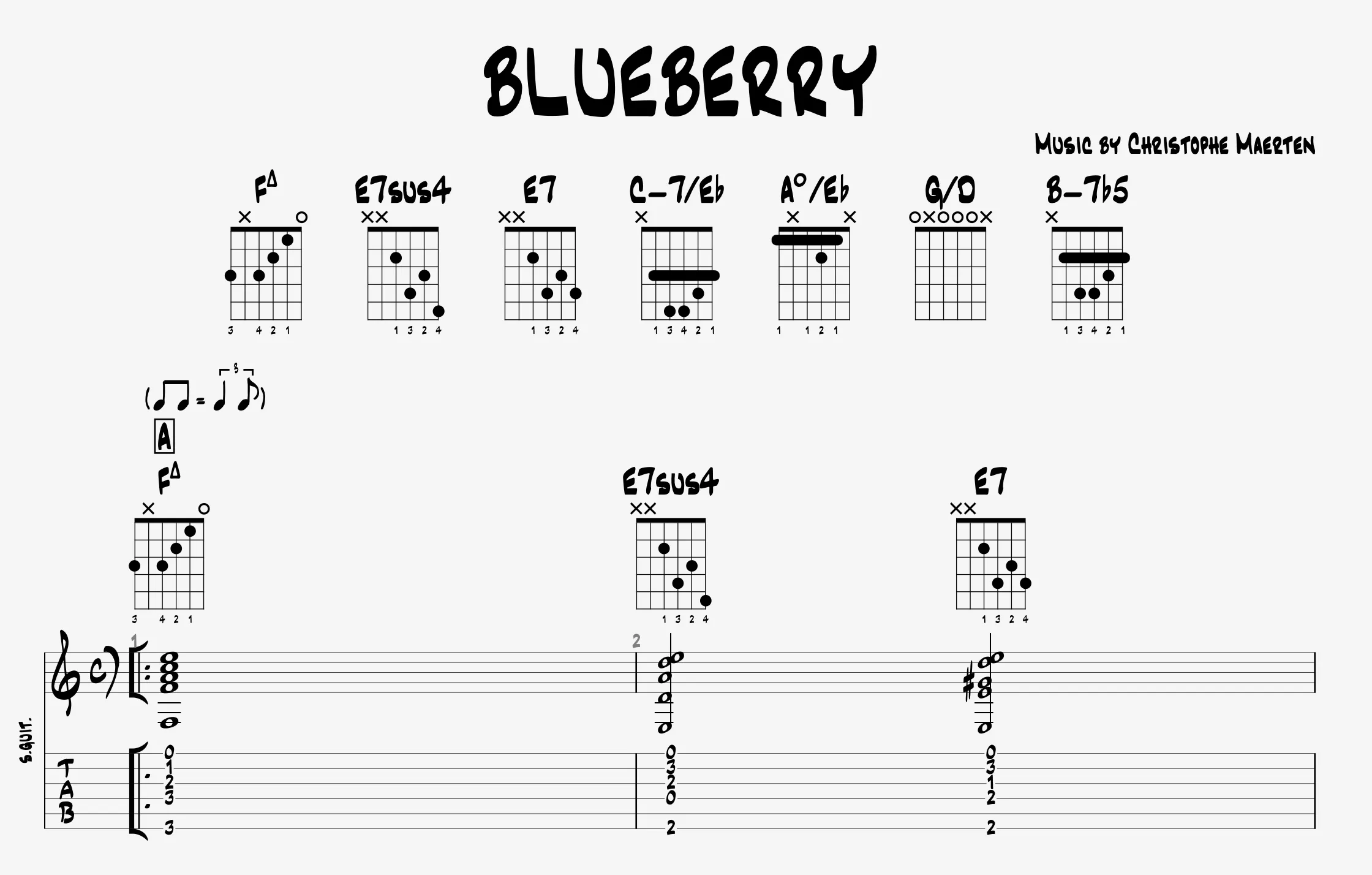
Additional settings are available in the Stylesheet:
- Choose the chord name style: Classical, Jazz, or Rock
- Display the diagram above the score or inside the score
- Adjust the size and spacing of diagrams (at the top of the score)
List of Alternative Diagrams
A list of possible diagrams for the built chord is displayed in the main area, sorted by complexity. Click on one of them to make it the main diagram. To listen to the selected chord, use the play button at the top right of the Chord window.
[Insert screenshot: list of alternative diagrams]
Additional Features
When opening the window, the notes of the selected beat are automatically included in the main diagram if no chord was defined.
If the Display diagram option is active, the notes of the diagram are added to the score if no notes were present at that beat; otherwise, only the diagram appears above the beat.
Note that, just like in the score, diagrams for left-handed instruments are not displayed directly. However, a left-handed virtual fretboard is available via the menu View > Show Fretboard (click the gear icon for settings).
The Stylesheet also allows you to adjust the size and position of diagrams in the score.
Additional Chords Display Options in the Stylesheet
Additional settings allow you to control the appearance of chords in the score from the Stylesheet.
These options only affect the visual display and do not impact the sound or chord construction.
You can specifically:
- Choose the chord notation type:
- Standard,
- Jazz,
- Rock.
- Enable displaying chords above the score, then adjust their size and spacing.
- Enable displaying chords within the score, with an independent size setting.
Chord Library
Each created chord is added to the chord library of the track, accessible from the Editing Palette by clicking the Chords button.
You can also create a new chord by clicking the + button in this window.
Chords for which only the name is displayed in the score appear grayed out in the library.