
Song Sound Settings (Sound Mastering) in Guitar Pro 8
The overall output sound of a score depends on what is called mastering.
It is the final processing applied to all audio tracks, intended to balance, standardize, and enhance the overall sound quality.
Mastering settings are available in the Song Inspector, located on the right side of the main Guitar Pro 8 window.
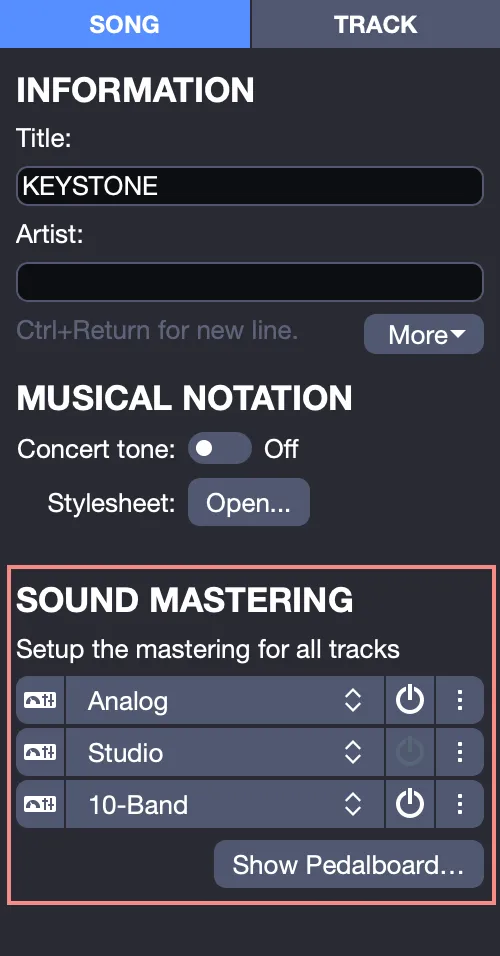
The mastering section in Guitar Pro consists of three effects applied in a fixed order, along with access to the pedalboard:
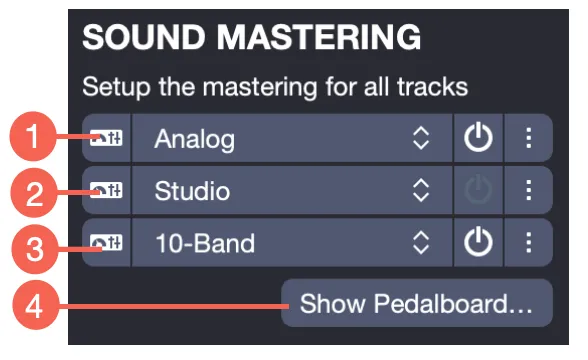
- Compressor/Limiter – to even out dynamic range differences.
- Reverb – to add space and depth to the mix.
- Equalizer – to adjust the overall frequency balance of the sound.
- Pedalboard Access – use Show Pedalboard to open a virtual pedalboard offering extended sound-shaping possibilities.
Managing these effects works the same way as for track effects (see Track Sound in Guitar Pro).
Each slot has its own settings and can be activated or deactivated independently.
Unlike track effects, each mastering slot is assigned to a specific type of effect and cannot be replaced with another type.
Mastering Effects Interface
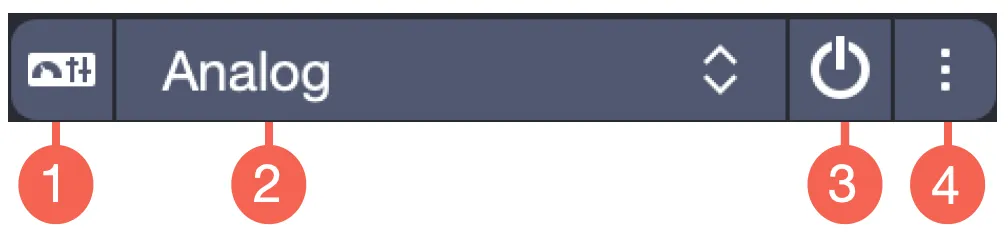
- Effect Settings – parameters specific to the selected effect.
- Effect Library – choose a variant of the effect within its category.
- Effect Power (on/off) – temporarily bypass the effect.
- Effect Options – context menu to copy or paste the active effect.
Each effect can be turned on or off using the power button on the right. This feature is useful for comparing the sound with or without the applied effect.
Mastering allows you to give your score sound consistency and improve its overall playback quality, without altering the individual settings of each track.