
Set the Clef, Key Signature and Time Signature in Guitar Pro 8
The Key Signature, Clef, and Time Signature can be configured at any time in your score, either via the Editing Palette located on the left side of the screen or by directly clicking on the corresponding element in the staff.
Clef
Clef symbol: 
In Guitar Pro, the clef defines the correspondence between the staff lines and the pitch of the notes, depending on the instrument’s range. It is automatically assigned when opening a track but can be customized based on your reading or orchestration needs.
To modify the clef:
Click the Clef icon in the Editing Palette, or directly on the clef displayed in the score.
The Clef window opens:
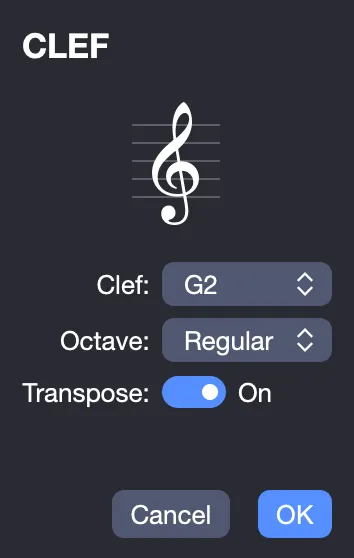
Choose from the following clefs:
- G2: Treble Clef (standard for guitar, violin, flute, etc.)
- F4: Bass Clef (bass, cello, double bass, etc.)
- C3: Alto Clef (third line)
- C4: Tenor Clef (fourth line)
Adjust the octaviation if necessary:
- Normal
- 8va: One octave above
- 15ma: Two octaves above
- 8vb: One octave below
- 15mb: Two octaves below
Enable Transpose if you want to maintain the pitch of the notes while changing their display.
These settings allow you to adapt the notation to your instrument, range, or reading preferences, ensuring a clear and accurate transcription.
Key Signature
Key Signature symbol: 
The key signature indicates the fixed alterations (sharps or flats) of the tonality, applied to all relevant notes unless otherwise specified. It defines the tonal framework of the piece or passage and can be adjusted at any time.
To configure the key signature:
Click the Key Signature icon in the Editing Palette, or directly on the key signature displayed in the score.
The Key Signature window opens:
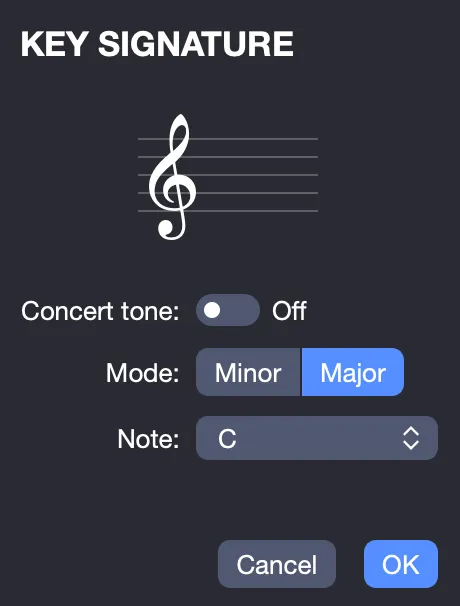
Select the desired key signature and specify the mode (major or minor).
If you do not wish to define a specific tonality, you can leave C major (no alterations), which will only affect the display in standard notation.
Click OK to confirm.
The Concert Pitch option allows you to display the actual heard tonality, regardless of the instrument’s transposition. Guitar Pro automatically calculates the transposition for transposing instruments (saxophone, trumpet, B-flat clarinet, etc.).
The Concert Pitch is ideal for working on a multi-instrument score with transposing tracks.
See the Transposition Tonality section for more information.
Time Signature
Time signature symbol: 
The time signature defines the metric framework of your score, specifying:
- the number of beats per bar (top number),
- and the unit of time (bottom number), expressed as a fraction of a whole note (e.g., 4 = quarter note, 8 = eighth note).
To configure the time signature:
- Click the Time Signature icon in the Editing Palette, use the menu Bar > Time Signature, or click directly on the time signature displayed in the score.
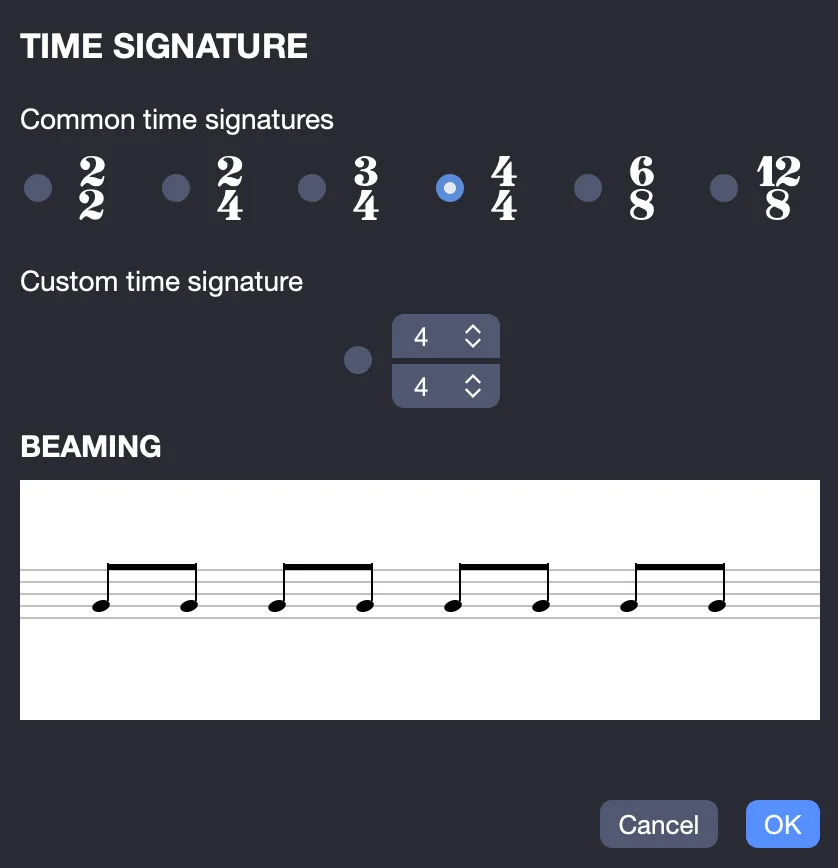
You can choose from the most common time signatures:
- 2/2
- 2/4
- 3/4
- 4/4
- 6/8
- 12/8
Or define a custom time signature, by selecting:
- a number of beats between 1 and 32,
- a unit of time among: 1, 2, 4, 8, 16, or 32.
This allows you to handle simple bars (4/4), compound bars (6/8), asymmetrical bars (5/8, 7/8), or highly complex ones (11/16, 13/8, etc.).
When a bar is complete, Guitar Pro 8 automatically moves to the next one once the last beat is reached.
Incomplete or overextended bars are displayed in red.
You can disable this highlighting from the Score errors preferences.
If the Bar > Anacrusis option is enabled, an incomplete first bar (such as a pickup) will not be flagged as erroneous.
Beaming
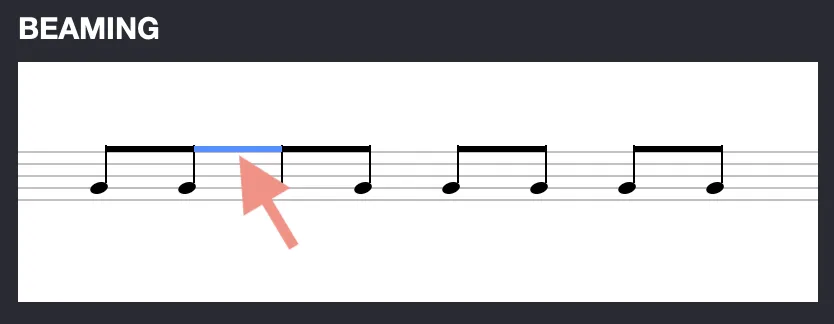
From this same window, you can also adjust rhythmic beaming, which determines how notes are connected by their stems within a bar.
These beamings reflect the natural rhythmic division of beats (e.g., two groups of three eighth notes in a 6/8 bar), improving readability and phrasing precision.
To modify them:
- Click between two stems in the preview to create or break a beam,
- Reorganize the beamings according to your rhythmic intentions.
This setting provides complete control over the rhythmic presentation of your bars, essential for a clear and professional rendering.