
Mixer in Guitar Pro 8
The mixer is located in the global view, at the bottom of the interface.
It allows you to adjust the audio parameters of tracks such as instrument selection, volume, panning, and more.

- Track icon: A visual indicator of the instrument.
- Track name: Identifies the track.
- Track visibility in multitrack mode: Shows or hides the track in multitrack mode.
- Mute track: Mutes the track with a single click.
- Solo track: Plays the track in isolation.
- Track volume: Adjusts the output level.
- Track volume automation: Enables or disables a previously configured volume automation.
- Track panning: Adjusts the sound placement, left or right.
- Track panning automation: Enables or disables a previously configured panning automation.
- Track equalizer: Allows you to modify the frequency balance.
Solo and Mute options
In the mixer table, each track has two buttons:
Solo
 :
:
Represented by a red headphones icon, this option allows you to play one or more tracks in solo, meaning without hearing the other tracks. If you want to listen to only one or several isolated tracks, use Solo on the relevant track(s).Mute
 :
:
Represented by a yellow crossed-out speaker icon, this option allows you to mute one or more tracks. If you want to temporarily disable the sound of one or more tracks, use Mute on the relevant track(s).
Equalizer
Accessible directly from the mixer table, the equalizer allows you to adjust the frequency balance of each track in order to improve its clarity and integration within the score.

It is mainly used to attenuate or boost certain frequency ranges (low, mid, and high frequencies) depending on the instrument, in order to avoid sonic conflicts between tracks and achieve a clearer listening result.
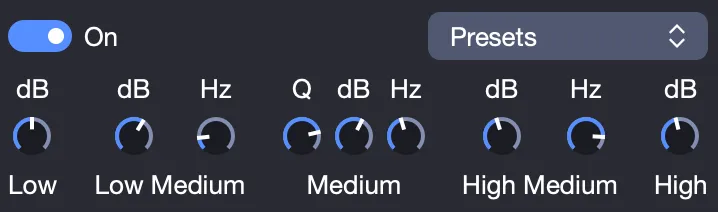
Guitar Pro also provides presets adapted to different types of instruments. When a preset is selected, it is immediately applied to the corresponding track, without affecting the other tracks in the score.
Volume and Panning automation shortcuts
When a volume or panning automation is enabled, it is highlighted by a green outline around the corresponding fader.

You can enable or disable these automations, previously created in the Automation window (F10), directly from the buttons located in the mixer table.
Focus/Unfocus current track
The Focus/Unfocus current track option is located at the bottom of the mixer table, in the Master track, below the mute/solo track options.
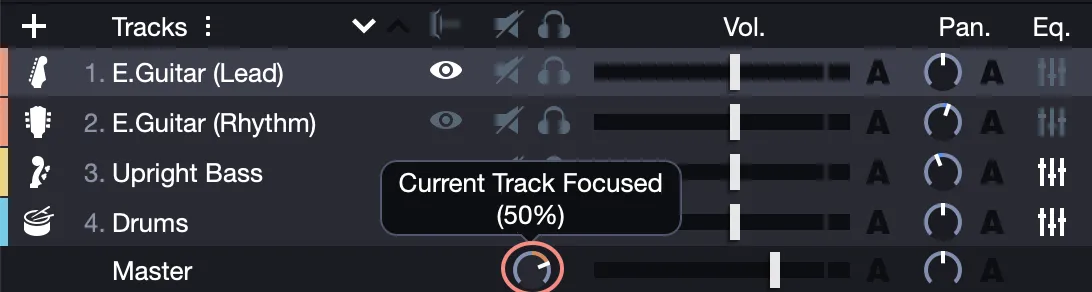
As its name suggests, this option allows you to bring the selected track forward (Focus) or push it back relative to the other tracks in the score.
The more you increase the focus by turning the knob to the right, the more the selected track will be emphasized, and the volume of the other tracks reduced.
Conversely, the more you turn this knob to the left, the more the selected track will be de-emphasized relative to the other tracks in the score. In this case, the volume of the selected track is reduced.