
Track Interpretation Settings in Guitar Pro 8
The track playback settings in Guitar Pro are accessible and adjustable from the Playback section of the Track Inspector.
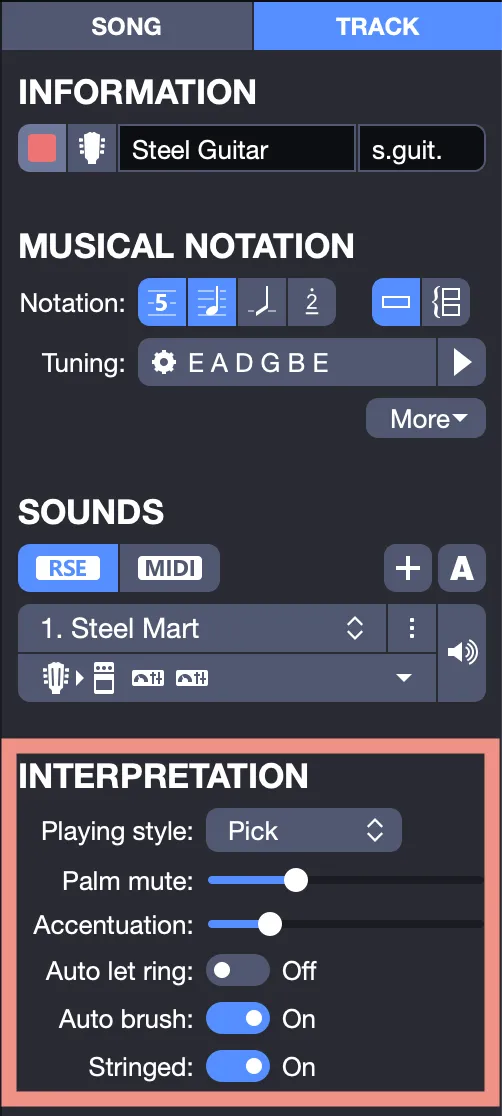
From this section, you can configure the following playback options.
Playing Style
Set your playing style:
- Pick
- Fingers
- Picking
- Bass Slap
Applying this playing style will directly impact the audio rendering of your score.
Palm mute
Technique consisting of muting the strings with the edge of the right hand near the bridge. This option allows you to adjust the Palm Mute intensity in your track (see Palm Mute in Guitar Pro).
Accentuation
This option automatically emphasizes the strong beats of the bar.
Automatic Let Ring
An option that allows the strings to ring out regardless of the note duration indicated. A rest displayed in the score will stop this effect on all strings until a new note is played (see Let Ring in Guitar Pro).
Automatic Brush
The notes of a chord will be played with a slight delay to simulate the strumming effect typical of pick playing.
Stringed Instrument
The Stringed Instrument mode means Guitar Pro treats the instrument as a stringed instrument, enabling multiple notes of the same pitch to sound simultaneously. When this option is disabled, Piano mode is activated by default.
Note that this mode affects the effects. In Stringed Instrument mode, notes are sorted by string, but they are sorted by pitch for other playing styles.
In Stringed Instrument mode, it’s not possible to let a note ring if another note on the same string is played, whereas this option is available when the mode is disabled.