Rasgueado, Brush and Arpeggio in Guitar Pro 8
The Rasgueado, Brush, and Arpeggio playing effects in Guitar Pro allow you to represent different chord techniques with an appropriate visual and audio rendering.
Available in the Editing Palette and the Effects menu, these effects let you control the direction and speed of the chord note sweep.
Arpeggio

 The Arpeggio plays the notes of a chord one after another, from the bass to the treble or vice versa. The result is more melodic than rhythmic.
The Arpeggio window allows you to adjust the speed and offset between the notes. The effect is played by the audio engine.
Application
Select a chord in Guitar Pro, then click the icon or for an ascending or descending arpeggio, from the Editing Palette.
Define the duration and the position in the Arpeggio window.
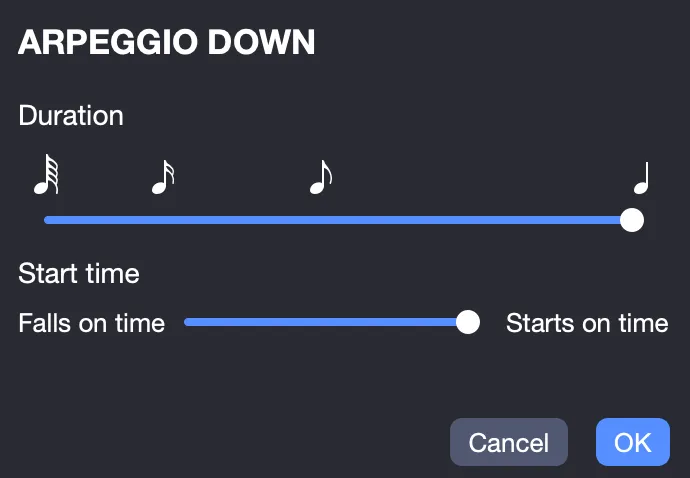
The arpeggio is applied in the chosen order and played by the audio engine according to the defined parameters.
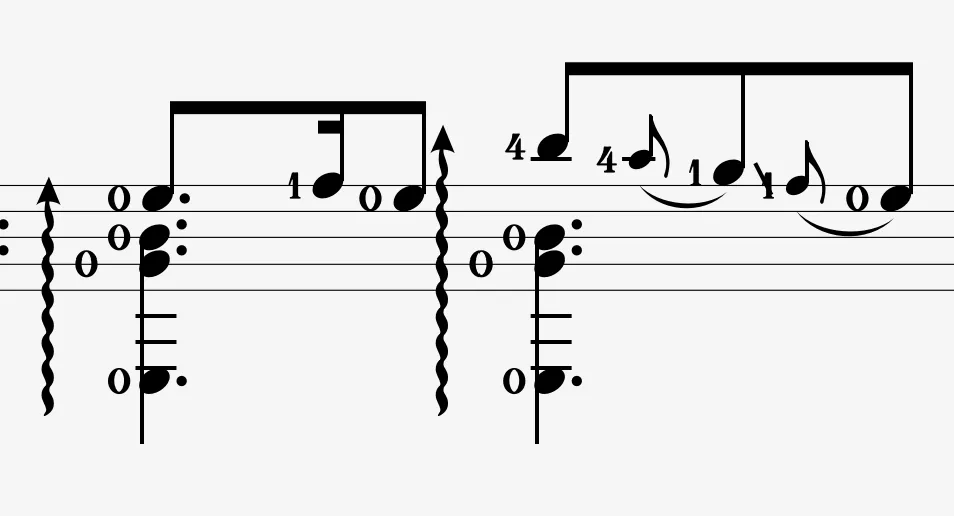
The wavy arrow symbolizing the arpeggio and its direction is added to the score.
Brush


The Brush produces a quick sweep of the strings, from bass to treble or in reverse. The result is rhythmic, similar to strumming all the strings at once.
In Guitar Pro, the Brush window allows you to adjust the speed and offset between the notes. The effect is played by the audio engine with a duration shorter than the beat.
Application
As with the Arpeggio, select a chord and click the icon or in the Editing Palette.
Adjust the duration and the position of the brush in the Brush window.
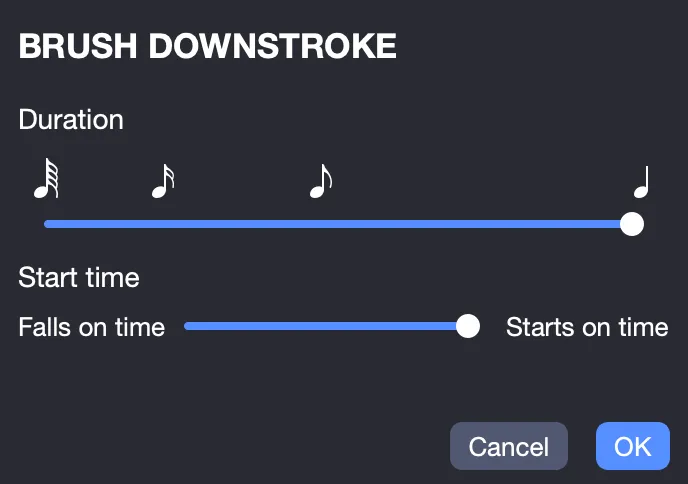
The brush is applied in the chosen order (down or up).
You can enable the Automatic Brush option from the track inspector to automatically apply the effect to all chords in the track.
Rasgueado
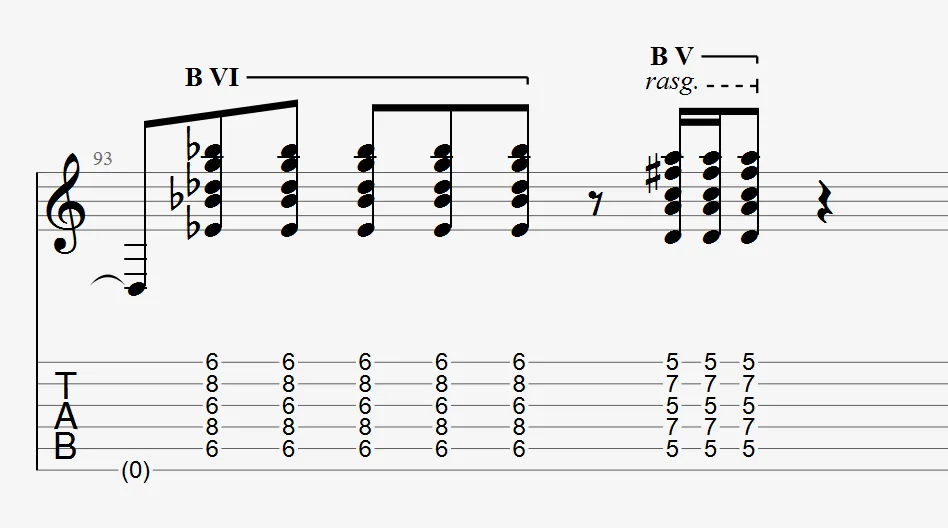
 The Rasgueado, a technique typical of flamenco, consists of a rapid sweep of the strings with the fingers of the right hand.
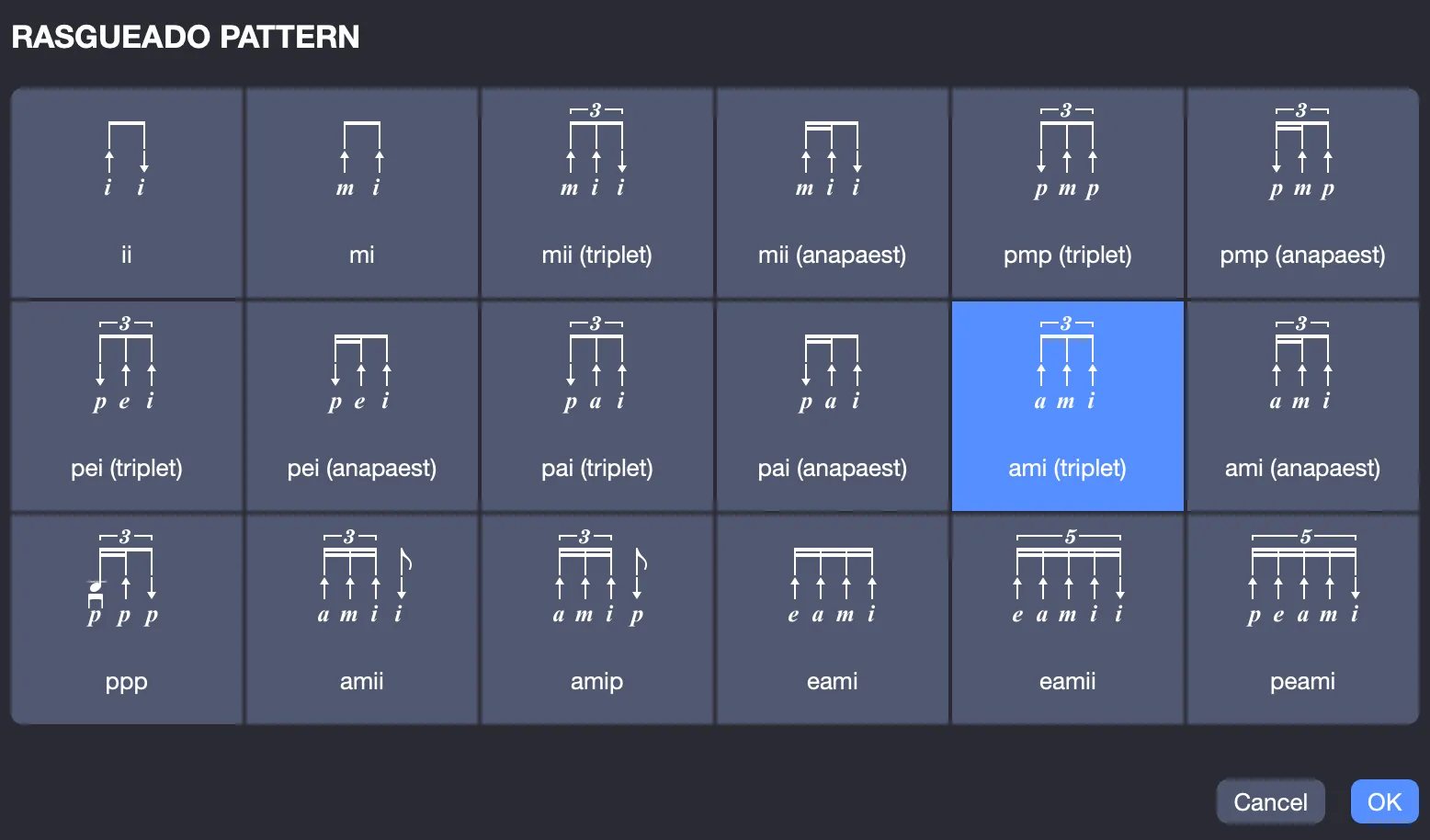
In Guitar Pro, the Rasgueado window offers 18 predefined patterns. These patterns are played by the audio engine. The score shows the abbreviation “rasg.” to indicate this effect.
Application
In Guitar Pro, select a chord and click the icon in the Editing Palette.
Choose a pattern in the Rasgueado window to apply it. The effect is fully played, and the “rasg.” label is added to the score.