
Voice Management in Guitar Pro 8
In Guitar Pro, voices allow you to layer multiple distinct musical lines within a single track. They make it possible to write up to four sound layers, each with its own rhythm, role, and nuances, while remaining perfectly synchronized on the same staff.
What are voices?
Each track in Guitar Pro 8 has four voices: one main voice and three secondary voices. They allow, for example, combining different rhythms, such as a bass line in quarter notes and a melody in sixteenth notes, clearly separating musical layers, such as chords played by one hand and the melody by the other on a keyboard, or maintaining perfect rhythmic consistency between several parts on the same staff.
Role of multi-voice editing
Multi-voice editing divides the track into independent parts. Each note is assigned to a specific voice, which makes it possible to manage separate melodic or rhythmic lines with clarity and precision. This way, you can juxtapose several patterns, such as a bass line and a melody, without compromising the readability of the score.
Example
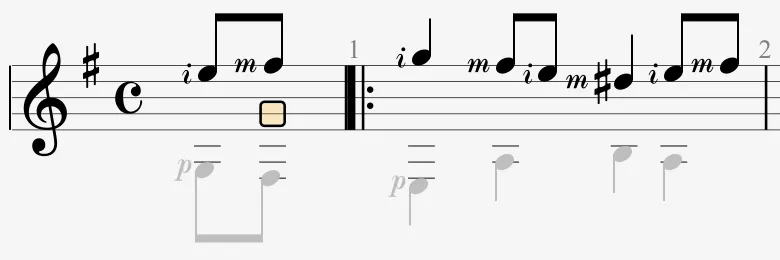
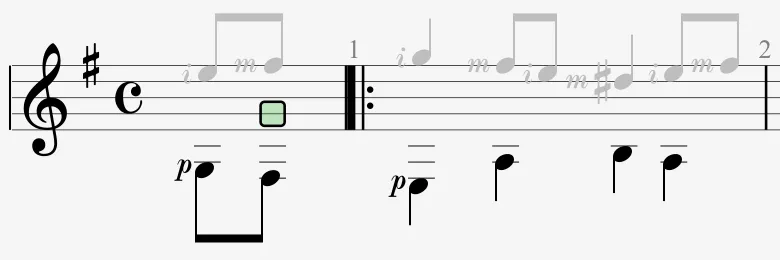
For a picking piece, Voice 1 can be used for the low strings (E and A) playing the bass, while Voice 2 carries the melody on the high strings (G, B, E). Both parts remain visually distinct and perfectly coordinated.
Editing One or Multiple Voices
Control voices via the Edit > Voices menu or access the Voice buttons at the top of the editing palette.
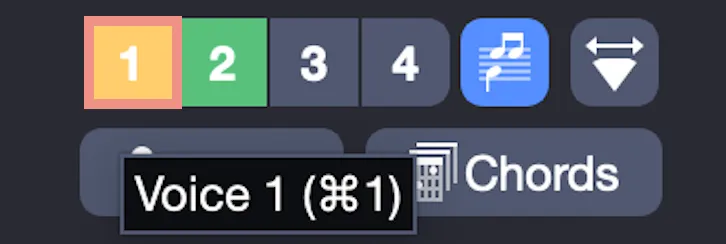
From these settings, select the active voice or switch to Multivoice mode.
Voice selection: Choose Voice 1 (yellow), 2 (green), 3 (pink), or 4 (purple). The cursor adopts the color to indicate your focus. Other voices fade to gray and are locked unless in multivoice mode.
Voice 1: Edit the bass line, high strings fade:
Voice 2: Edit the melody, bass notes fade:
Multivoice mode: Select the Multivoice button in the editing palette or enable this mode from the Edit > Voices menu.
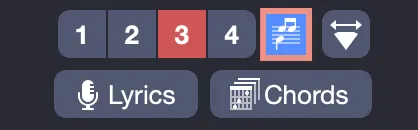
Enable Multivoice mode to edit all voices simultaneously, making all notes active for changes.
Customize the display from the Notation tab of the Stylesheet by checking “Color fret numbers in tablature for voices 2, 3, and 4” to color frets for Voices 2-3-4 in green, pink, and purple.
Speeding Up with Shortcuts
Work faster with keyboard shortcuts, a quick way to manage voices:
| Action | Windows Shortcut | macOS Shortcut |
|---|---|---|
| Move cursor to Voice | Ctrl+1-4 | ⌘+1-4 |
| Move note to Voice | Alt+1-4 | ⌥+1-4 |
| Multivoice editing | Ctrl+M | ⌘M |
- Move cursor: Ctrl+2 switches to Voice 2.
- Move note: Alt+3 reassigns a note to Voice 3.
- Multivoice: Ctrl+M activates all voices, allowing you to edit a polyphonic section in one action.
These shortcuts streamline multivoice editing, reducing clicks and speeding up composition.