
Tempo and Metronome Settings in Guitar Pro 8
In Guitar Pro 8, tempo settings are managed through the Automation Editor window.
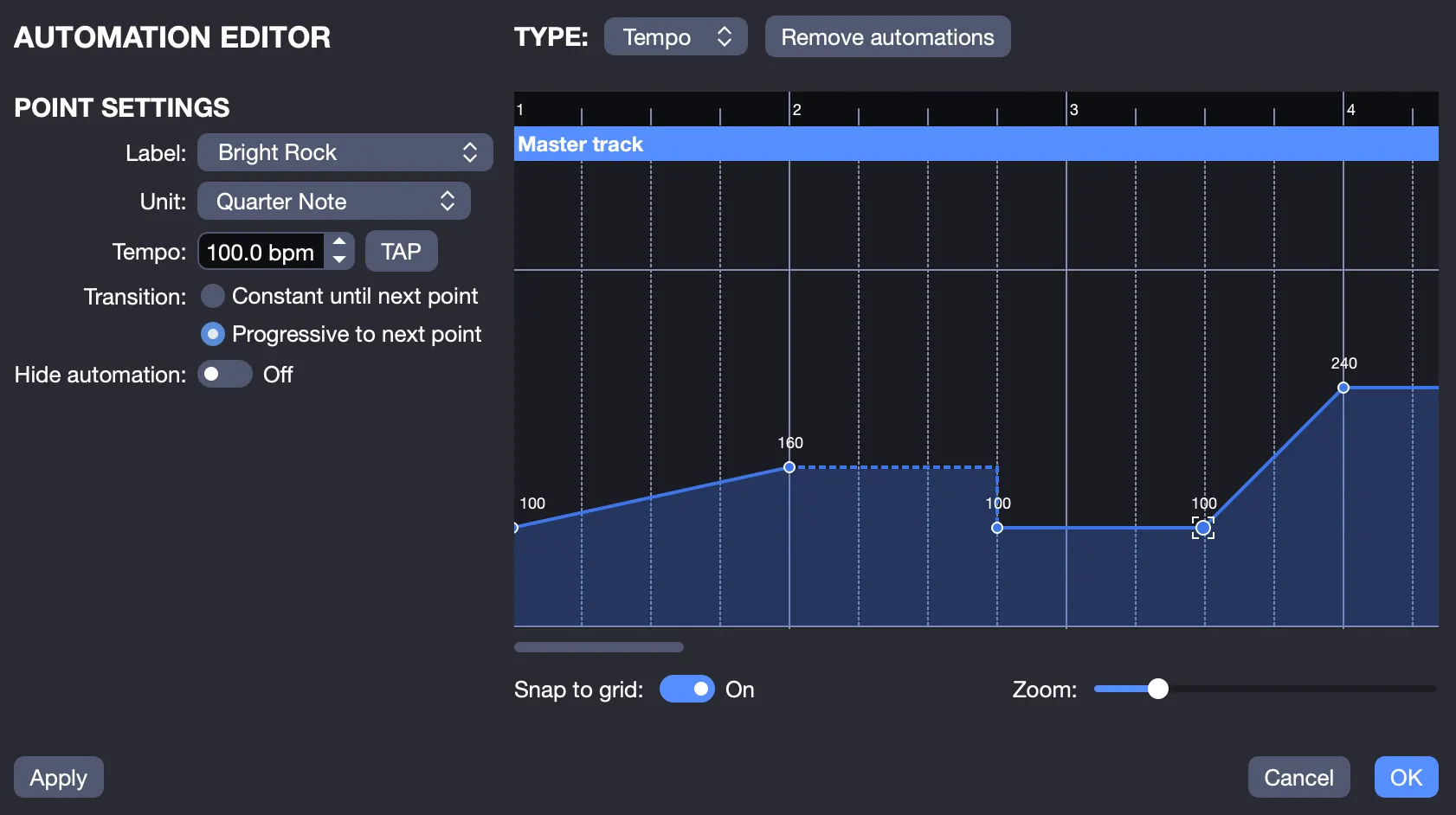
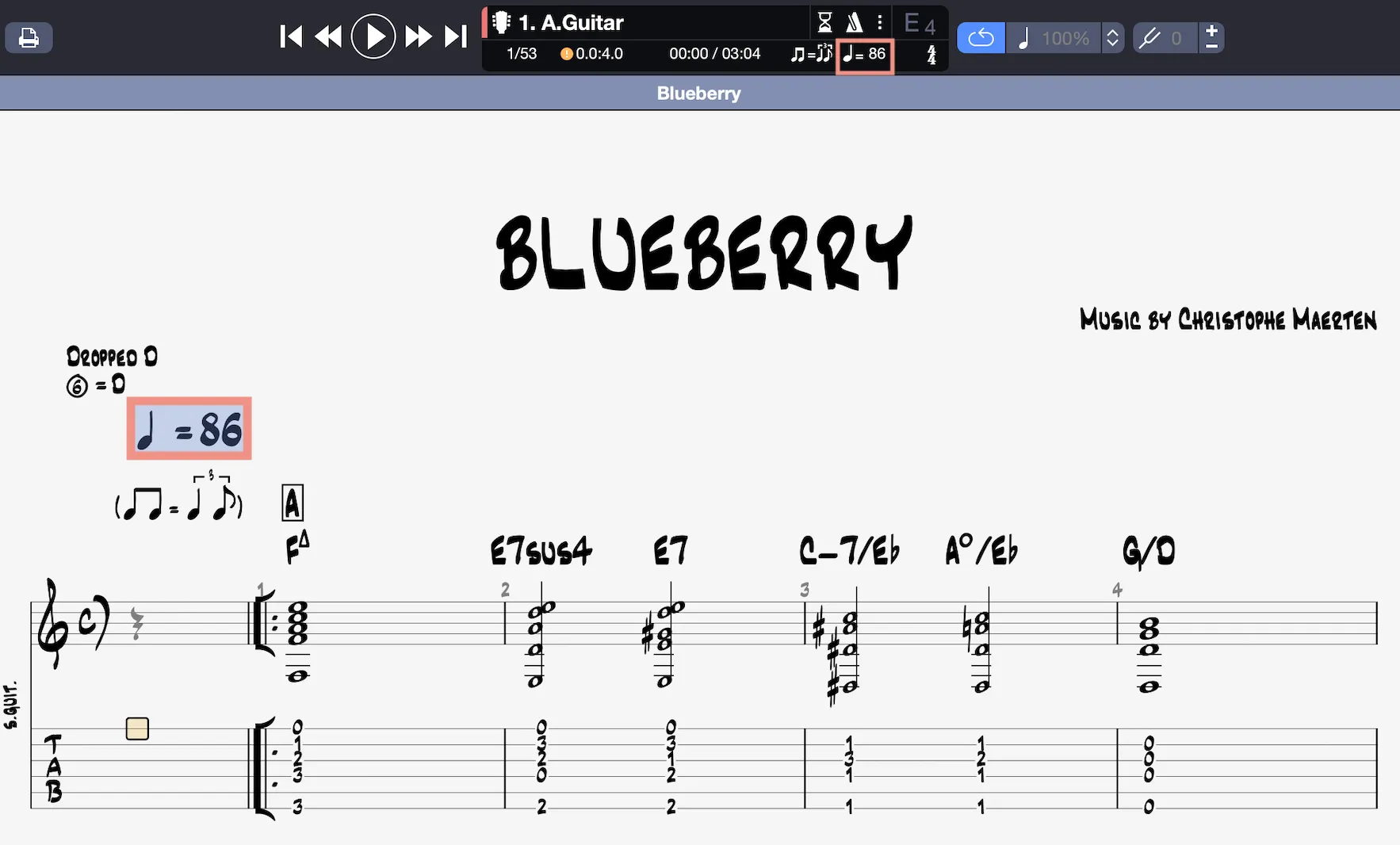
This window is easily accessible by clicking the tempo on the score, in the LCD screen located in the toolbar, via the Edit > Automations > Edit Automations menu, or the F10 keyboard shortcut.
This window allows you to set the initial tempo of your score, as well as program tempo changes throughout the score (see Automations in Guitar Pro).
During playback, the current tempo, including modifications from automations, is displayed on the LCD screen.
Note that the tempo can be set to a decimal in Guitar Pro, meaning you can, for example, configure a tempo of 100.5 BPM.
Visual Metronome and Countdown
The metronome and countdown can be easily enabled or disabled via the LCD screen in the center of the toolbar or through the Sound menu.
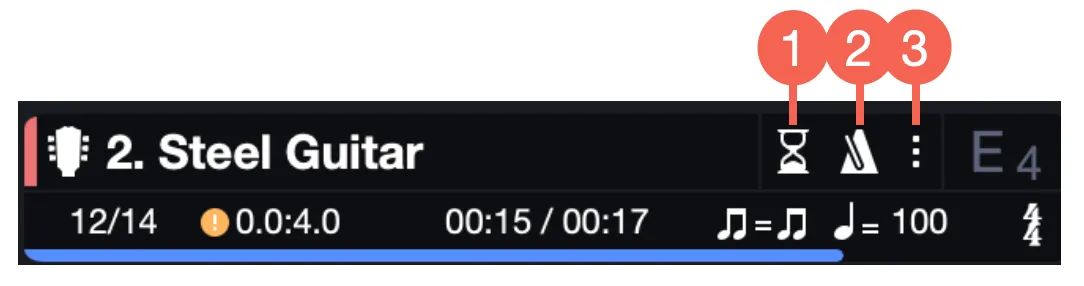
- Enable/disable countdown
- Enable/disable metronome
- Settings access
You can adjust the volume, countdown duration, and enable countdown between loops through the Settings option, symbolized by three small dots.
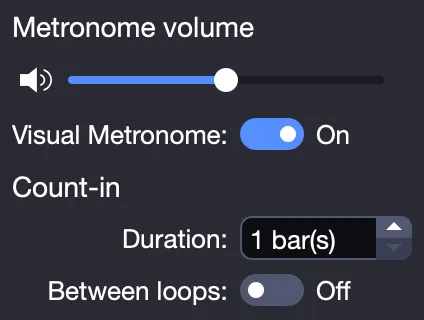
You can also enable the visual metronome from these same settings.
This appears as flashes on each beat on the LCD screen and can also be displayed during the countdown.

Info : To use only a visual metronome, simply set the metronome volume to 0.