
Drums and Percussion in Guitar Pro 8
Guitar Pro 8 simplifies the creation of drum and percussion tracks with intuitive tools for entering and editing notes.
Entering Notes in the Staff
First, add a drum track to your score (see Adding a New Track in Guitar Pro).
Enter notes directly in the staff as you would for other instruments (see Entering Notes in Guitar Pro).
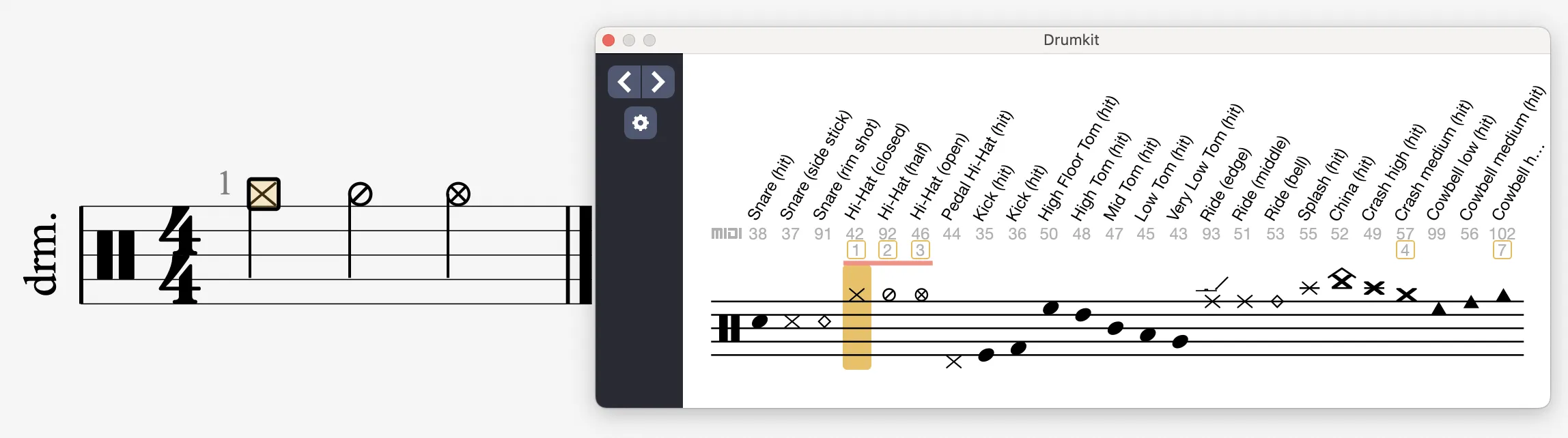
When editing notes on a drum or percussion track in the staff, you can edit different elements on the same line.
To do this, use the numeric keypad shortcuts, such as the 1, 2, 3 keys, to apply different articulations that will be indicated on the same line.
For example, an open, half-open, or closed hi-hat.
Instrument View
The Instrument View provides a visual interface for composing your drum parts.
Display it via the View > Show Drum View menu or with the shortcut Ctrl + F6 (Windows) or ⌘ + F6 (macOS) when the percussion track is selected.
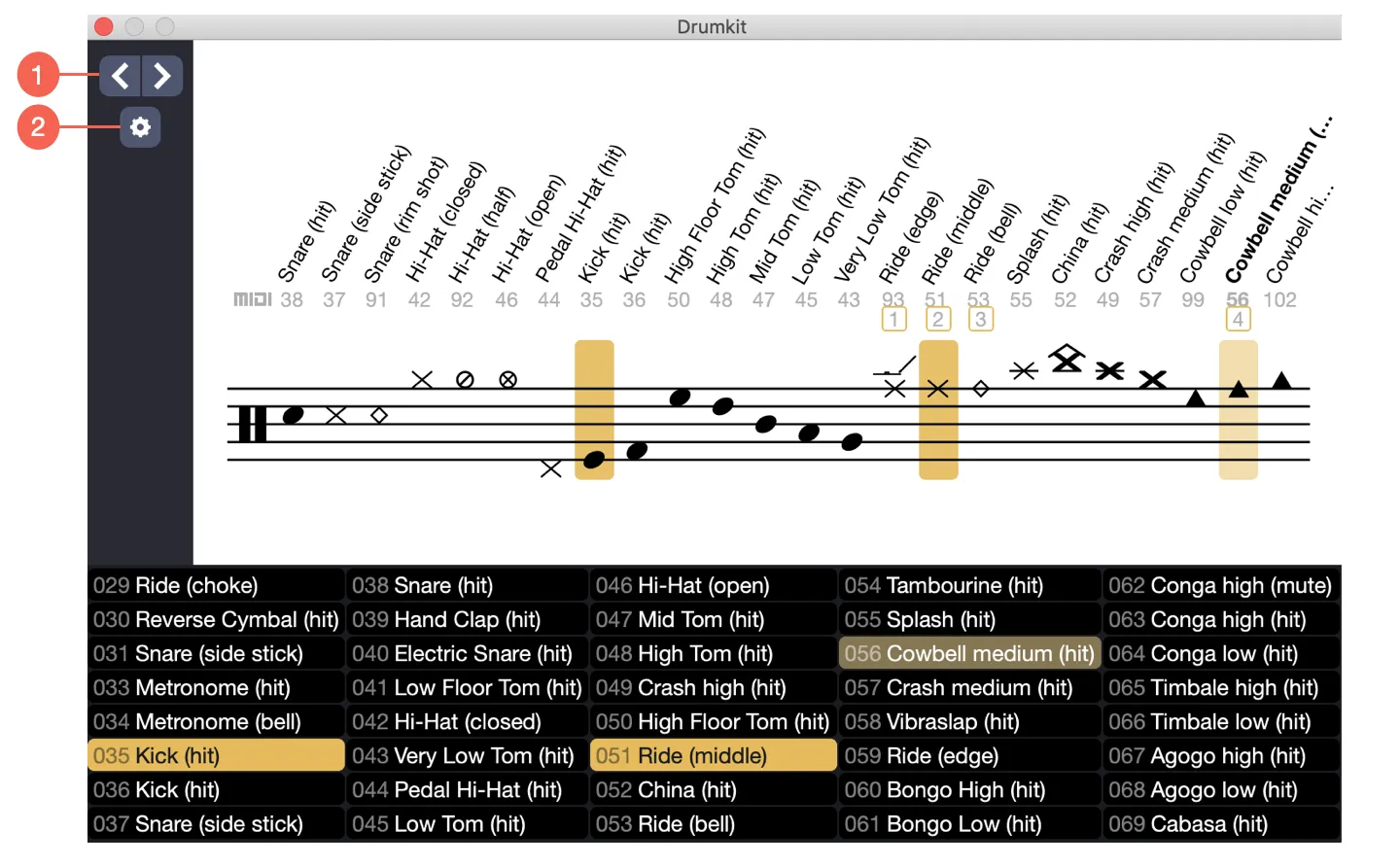
- Move the cursor left/right
- Drum settings
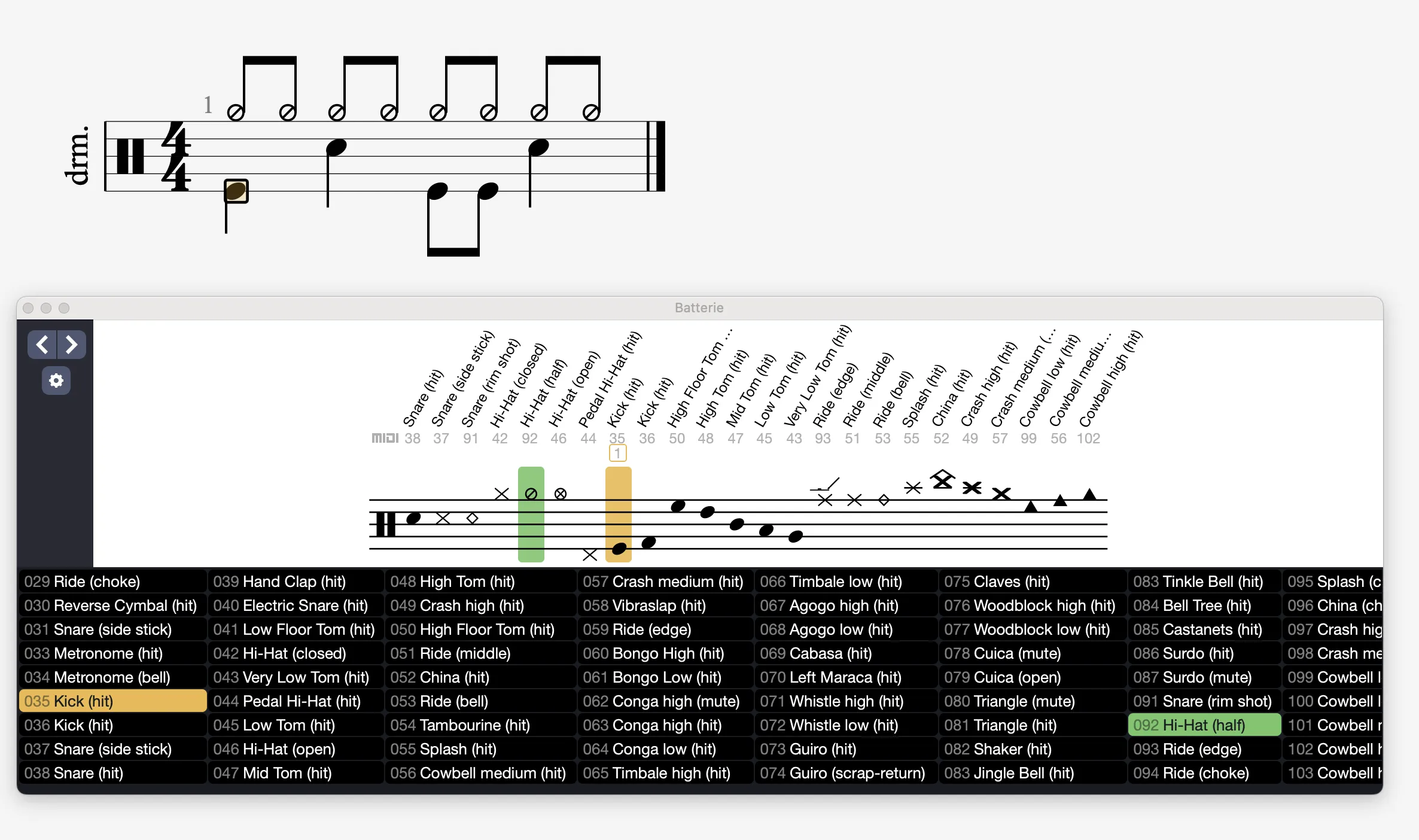
In this window, select toms, cymbals, or other elements to insert them into the track. Move the cursor to edit the next beat.
Notes of the current beat are indicated with the colors specific to the voice they are placed on.
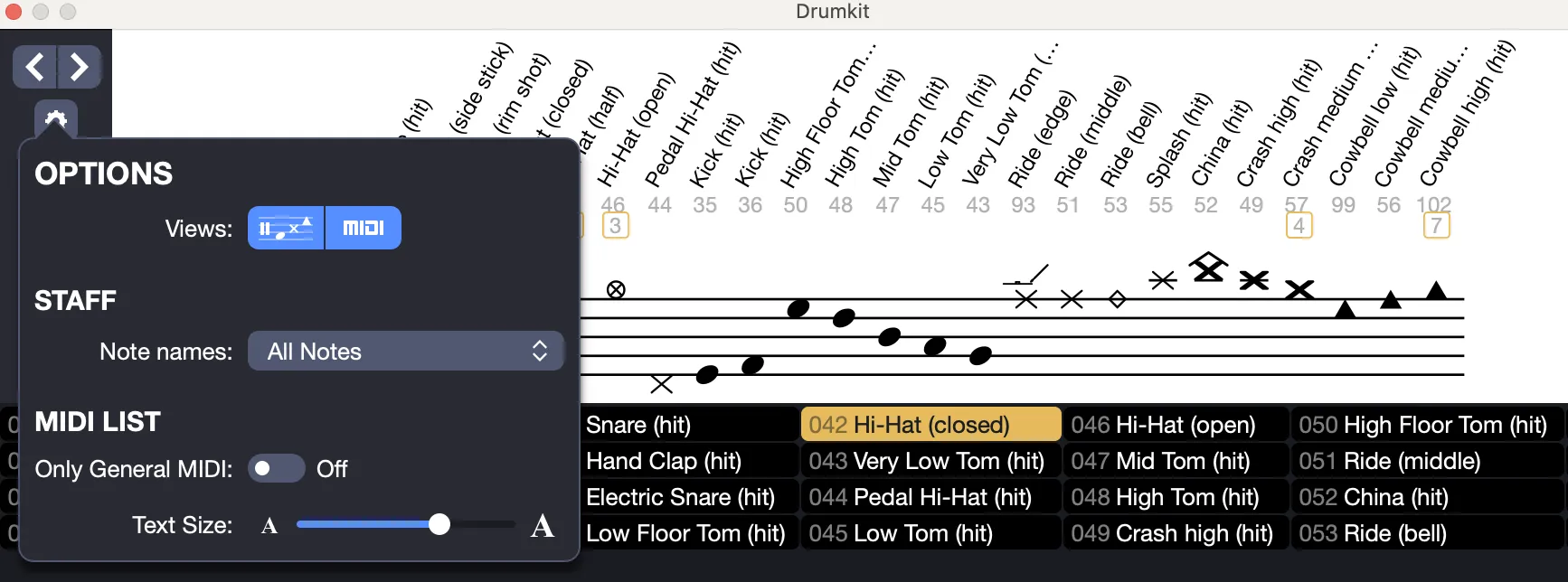
The settings accessible via the gear icon allow you to:
- Select the displayed view (staff and/or MIDI list)
- Show/Hide element names
- Show/Hide the General MIDI list
- Increase the text size
Editing the Drum Track via Tablature
In Guitar Pro, tablature is available for all instruments, including drums. You can thus specify the MIDI mapping for each element (see MIDI mapping table below), directly in the tablature, to add these elements to your track.
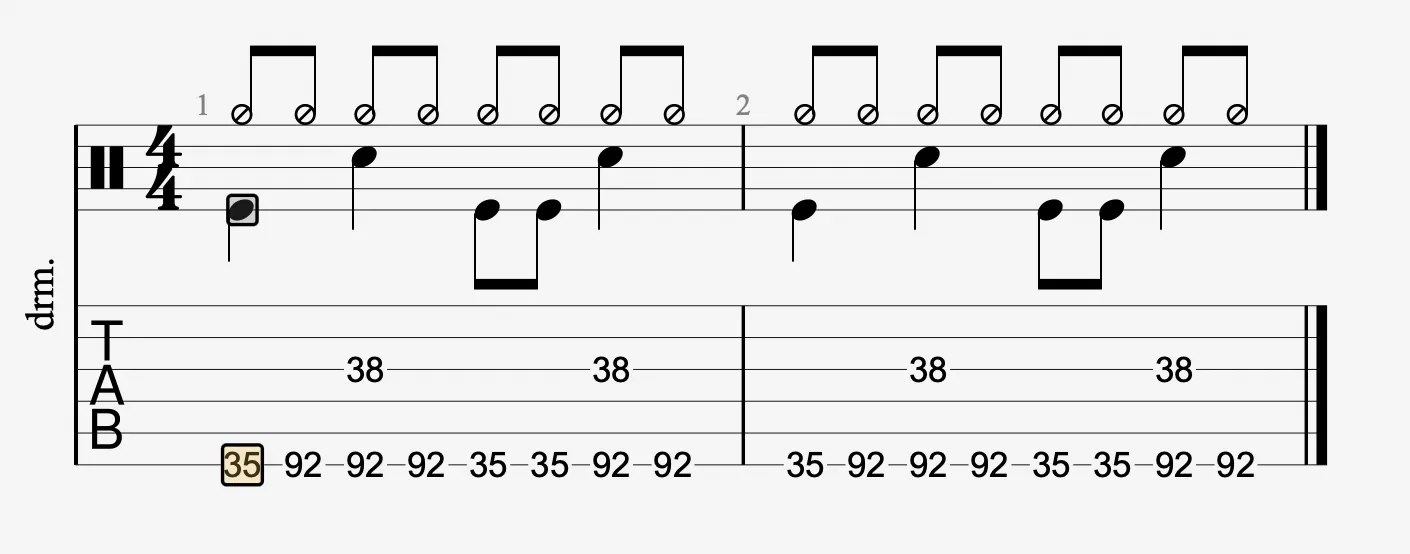
MIDI Mapping and Drum Tablature
| MIDI | Drum Kit Element |
|---|---|
| 27 | High Q |
| 28 | Slap |
| 29 | Scratch Push |
| 30 | Scratch Pull |
| 31 | Sticks |
| 32 | Square Click |
| 33 | Metronome Click |
| 34 | Metronome Bell |
| 35 | Bass Drum 2 |
| 36 | Bass Drum 1 |
| 37 | Side Stick, Rimshot |
| 38 | Snare Drum 1 |
| 39 | Hand Clap |
| 40 | Snare Drum 2 |
| 41 | Low Tom 2 |
| 42 | Closed Hi-hat |
| 43 | Low Tom 1 |
| 44 | Pedal Hi-hat |
| 45 | Mid Tom 2 |
| 46 | Open Hi-hat |
| 47 | Mid Tom 1 |
| 48 | High Tom 2 |
| 49 | Crash Cymbal 1 |
| 50 | High Tom 1 |
| 51 | Ride Cymbal 1 |
| 52 | Chinese Cymbal |
| 53 | Ride Bell |
| 54 | Tambourine |
| 55 | Splash Cymbal |
| 56 | Cowbell |
| 57 | Crash Cymbal 2 |
| 58 | Vibra Slap |
| 59 | Ride Cymbal 2 |
| 60 | High Bongo |
| 61 | Low Bongo |
| 62 | Mute High Conga |
| 63 | Open High Conga |
| 64 | Low Conga |
| 65 | High Timbale |
| 66 | Low Timbale |
| 67 | High Agogô |
| 68 | Low Agogô |
| 69 | Cabasa |
| 70 | Maracas |
| 71 | Short Whistle |
| 72 | Long Whistle |
| 73 | Short Güiro |
| 74 | Long Güiro |
| 75 | Claves |
| 76 | High Wood Block |
| 77 | Low Wood Block |
| 78 | Mute Cuíca |
| 79 | Open Cuíca |
| 80 | Mute Triangle |
| 81 | Open Triangle |
| 82 | Shaker |
| 83 | Jingle Bell |
| 84 | Bell Tree |
| 85 | Castanets |
| 86 | Mute Surdo |
| 87 | Open Surdo |
Additional Settings
Adjust the stroke type, such as stick or brush, from the Track Inspector located on the right side of the screen. Guitar Pro 8’s RSE audio engine interprets these choices for a realistic rendering of different articulations.