
Triplets, Tuplets, and Polyrhythms in Guitar Pro 8
Triplets and N-tuplets (irregular rhythmic figures) make it possible to divide a beat into subdivisions different from those defined by the time signature.
They can be used in many musical contexts, for example to create a syncopation in jazz, introduce a nuance in a classical style, or develop a progressive rhythm.
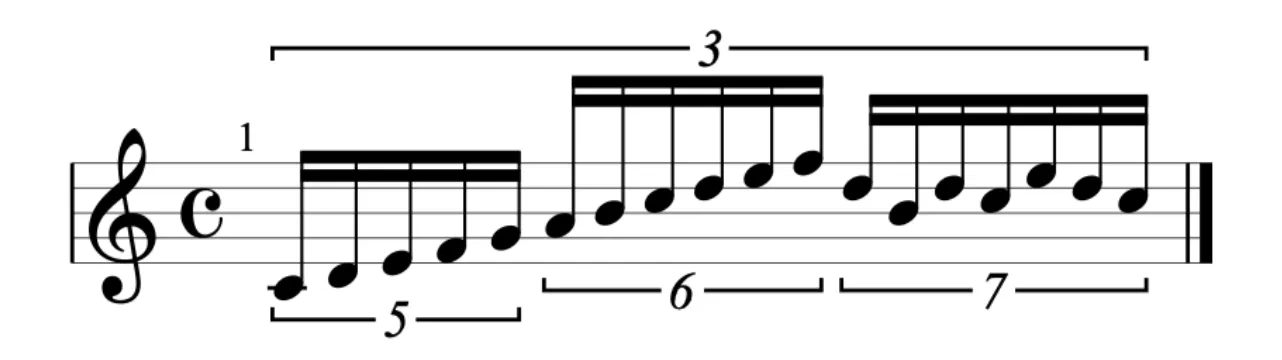
In Guitar Pro 8, these rhythms are displayed as numbered brackets, which makes it easier to read and structure complex compositions.
Adding Triplets and Tuplets in Guitar Pro 8
Find the tools for creating triplets and tuplets in the Editing Palette, accessible on the left side of the Guitar Pro interface. Two practical methods allow you to configure them:
After entering notes: First enter your notes, for example three eighth notes in a 4/4 beat. Select them using the mouse, then click the triplet or tuplet icon in the Palette. The notes are organized under a bracket, adjusted to the chosen beat.
Before entering notes: Activate a triplet or tuplet icon in the Palette, then enter your notes. Each note automatically conforms to the selected division, such as a triplet placing three quarter notes over two beats.
Triplets: A Simple Rhythmic Division
 Triplets group three notes in the space of two notes of the same duration, creating a smooth ternary division. For example, in a 4/4 bar, three eighth-note triplets occupy a single beat instead of two eighth notes, ideal for a syncopated riff or a fast phrase:
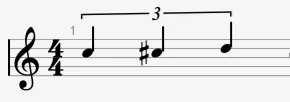
To apply them, select the triplet tool in the Palette. The notes at the cursor position form a group of three, and Guitar Pro adjusts playback to reflect this rhythm.
Custom Tuplets: Rhythmic Flexibility
 Custom tuplets allow you to create your own rhythmic subdivisions.
Click the tool in the Palette to activate it, or right-click to open a menu offering divisions from 2 to 13 notes, or an n:m ratio where n notes replace m notes.
Here are some common subdivisions:
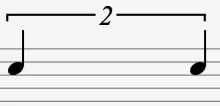
- Duplet (2):
- Quadruplet (4):

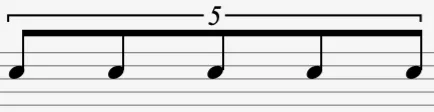
- Quintuplet (5):
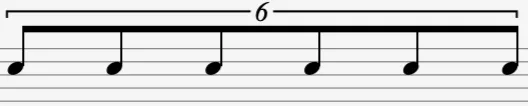
- Sextuplet (6):
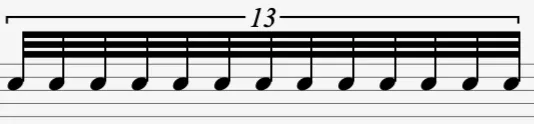
- Up to 13-tuplet (13) (complex and rare):
For precise control, configure an n:m ratio, for example 5:3 where five notes count for three notes.
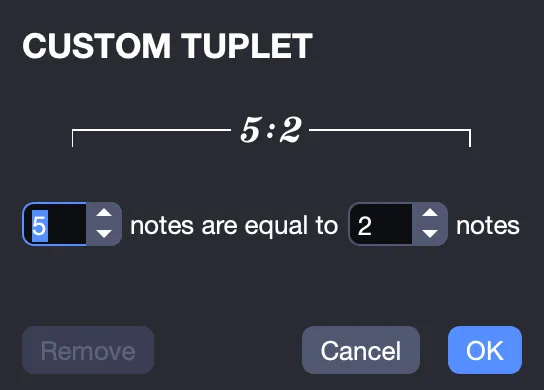
For a quintolet, right-click and select “5”. Edit your notes, and these five eighth notes will fit into a quarter-note beat, perfect for a syncopated melodic line.
Nested Tuplets: Sophisticated Rhythms
 Nested tuplets add a layer of complexity by embedding tuplets within other tuplets, ideal for elaborate polyrhythms.
For example, three quintolets (five notes each) can be nested within a triplet, occupying two beats for a total of 15 notes:

To configure them, activate the nested tuplet tool in the Palette and enter the internal tuplets, such as five eighth notes for a quintolet.
Then select the group and apply an external triplet using the corresponding tool. You can start with the internal or external tuplet, as Guitar Pro 8 handles the adjustment automatically.
Right-clicking the nested tuplet tool offers subdivisions from 2 to 13 or an n:m ratio, such as septuplets (7 notes) within a duplet (2 notes). These options are suitable for complex riffs or advanced jazz rhythms.
Summary of Available Tools
This table summarizes the tools in the Editing Palette for creating your triplets and tuplets:
| Symbol | Name | Usage |
|---|---|---|
|
Triplet | Create groups of three notes in the space of two |
|
Tuplet | Define custom subdivisions or external tuplets for nested tuplets |
|
Nested Tuplet | Embed internal tuplets within a larger subdivision |