
Managing User Sound Presets in Guitar Pro 8
Guitar Pro 8 allows you to create and manage custom sound presets, enabling you to save and reuse your tailored audio settings across tracks and projects. This guide explains how to save a user sound preset, organize it within the sound library, and manage your preset files efficiently.
Saving a User Sound Preset
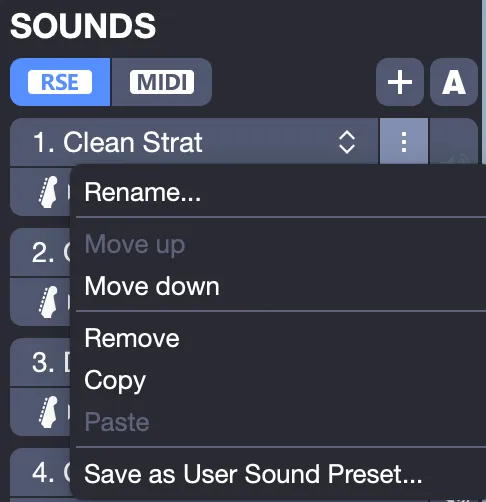
To save a custom sound, use the Options button in the sound header, located to the right of the sound name in the Track Inspector. Select Save as User Sound Preset from the menu to store your sound configuration.
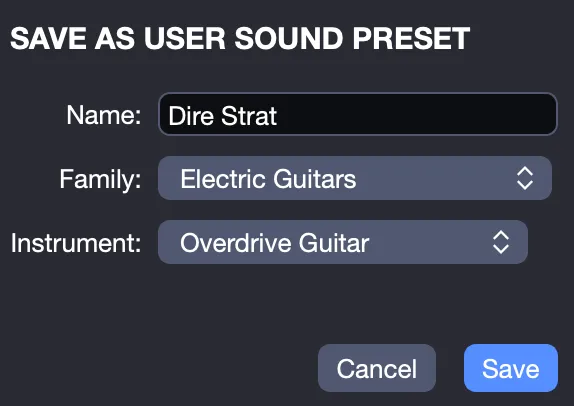
In the saving window, name your preset, assign it to a family (such as guitars or keyboards), and specify an instrument type. These choices help you locate the preset easily later in the Track Inspector. Once saved, your preset appears alongside other sounds in the sound library, organized by category, ready for use in any track.
Managing User Sound Presets
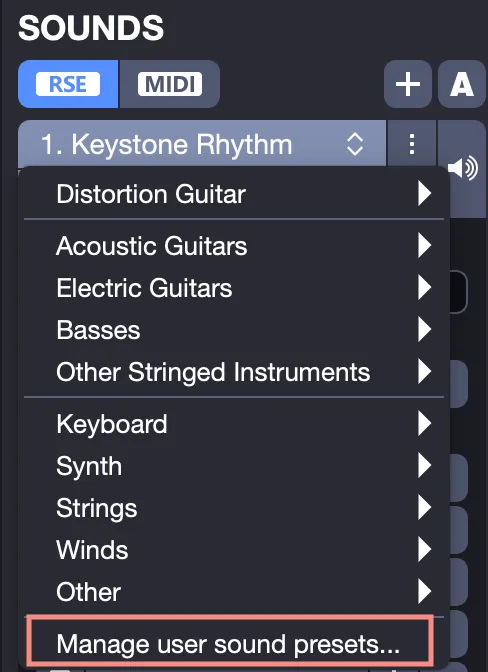
User sound presets are stored as files on your computer, allowing you to manage them like any other file. To access them, open the sound library from the sound header in the Track Inspector and select Manage User Sound Presets.
A file explorer opens, showing the folder where your presets are stored, organized by categories, families, and instruments:
| OS | Folder Path |
|---|---|
| Windows | %APPDATA%/Roaming/Arobas Music/guitarpro8/My Sound Presets |
| macOS | ~/Library/Application Support/Arobas Music/GuitarPro8/My Sound Presets |
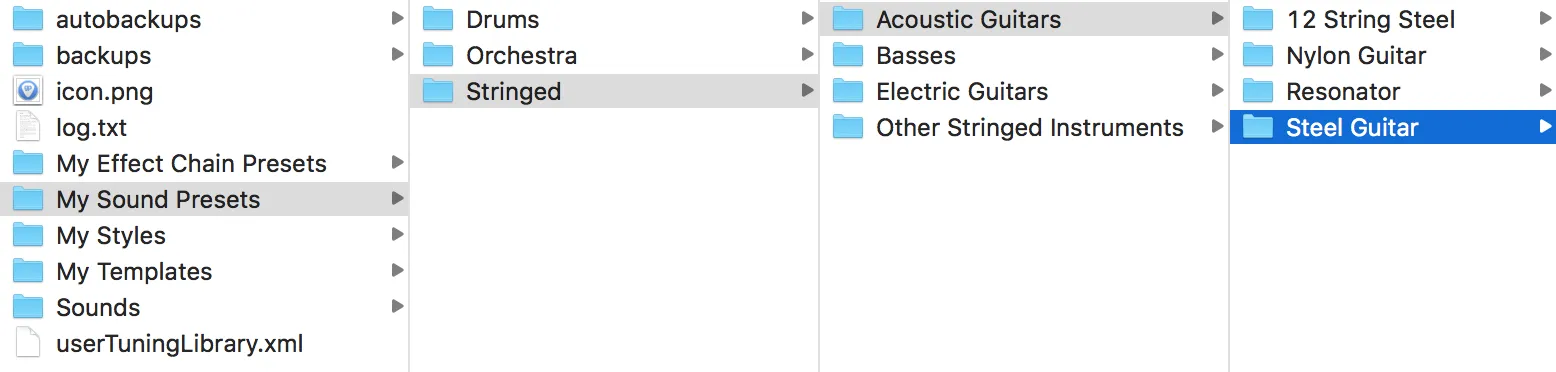
By default, these folders are present but empty until you save your first user sound preset. Modify them directly in this folder, for example, delete files to remove presets, or copy presets from another computer to import them. Guitar Pro 8 automatically updates the sound library to reflect changes, ensuring your presets are instantly available in the Track Inspector.