
Installing Updates in Guitar Pro 8
Guitar Pro 8.x updates are free. They fix bugs and improve the software’s performance.
By default, Guitar Pro 8 checks for updates every week, ensuring that you always use the latest version.
You can change this frequency from the General tab in the Guitar Pro Preferences.
If you prefer to check for updates manually, go to the Guitar Pro 8 > Check for Updates menu on macOS, or Help > Check for Updates on Windows.
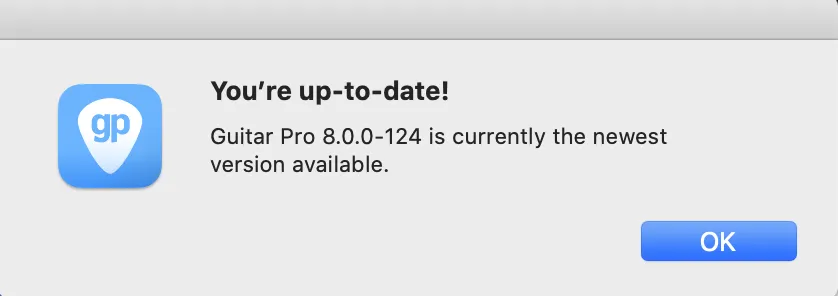
If your version is up to date, Guitar Pro displays a confirmation message.
Updates do not affect your files or personal settings. They are designed to improve stability, fix minor issues, and ensure compatibility with the latest operating system versions.
Updates on macOS
When an update is available, a window appears with details about the new features and fixes.
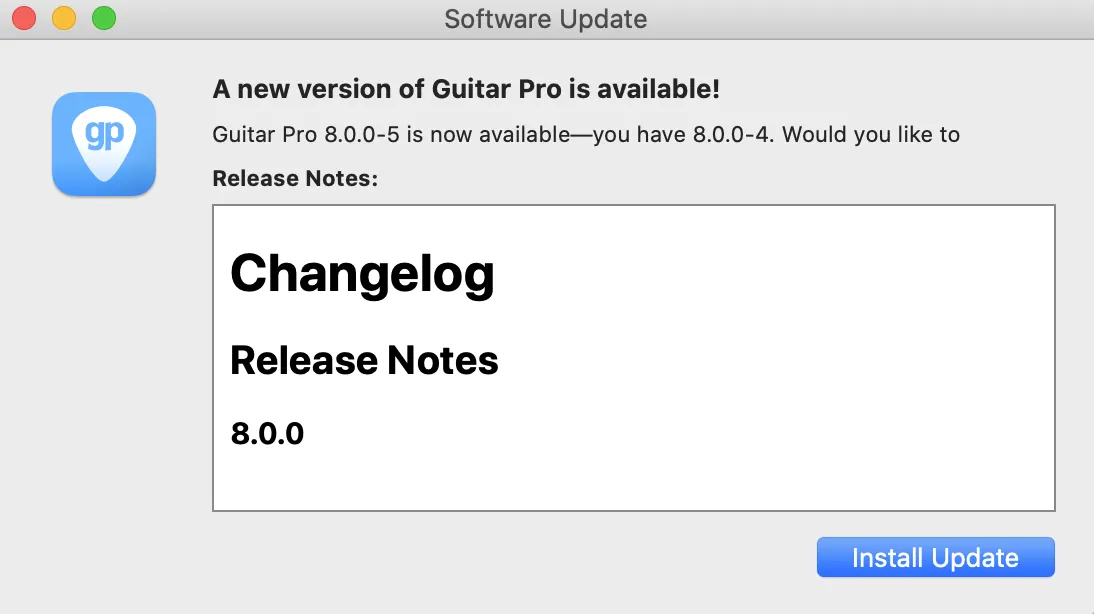
Click Install to start the process.
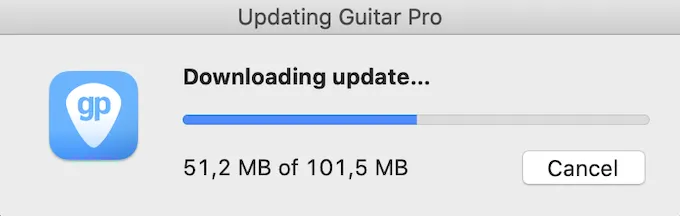
Guitar Pro first downloads the update. A progress bar shows how much data remains to be downloaded.
Once the download is complete, click Install and Relaunch to begin installation.
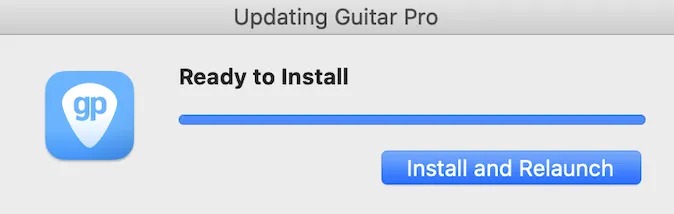
The installer applies the update and Guitar Pro restarts automatically.
Updates on Windows
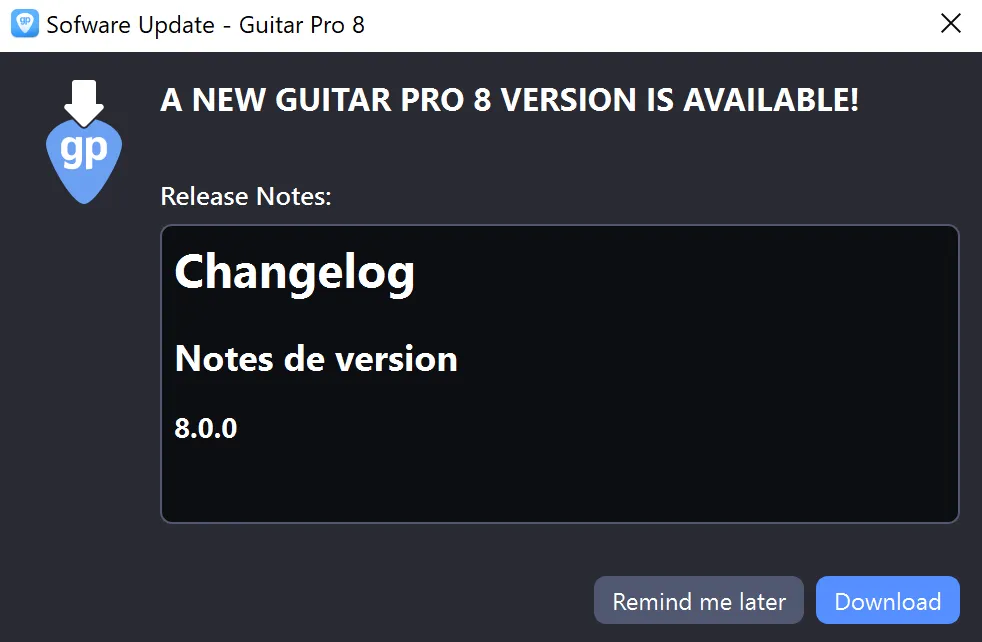
If an update is detected, a window shows the new features and fixes. Click Download to proceed.
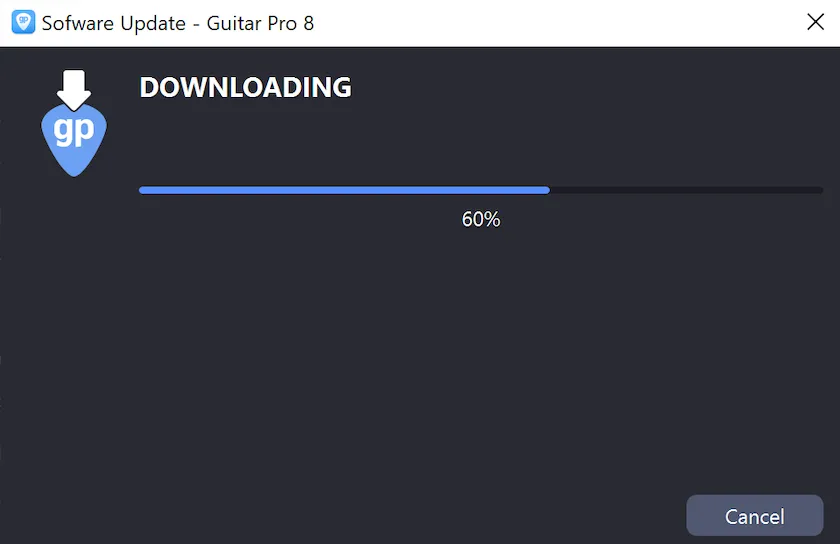
Guitar Pro downloads the update. A progress bar is shown in the window.
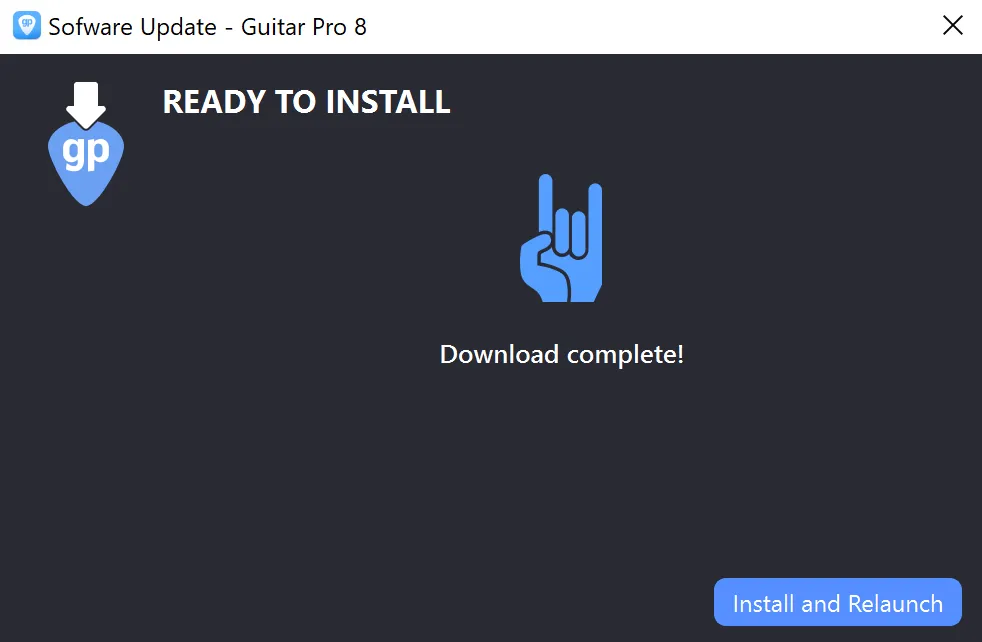
Once the download is complete, click Install and Relaunch to start installation.
The installer applies the update and Guitar Pro restarts automatically.
If you encounter a problem
If an error occurs during installation, close Guitar Pro, reopen it, and try the update again. If the problem persists, you can always download the latest version of Guitar Pro from the Guitar Pro website, or contact our support team if needed.