Stylesheet: Systems & Staves Settings in Guitar Pro 8
Overview of the Systems & Staves tab
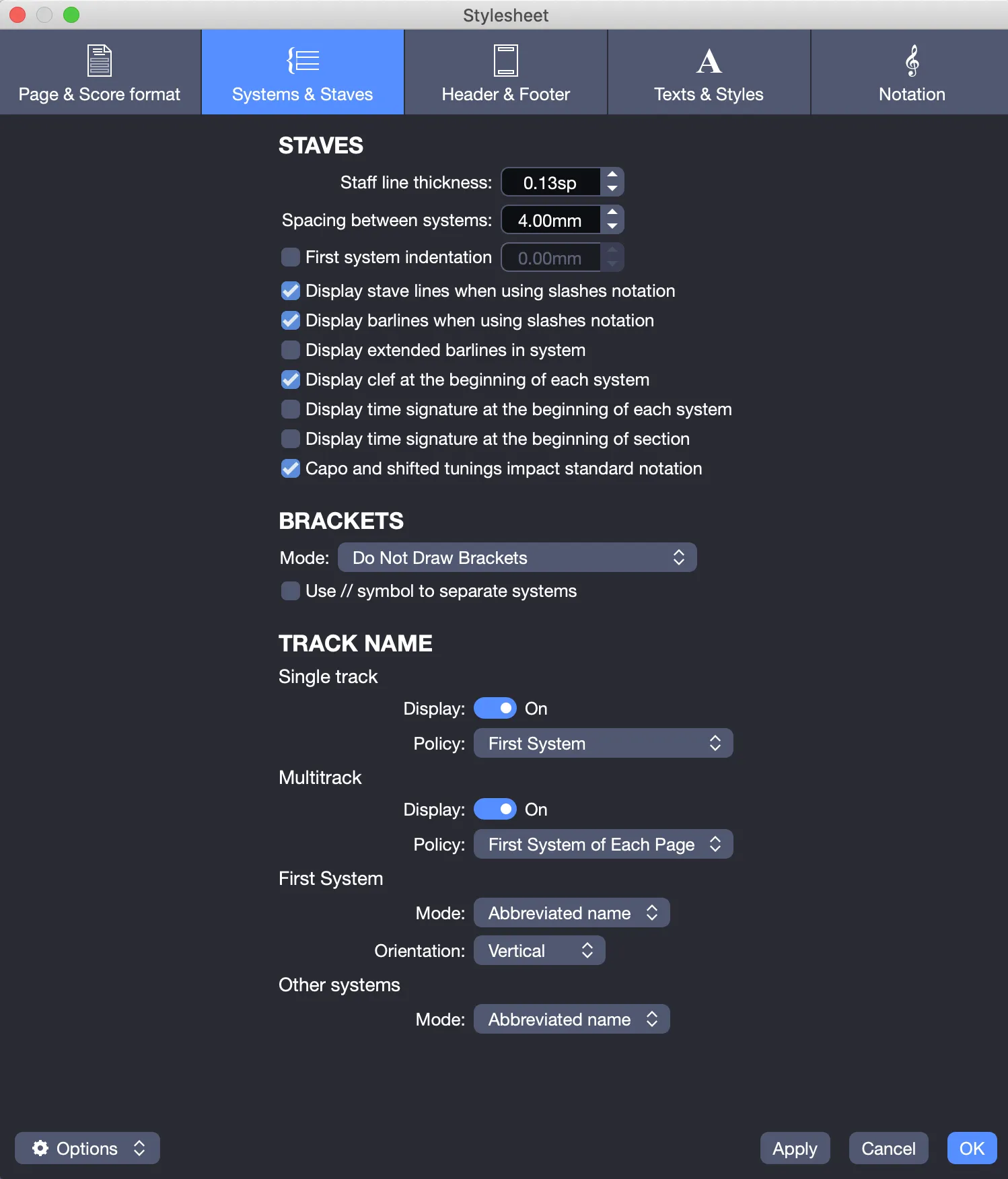
The Systems & Staves tab includes the following sections, designed to customize the appearance of staves and systems in your score.
Staves Section
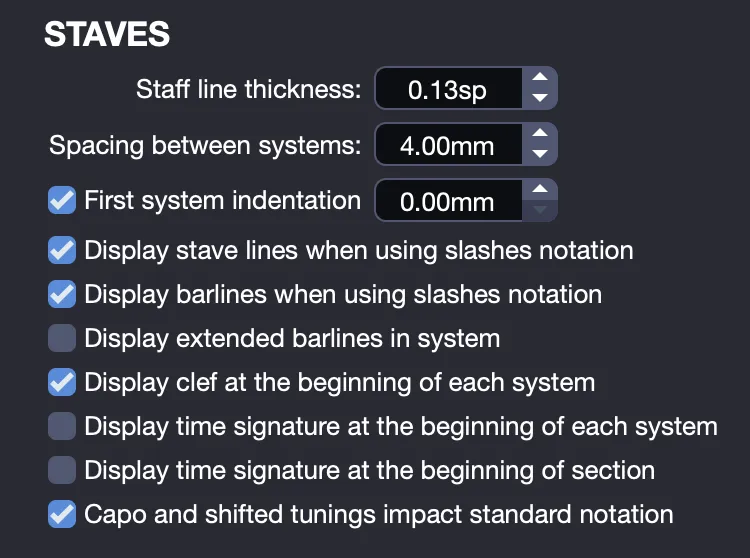
Customize the appearance of staves and systems for a clear and professional score.
- Customize thickness: Adjust the staff line thickness.
- Modify spacing: Set the spacing between systems.
- Apply display options: Select one of the following options to modify your score’s presentation:
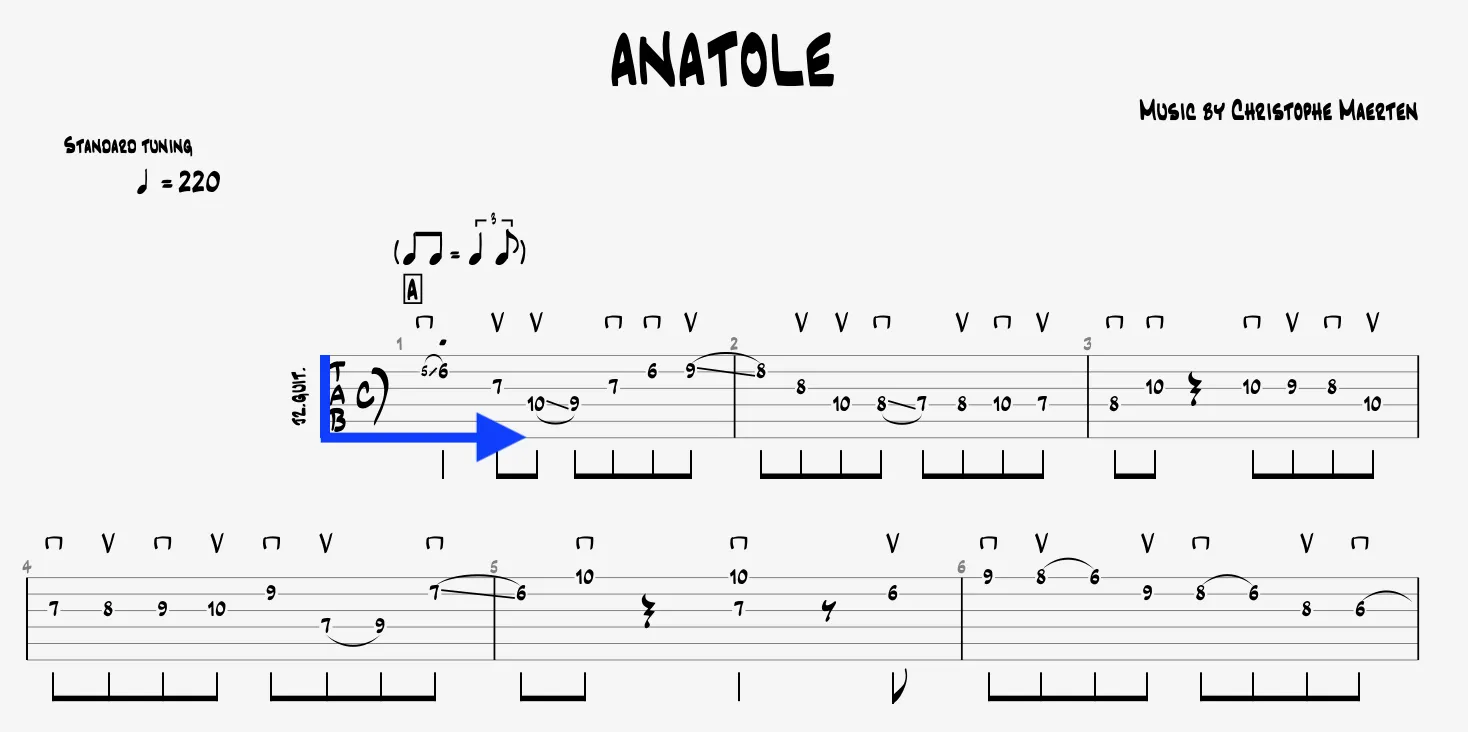
- Indent first system: Indent the first system for a distinct look.
- Show staff lines in slash notation: Display staff lines for slash notation.
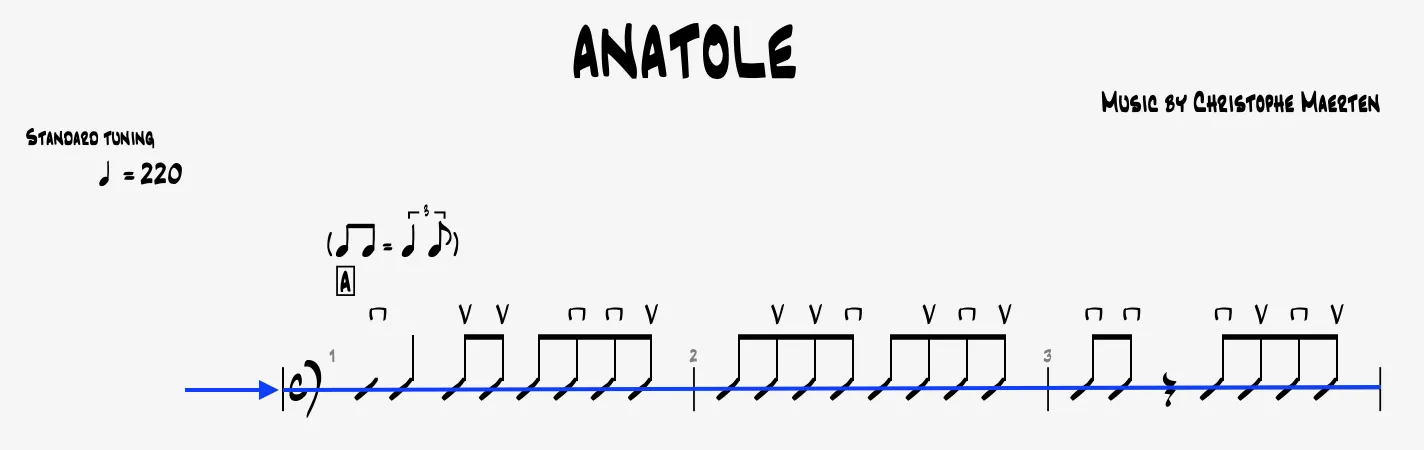
- Show barlines in slash notation: Include barlines in slash notation.
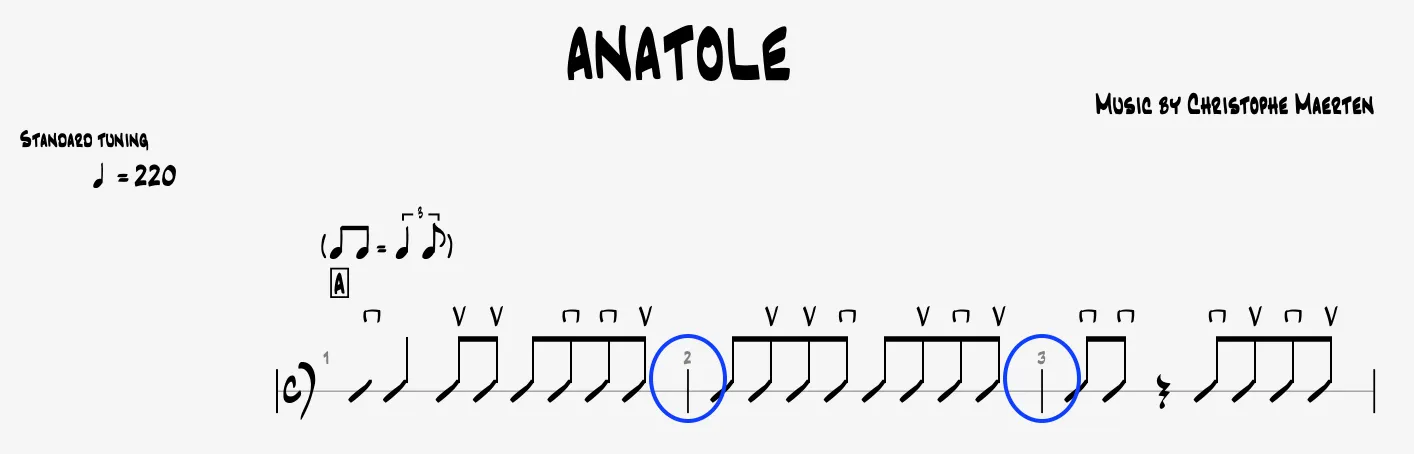
- Extend barlines across system: Extend barlines to the full height of the system.
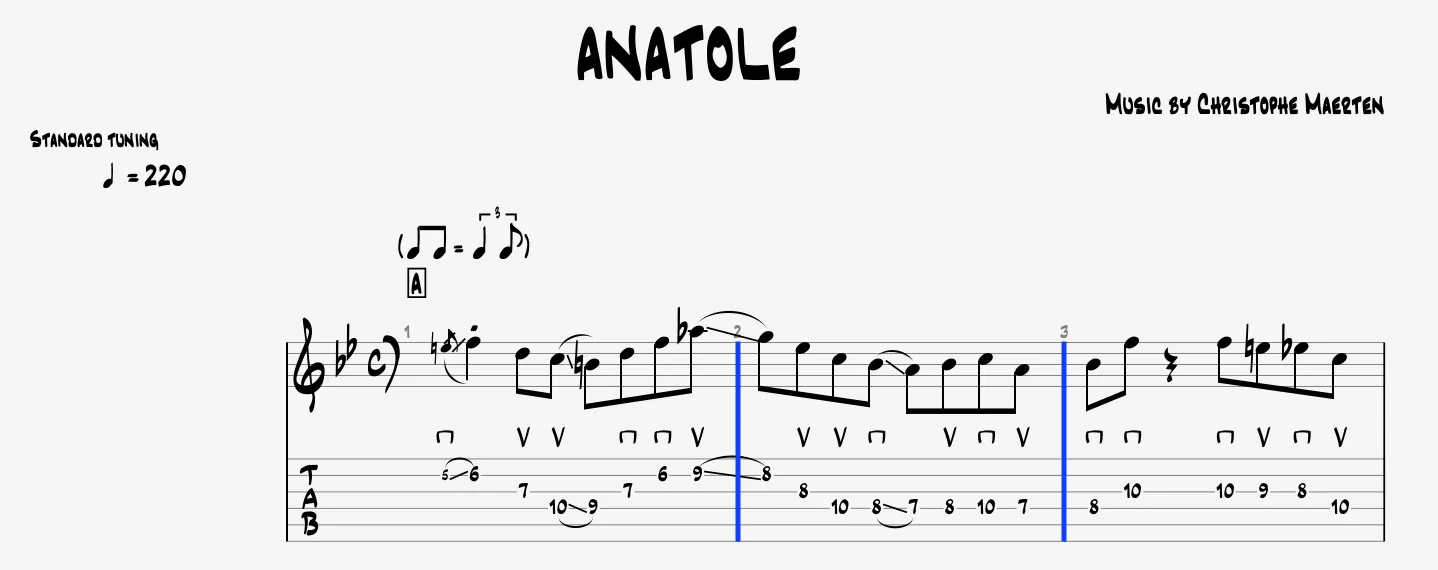
- Show clef at system start: Place a clef at the beginning of each system.
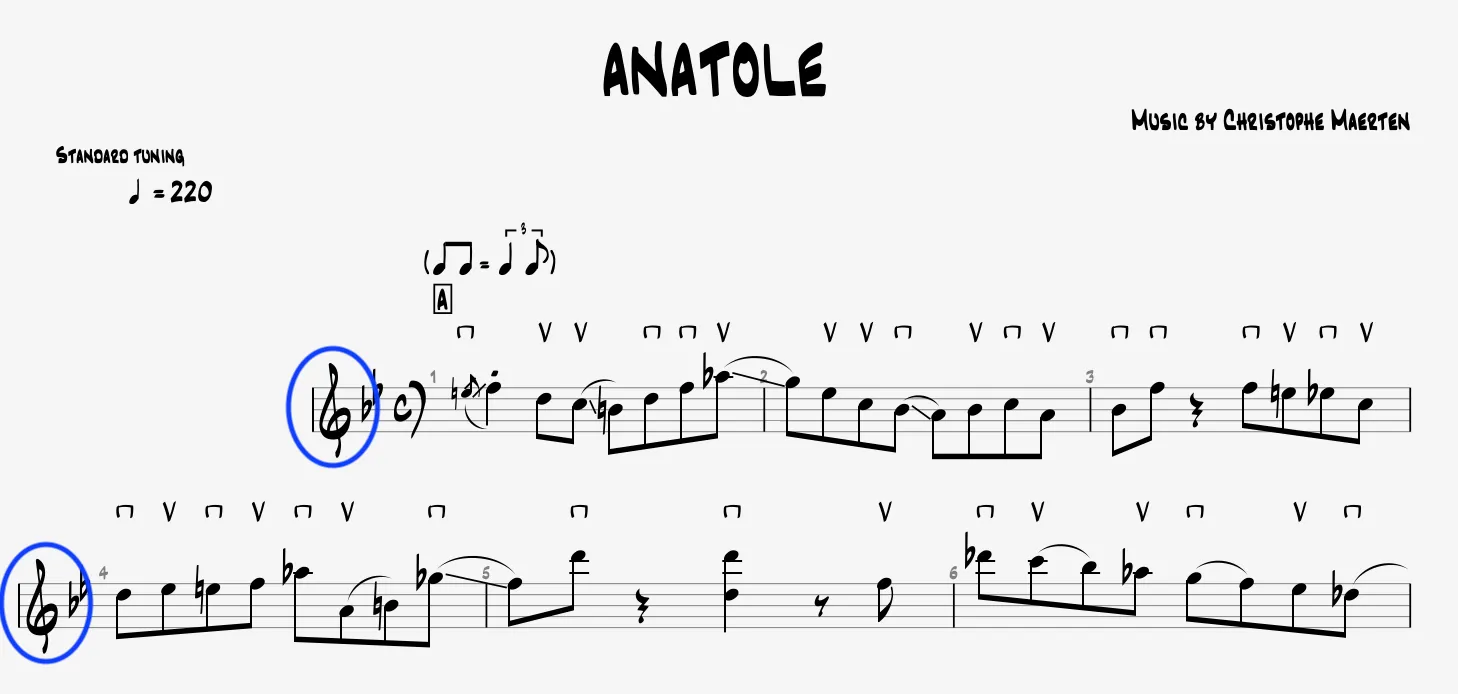
- Show time signature at system start: Include the time signature at the beginning of each system.
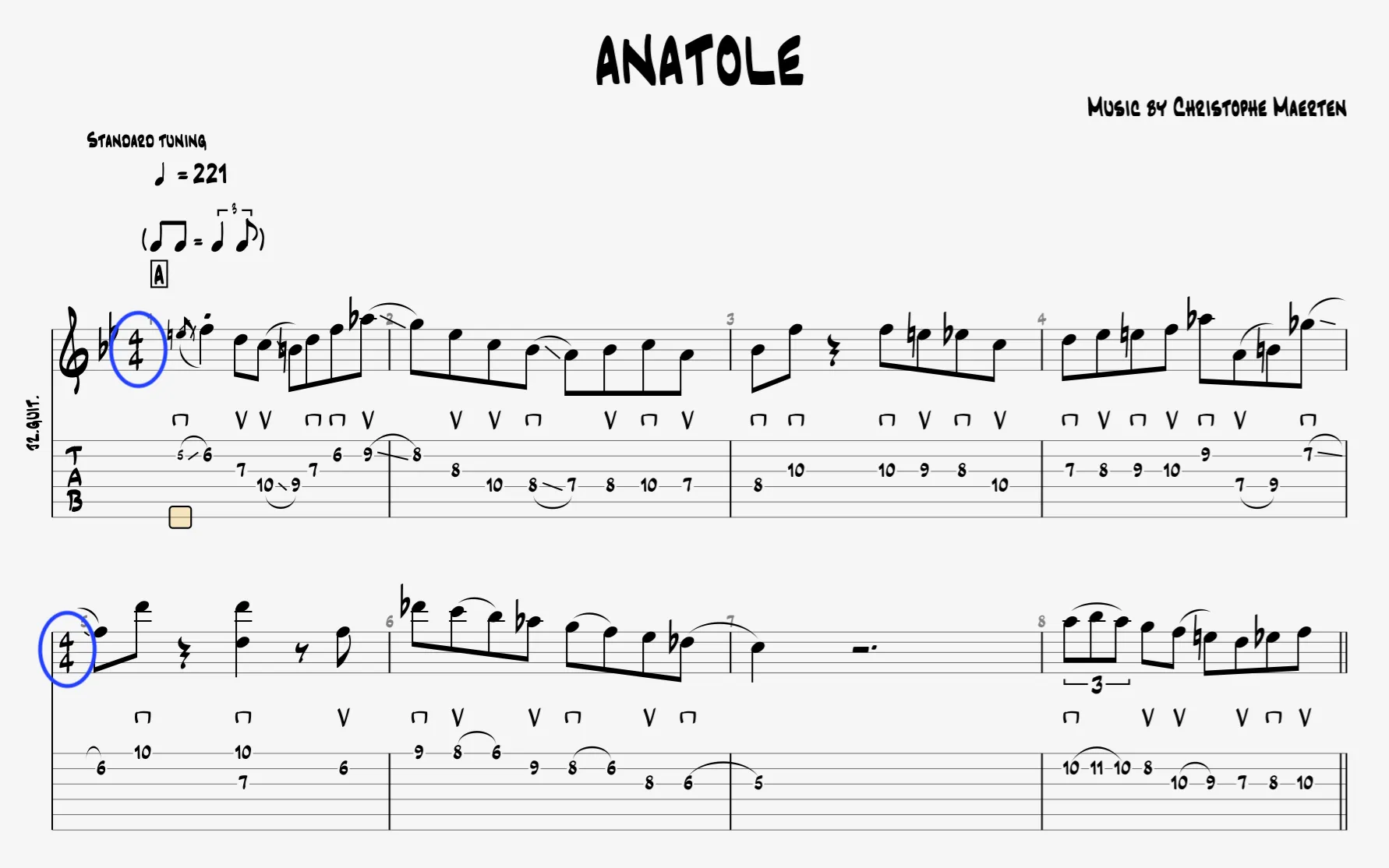
- Show time signature at section start: Place the time signature at the beginning of each section.
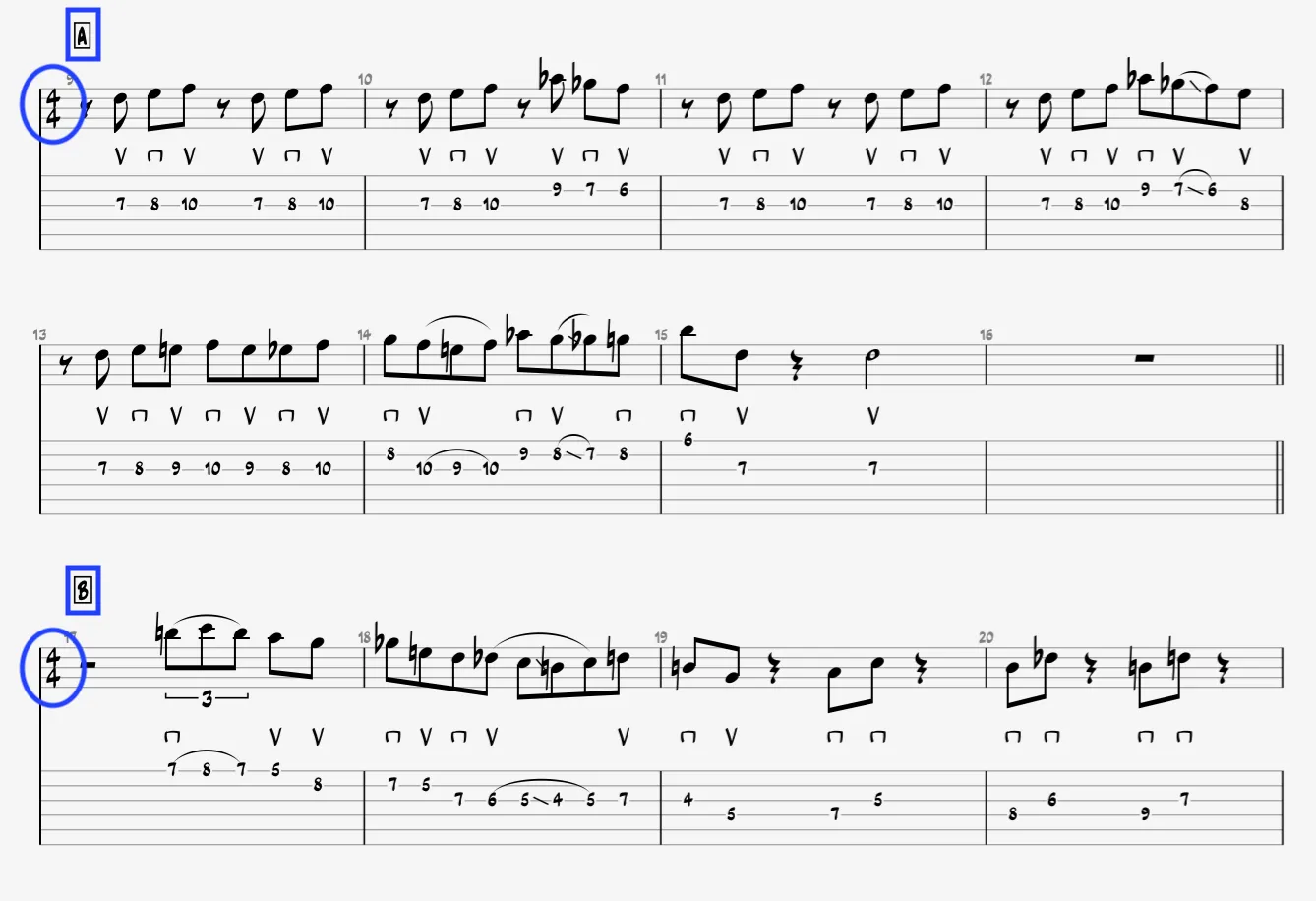
- Indent first system: Indent the first system for a distinct look.
- Transposition: Capo and shifted tunings affect standard notation. Refer to the Transposition Tonality chapter.
Brackets Section
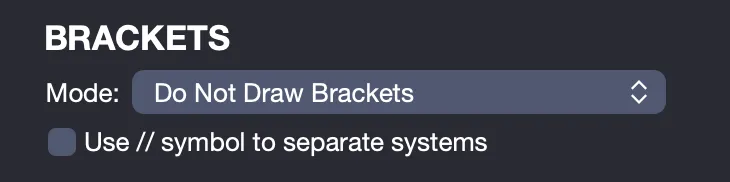
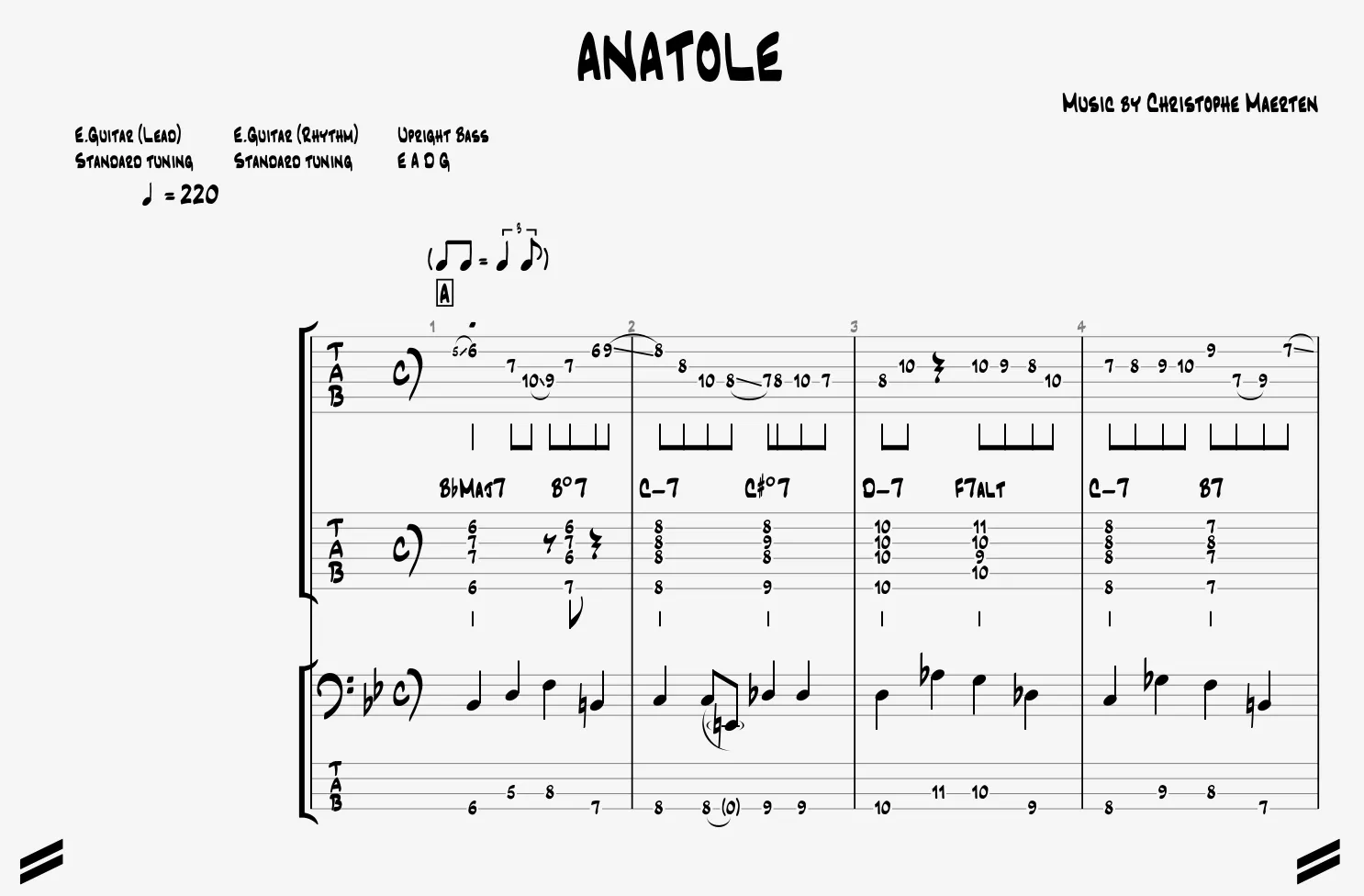
Configure the display of brackets to visually organize your tracks.
- Choose a display mode:
- Hide brackets.
- Link tablature and standard notation.
- Group similar instruments.
- Use a separator: Add the // symbol to separate systems.
Track Name Section
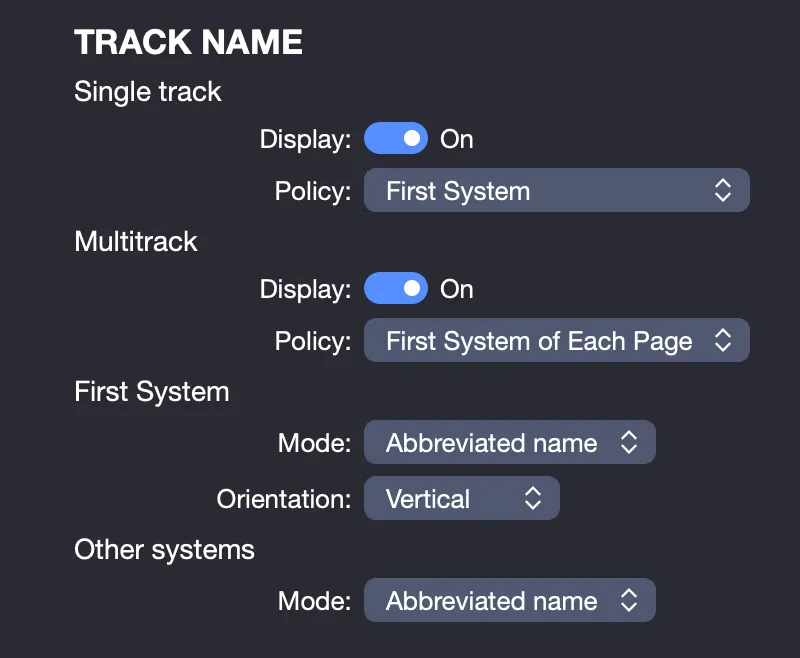
This section lets you display or hide the track name according to your preferences.
- Choose placement:
- On the first system.
- On the first system of each page.
- On all systems.
- Apply in single-track or multitrack mode: Display the name in either mode.
- Select format: Show the full name, or abbreviated name.
- Set orientation: Opt for vertical, or horizontal alignment.
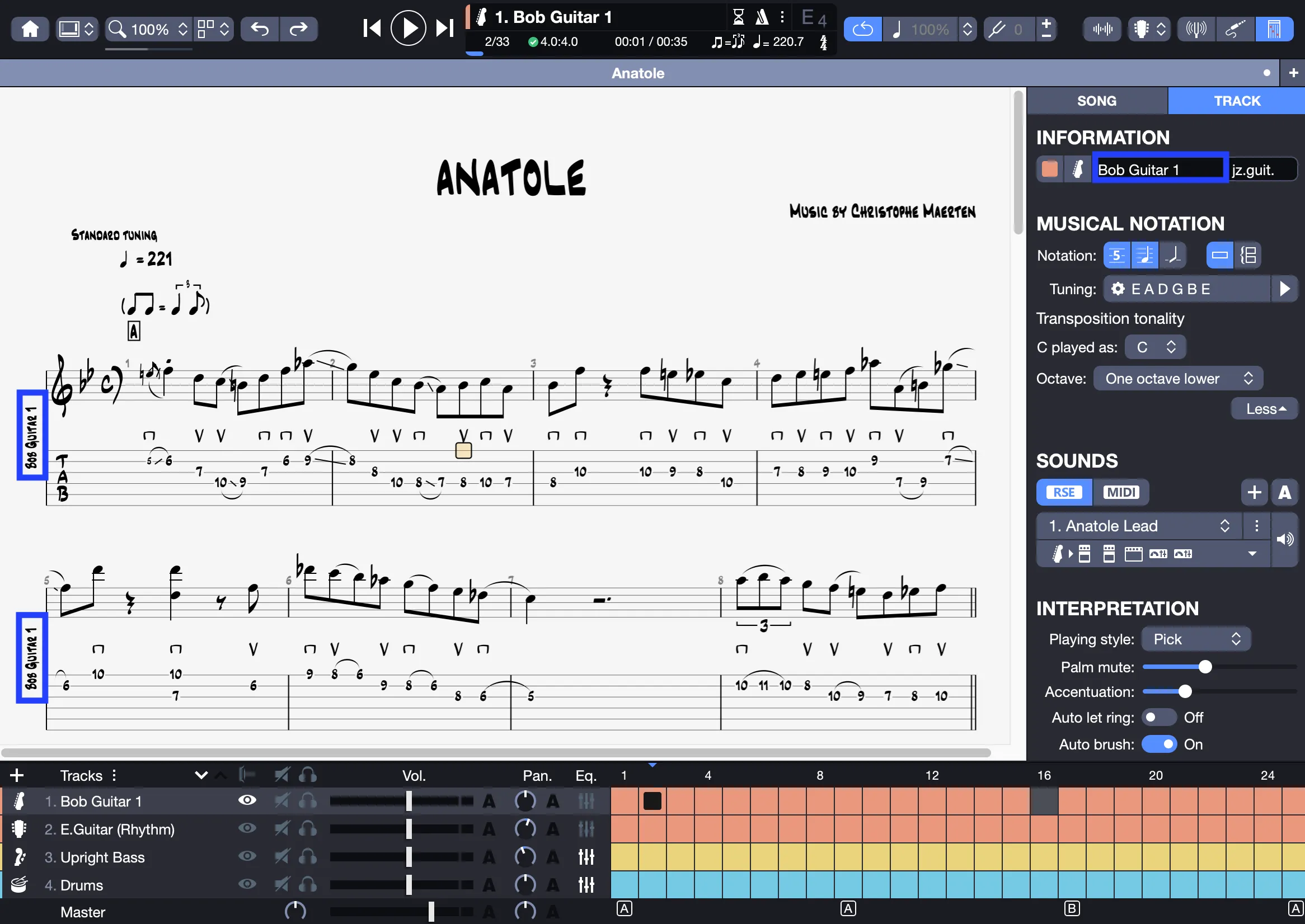
In this example, the full track name is displayed vertically on each system. You can modify the track name and its abbreviated name from the Track Inspector (see Track Settings via the Track Inspector in Guitar Pro).