
Instrument Views in Guitar Pro 8
The Instrument Views in Guitar Pro are representations of a part of the instrument, allowing you to input notes by clicking on them.
To display the Instrument Views, use these three options in the View menu:
- View > Show Fretboard View
- View > Show Keyboard View
- View > Show Drumkit View
The keyboard shortcut is Ctrl + F6 on Windows and ⌘ + F6 on macOS.
It responds based on the type of track you are working on. Using this shortcut with a stringed instrument will display a fretboard. Using it on a pitched, non-fretted instrument will display a keyboard.
On a percussion track, this shortcut is associated with the drum view.
You can also click the Instrument View icons located in the toolbar at the top of your window.

Guitar Pro offers three Instrument Views: a guitar fretboard, a keyboard, and a drum kit.
- A pitched instrument track (with or without strings/frets) can display the guitar fretboard or keyboard: guitar, bass, and other stringed instruments, pianos, synthesizers, orchestral instruments, pitched percussion instruments, etc.
- A non-pitched instrument track (purely percussive) can only display the drum view.
The guitar and keyboard Instrument Views can be displayed simultaneously, allowing you to see how to play the score on both types of instruments at once.
Common Features
Instrument Views allow you to write notes using the mouse, for example, by clicking directly on the desired notes.
The < and > buttons enable navigation to the previous or next note in the score. This avoids using the computer keyboard for navigation if you prefer to input notes solely with the mouse. Clicking an existing note will delete it.
The gear icon, located on the left side of the window, allows you to modify the display options for the Instrument View.
Several display modes are available:
- Show Beat: Displays only the notes of the selected beat.
- Show Beat + Bar: Displays the notes of the selected beat and the notes of the current bar.
- Show Beat + Next Beat: Displays the notes of the selected beat and the notes of the following beat.
Guitar Fretboard View and Keyboard View
The guitar fretboard view and the keyboard view function in the same way. They allow, in addition to entering notes, the display of a scale.
Moreover, the note hovered over with the mouse is displayed without needing to click the cell, in two places:
- Under the mouse, when hovering over the instrument. This can be hidden via the options.
- In the left section (the number indicates the note’s octave).
Guitar Fretboard View

- Move the cursor left and right.
- Settings.
The guitar fretboard automatically adapts to the active track. Thus, the number of strings and the capo position depend on the track settings. If you switch tracks, the guitar fretboard will automatically update.
To add a note to the score, simply click on the guitar fretboard at the desired fret and string. To delete a note, simply click on it.
The guitar fretboard is also available for left-handed players. This option is accessible by clicking the gear icon on the fretboard.
Keyboard View

- Move the cursor left and right.
- Settings.
The keyboard view allows you to see the range of playable notes for the active track. Notes that are unplayable, because they are too low or too high to be reached by the instrument, are grayed out and cannot be clicked.
To add a note to the score, simply click on a piano key. To delete a note, simply click on it.
It is possible to display both the guitar fretboard view and the keyboard view simultaneously.
Scale Display


You can display (or hide) a scale on the guitar and keyboard views. Access the scale tool window directly from your Instrument View by enabling the scale display, then clicking the button below to choose the scale.
You can continue to view the selected scale while inputting your score.
The root note of the scale can be highlighted or not. It will be displayed in a square instead of a circle.
Drum View
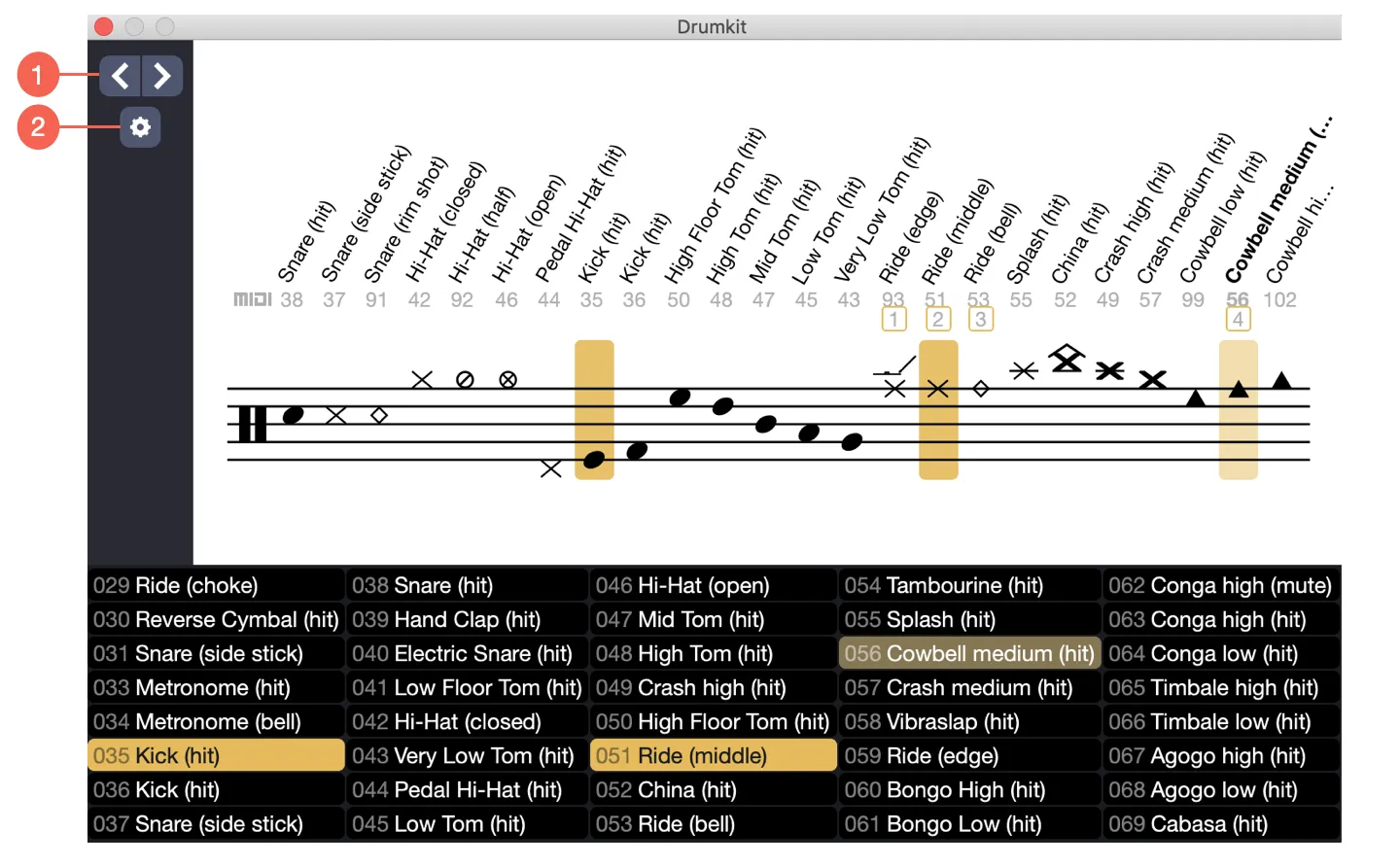
- Move the cursor left and right.
- Settings.
The drum view window itself has several views:
- Staff View: Displays all drum elements available for the instrument of the active track.
- MIDI View: Displays all MIDI elements.
Staff View
Guitar Pro indicates the corresponding keyboard shortcut (numeric keypad) to enable faster input of your score. The possible percussion elements depend on the staff line where the cursor is located.
The note hovered over with the mouse is displayed without needing to click the cell. The drum view window indicates which drum element is represented, as well as its MIDI value.
MIDI View
The MIDI view allows you to visualize all MIDI elements playable by the drum kit. Guitar Pro offers an expanded range of elements compared to the standard General MIDI palette. To display only elements compliant with the General MIDI standard, select the option in the settings accessible via the gear icon.
You can choose to display only one of these views or both views simultaneously.
Note Names
From the settings accessible via the gear icon, you can choose how notes will be displayed in the drum view window. Three options are available:
- Hide the names of available elements.
- Show only the element’s name when hovering with the mouse.
- Show all notes, namely the element’s name and its corresponding MIDI value.
Note that you can also increase the text size of the MIDI element names from this same settings window.