
Discover the New Features in Guitar Pro 8
Guitar Pro 8 introduces a range of new tools to enhance your music creation experience. This section highlights the key features, providing a concise overview of what’s new. For detailed information, refer to the related chapters in this User Guide.
Audio Track
Incorporate an audio track to enrich your project. An invaluable addition for transcribing, adding vocals, or playing alongside a backing track within your Guitar Pro file.
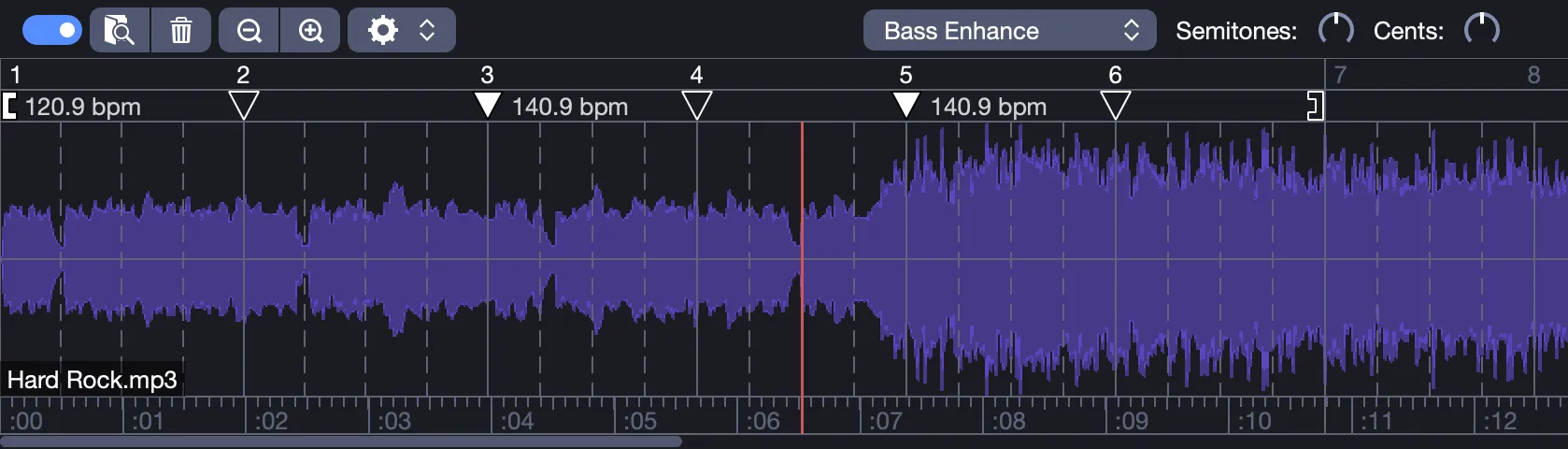
Add it using the  button, Track > Add Audio File, or drag-and-drop. Display it with the
  toolbar button or View > Show Audio Track, a blue outline indicates it’s active.
The synchronization interface aligns your score and audio using Sync Points. These override tempo automations, matching playback to the audio’s rhythm similar to a conductor aligning an orchestra with a soloist. Begin with the first sync point [ linked to your score’s initial tempo. Import tempo automations from the  menu, or reverse the process by exporting sync points as automations. Disable it with
  to return to score-driven tempo.
Synchronizing an Audio Track
- Padding: Align the audio’s start with your score, drag the waveform using Ctrl (Windows) or Cmd (macOS), or adjust the grid via the first [ sync point. Aim for precise alignment, regardless of the starting point.
- Placing Sync Points: Use the grid solid lines mark bar starts, dotted lines indicate beats (based on time signature). Drag bars or sync points ▼ to align with waveform peaks. Each adjustment recalculates tempo without affecting other points. Work broadly (start-to-end, then middle) or progressively (left-to-right), choose your approach.
Nested Tuplets
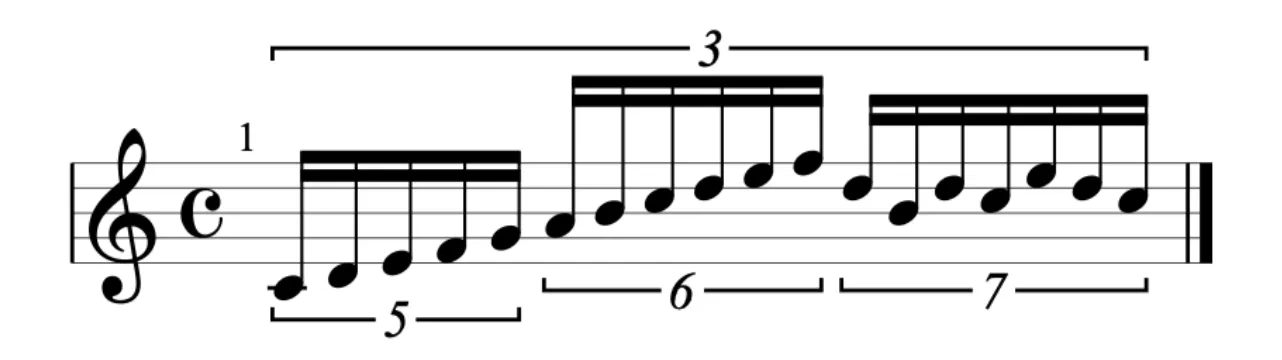
Create complex rhythms with nested tuplets, tuplets within tuplets for intricate, syncopated patterns. Access them in the Editing Palette: top row for standard n-tuplets (1), bottom for nested (2). Right-click or long-press to select your preferred option.
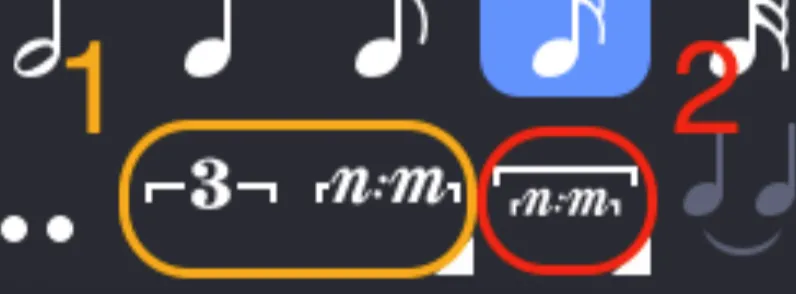
For example, triplets within quintuplets simplify advanced polyrhythms.
Scale Diagrams
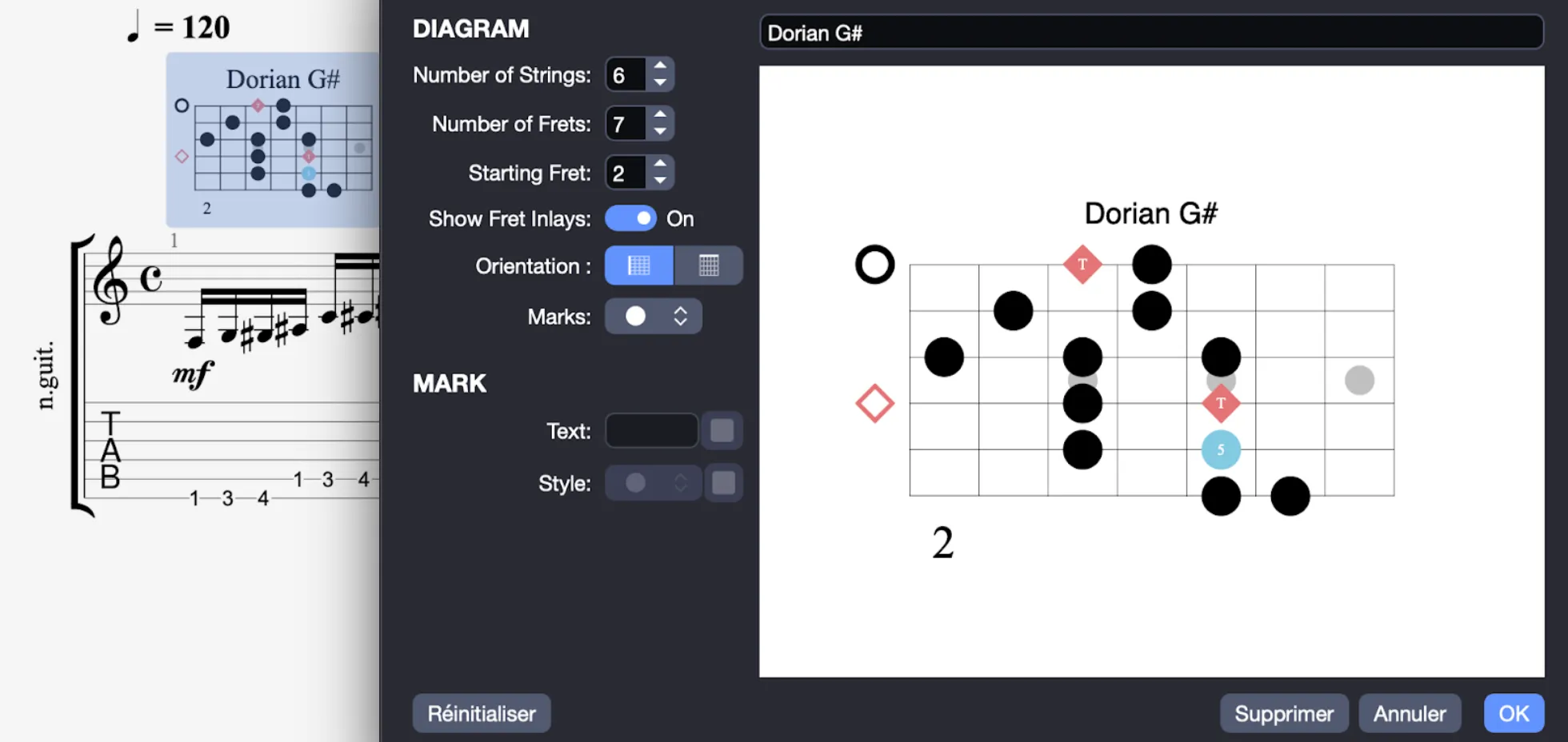
Visualize scales using the Note > Scale… tool, generate a diagram from a selected range. Explore modes or arpeggios across the fretboard, ideal for crafting solos or studying theory.
Pedalboard
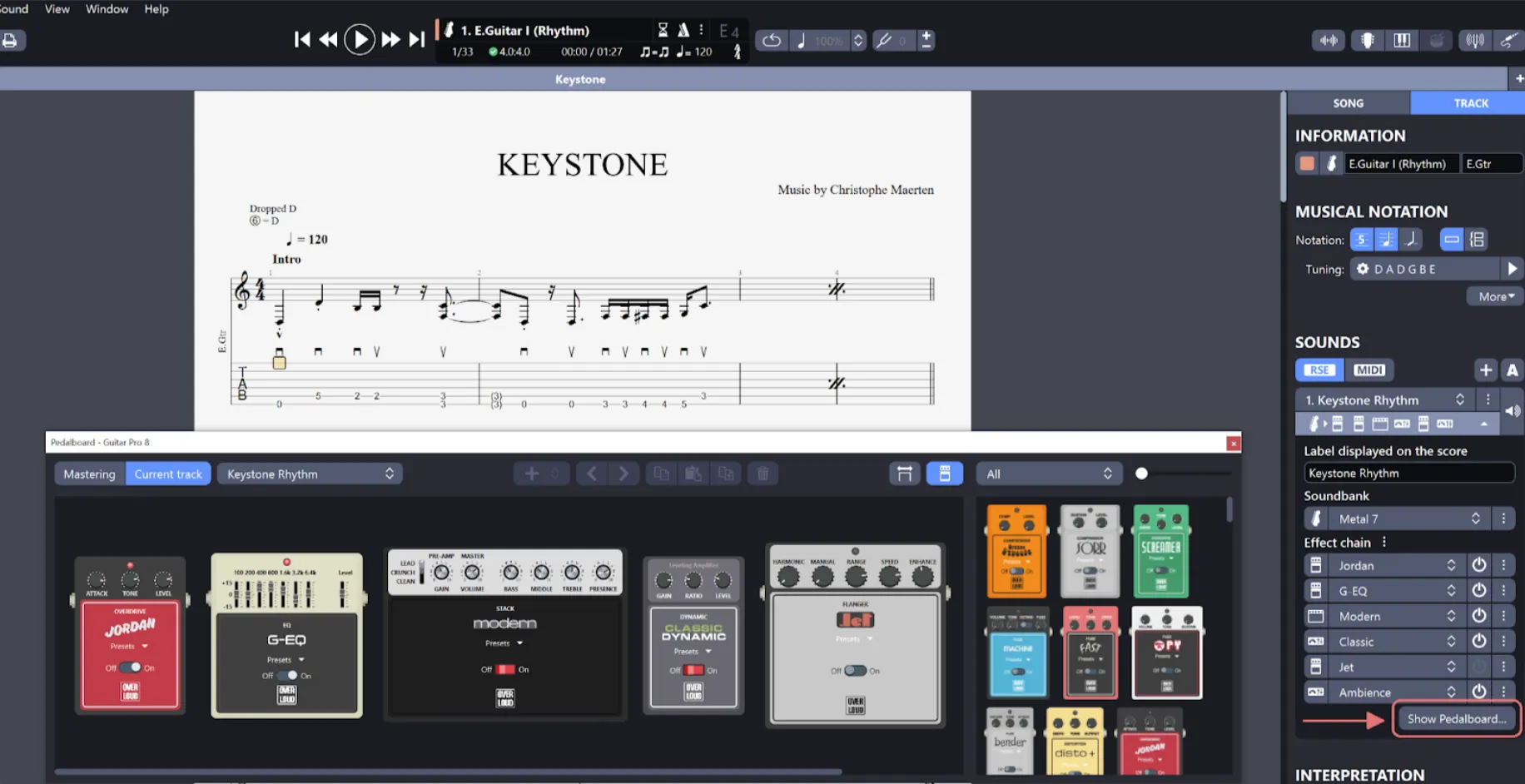
From the Track Inspector’s sound settings, select Show Pedalboard… to adjust effects visually. Add pedals with “+” or drag from the browser (top-right), up to 6 pedals and amps, for both track and mastering. Refine your sound with professional precision.
The Command Palette
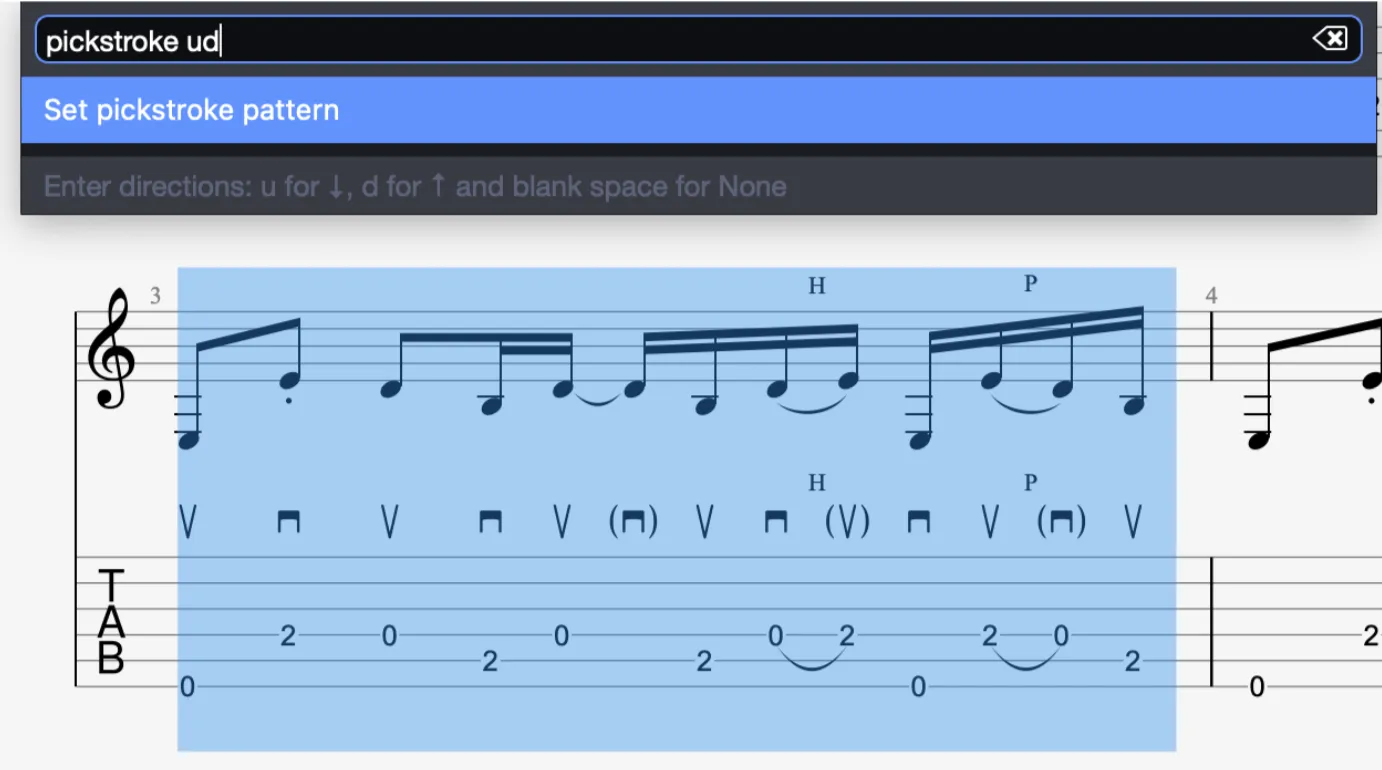
Access the Command Palette via Tools > Show Command Palette or Ctrl+E, an efficient tool for editing. Enter commands to bypass menu navigation: - Search options (e.g., “bend”). - View all with “?”. - Perform actions with “@”. - Input chords like “>Cm” for C minor. - Apply patterns like “pickstroke ud” across selections, or fill beats to the end without a pattern. - Remove effects with “unset Tie”.
Press Tab to complete, or use “flow” mode for continuous operation, fast and effective.
Design Mode Improvements
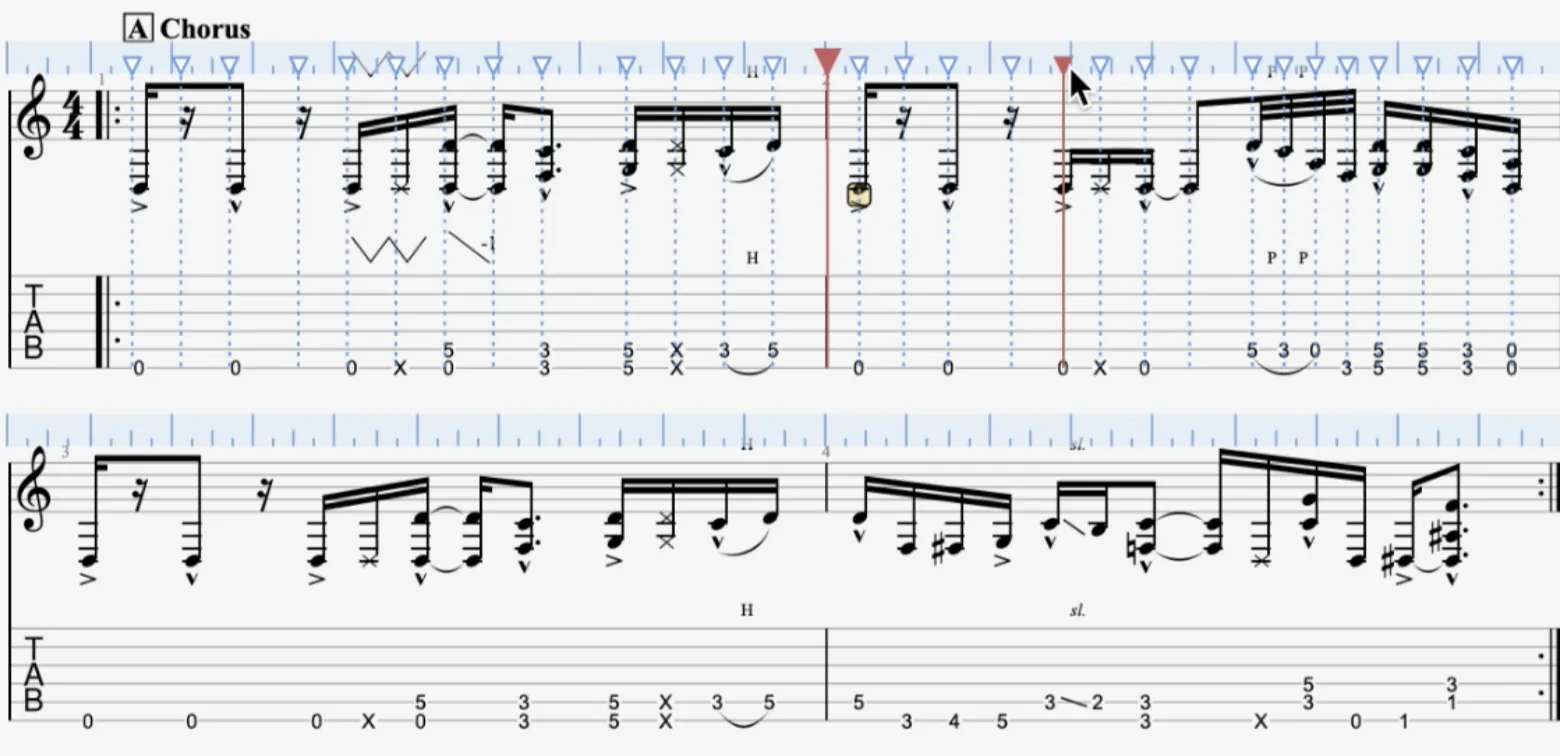
Adjust beats and align barlines seamlessly in Design Mode, activate it with the button to the right of the voices in the palette. Reset anchors using the “x” button, ensuring precise layout control.
Drum Mix
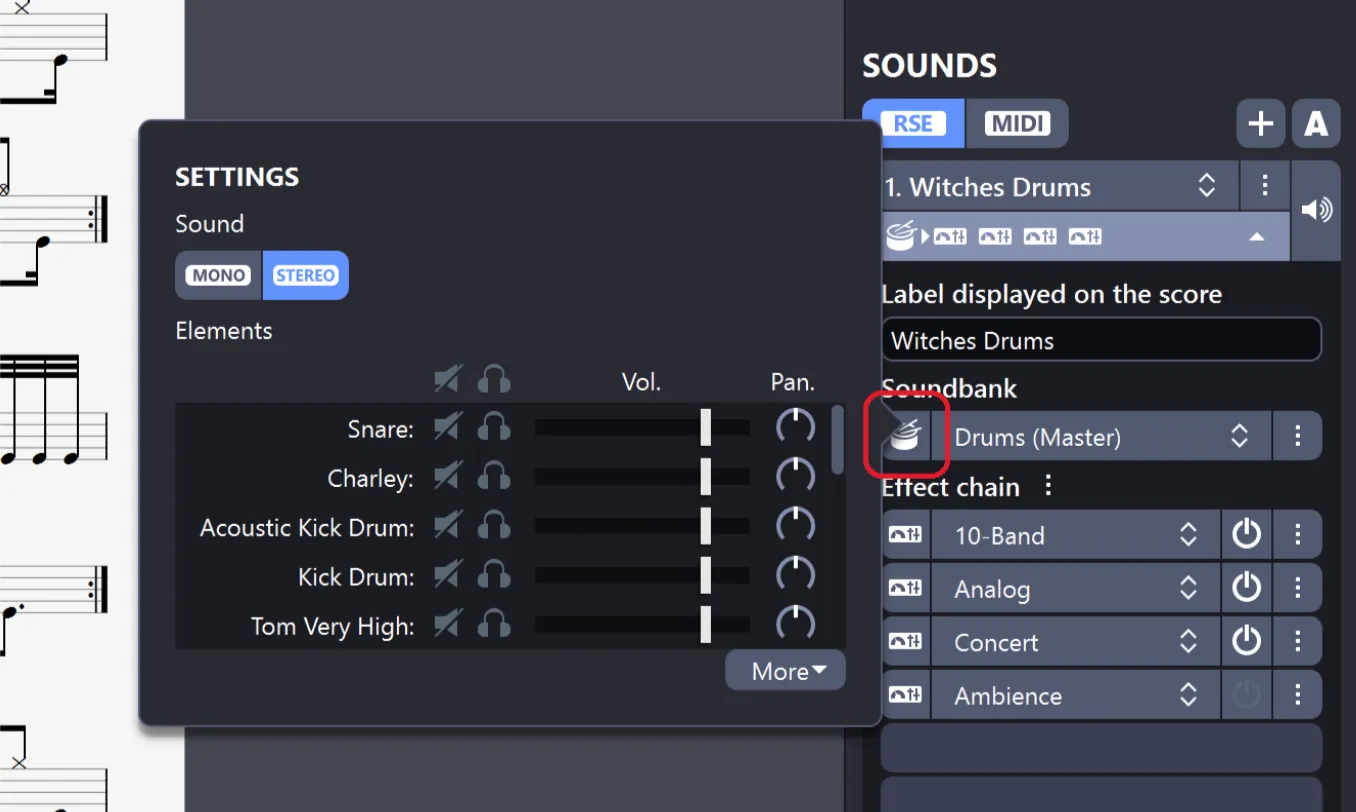
Click the drum soundbank icon for a popup, adjust volume and pan for each element. Customize your drum kit’s balance and spatial feel.
Focus / Unfocus Current Track
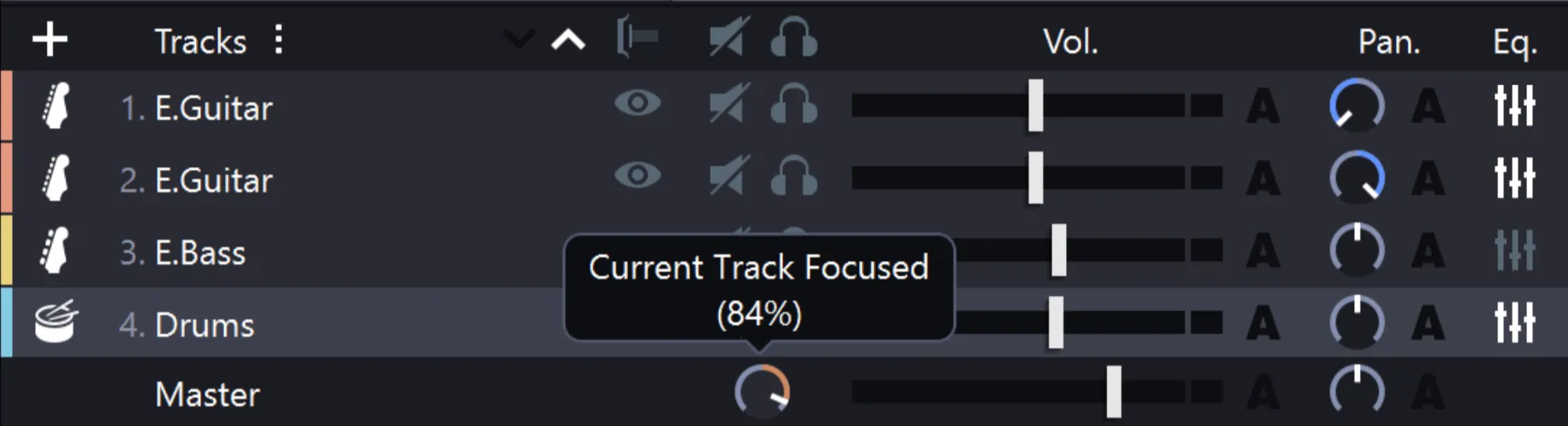
Below the mute/solo buttons, focus or unfocus your track, emphasize it or integrate it into the mix as needed.
Audio Note Settings
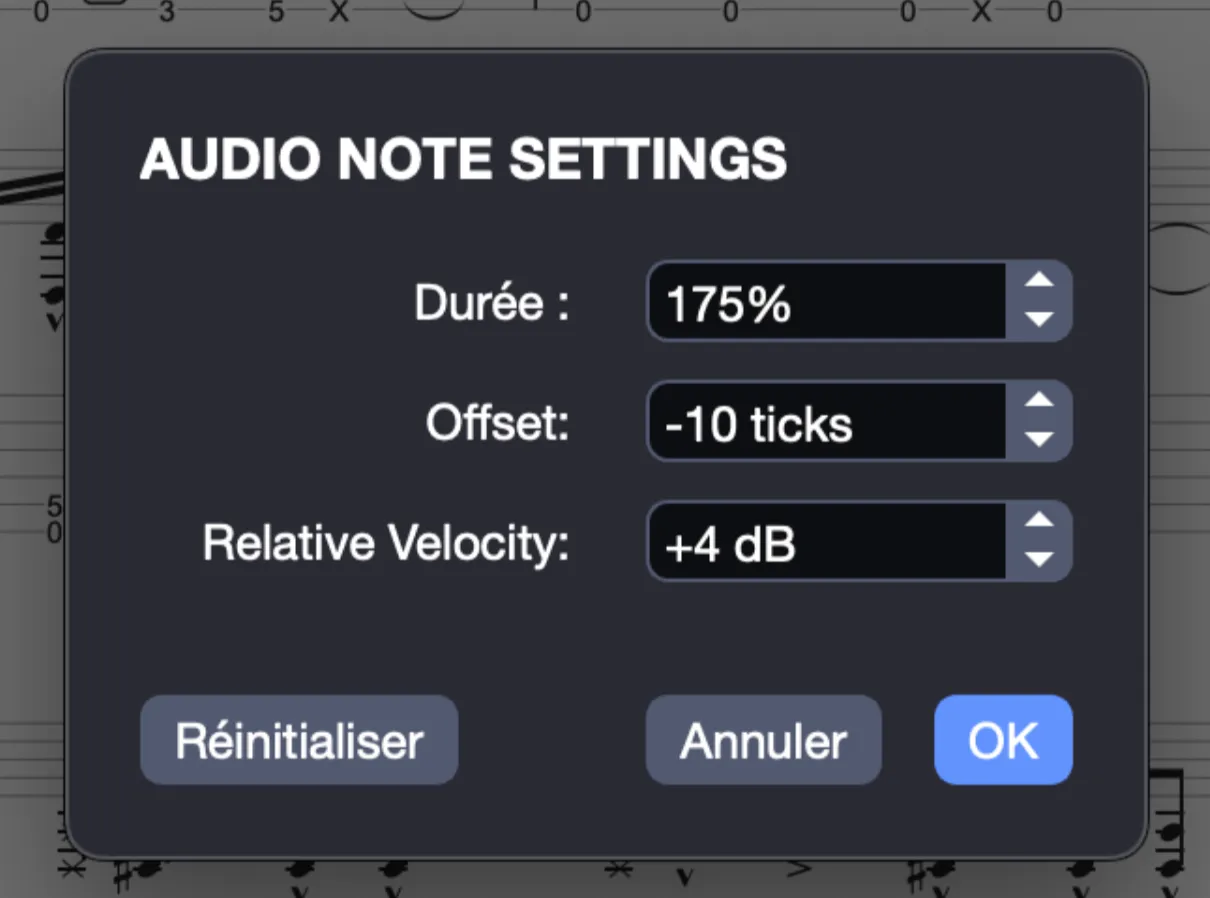
Through Note > Audio Note Settings, modify offset, duration, or velocity for individual notes or selections, 480 ticks per quarter note. Fine-tune sounds independently of other effects.
Locked Sound on the Line In
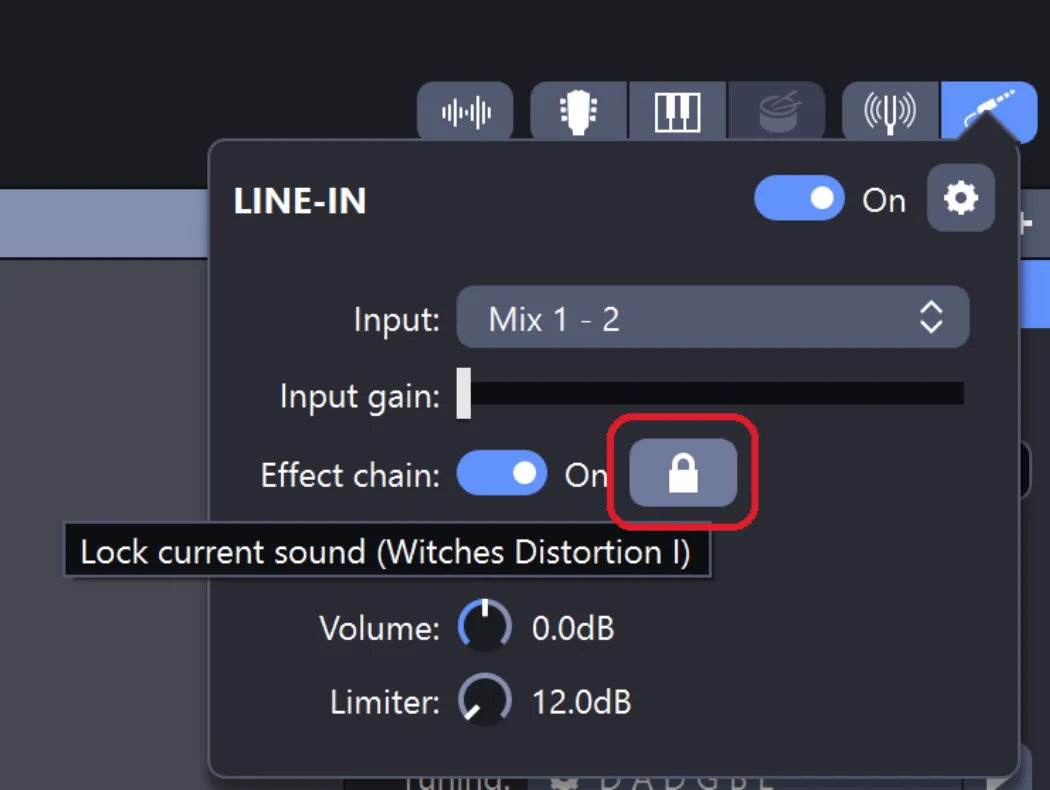
Secure your Line In sound with the Lock Icon, maintain consistent tone across tracks or sessions.
Piano Fingerings
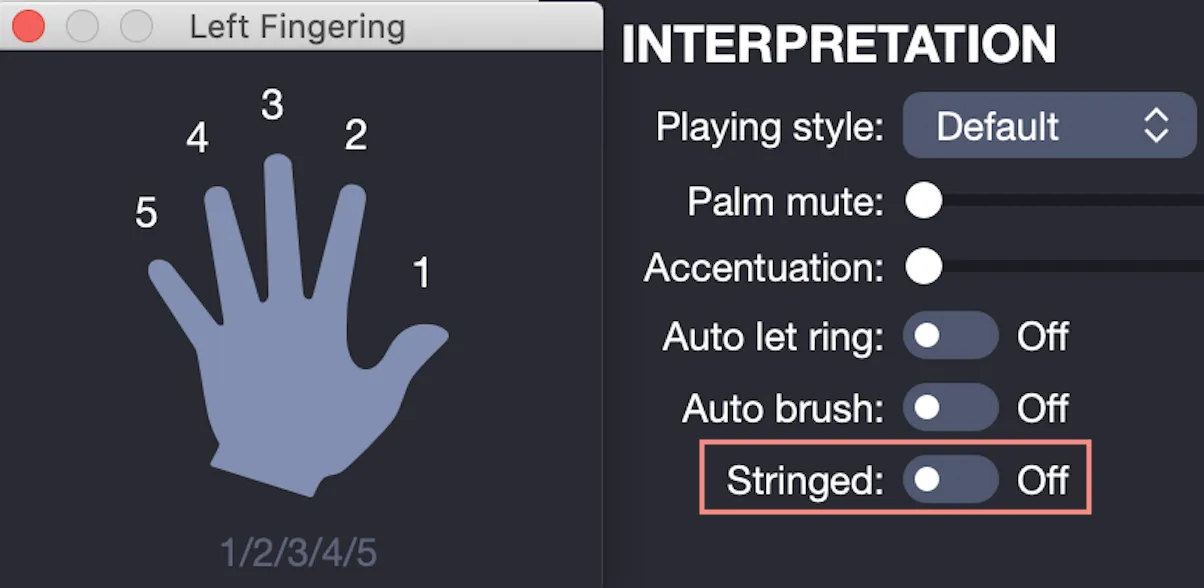
For non-stringed piano tracks (configured in the Track tab), fingerings adapt to piano style (1-5), optimizing playability.
Piano Pedal Indications
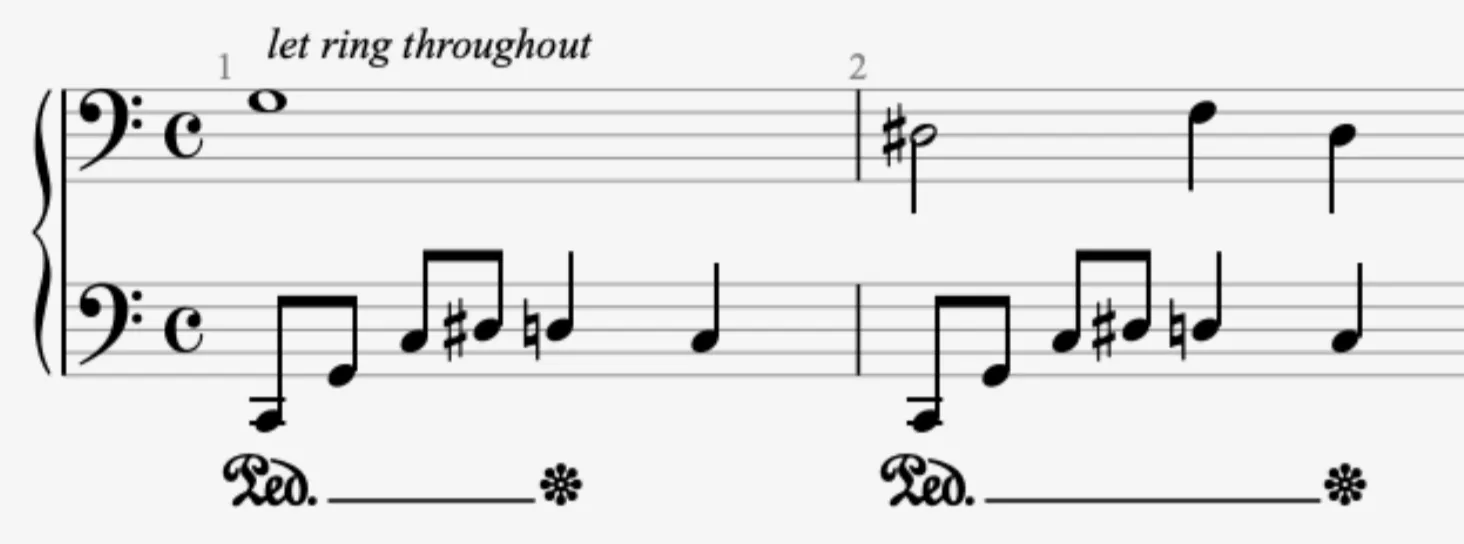
Apply sustain with Effects > Sustain Pedal, it extends to the end of your selection, marked with an asterisk.
Fixed Tempo
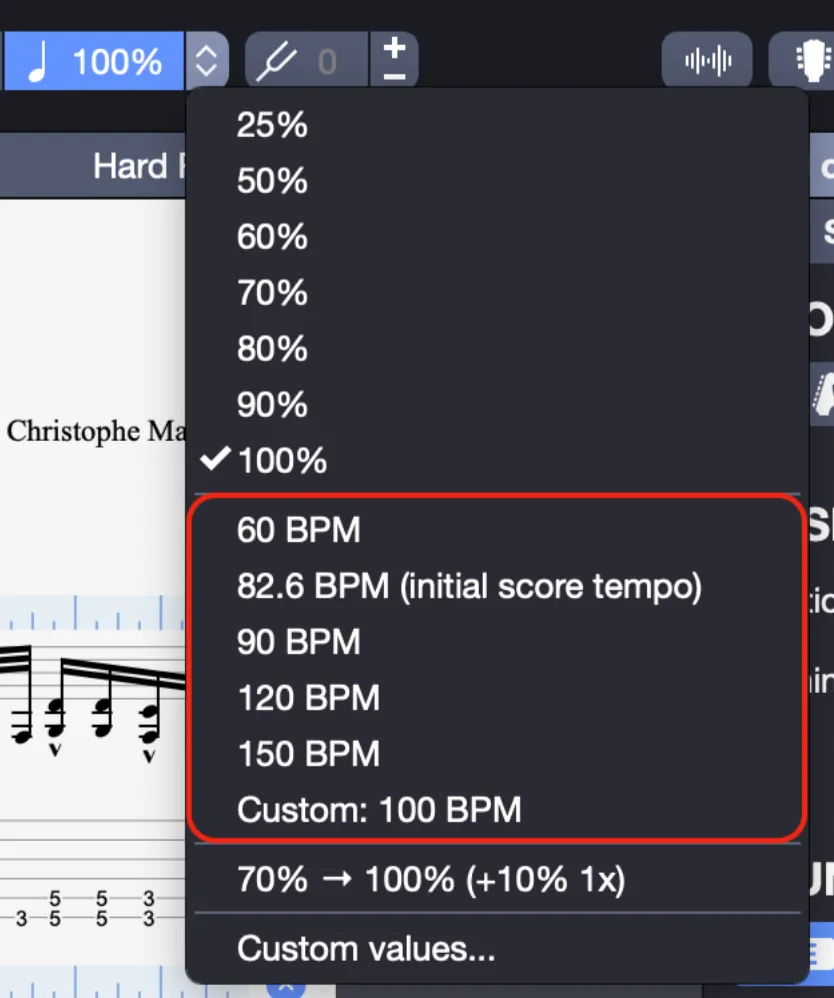
Set a consistent tempo via the relative tempo dropdown’s custom value, overriding automations, audio tracks excluded.
Chord Transposition and Diatonic Transposition
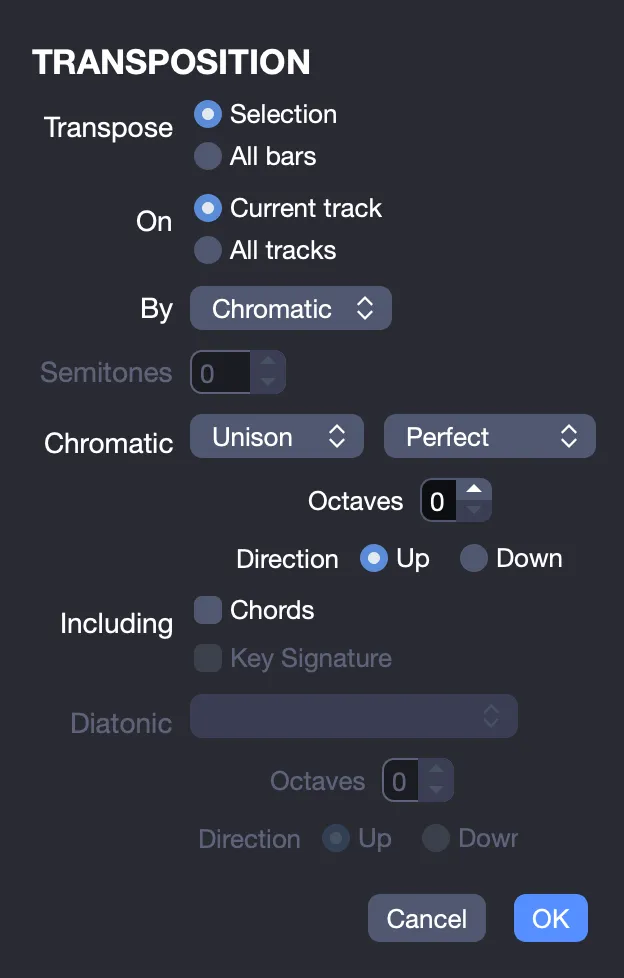
The updated Tools > Transpose window supports chord and diatonic shifts, adjust notes within a scale without altering the key.
Copy and Paste Improvement
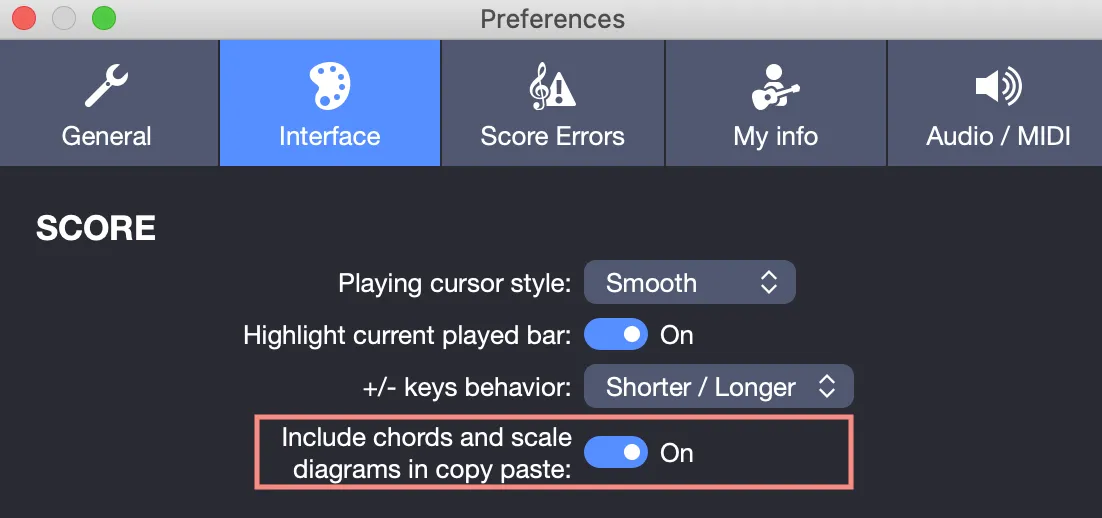
Paste chord/scale diagrams by default (set in Interface Preferences) and separate track/master automations in Special Paste, organized and accurate.
Filters for mySongBook Files
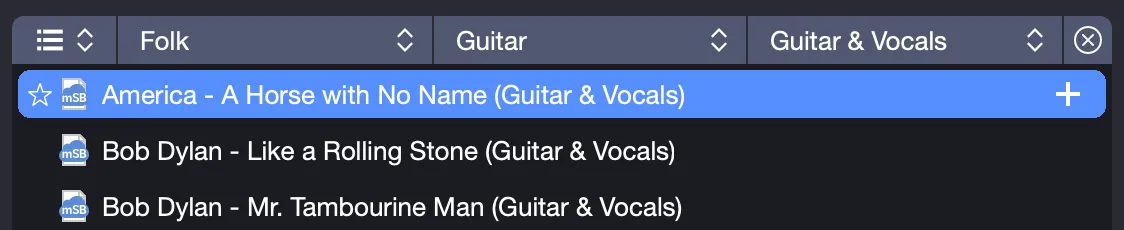
Refine your mySongBook search with homepage filters, locate tabs more efficiently.
Tempo to the Decimal Point and Below 30 bpm
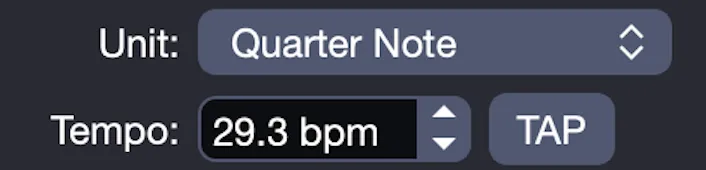
Adjust tempos precisely, such as 120.5, or go below 30 bpm in the automations window, perfect for detailed pacing.
Visual Metronome & Visual Countdown
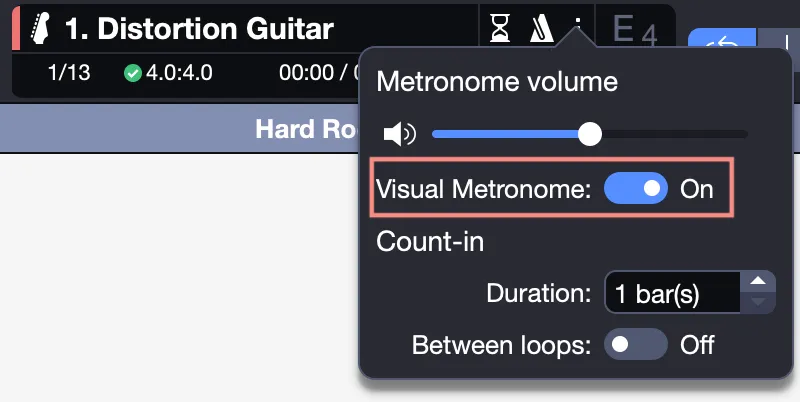
Activate a flashing top-panel metronome or countdown, mute the audio for a silent guide.

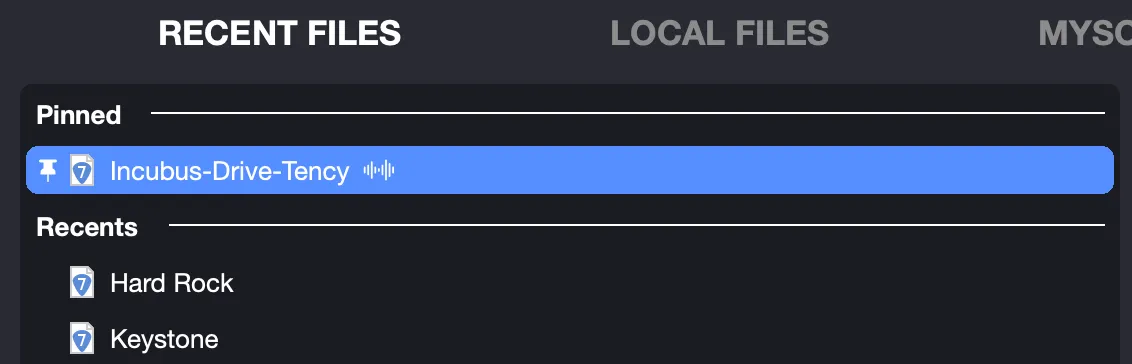
Pin Files in Recent Files
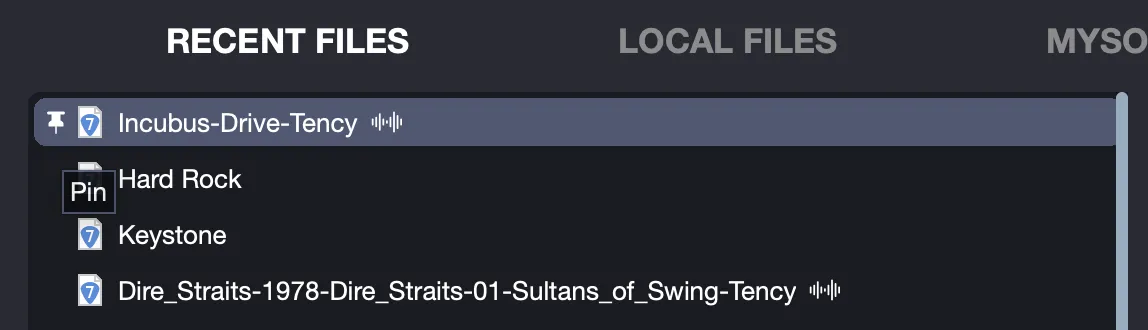
Pin recent files on the homepage, keep frequently used files easily accessible.
Quarter Tone on Tremolo Bar
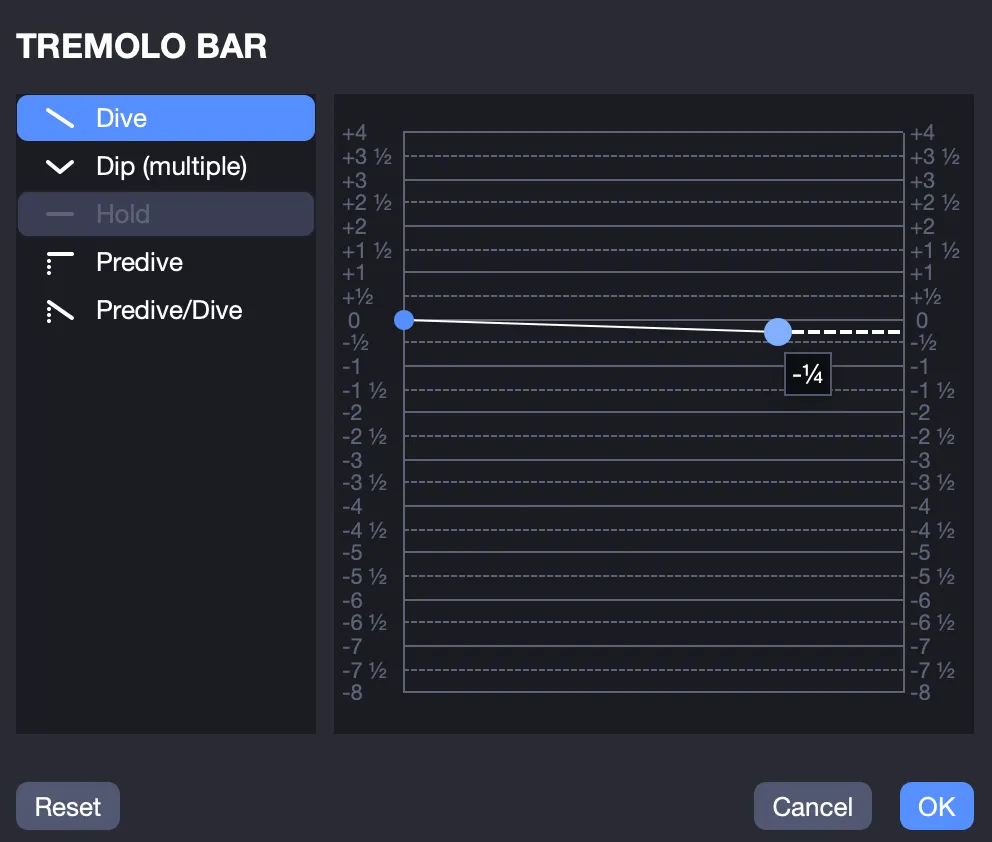
Use Effects > Vibrato Bar for quarter-tone bends, enabling microtonal expression.
Sound Preview During Playback
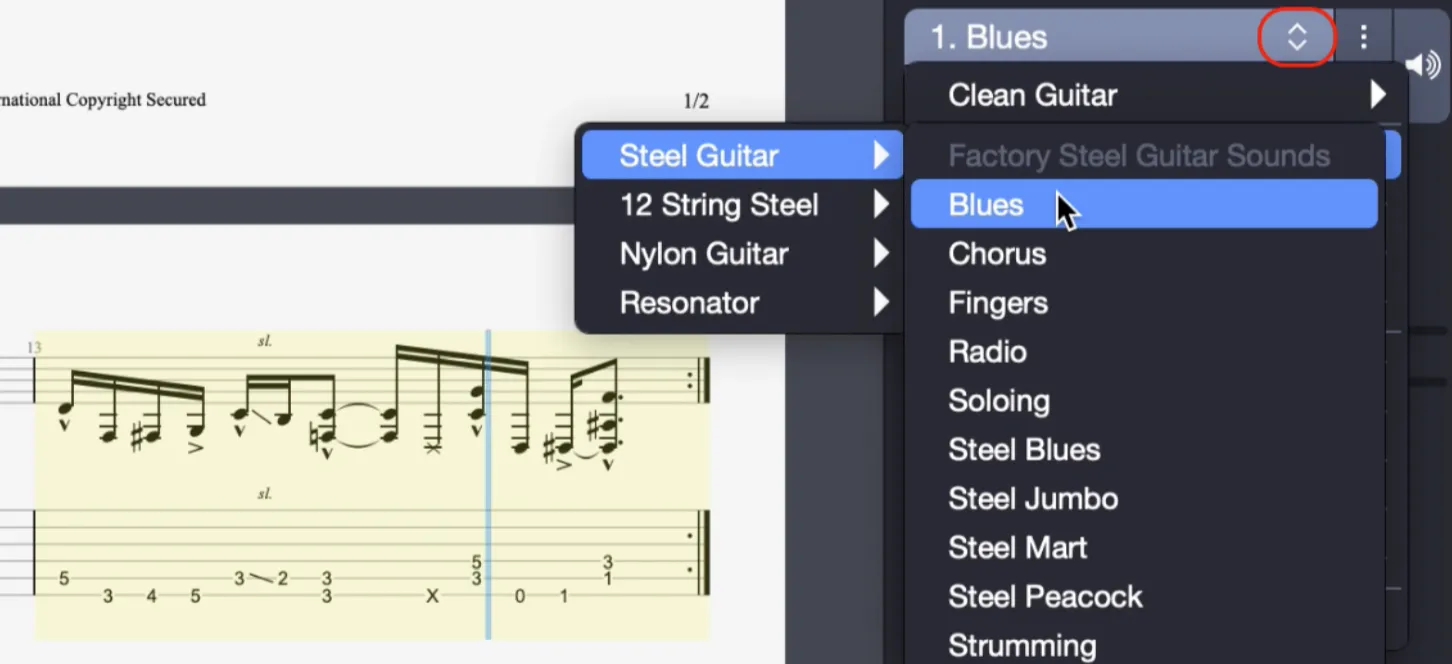
Hover over sounds during playback to preview them, switch tones seamlessly.
Improved PNG and PDF Export
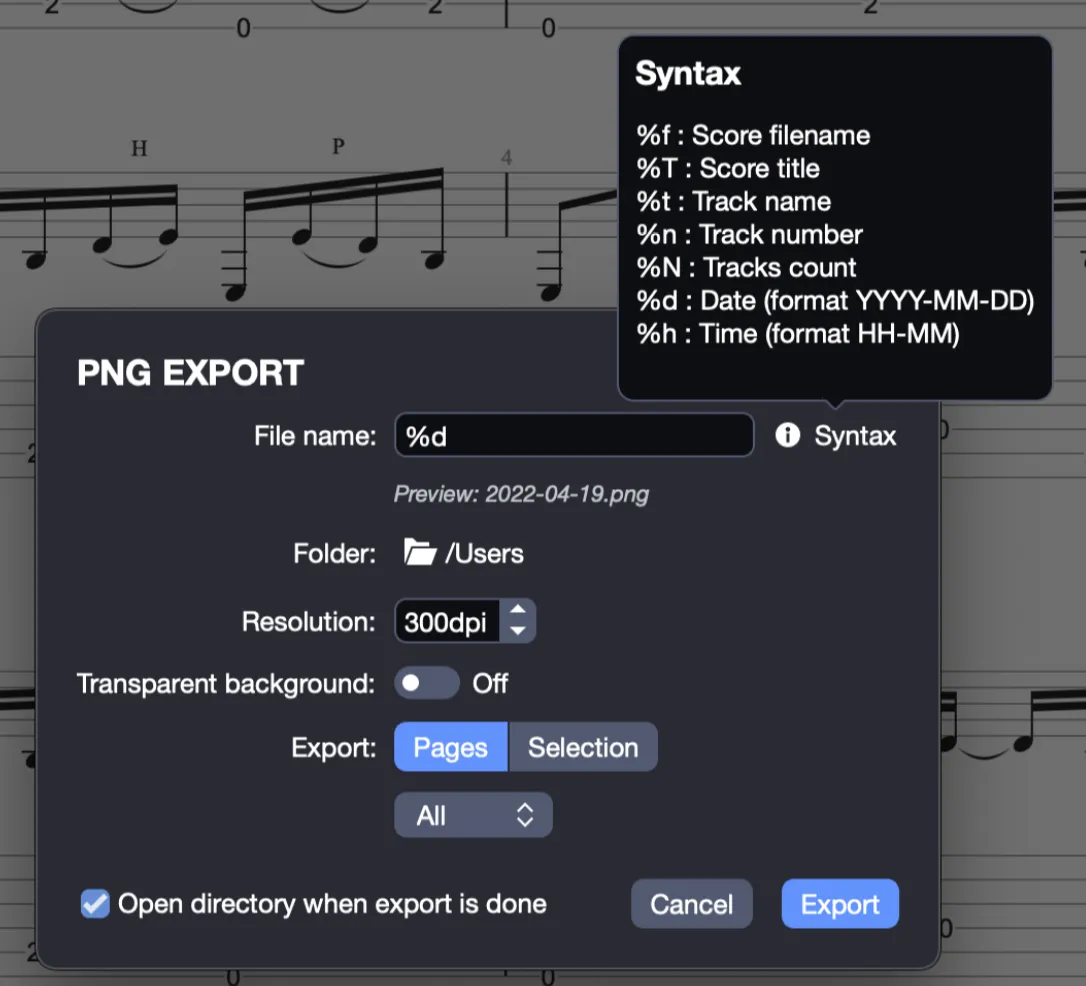
Customize exports with options for name syntax, resolution, selection-only, or transparent backgrounds, delivering polished results.
Slash in Standard and Drum Notation
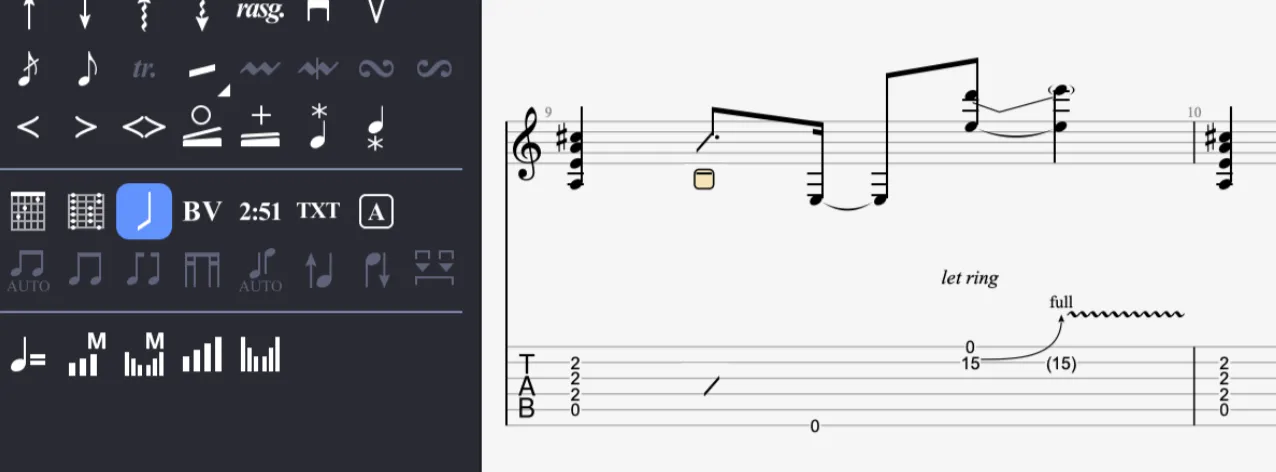
Add slash notation to standard and drum scores via Note > Slash or the palette, broadening notation flexibility.
Courtesy Accidentals
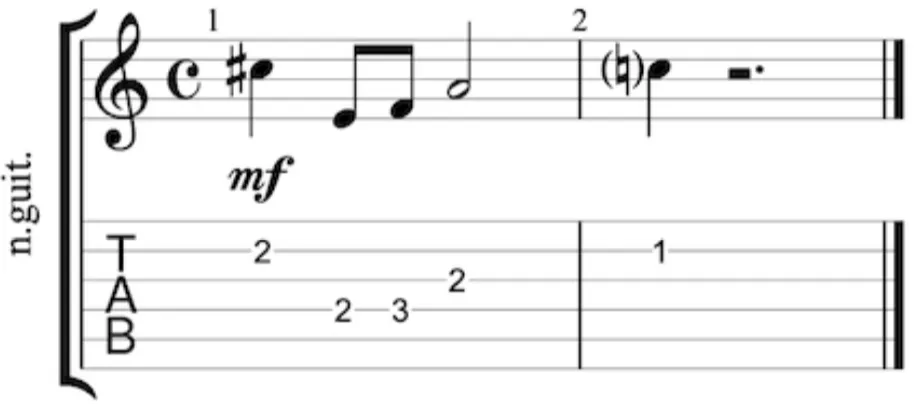
Insert reminders with Note > Alteration > Cautionary Accidental, enhancing readability without overcrowding.
Modifying the Selection on the Score
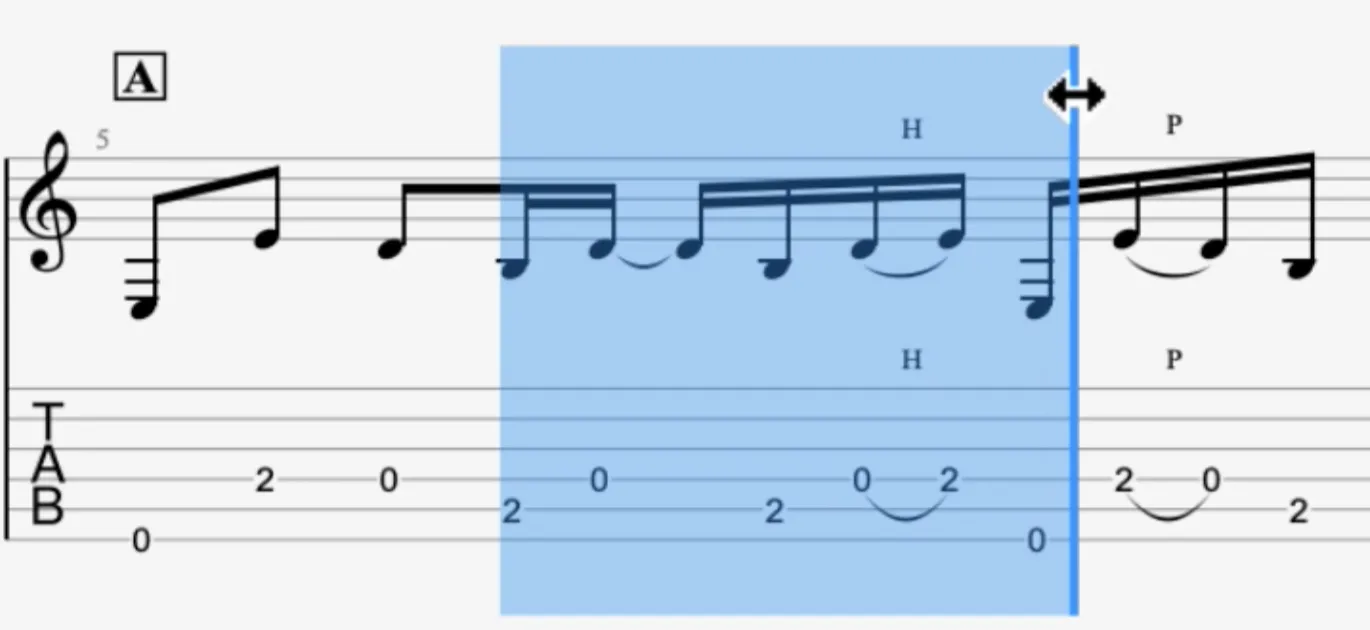
Resize selections by dragging edges, adjust your focus with ease.
Shortcuts Modifying Speed During Playback
Use +/- to adjust playback speed by 5% or 5 bpm, modify tempo dynamically.
Triple Click
Triple-click to select an entire track, quick and efficient.