
Stylesheet: Notation Settings in Guitar Pro 8
Overview of the Notation tab
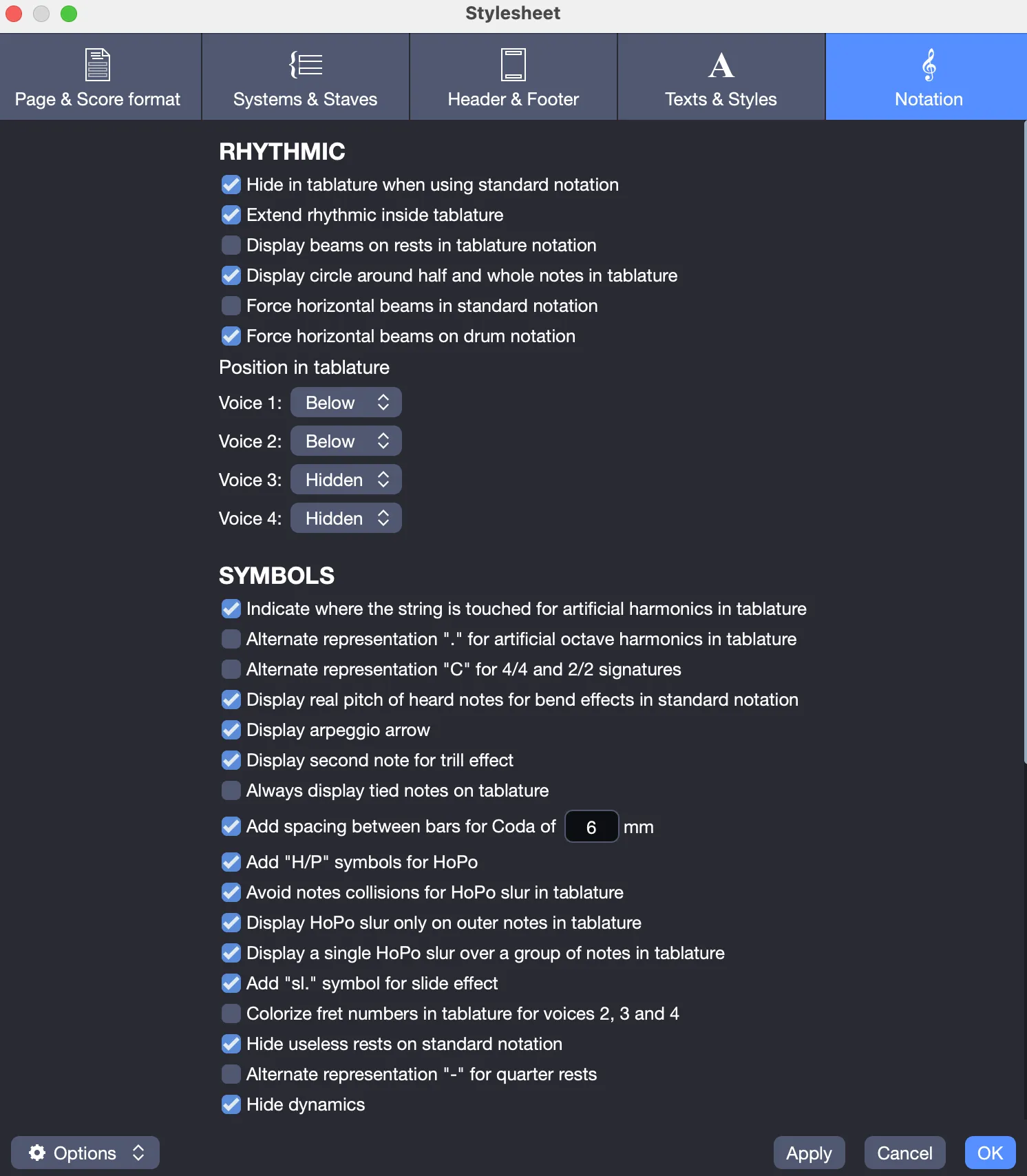
The Notation tab includes the following sections, designed to customize the display of rhythmic notation, symbols, and fingerings in your score.
Rhythmic Section
Customize rhythmic notation for a clear and tailored presentation.
- Configure display options: Enable or disable the following options to modify the rhythmic presentation:
| Option | Enabled | Disabled |
|---|---|---|
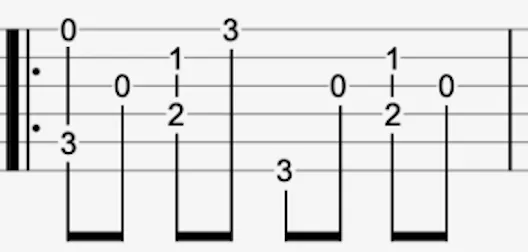
| Hide rhythmic in tablature when standard notation is visible | 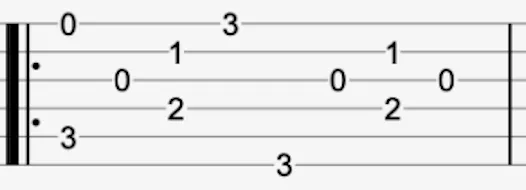 |
 |
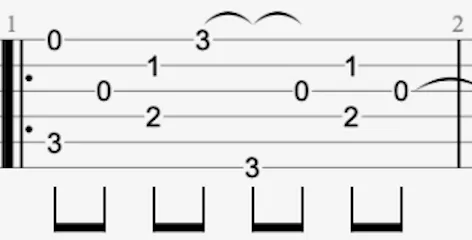
| Extend rhythmic inside tablature | 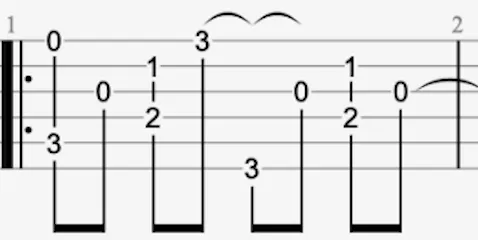 |
 |
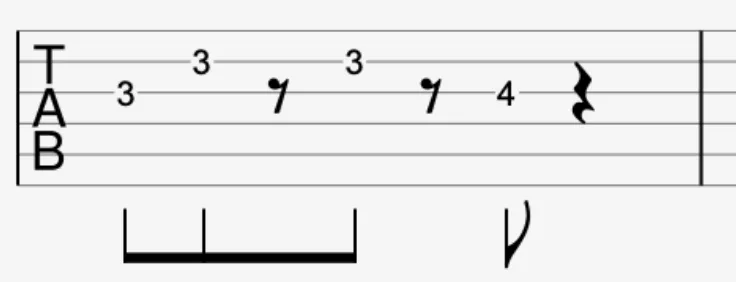
| Show beams on rests in tablature | 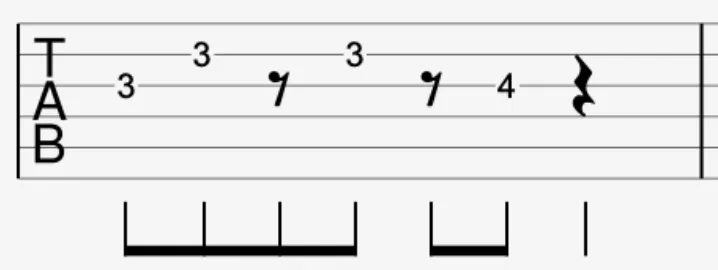 |
 |
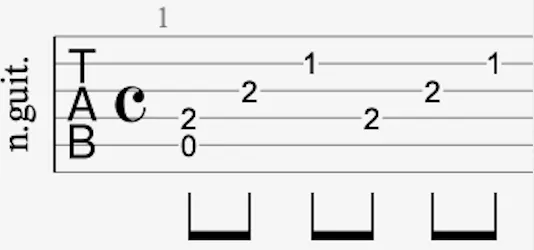
| Display circles around half and whole notes in tablature | 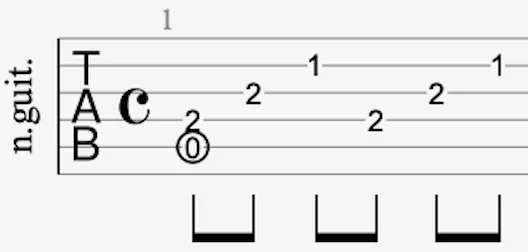 |
 |
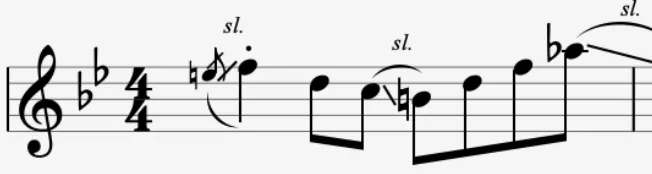
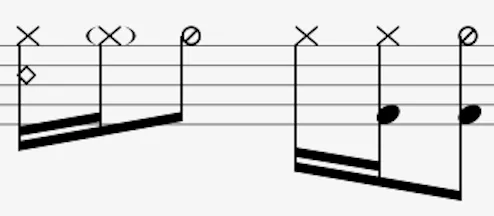
| Force horizontal beams in standard notation | 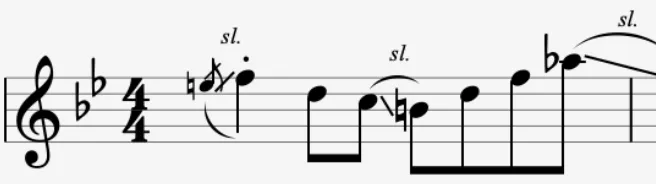 |
 |
| Force horizontal beams in drum notation | 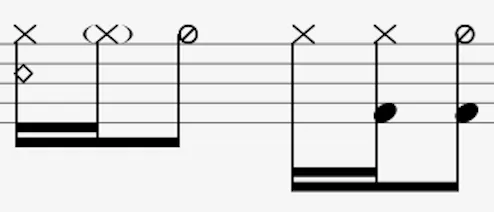 |
 |
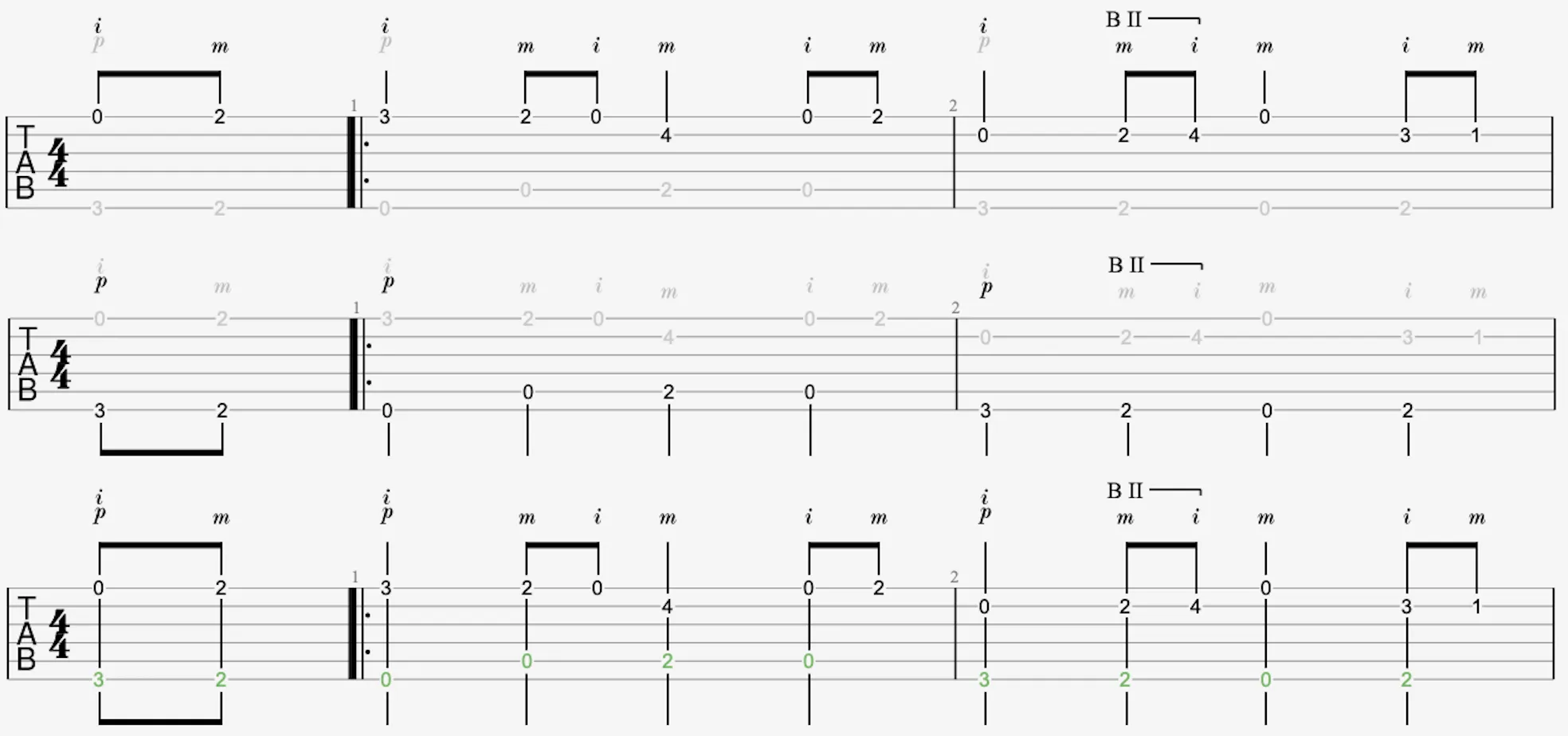
- Set rhythmic position: For each of the four voices in the tablature, choose to display the rhythm above, below, or hidden.
The following example shows three systems: rhythm above for voice 1, below for voice 2, and in multivoice mode for the third system:
Symbols Section
Customize the display of symbols and annotations in your score.
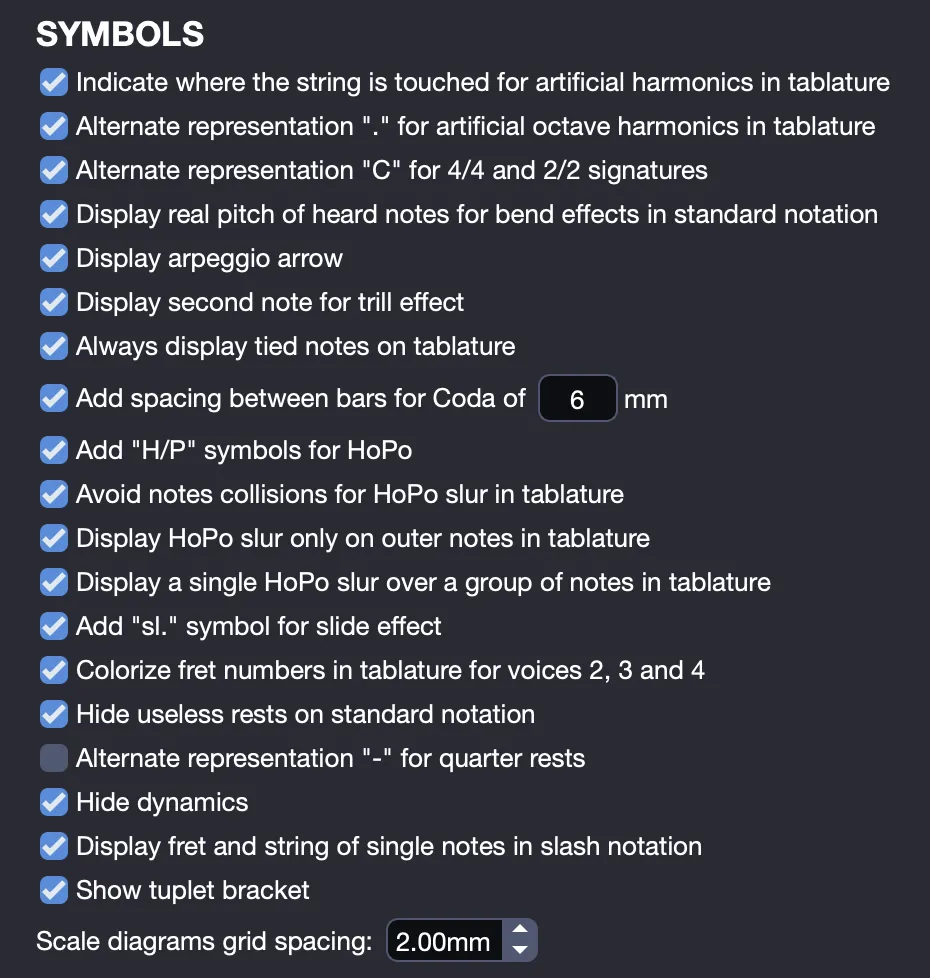
- Configure display options: Enable or disable the following options based on your preferences:
| Option | Rendering |
|---|---|
| Indicate string touched for artificial harmonics in tablature | 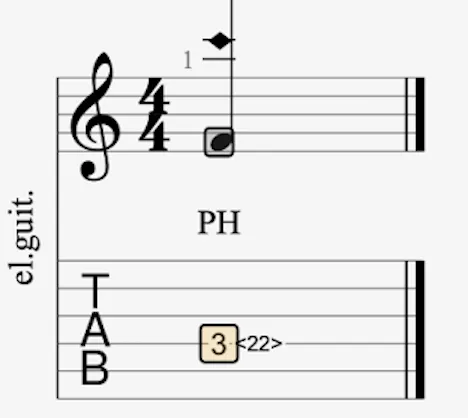 |
| Use “.” for artificial octave harmonics in tablature | 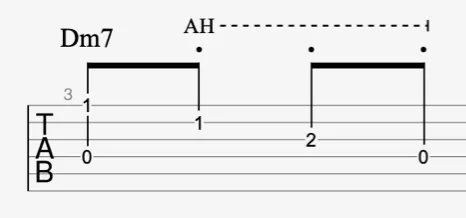 |
| Use “C” for 4/4 and 2/2 time signatures | 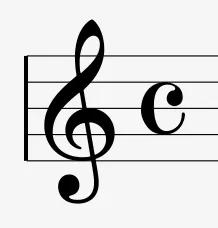 |
| Show real pitch for bends in standard notation | 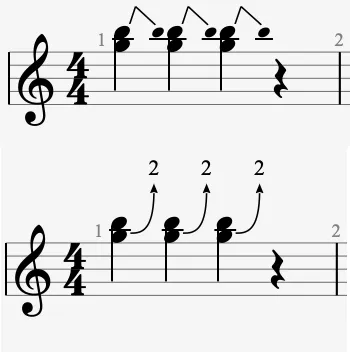 |
| Show arpeggio direction arrow | 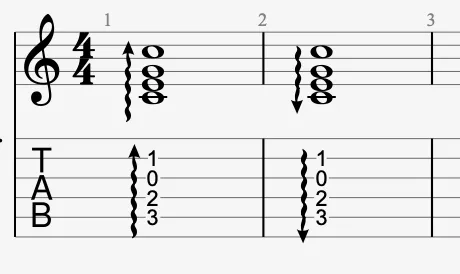 |
| Show second note for trill effect | 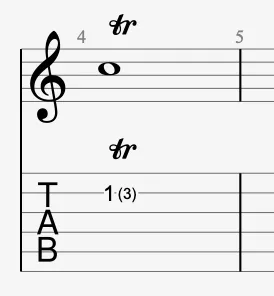 |
| Always show tied notes in tablature | 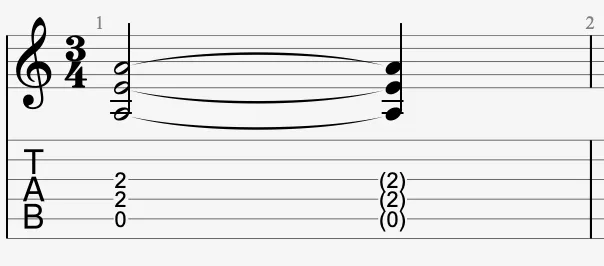 |
| Adjust spacing for codas (x mm) | 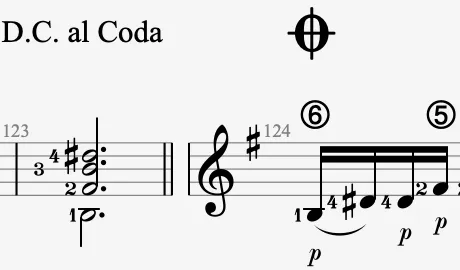 |
| Add “H/P” for HoPo effects | 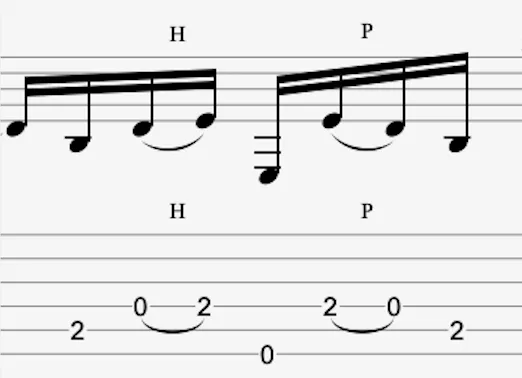 |
| Avoid note collisions for HoPo slurs in tablature | 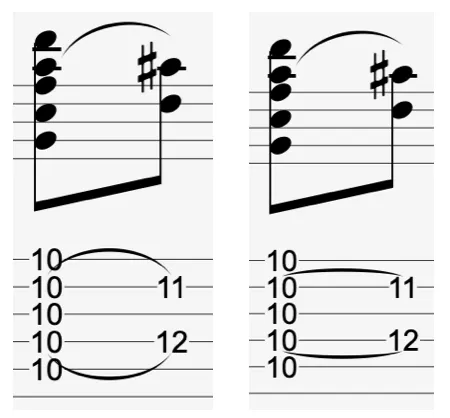 |
| Show HoPo slur only on outer notes in tablature | 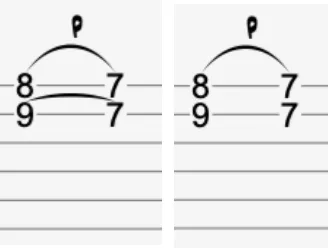 |
| Show single HoPo slur for a group of notes in tablature | 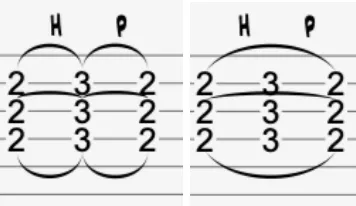 |
| Add “sl.” for slide effects | 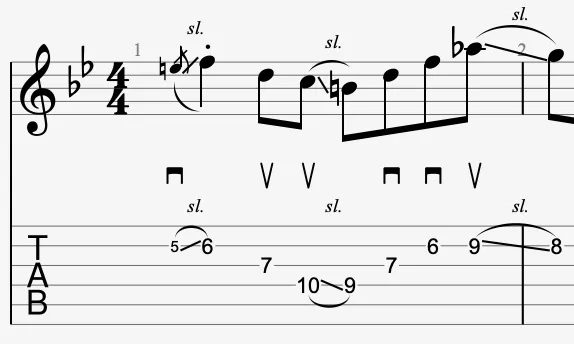 |
| Colorize fret numbers for voices 2, 3, and 4 in tablature | 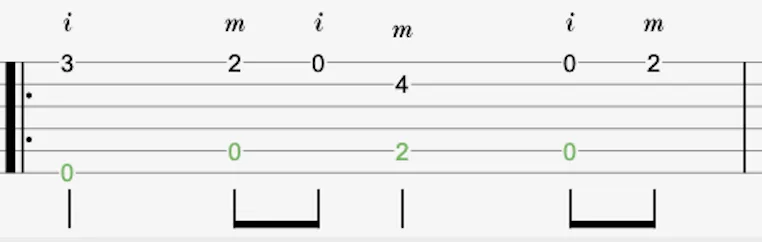 |
| Hide unnecessary rests in standard notation | 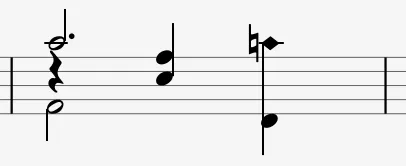 |
| Use “-” for quarter rests in tablature | 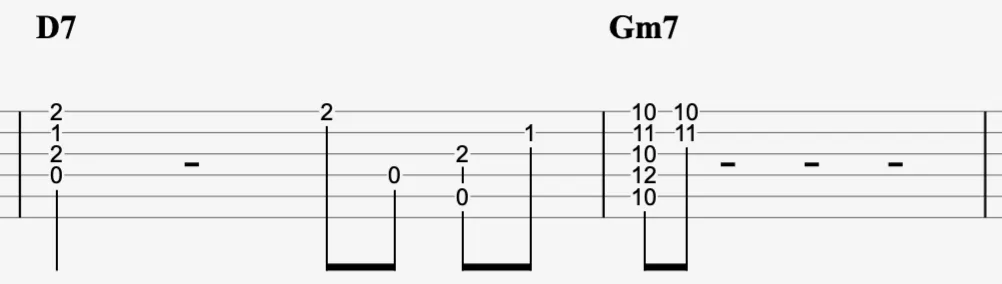 |
| Hide dynamics | 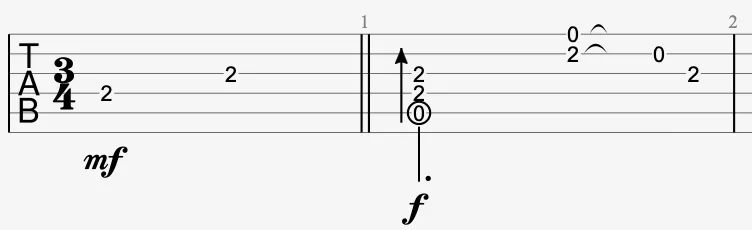 |
| Show fret and string for single notes in slash notation | 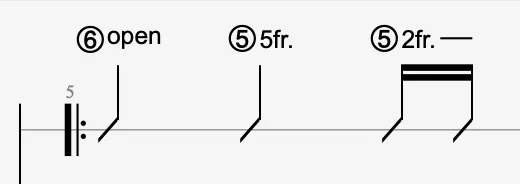 |
| Show tuplet brackets | 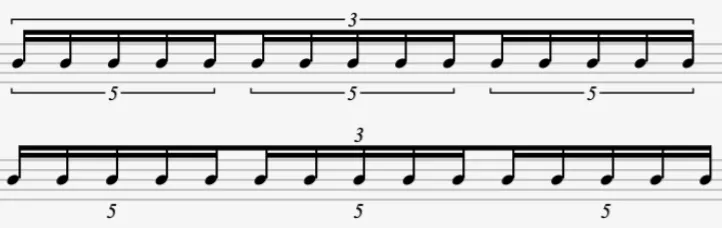 |
- Adjust scale diagrams: Modify the grid spacing for scale diagrams.
Fingerings Section
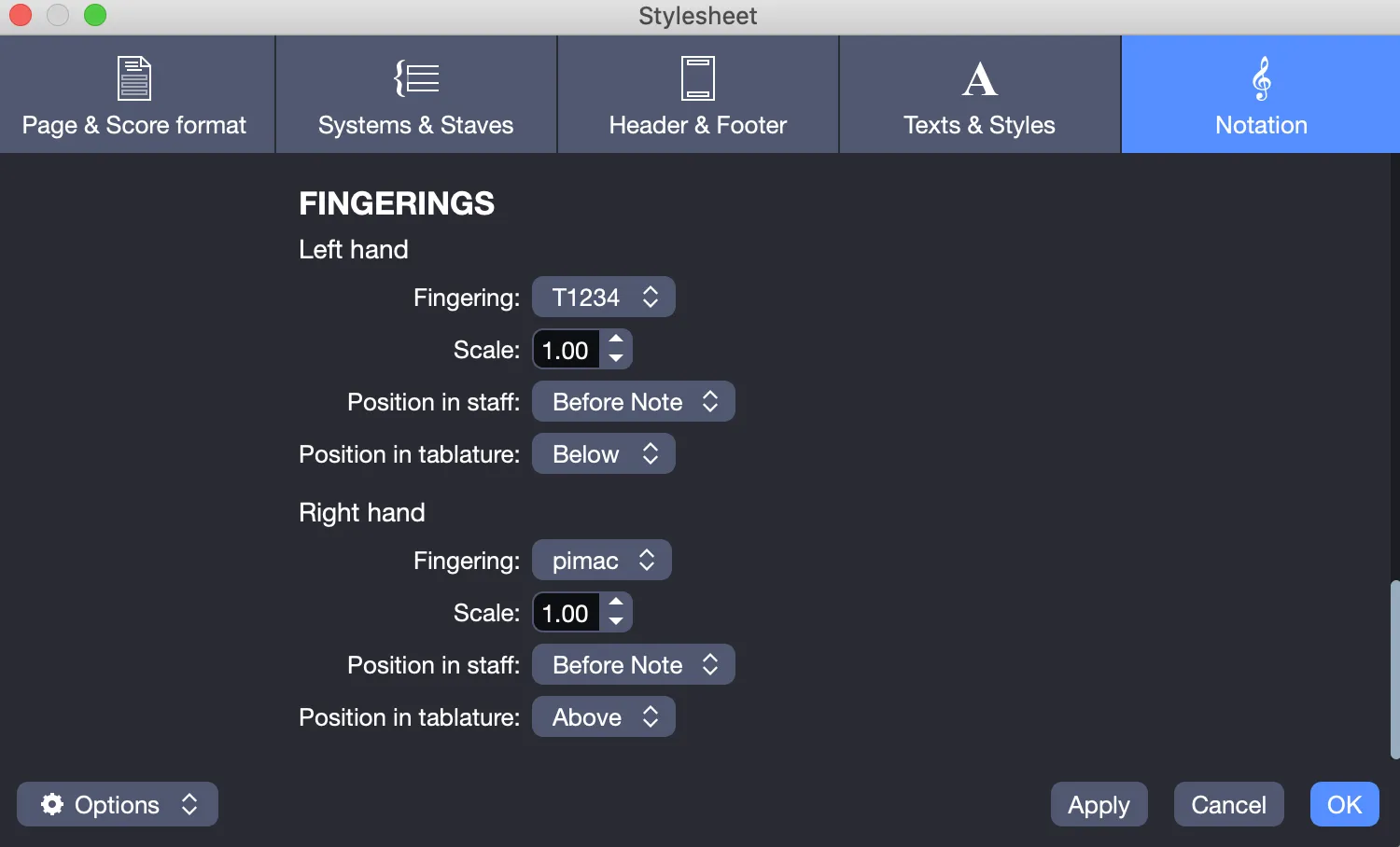
Configure fingerings for both hands based on your language or preferences.
- Select fingering type:
- Left hand: T1234 or P1234
- Right hand: pimac, pimax, pimae, or timao
- Understand symbols:
- P: Thumb (Pulgar)
- I: Index (Índice)
- M: Middle (Medio)
- A: Ring (Anular)
- C: Little (Chiquito)
- T: Thumb
- 1: Index
- 2: Middle
- 3: Ring
- 4, x, e, o: Pinky
- Set position:
- In staff: above, before note, or below
- In tablature: above or below
- Adjust size: Modify the size of fingering annotations.
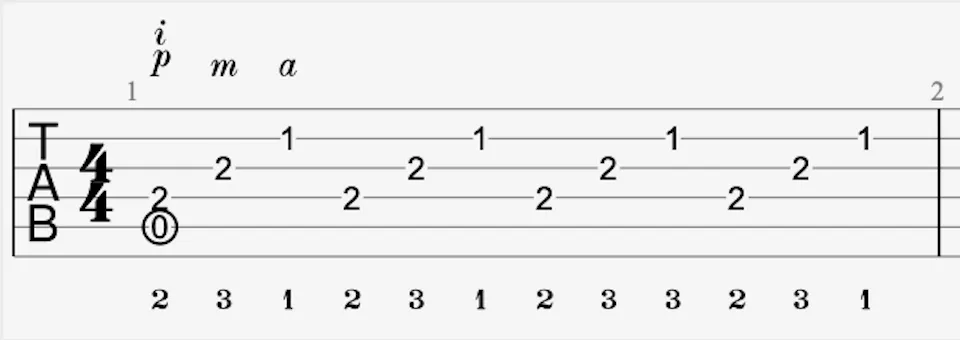
The following example shows fingerings placed above and below:
Save Your Stylesheet
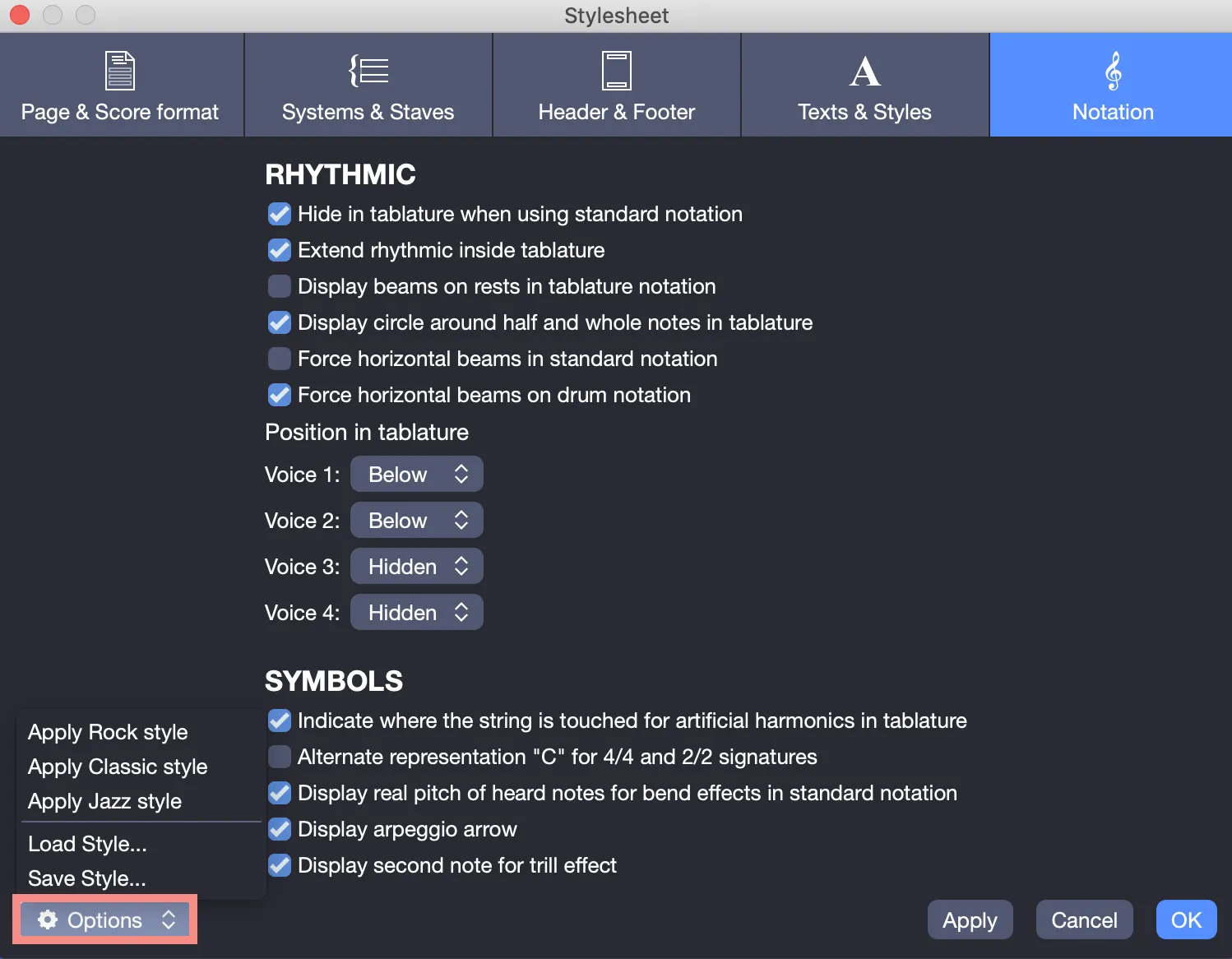
You can save your stylesheet from the Options tab at the bottom left of the Stylesheet window.
- Save a style: Select Save Style and name your stylesheet.
- Set a default style: Go to File > Preferences > General (Windows) or Guitar Pro 8 > Preferences > General (macOS), enable Force stylesheet for opening or creating files, and select your preferred style.
This feature is useful for reusing your favorite styles across multiple files.
From the Options tab, you can also apply a predefined style (Rock, Classic, Jazz) or one of your saved styles.