



It's time for you to experience Guitar Pro
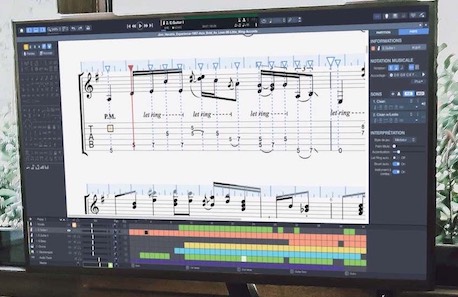
Editing sheet music
has never been easier
Easily edit tablatures and scores for guitar, bass, ukulele, banjo, percussion, and many other instruments.
Make faster progress with the many integrated tools:
a metronome, chord and scale libraries, a tuner
and virtual instruments.
Adjust and gradually increase the tempo, loop sections, create drum and piano backing tracks to practice.
Enjoy realistic audio rendering and preset sounds that faithfully reproduce the sound of your favorite artists.
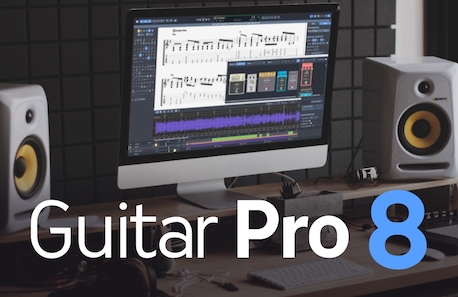
New guitar Pro 8 available
Thanks to your generous feedback, we have developed the best version of Guitar Pro to date.
This new version of Guitar Pro offers many improvements and new features to users. This time, we have made our best to offer you a better product without changing the user experience.
Discover our new features: add an audio track to your scores, use the visual metronome, customize your tabs easily, display scale diagrams on your tabs, edit tabs faster and many more...

The library of music scores
created by Guitar Pro
Download songs online or access to thousands of high-quality full instruments tabs made by our team on mySongBook. You can shop for music scores by the unit or with our full access subscription that allows you to collect files from the entire library.
Browse the library
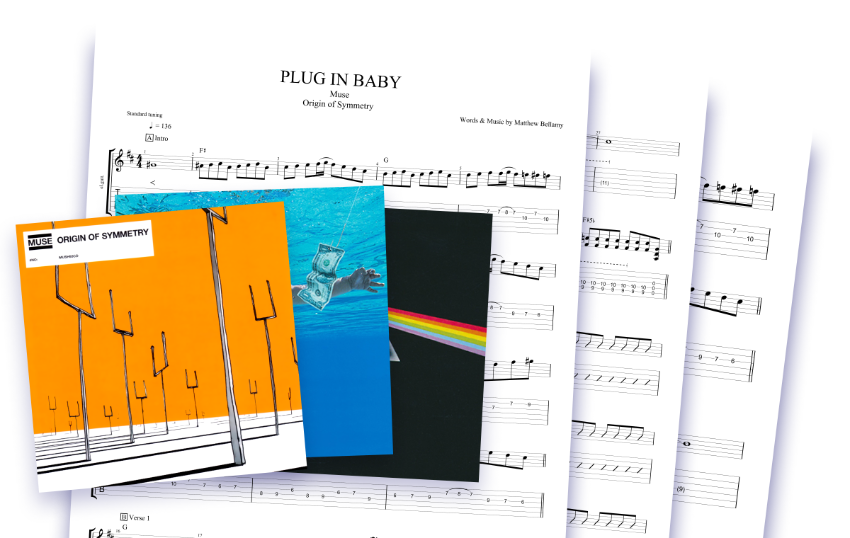
mySongBook latest tabs
| Title | Artist | Type | |
|---|---|---|---|
Jumpin' Jack Flash
|
The Rolling Stones | Electric Guitars by Play Guitar Hits | |
|
Dust My Broom
|
Elmore James | Bass by Play Guitar Hits | |
| Back Street Girl | The Rolling Stones | Full Score | |
| New York New York | Frank Sinatra | Guitar/Vocals | |
| Listen | Beyoncé | Guitar/Vocals | |
|
Toxicity
|
System of a Down | Guitar by Play Guitar Hits | |
| Left Behind | Slipknot | Full Score | |
| Before I Forget | Slipknot | Full Score | |
| Feel | Robbie Williams | Guitar/Vocals | |
| Cotton Eye Joe | Rednex | Guitar/Vocals |

The most popular tablature reader and editor on the market
Guitar Pro is a software program available on Windows and Mac OS that allows all musicians to read, write and share their tablatures. The world leader in tablature editing, Guitar Pro has been downloaded over 15 million times worldwide since 1997.
The software is compatible with many instruments such as guitar, drums, bass, piano, ukulele and many others! You can make tablatures for each instrument, scroll the music score, write your music and use many pedagogical tools such as a chord dictionary or a scale library. Transposition features are also available to easily transcribe your songs from one instrument to another.
Whether you're a music teacher, a transcriber, a composer, a songwriter, a tablature book editor, a solo musician or in a band, Guitar Pro adapts to all your needs, and saves you precious time in making progress on the guitar or any other instrument.
The Guitar Pro software suite is also available as a mobile application compatible with iOS and Android. You can thus use your tablature player or your tabbing application on all your devices: computer, tablet or smartphone.
Guitar Pro tablature software is free for the first 7 days. Don't hesitate to download it for free to make your own opinion!